

That’s where the Divi 5 Inspector comes into the picture. This allows you to open any module, view the active design settings and replace them with your own design variables or presets. In this tutorial, you’ll learn how to use the Inspector to quickly and clearly transfer your existing styles into an imported layout.
What is the Inspector in Divi 5?
Inspect panels allow designers to click on any element and instantly view all its properties, including colors, typography, spacing, and effects. Instead of guessing or measuring manually, you get exact values in one clear view.
Divi 5’s Inspector applies this philosophy to WordPress, making it especially useful when working with imported layouts or pages built before you had a design system set up. You can quickly identify custom values and replace them with your associated variables and presets.
Right-click a section, row, or module in Visual Builder and select Inspect. This will open a panel showing all design attributes currently applied to that element, including colors, fonts, backgrounds, media, and presets.
What makes this tool powerful is the way it consolidates information. Instead of scrolling through multiple tabs and nested panels, you get a clear overview in one place. For example, if you want to see all the colors used in a section, the Inspector will immediately display them and you can change them all from the same view.
Even better, the Inspector only displays fields that have changed from Divi’s default settings, so you don’t have to wade through dozens of unchanged settings. You see exactly what has been custom made and nothing more.
This targeted approach ensures that the fields only appear when you have changed something or applied a variable or preset. So when you open the Inspector on a new module and notice that it looks sparse, the tool works as designed. It shows that there is nothing common to inspect yet.
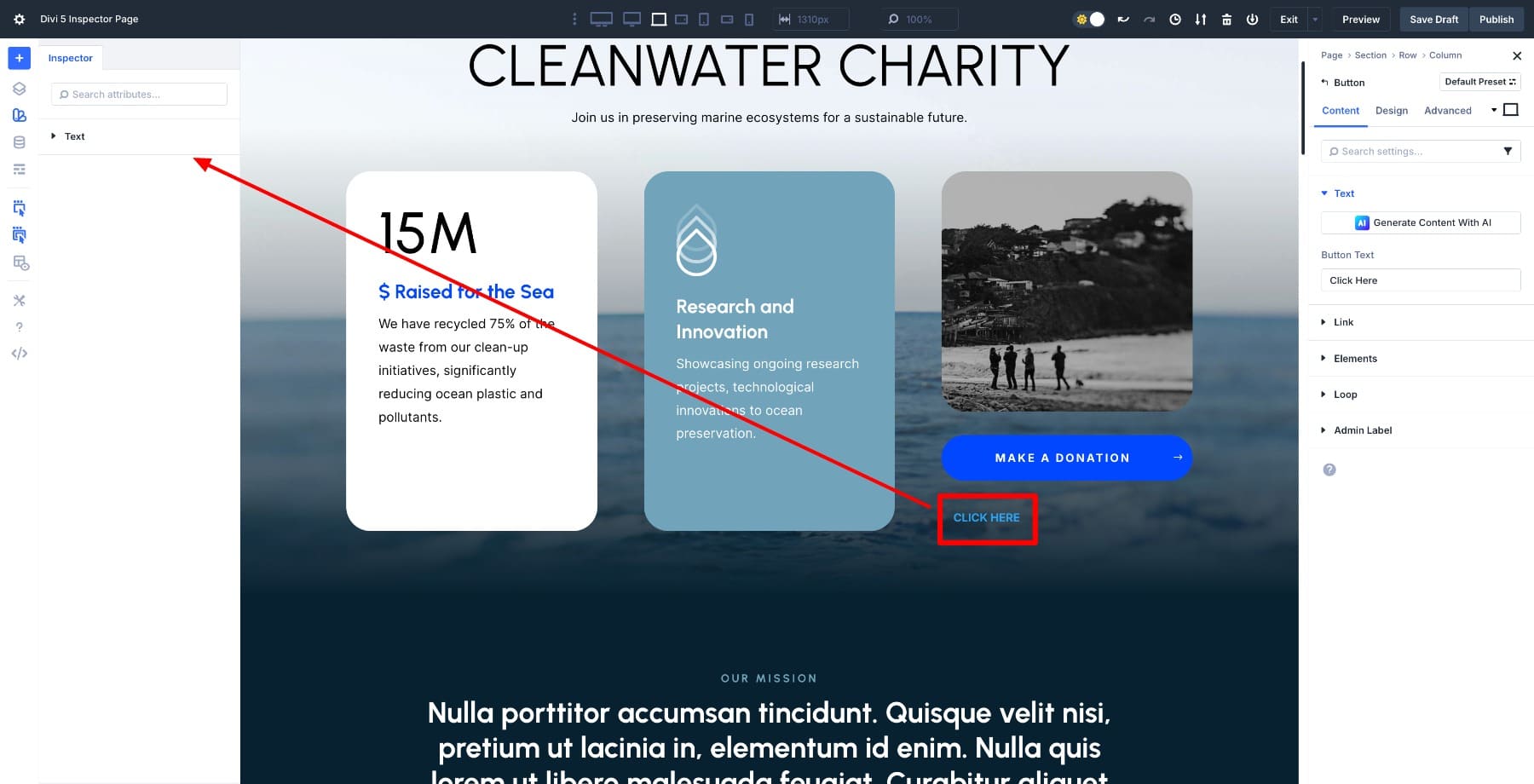
Essentially, the Inspector is your ‘look under the hood’ tool, revealing what has changed and what is actively in use, giving you the control to transform disconnected design decisions into a unified system. This greatly speeds up your editing and customization process.
Instead of opening the module settings, clicking through multiple tabs, searching for the right field, and repeating for each element, you view all changed fields in one window and make changes directly from that one panel.
Learn all about Divi 5’s Inspector
It is part of an integrated design system
The Inspector is even more useful because it is not a standalone feature. It is closely tied to Divi’s larger design system, which includes design variables and option group presets.
This connection takes the Inspector from a simple inspection tool to a complete workflow bridge. You don’t just look at what has been adjusted; you can swap these custom values for linked, reusable values directly from the same panel. That means turning a hardcoded color into your site’s primary variable, or applying a preset to make a module follow your general button style.
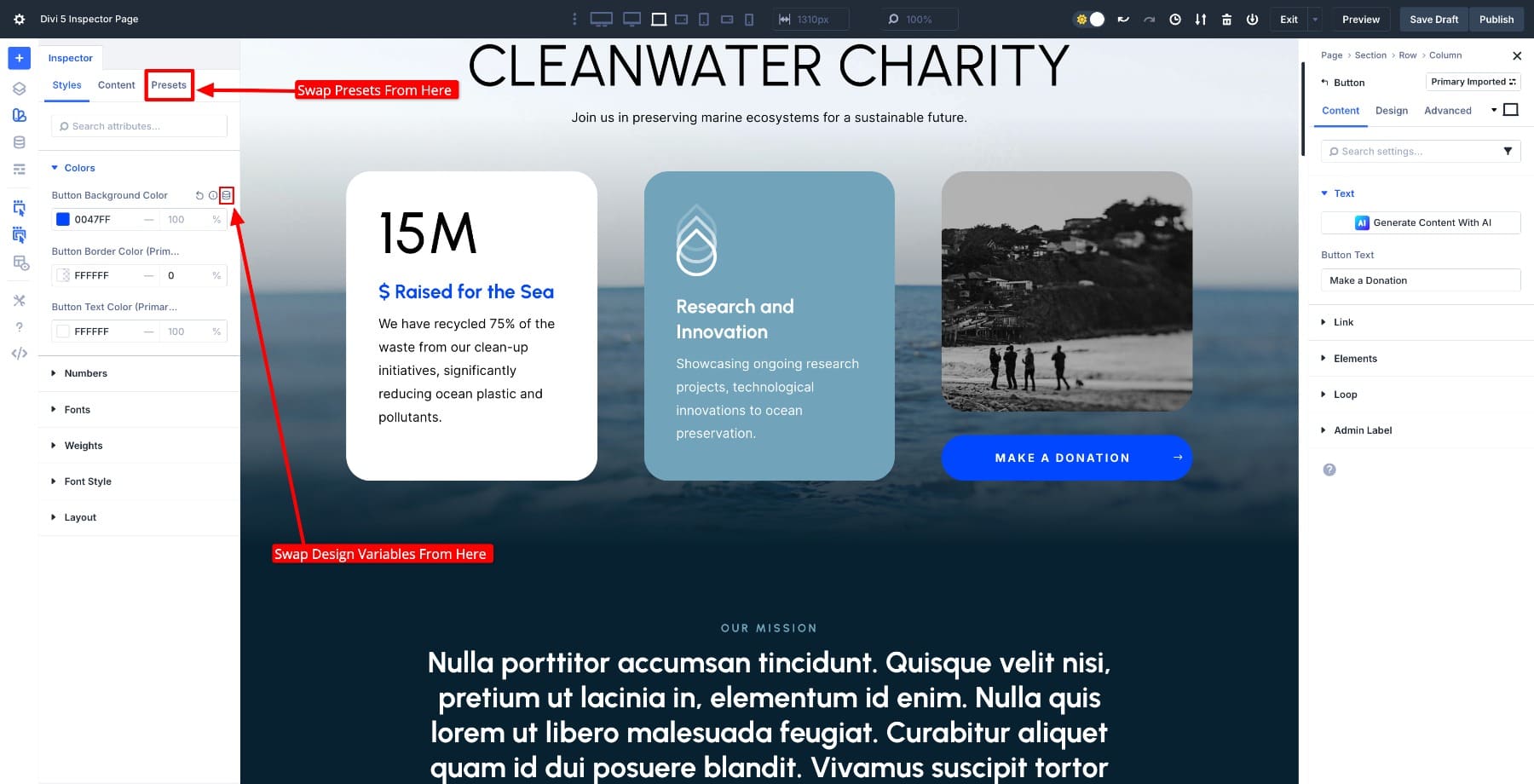
It’s the kind of integration that enables fast and consistent updates to imported layouts. You can create designs long before your system existed and make it part of it in minutes, without having to redo the work.
We then open the Inspector, find custom values and replace them with our design variables and presets to bring everything in line with our global framework. For that, you will need the latest version of Divi 5 installed on your WordPress installation.
Copy design variables using the Inspector
Most imported layouts come with static values as styles. Adopting design variables means replacing these static values with your site’s global values so that future changes remain consistent throughout. To do this, first create your design framework that contains all your commonly used design styles as variables.
Let’s look at an example using a color variable. First we create it and then assign it using the Inspector.
Create a color variable
Open Variable Manager in the left sidebar and go to the To colour tab.
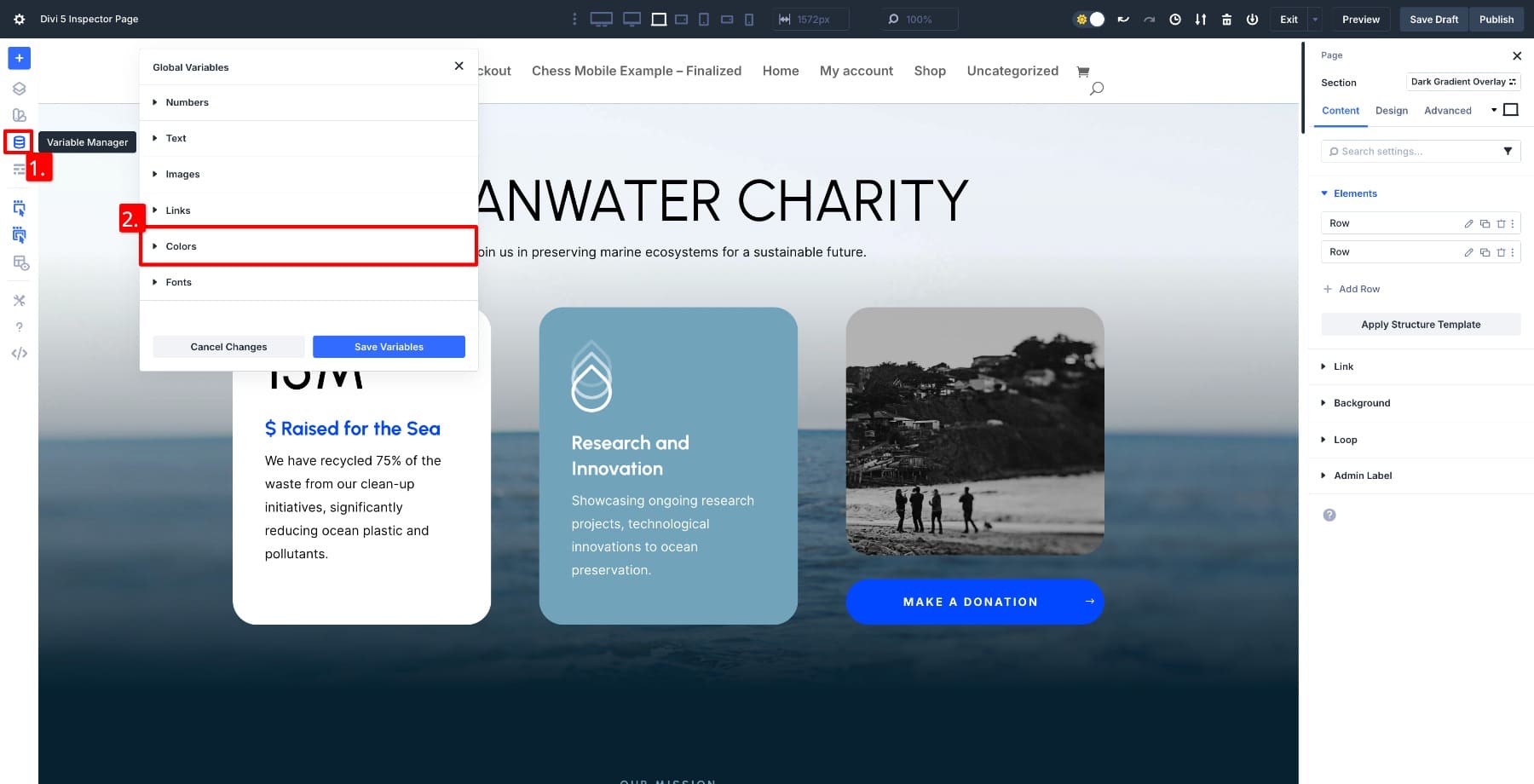
Scroll to click Add global color, enter the hexadecimal code of your color, give it a name and save.
Now that the color variable has been saved, it can be accessed from all color fields. This variable becomes part of your global design system and can be reused across modules.
Apply the color variable using the Inspector
Right-click on the module you want to apply the color to and select Inspect. The Inspector only displays the fields that have been changed from their default values.
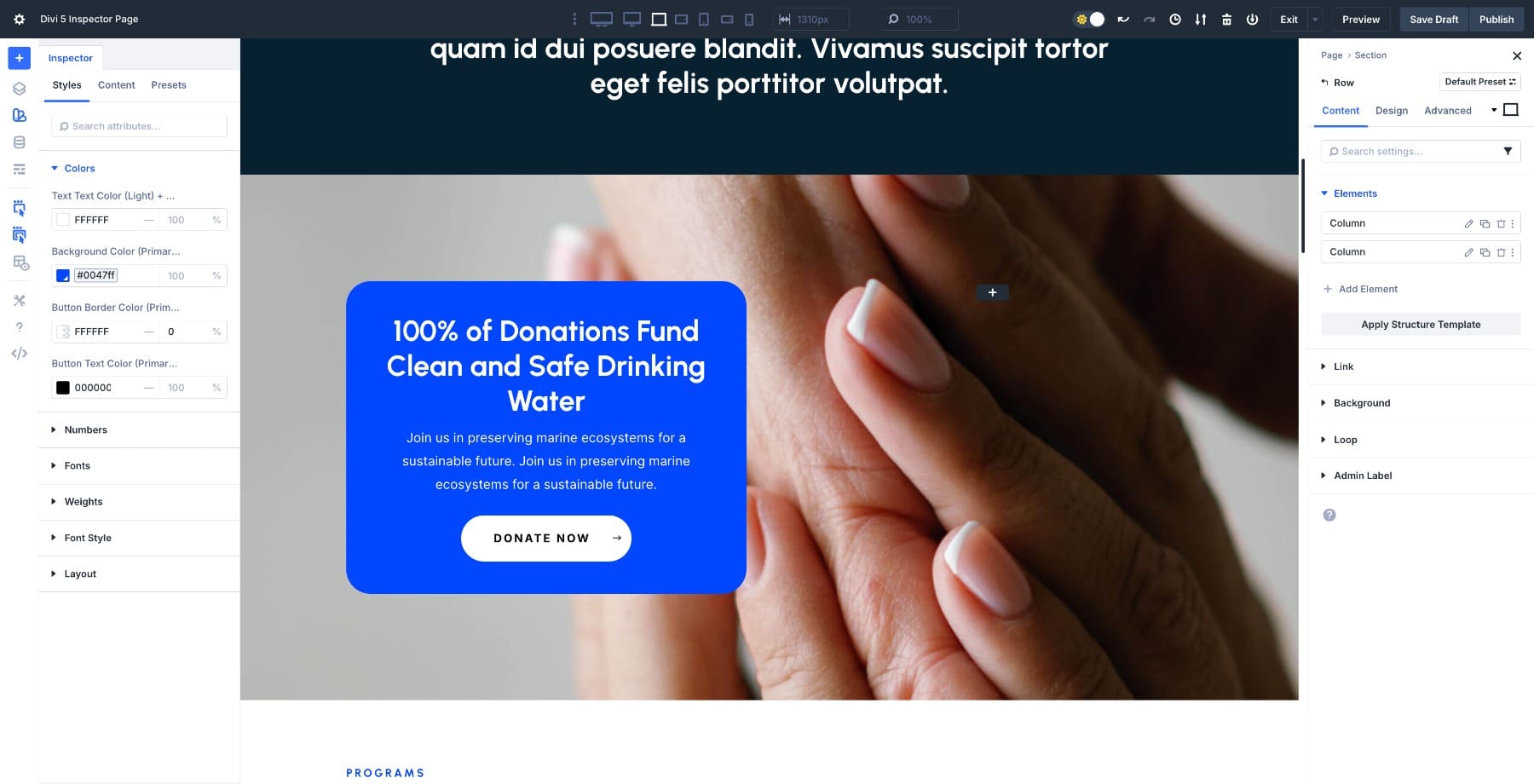
Let’s use our saved variable to change the background color of the left column of the row. To do this, move the mouse over the field and locate the Dynamic content icon.
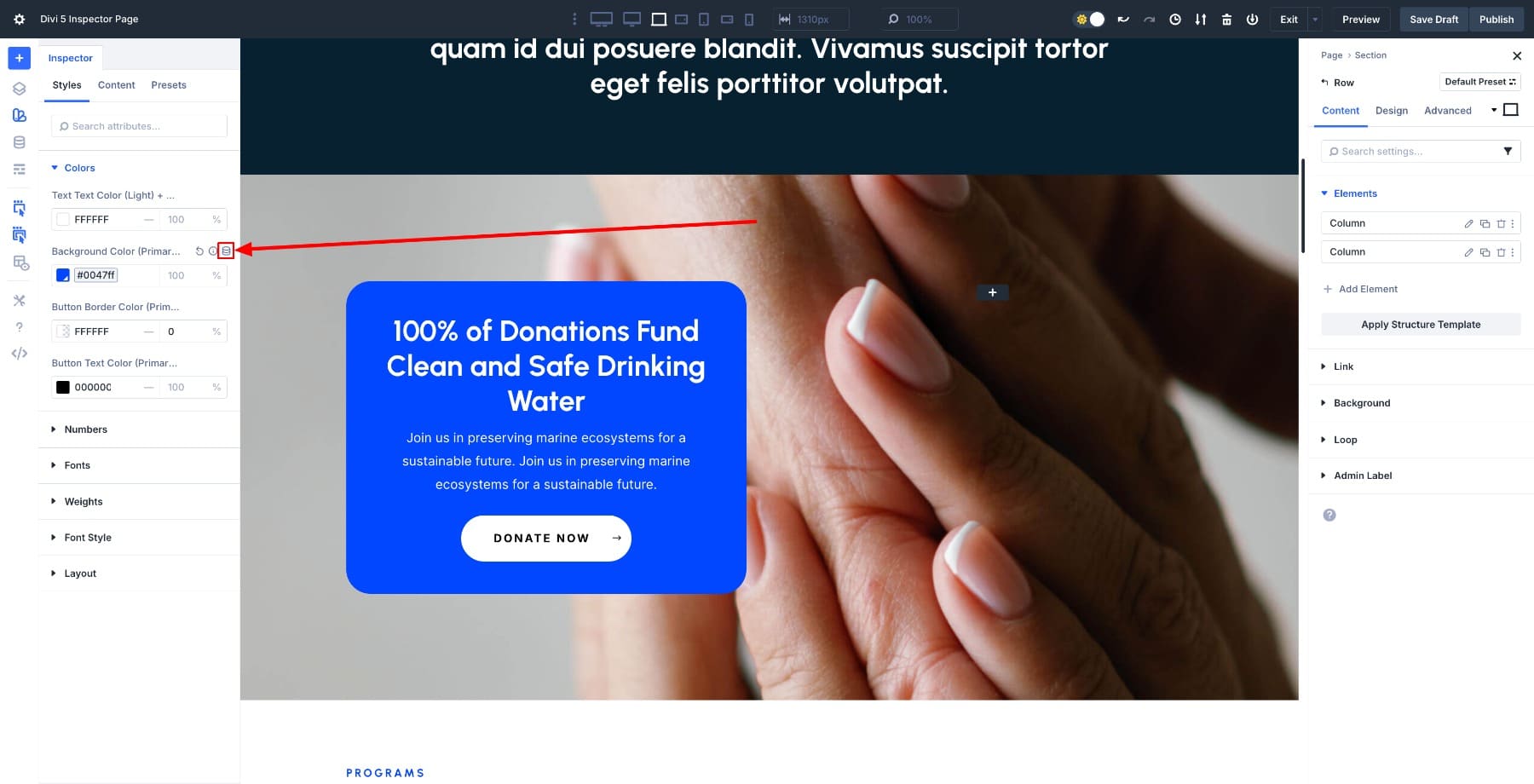
Clicking on it will open the list of all saved color variables. Find your variable and click on it to apply the change. The variable is applied immediately.
Because the column background is connected to a design variable, global changes are effortless to edit. Any instance where you have used this variable will be updated when you change the color variable.
How to inherit presets using the Inspector
Presets work as design templates for your modules. Each preset contains a range of design styles, including colors, fonts, spacing and borders, that can be reused throughout the site. Once a preset is updated, any module that uses it will automatically reflect the change.
This is where the inspector becomes useful. Even if your layout contains multiple identical modules, such as three button modules in a section, the Inspector only mentions the preset once. You don’t have to make the exact change three times. Update the preset once, and every instance in that section (and wherever it is used) will be updated automatically.
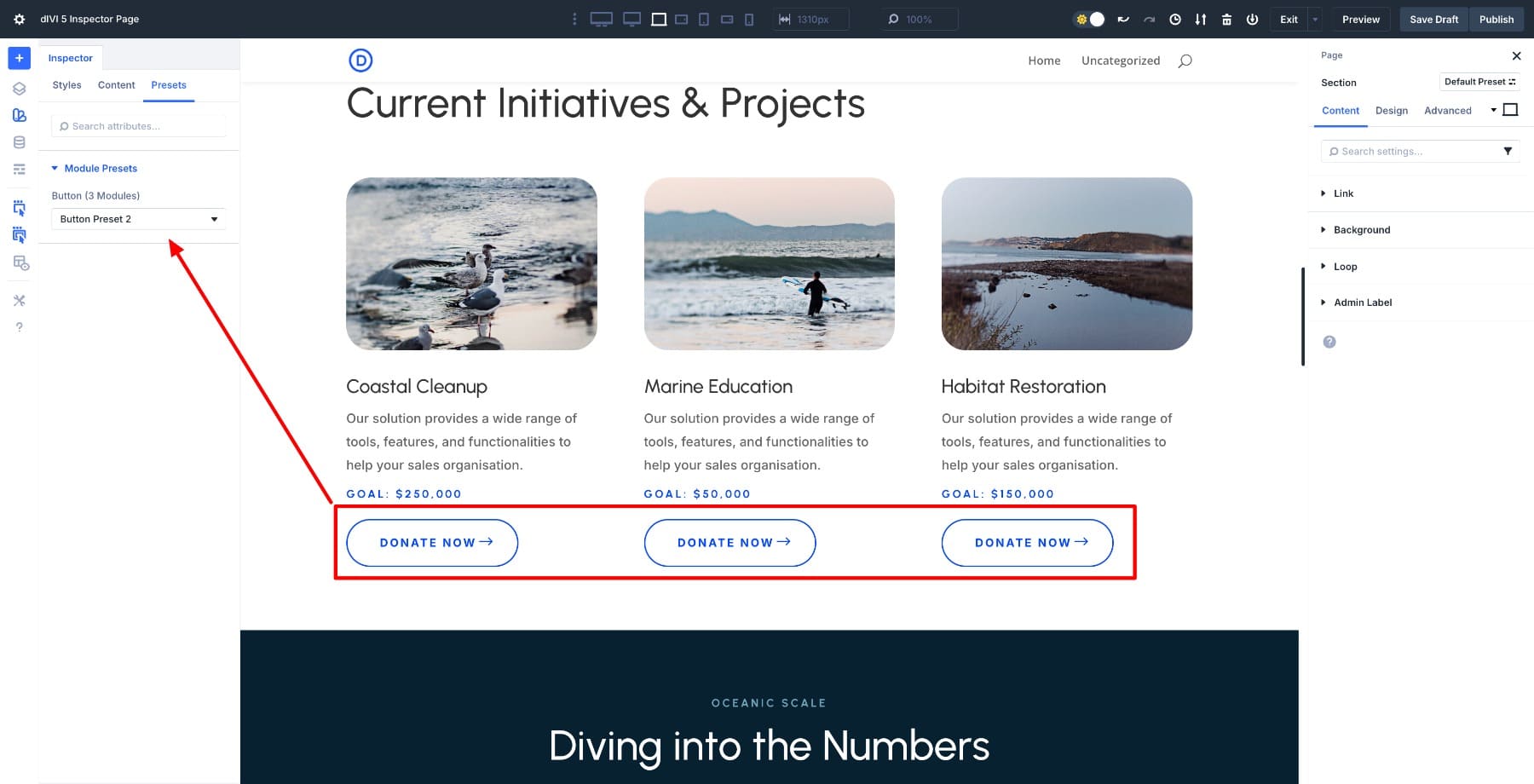
To demonstrate this in action, let’s first create a new preset and assign it to all three buttons with one click.
Create a new preset
First, click the button and navigate to the Settings panel.
Click the Preset and drop-down list select “Create a new preset based on current styles.” Give it a name, such as Button Preset Current. Let’s add a shadow to our preset and save it. Divi automatically records any changed fields as part of this new preset, which you can now apply to any other module.
Inspecting the section and switching to the Presets column will display the active presets used in the design. To customize it, choose your new preset (Current Button Preset) from the preset dropdown and watch it update live via all three buttons.
Edit a preset with Inspector
Another great feature of the Inspector is the ability to edit presets through it. When you switch to the Styles tab and hover over settings, you will see all instances (defaults and presets) where that setting is used. For example, the blue color (#oo47FF) is used in many presets.
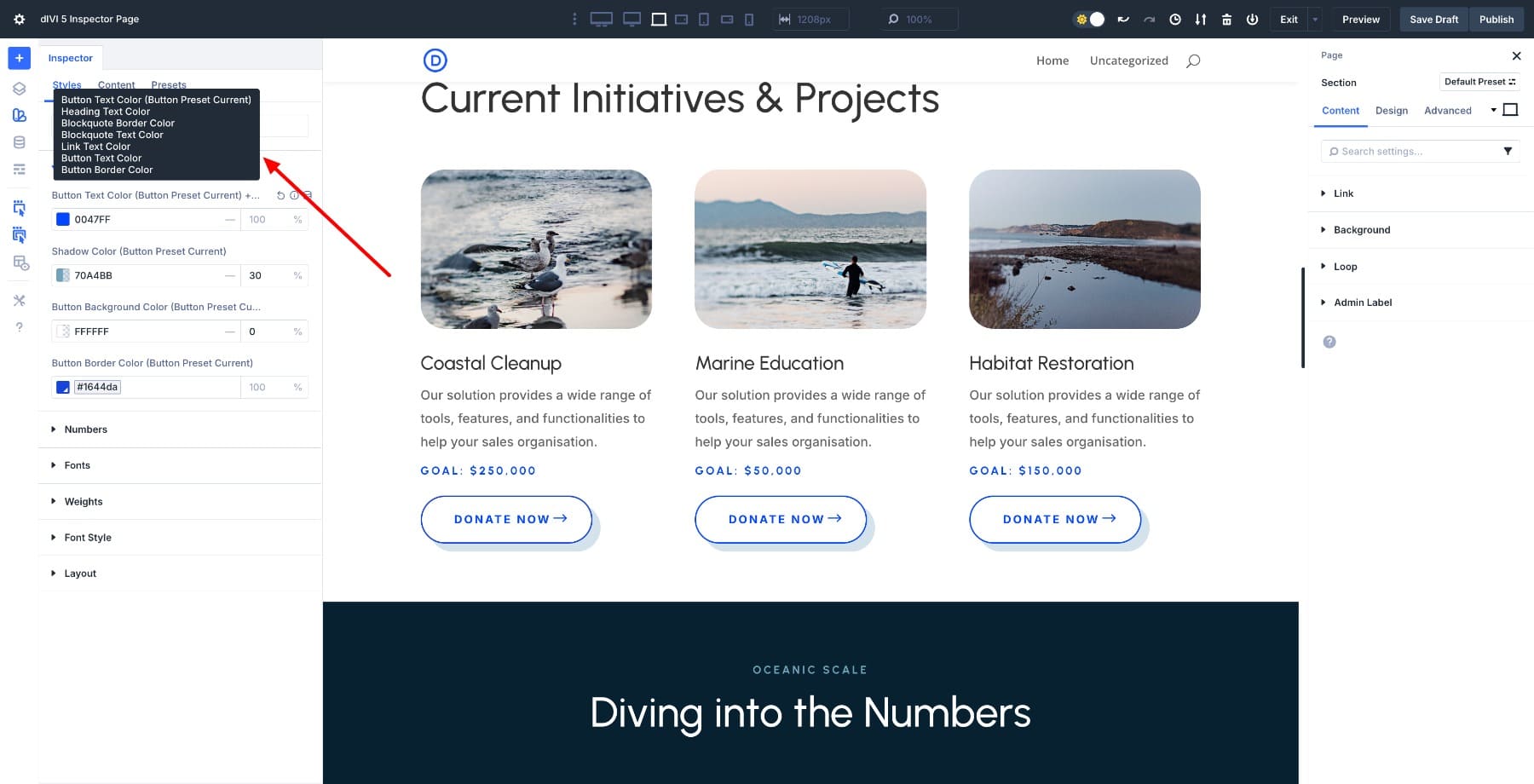
Now if we change the shadow color from here, other buttons will also be updated.
A preset design is the fastest way to bring visual consistency to your pages. Combined with the Inspector, they make it easy to identify modules that don’t already follow your presets, apply one immediately, and update your entire site from a single source.
Try The Inspector in Divi 5 today
The Divi 5 Inspector is more than a design shortcut; it’s the missing link between old layouts and your new design system. By inheriting design variables and presets through the Inspector, you turn static, one-off styles into global, reusable elements. What once required opening dozens of modules can now be done from one panel.
Whether you’re updating colors, typography, or button styles, the Inspector lets you unify your entire layout quickly and confidently, keeping your site consistent and easy to maintain. Download the latest version of Divi 5 beta to access Inspector today!
#Divi #Inspector #inherit #design #variables #presets