

Enter Gestalt principles.
Gestalt (meaning “unified whole”) theory, which emerged from German psychology in the 1920s, is based on the idea that our brains are wired to see structure, patterns, and relationships by default. Instead of perceiving a collection of isolated elements, we group them into a coherent whole.
For UI/UX designers, these principles aren’t just academic trivia; they form the basis for creating intuitive, user-friendly and effective designs. Let’s break down the key Gestalt principles with real-world examples from the interfaces you use every day.
1. Proximity: Elements that are close to each other are considered related.
The essence: Our brains group objects that are close together, separating them from objects that are further apart. This is one of the most powerful tools for creating structure and organization without adding visual clutter.
UI/UX in practice:
Think of every form you’ve ever filled out online. How do you know which label belongs to which input field?
- Bad example: Labels are equidistant from multiple input fields, causing confusion.
- Good example: The “First Name” label is placed close to the text box, and there is a clear, generous space between that group and the “Last Name” group. This visual grouping is instantaneous, without the need for lines or frames.
Takeaway: Use white space strategically to imply relationships. Group related interface elements (such as a label and its input, or an icon and its text) by placing them close together.
2. Similarity: Elements that share similar characteristics are considered related.
The essence: Objects that resemble each other – in color, shape, size or orientation – are seen as part of the same group or as having the same function.
UI/UX in practice:
Navigation menus are the classic example. But let’s look at a product listing.

Each product card has the same structure: image, title, price and a button. Since they share the same visual characteristics (same size, same font treatments, same button style), we immediately understand that they are the same type of object. Additionally, if an “Add to Cart” button were a different color, we would perceive it as different – perhaps it is out of stock or already in the cart.
Takeaway: Provide consistent styles for similar elements (such as all primary buttons) to create a predictable and scannable interface. Conversely, you can make different elements (such as a ‘Delete’ action) look distinctly different.
3. Closure: Our brain fills in the gaps to see a complete object.
The essence: When presented with a complex arrangement of elements, we tend to look for a single, recognizable pattern. We will mentally ‘plug in’ gaps to perceive a complete shape.
UI/UX in practice:
Logo design famously uses this principle (see the WWF panda or the NBC peacock). In the user interface it is often used in loading animations and icon design.
The IBM logo consists of loose blue stripes, but we can easily read the letters ‘IBM’. In a user interface, a loading spinner might be a circle with holes, but our brains perceive a single, rotating shape. This allows designers to create recognizable shapes with minimal elements, reducing cognitive load.
Takeaway: You don’t have to show every detail. Use evocative shapes and negative space to create elegant, simple icons and images that will complement the user’s mind.
4. Common region: Elements within a bounded area are considered as a group.
The essence: This is the powerful cousin of proximity. By placing elements within a clearly defined boundary, such as a frame, a background color or a subtle shadow, you create a strongly perceived group.
UI/UX in practice:
Take a look at the card-based layout of any modern web app.
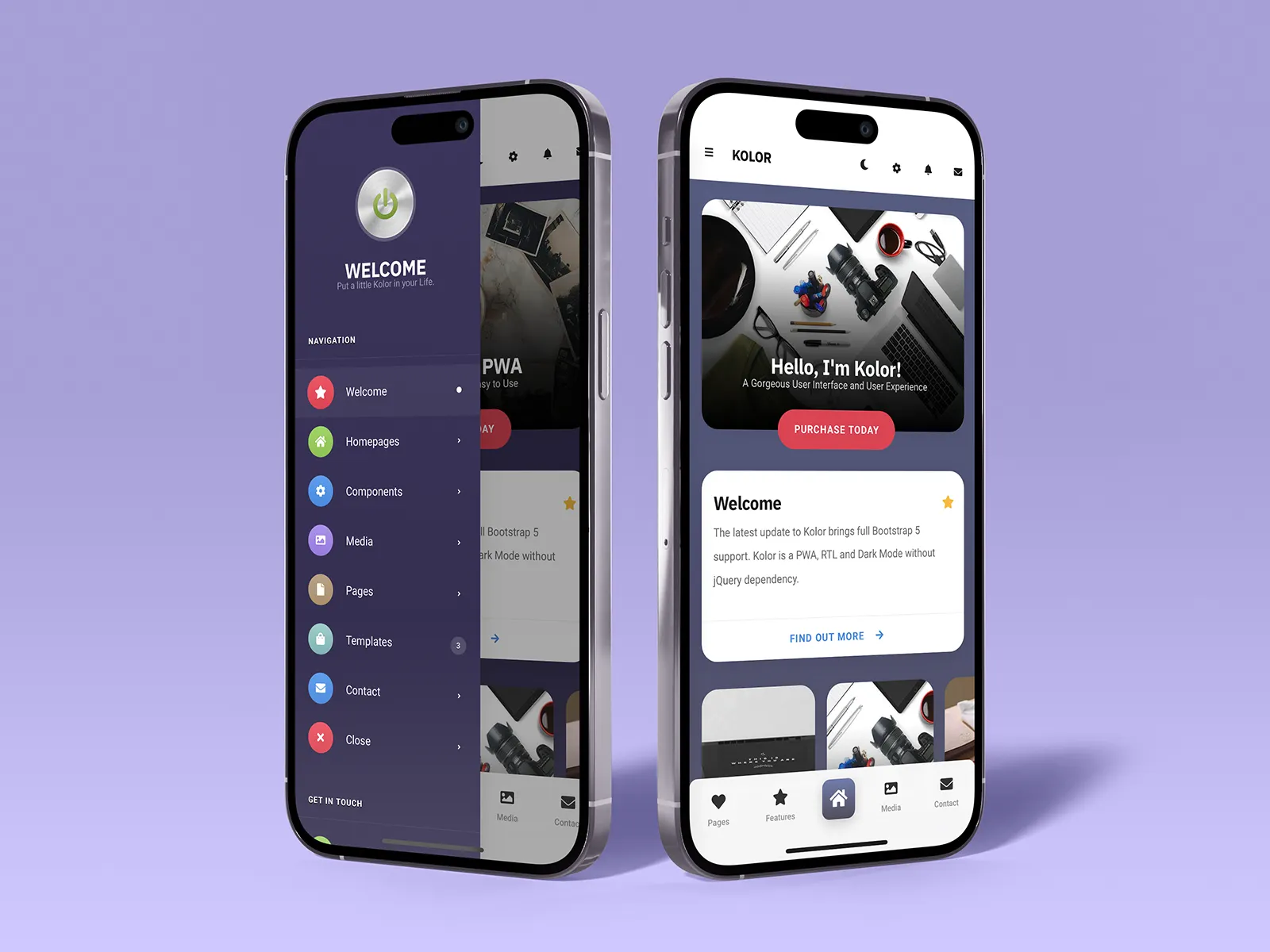
On a dashboard, a ‘Stats’ card can contain a title, a chart, and a data point. Even when these elements are spaced apart, the shared background and subtle border group them firmly together, separating them from the Recent Activity card next to them. This is why cards are so effective for organizing various pieces of information on one screen.
Takeaway: If proximity alone isn’t enough to create a strong group, use a common background, border, or shadow to define a ‘container’ for related content.
5. Figure/ground: We instinctively separate elements into foreground (the figure) and background (the ground).
The essence: This is the basis for how we perceive depth and focus. The ‘figure’ is the central element and the ‘ground’ is the background. A clear distinction is crucial for readability and hierarchy.
UI/UX in practice:
Modal windows and popups are the most direct application.
When a modal appears, the rest of the interface is often dark or blurry. This immediately pushes the background content into the “ground”, making the modal image the distinct “figure” that demands the user’s attention. Without this effect, the modal would feel less clear and harder to parse.
Takeaway: Use contrast, color and blur to create a clear hierarchy between interactive elements (figures) and their context (ground). This is essential for overlays, modals and navigation menus.
6. Focal Point (Prägnanz): The mind will interpret ambiguous images in the simplest possible way.
The essence: Also known as the “law of simplicity,” this overarching principle states that we naturally organize our experiences in a way that is regular, orderly, and simple. Each stimulus is perceived in its simplest form.
UI/UX in practice:
A cluttered, confusing user interface violates this principle. A clean, well-organized one embraces it.
Consider Google’s homepage. What do you see? A logo, a search bar and two buttons. It is the simplest possible interpretation of a search engine. There is no ambiguity. Your brain doesn’t have to work to figure out what to do. A competitive, cluttered portal page with countless links and modules is complex and ambiguous, forcing the user to parse and simplify it themselves.
Takeaway: Reduce complexity. Above all else, strive for clarity and simplicity. The design that is easiest for the brain to process is the design it prefers.
Design with the brain in mind
The Gestalt principles are not a set of rigid rules to be followed blindly. They provide a framework for understanding the unconscious processes of visual perception. By designing with these principles in mind, you work of the user’s brain, not against it.
You create interfaces that feel intuitive, because they are built on the psychology that defines intuition itself. So the next time you’re refining a layout, ask yourself: How does my design use proximity, similarity, and closure to tell a clear, simple story? The answer will lead you to a better design.
About the author

#Gestalt #principles #practice #visual #guide #brains #perceive #design