

The situation
You want to email a large number of people at the same time AND you don’t have contact details yet.
Tools needed
We are going to use a tool called Hunter.io for this.
Sign up for a free account and you’ll get 600 credits per year to start (which can go quite far).
Hunter.io lets us do a few things that are extremely powerful once you know how to use them (which I’m going to show you).
#1 It helps you find and verify email addresses. You can upload bulk lists of domains or company names and email contacts are searched and verified for you.
#2 Allows you to create custom email broadcasts to contact all of them. Send things like “Hey Tom, does XYZ corp need someone to…”
Here you will find step by step how to do this.
Step 1 Upload your prospects
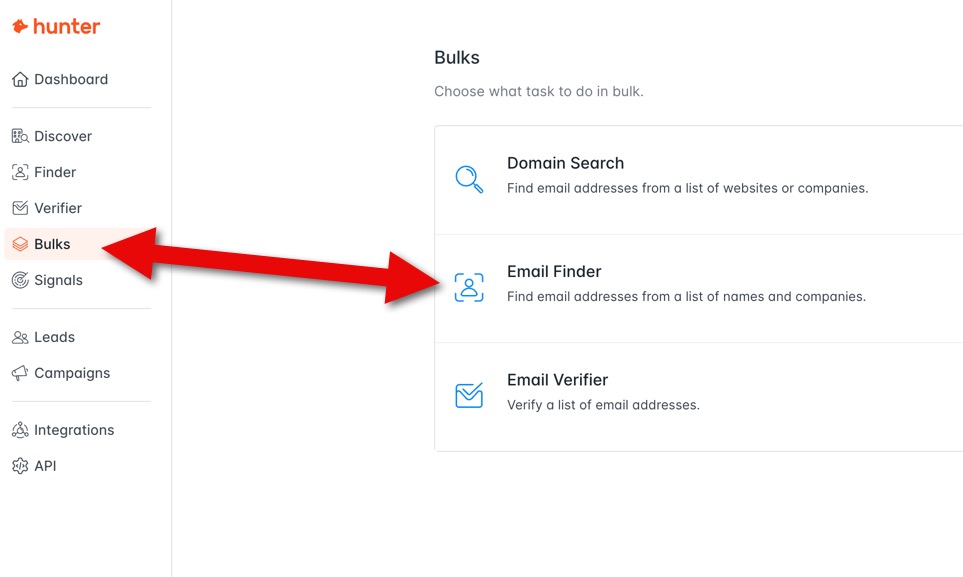
Bulk search by names of people or companies.
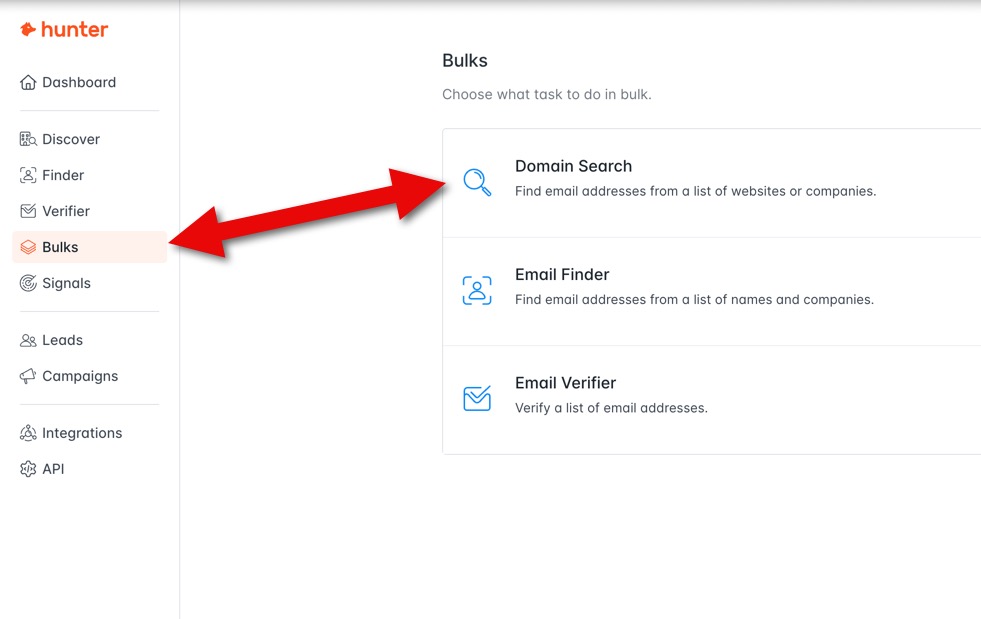
Bulk search from domain names (which is what I did).
I had to contact over 200 software owners.
I didn’t have any of their email addresses, so I uploaded the company URLs. I used Gemini to help me generate this list (but that’s not important).
If you already have the emails, you can upload them manually.
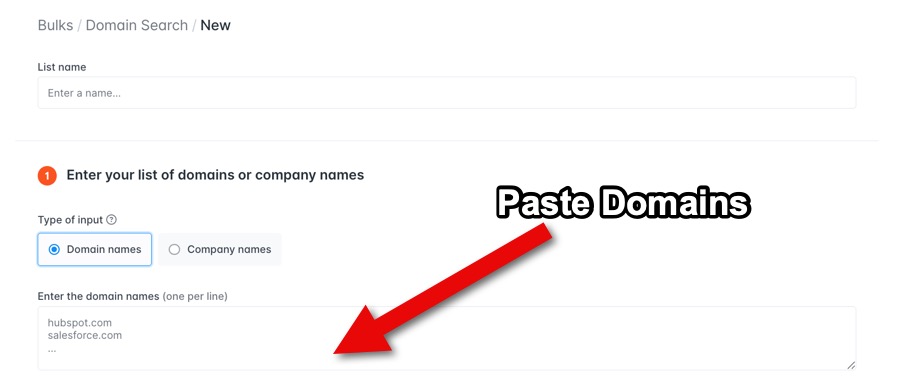
After you select which method you want to use, name your list and paste the domain URLs or company names.
You can then adjust the scan a little.
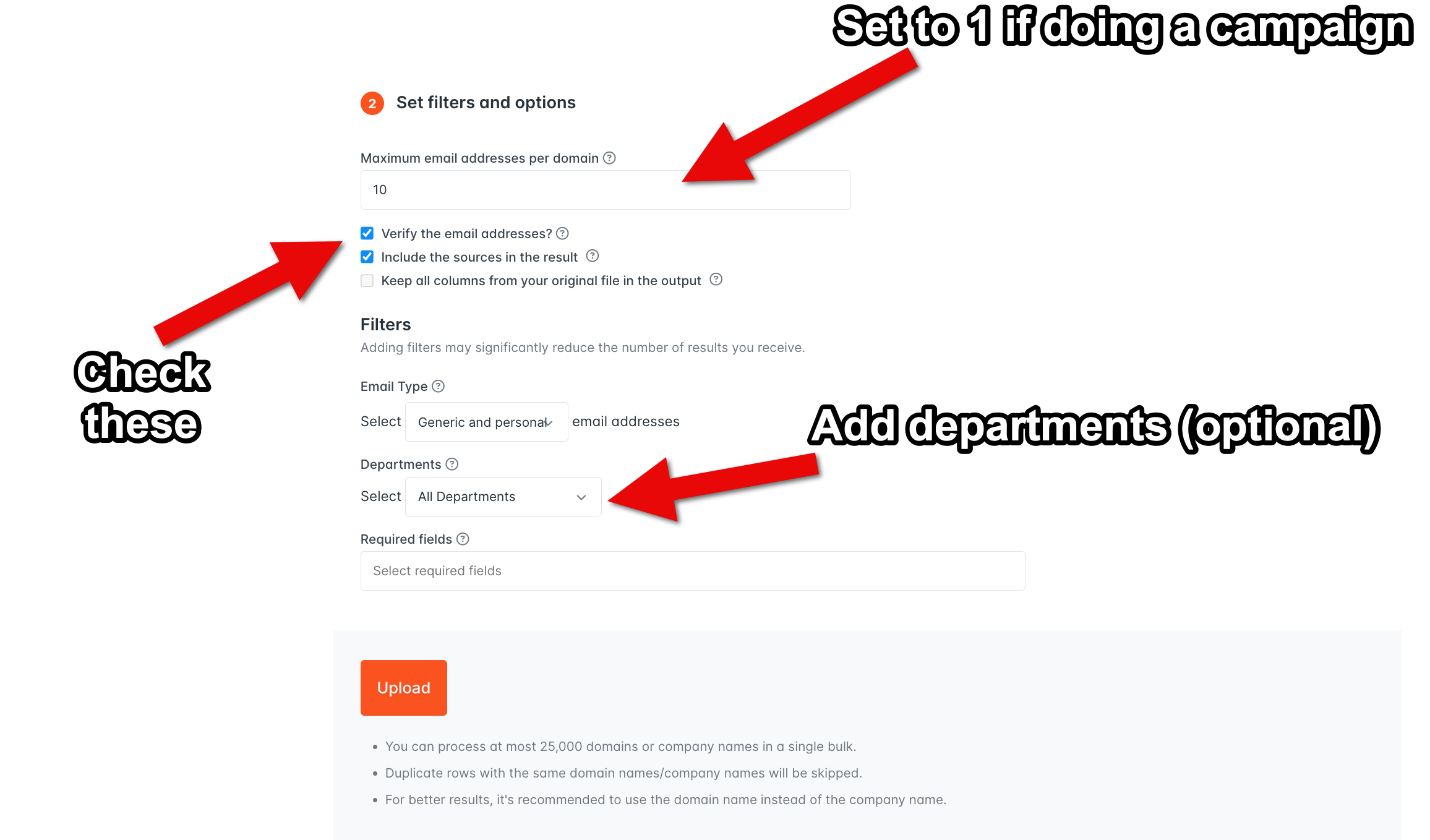
I like to set the maximum number of emails to 1 if I have a large list and want to send an email to everyone without spamming the same company (no one likes getting emails sent to them and other people in the company asking the same thing).
I choose ‘verify email’ and ‘include sources in the result’.
You can choose generic (for example [email protected]) or personal (e.g [email protected]).
You can also customize per department if desired. For example, if your email is for the marketing team, you can choose to find only emails related to the marketing department.
Step 2 Create your campaign
Now that you have your list of potential customers, you can create an email to send to them. This part is surprisingly simple.
To do this, navigate to ‘Campaigns’ and choose ‘New campaign’.
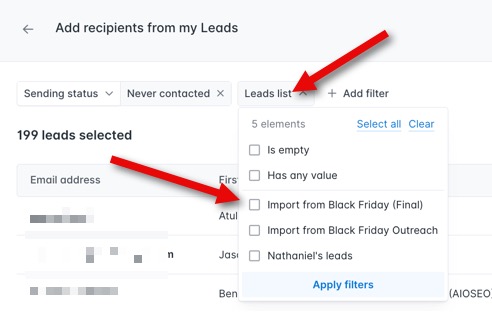
From there you choose your audience. Go to ‘Leads List’ and choose the list you just created.
Then compose your email.
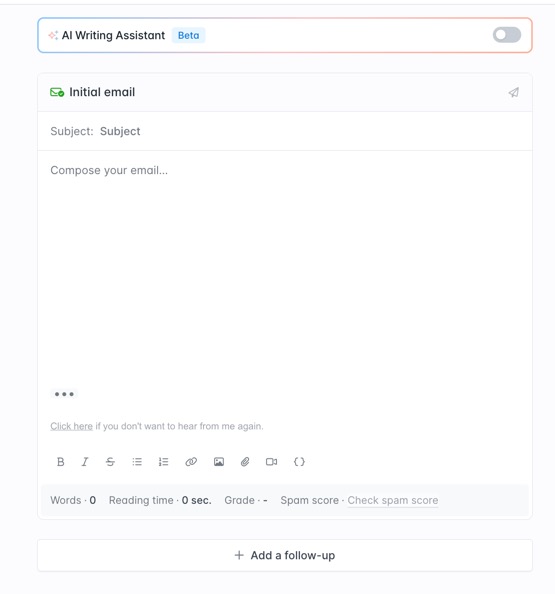
The AI writing assistant is great, but I prefer my own writing assistant.
Please note that everyone sees the same email, except for ‘variables’.
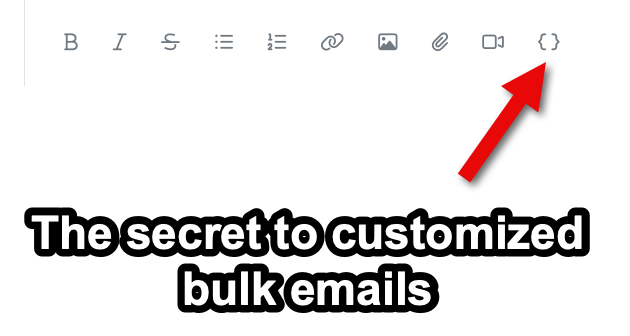
Variables allow you to add things like first name or company name anywhere in your email.
This is great because it makes the broadcast feel more personal and less spammy.
You can place these variables in the body of the email or even in the subject line (which works great).
Here is an example of what an email with free variables looks like.
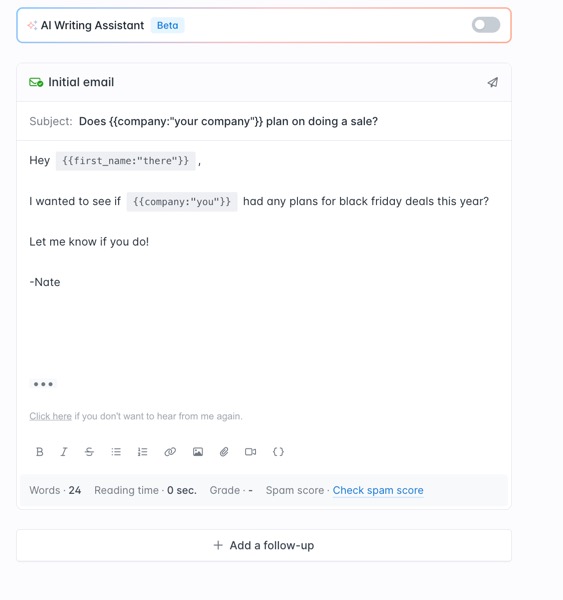
Variable placeholder campaign.
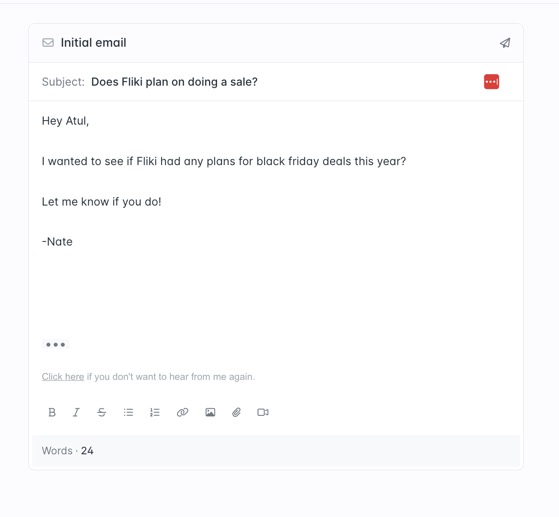
What the variable placeholders look like when sent.
Ignore the email copy in that example, I don’t actually send that 🙂
Once you’ve written the campaign email, you’re ready to schedule it.
This is what the planning page looks like.
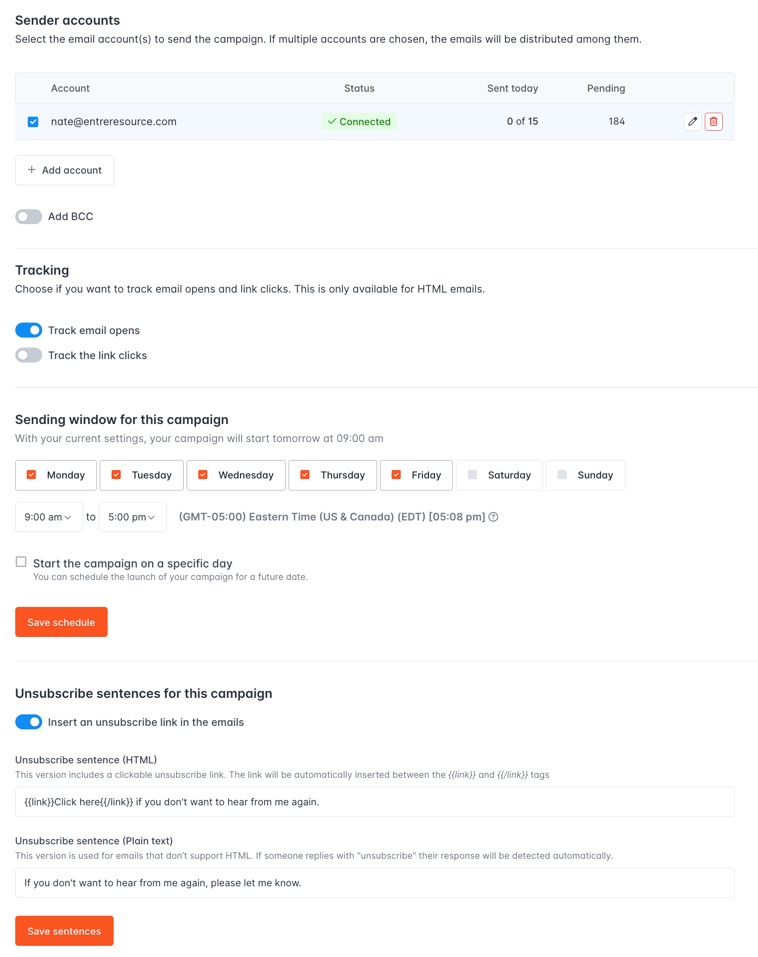
I recommend skipping Saturday and Sunday sendings as many companies do not check emails on those days. Focusing on working hours if possible is also ideal.
I track email opens and clicks.
Make sure you choose to include an unsubscribe link in the email as well.
Once your broadcast has been sent, you can track your results. You can see if recipients have opened emails, clicked on URLs, or responded.
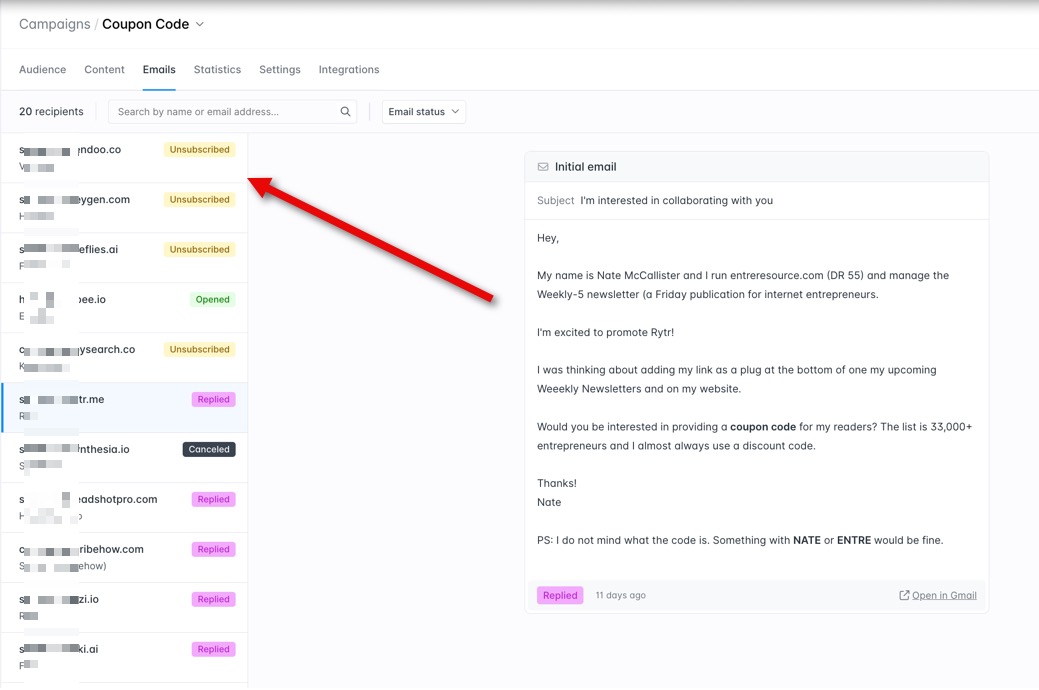
There you have it! This allows you to send bulk but customized emails even if you don’t have the email addresses yet.
#Send #Personalized #Mass #Emails #Hunter.io #StepbyStep #Guide