

Responsive grids don’t require dozens of media queries and custom CSS overrides. But until recently, that was exactly what most page builders demanded. Divi 5’s CSS Grid framework changes all that, giving you layouts that smoothly adapt to screen sizes without requiring a single line of code. Whether you’re building a simple card grid or a complex bento layout, you can create responsive designs that work beautifully on any device, all from the visual editor.
Grid is one of the many layout systems that make Divi 5 the most powerful way to build WordPress sites. Let’s see what exactly you can do with it.
How to build a responsive grid
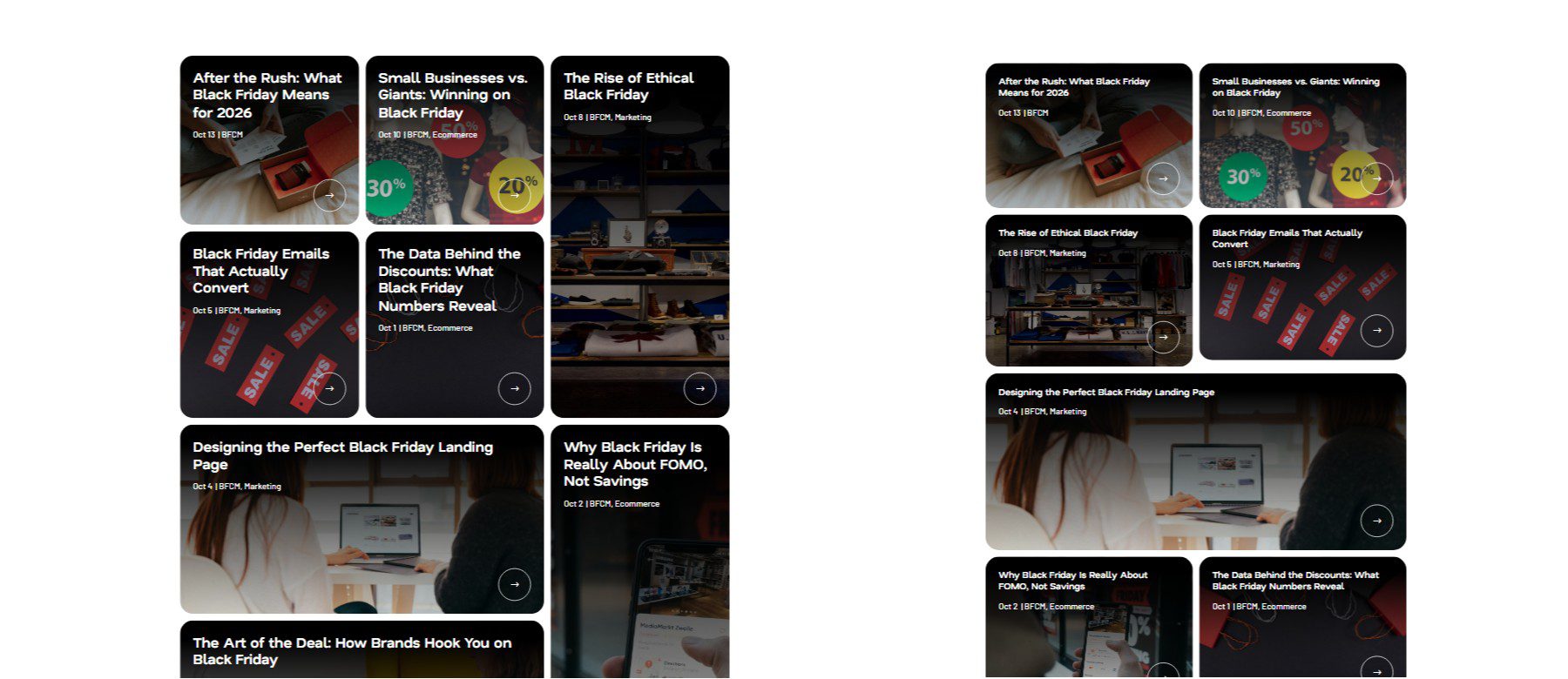
The first part of this is creating your grid layout at the base breakpoint (so for Divi on desktop). We’ll use a loop to create eight different grid items, but you can use something else. Ultimately we will reach this grid:
And here are the tablet and mobile views of this grid (left and right, respectively).
Step 1. Set up your page
Start by adding a new section with a single Flex Row.
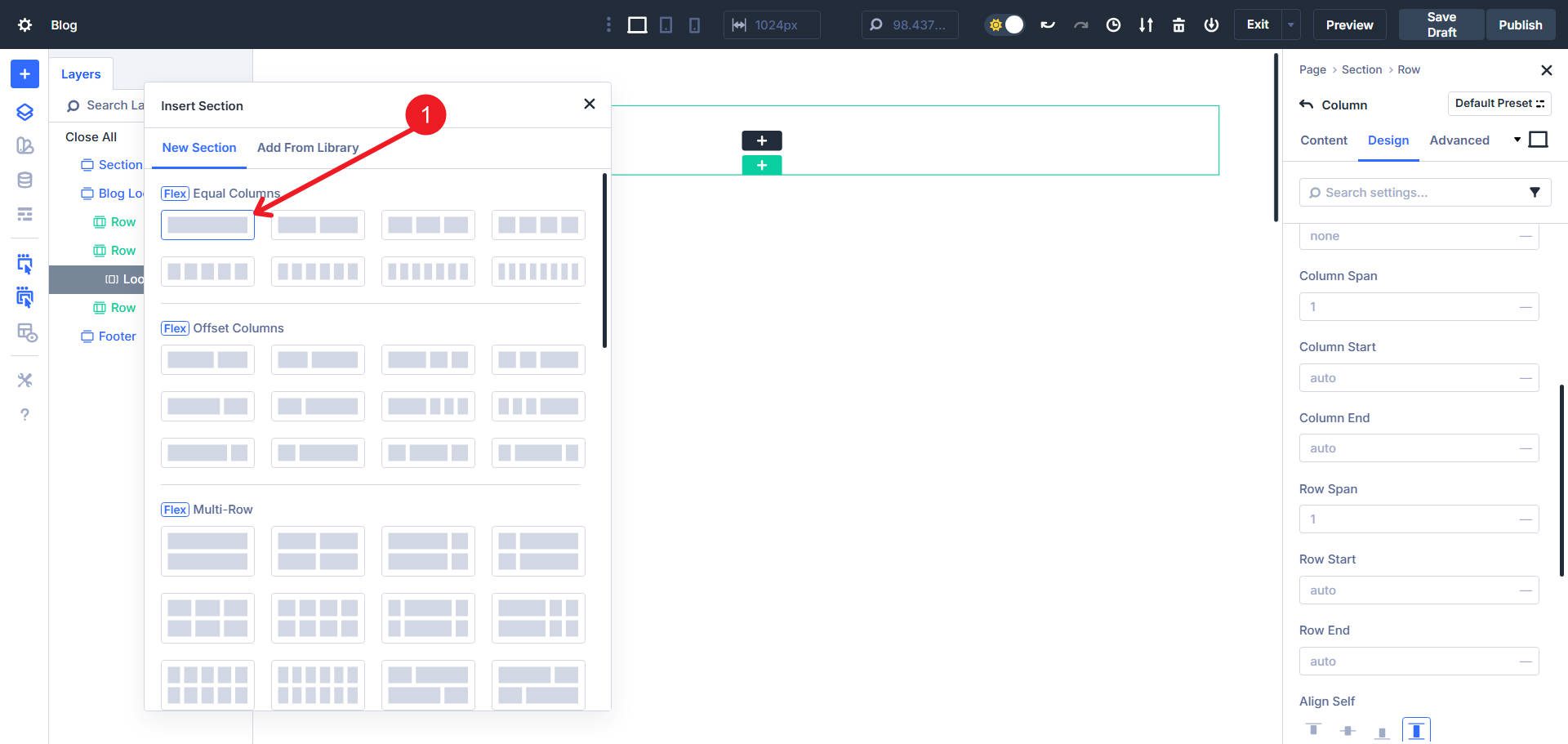
Configure the size of the row to have these width values:
- Width: 90%
- Maximum width: 1300px
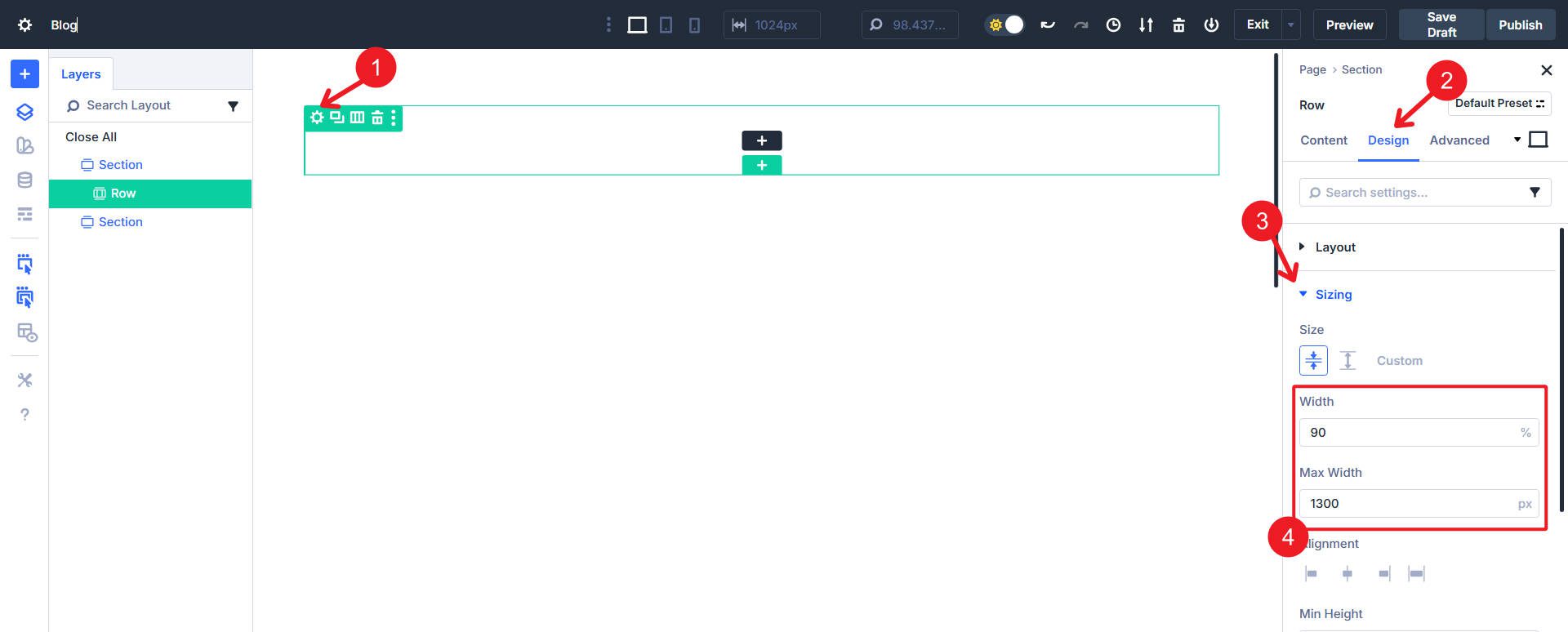
This limits your grid to a centered container. Leave the column size at the default values. Once we switch the row to grid format, it will be completely determined by the row’s grid settings.
Finally, enable the Loop Builder to create the column eight looped specimens. Each looped column becomes a grid item. Design your loop in the way that works for you, or try to emulate the example we are working with. For more details on configuring Loop Builder queries, see All Divi 5 Loop Builder Query Options Explained.
With these grid items created, we can now adjust our grid settings to make it optimally responsive.
Step 2. Building the basic grid logic
We create our grid layout on the row container using Column of equal width and set the Number of columns to 4. For now, everything else will remain at the default settings.
For the sake of this tutorial, I’m adding modules and dynamic content to my column so that it shows my post content in this loop. The loop and the style are not the point of this tutorial. Each card uses Flexbox for its internal layout. To learn more about working with Flex in Divi 5, see 5 Pitfalls to Avoid When Switching to Divi 5’s Flexbox Layout System.
Step 3. Set the grid column density at key breakpoints
On desktops, the grid has four columns, but we want to give each grid item a little more space on smaller screens. To do that, we’ll use a simple 4 → 3 → 2 column curve from the basic device down.
To achieve this, click on the row that contains the column items in a loop. Then navigate via the Design > Layout > tab Rooster. Make sure Column Widths is set to Columns of equal width. To make this easy, open the Responsive Editor for Number of columns. This makes it easy to set up 4 columns on desktop, 3 on tablet, and 2 on mobile.
This loosens the grid on smaller screens and makes viewing the contents of each grid item easier. This is probably the biggest part of making your grids responsive and is incredibly simple.
Step 4. Adjust the grid spacing
At this point we can also set some necessary spacing values and use a Horizontal spacing of 0.75 rem and a vertical opening of .75rem. If you ever feel like a grid is too tight or too loose, you can set different grid spacing values at different breakpoints, like we did with the number of columns.
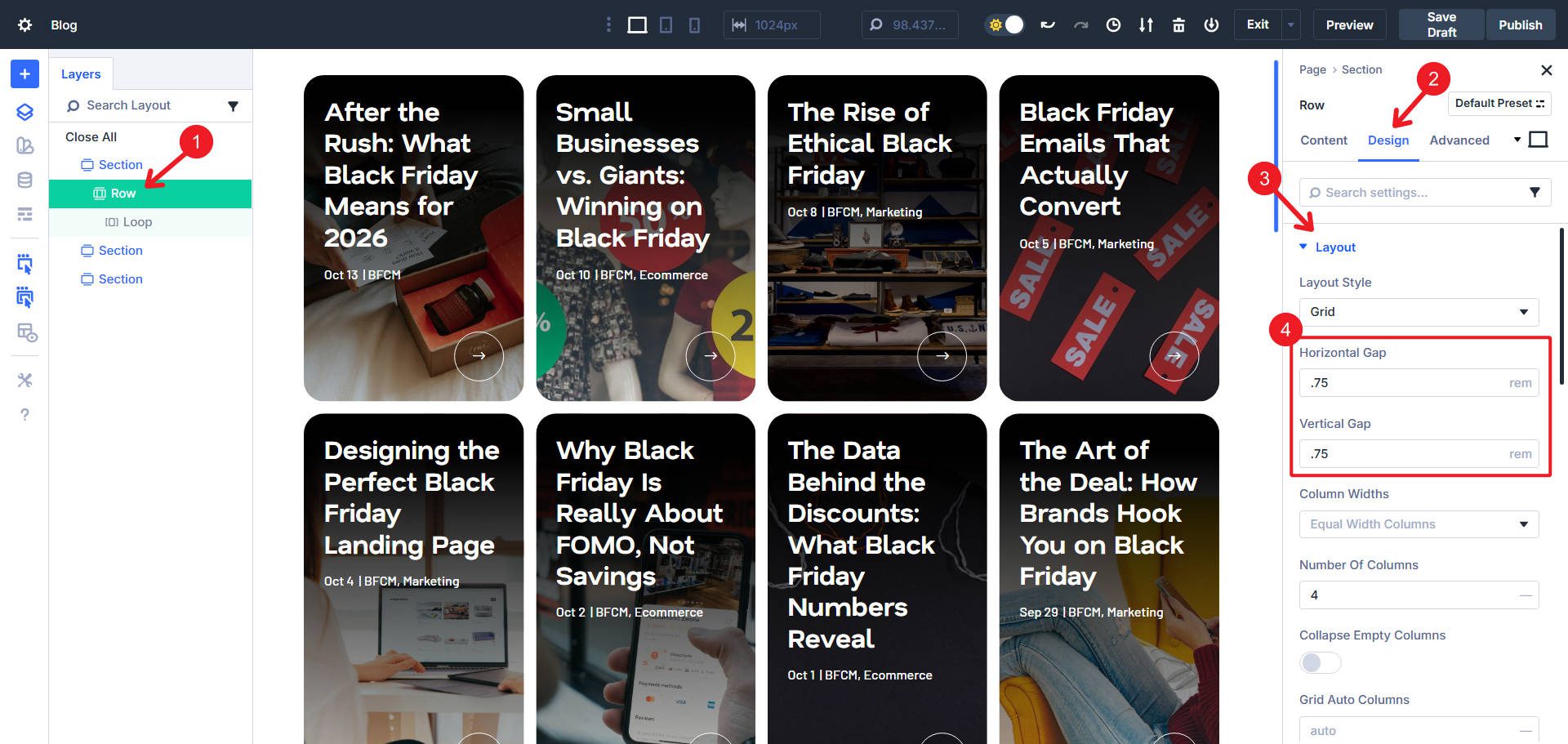
Spacing ensures that the spacing between grid items is maintained throughout the grid. This is much preferable to setting the left/right margin on individual grid items.
Step 5. Create Bento Grid Offsets
A bento grid uses varied item sets to create visual interest. You use nth pattern rules to ensure that specific grid items span two columns or two rows. These lines repeat every eight items, so the pattern scales seamlessly whether you have 8, 16, or 24 grid items.
Because we’re working with a specific example, we know exactly what we need and can count the grid items and see which ones need span adjustments. From the example screen above, I noticed that we need to adjust items 3, 5, 6 and 8.

Now go through the Design tab > Layout > Grid > Raster compensation rules. You add four lines:
- Adjusted nth child rule: 8n+3 | Offset rule: Driving span | Offset value: 2
- Adjusted nth child rule: 8n+5 | Offset rule: Column range | Offset value: 2
- Adjusted nth child rule: 8n+6 | Offset rule: Driving span | Offset value: 2
- Adjusted nth child rule: 8n+8 | Offset rule: Column range | Offset value: 2
The nth pattern rules (such as 8n+3) select every 8th item starting from a specific position, so the bento pattern repeats consistently no matter how many grid items you add. So if you only have eight grid items, 8n+3 selects the third. But if you have 16 grid items, 8n+3 selects the 3rd and 11th.
Now you can notice “empty spaces” in your grid at various breakpoints. Depending on whether you have default breakpoint values set, you’ll likely see a gap on mobile. There is a unique grid setting that solves this. Under Grid Density, select the second icon for Auto.
Even with custom offset rules that create an asymmetrical grid, we now use native CSS Grid tools that help us stay responsive and ensure our grid looks good no matter what.
And really, it is. Divi makes it very easy to create even a somewhat complex grid. Now you can move on to the next section of your website and get that much closer to publishing.
Other Divi features for controlling grid responsiveness
Now that you’ve built a responsive grid using a Row container, here are a few more techniques worth exploring. The grid isn’t limited to rows: you can use it for sections, columns, groups, and modules like Gallery and Portfolio.
Switch to manual mode for advanced controls
If you already know CSS Grid, your skills will transfer directly to Divi. Switch to manual width columns and write grid templates like 1fr 1fr 1fr 1fr or repeat(auto-fit, minmax(300px, 1fr)). If you don’t know the CSS Grid syntax yet, that’s no problem. Almost everything is possible through the options on the Design tab that we have already discussed. Divi’s support for Advanced Units means you can use advanced CSS whenever you want.
Combine Grid And Flexbox
Grid and Flexbox solve different problems, and with Divi 5 you can use both together. In our bento grid, the row uses Grid to manage overall card placement and response speed across breakpoints.
Each individual card (built on the Column Container) uses Flexbox to handle the internal layout: centering text, spacing images, or aligning buttons.
Grid provides the macrostructure. Flexbox takes care of the micro details. This combination really gives you great control at every level.
Use spacing instead of margin
In step 4 we set horizontal and vertical gaps to maintain consistent spacing in the grid. Gaps are superior to margins because they only apply *between* grid items (not on the outside edges) and remain consistent no matter how your grid flows across the breakpoints. If you need a unique spacing for a specific card, you can still apply margin or padding, but start with gaps as a base.
Adjust your breakpoints
Divi 5 lets you define custom breakpoints, instead of being stuck with standard desktop/tablet/mobile widths. Adjust your grid columns, spacing, and offsets to the exact viewport widths where your design needs to change. For more information, see Customizable Responsive Breakpoints.
Build responsive websites in Divi 5 today
You just built a responsive bento grid in minutes: no custom CSS, no media query debugging, just visual controls that work. The same workflow applies consistently across platforms, including portfolio grids, product presentations, blog layouts, and landing page sections. Once you understand Grid, you can design entire sites faster than ever before.
Many WordPress sites already run on Divi 5. If you haven’t made the switch yet, there’s never been a better time. Download it now and see how much faster you can build.
#master #grid #responsiveness #Divi