

We’ve taken the system one step further with the Preset Manager. It gives you control over your presets by consolidating them in one convenient location so you can search, create, edit, and organize them.
In this post, we’ll explain what Preset Manager is, explore its key features, and show you how to use it.
Let’s get started.
What is the preset manager in Divi 5?
The Preset Manager is a special feature in Divi 5 that gives you one central overview of all the presets on your site. Whether you’re working with Element Presets or Option Group Presets, everything will look neatly organized in one powerful interface.
Subscribe to our YouTube channel
Its main purpose is to make preset management effortless. From this location, you can easily browse your entire library of presets, organize them for quick access, create new ones on the fly, edit existing styles, and apply them across your site, all while maintaining design consistency and keeping your workflow smooth.
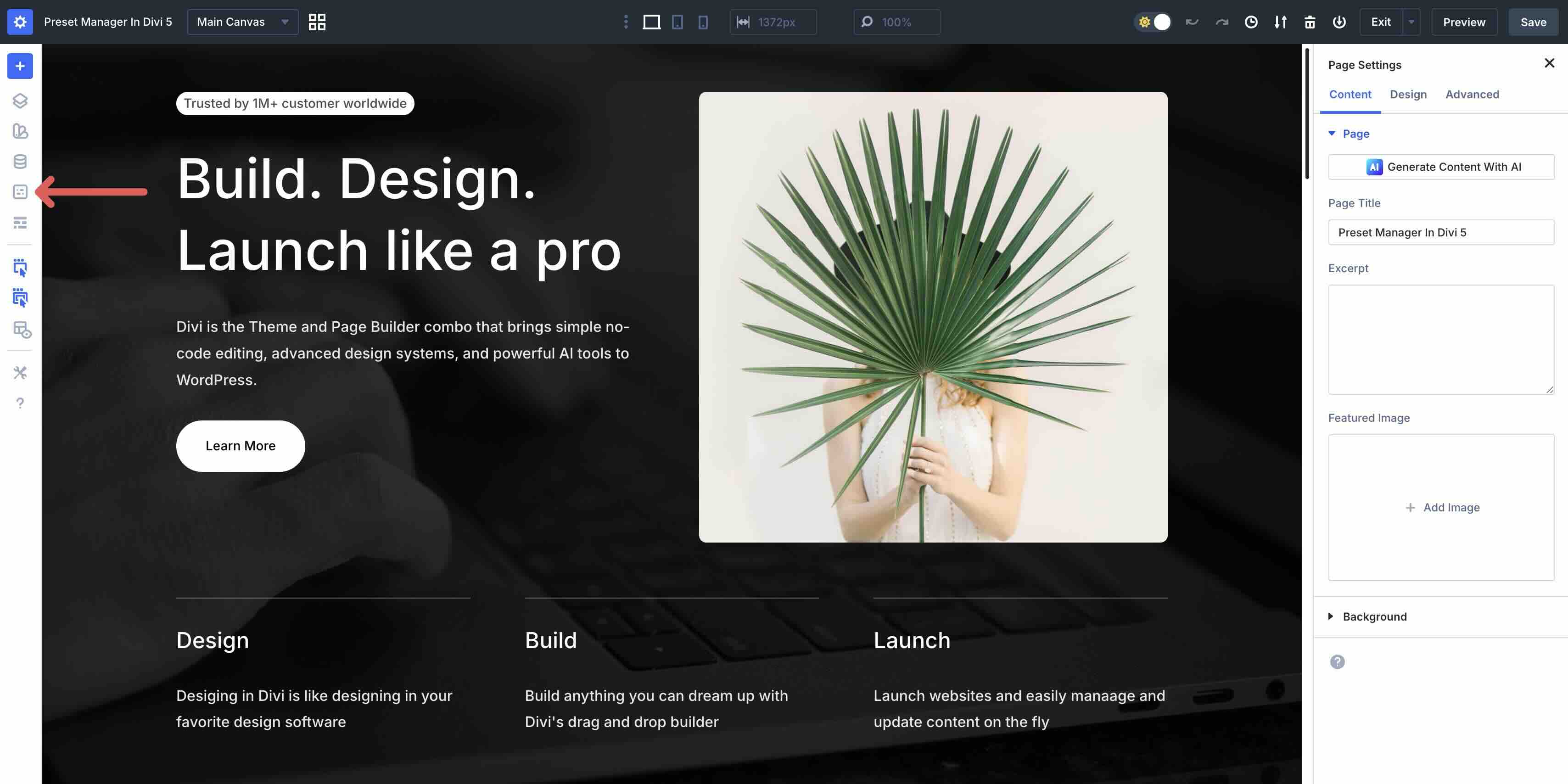
To access it, simply open a page in the Visual Builder. Check the left sidebar for the new Preset Manager icon.
Main features of the Preset Manager
A centralized list of presets
The preset list is the heart of Preset Manager, showing all the presets on your site in one clear view. Presets are neatly grouped by module type or option group, allowing quick, intuitive navigation no matter how large the list becomes. This single dashboard brings clarity and speed to the design process, so you can focus on creativity instead of searching.
Search and filter
Powerful search and filter options make it easy to find specific presets, even in large collections. Just type in a keyword or apply filters to narrow down the results so you can find what you’re looking for. This capability turns a time-consuming task into a seamless experience, keeping your workflow smooth and productive.
Preset actions
Each preset comes with a full set of actions. You can edit any preset to refine its styles, duplicate it to create quick variations for different use cases, delete presets, or set a favorite as the default so that new elements automatically inherit it. These actions help you manage your design system, making updates and adjustments feel natural and efficient.
Create presets faster
You can easily add new presets without leaving the Preset Manager. Whether you’re starting fresh or basing it on an existing style, you can generate presets of any type (element or option group) on the fly. This makes it easy to expand your preset library and encourages experimentation as ideas come to you.
Improved organization
The Preset Manager improves organization with easy sorting, reordering, and overall management of your collections. Rearrange the presets so that the most commonly used settings appear at the top and see the changes immediately in Manager. This flexibility allows you to create a personalized, accessible design system that grows with your projects and team.
Import and export presets and variables
You can import or export your presets (and variables) so you can share and reuse your design systems across multiple Divi 5 projects. An import/export icon in Preset Manager allows you to export all your site’s presets as a simple JSON file and import them into a new website to start a new build. This makes collaborating with teams, migrating designs or standardizing customer projects faster and more consistent.
The built-in panel with preset examples
The Preset Preview System is a special preview panel that opens automatically when you create or edit a preset with Preset Manager. The system gives you a clear, focused space to refine designs without leaving the Manager interface.
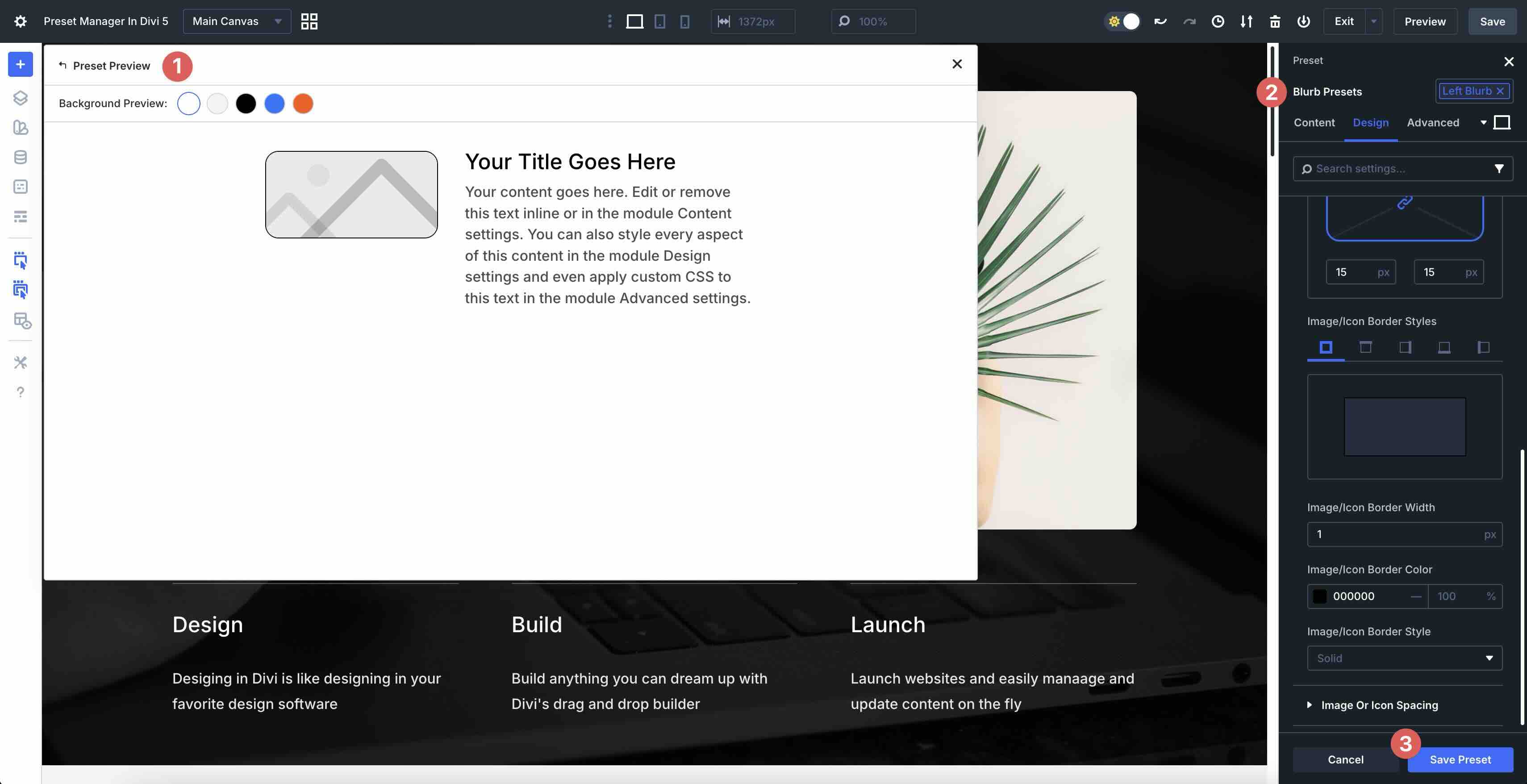
It works by providing a live, isolated preview of your preset changes in a sandbox environment. When preset editing mode is activated in the settings panel, the Preset Preview window displays the preset applied to an element, so you can see exactly how your styles are coming together in real time.
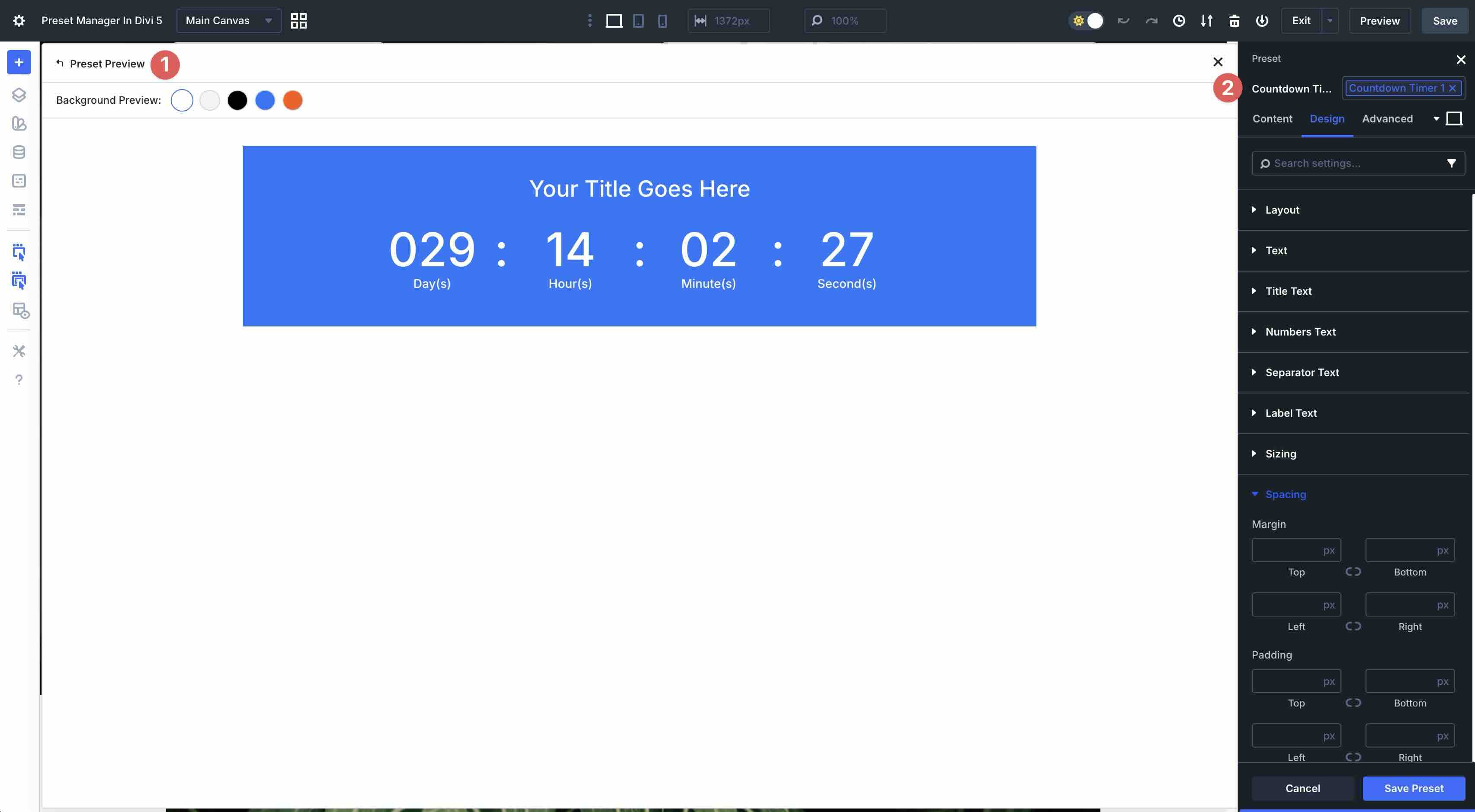
You can even preview the preset against different background colors pulled from your website’s color variables, ensuring perfect harmony in your site’s design system.
The main benefit is the ability to immediately preview and test updates without affecting actual page content or disrupting your overall design flow. Your live page remains untouched while you experiment, meaning edits stay within the preview panel until you’re ready to save them.
How to use the Preset Manager
Getting started with Preset Manager is quick and intuitive. The entire process runs smoothly, making it easy for you to build and maintain your design system.
Access to the Preset Manager
Open a page or post in the Visual Builder. Look for the new one in the left sidebar Preset Manager icon. Click this icon to open the full Preset Manager panel, which displays your entire library of presets in a clean, organized view.
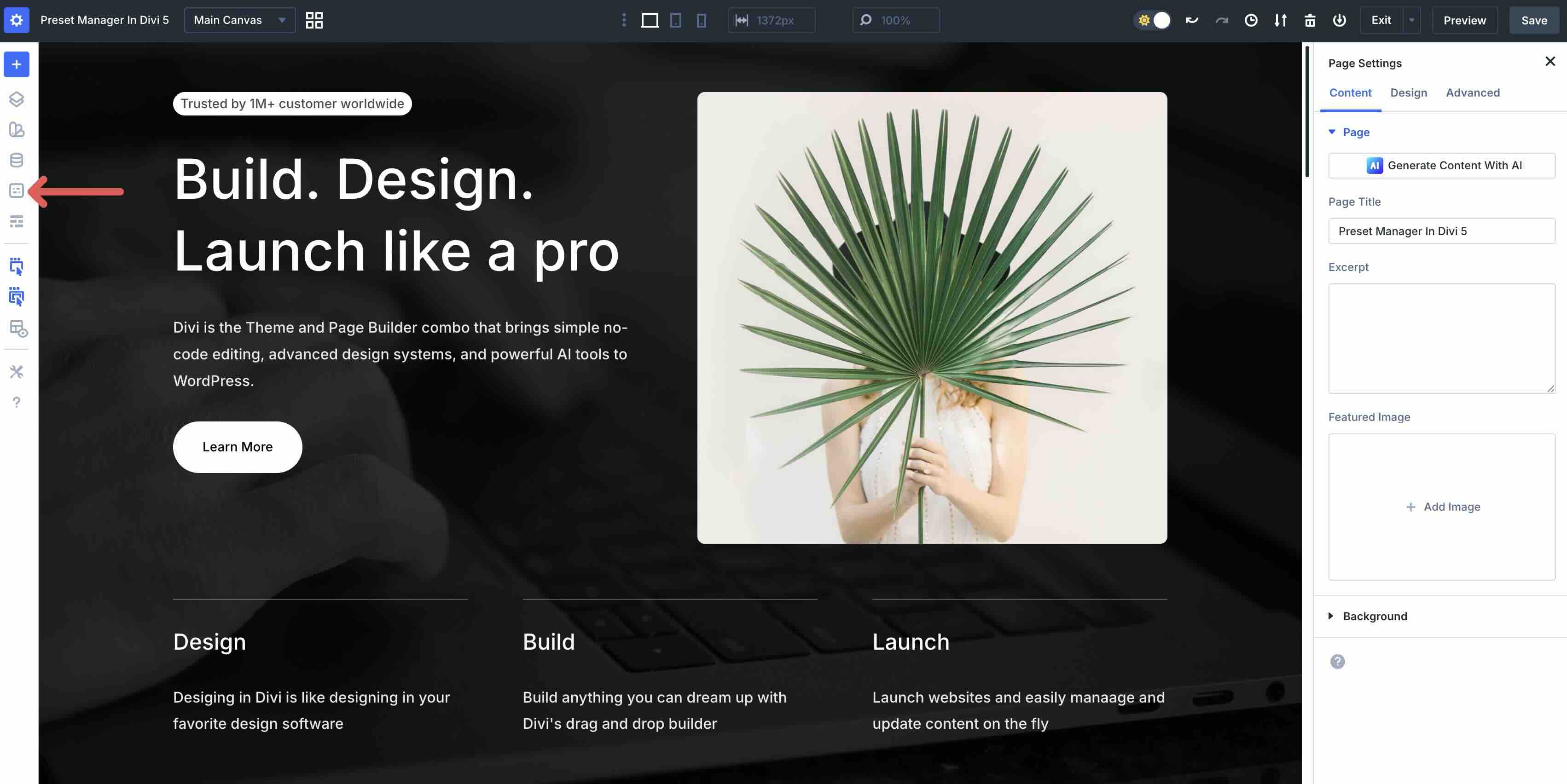
When the Presets manager appears, you will have access to every preset used on your website. To quickly find a preset, use the search function to enter a keyword.
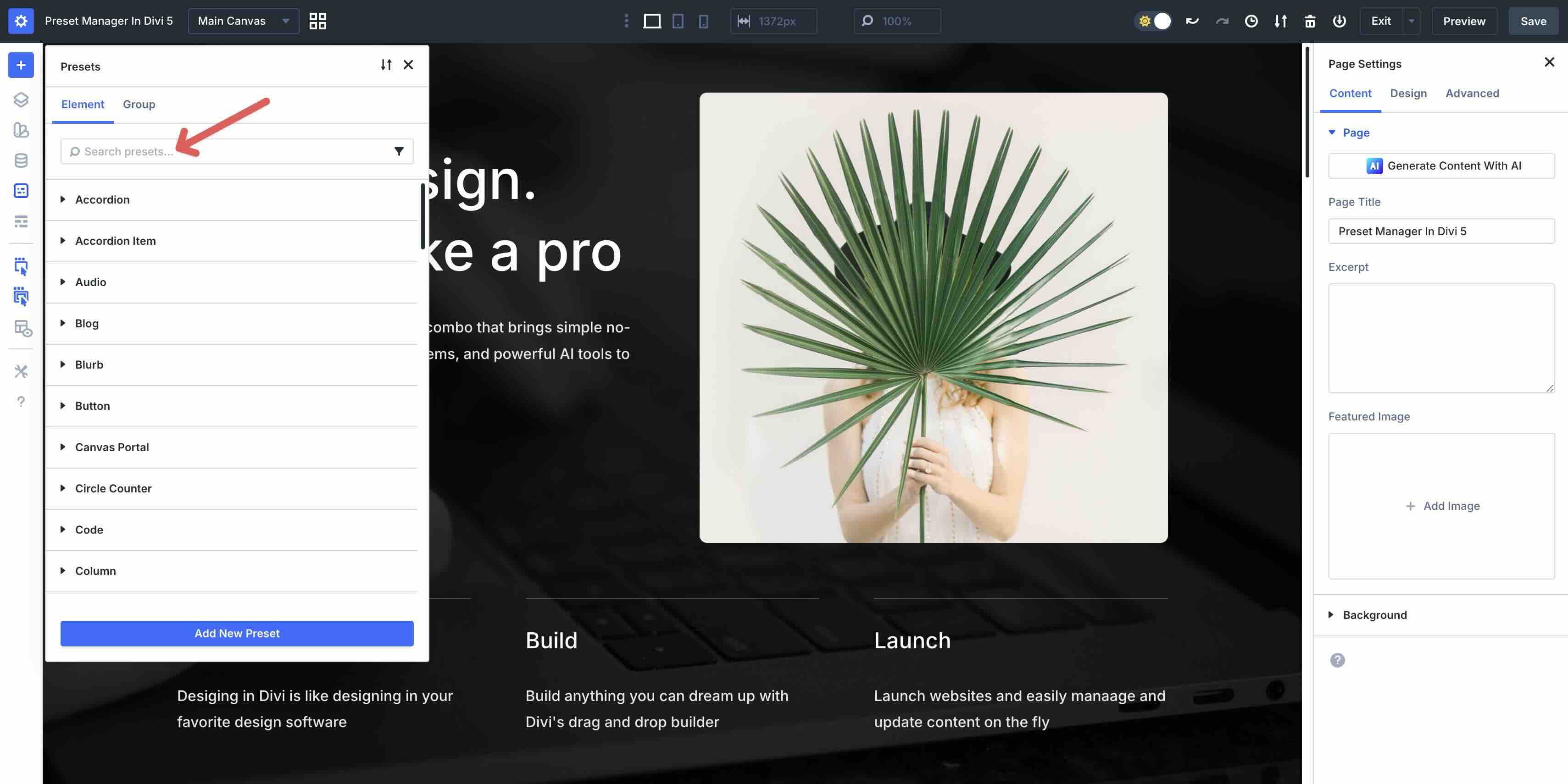
Alternatively, you can use filtering to browse available presets. Clicking on a keyword will bring up every available preset for that module.
You can sort and reorder presets. By default, the presets are organized alphabetically, making it easy to browse your collection.
Create a new preset
From Preset Manager, click the Add new preset knob. When in the Element tab allows you to create presets for each module in Divi. On the other hand, while in the Group The tab lets you create option group presets for various style settings, including buttons, box shadows, spacing, filters, and more.
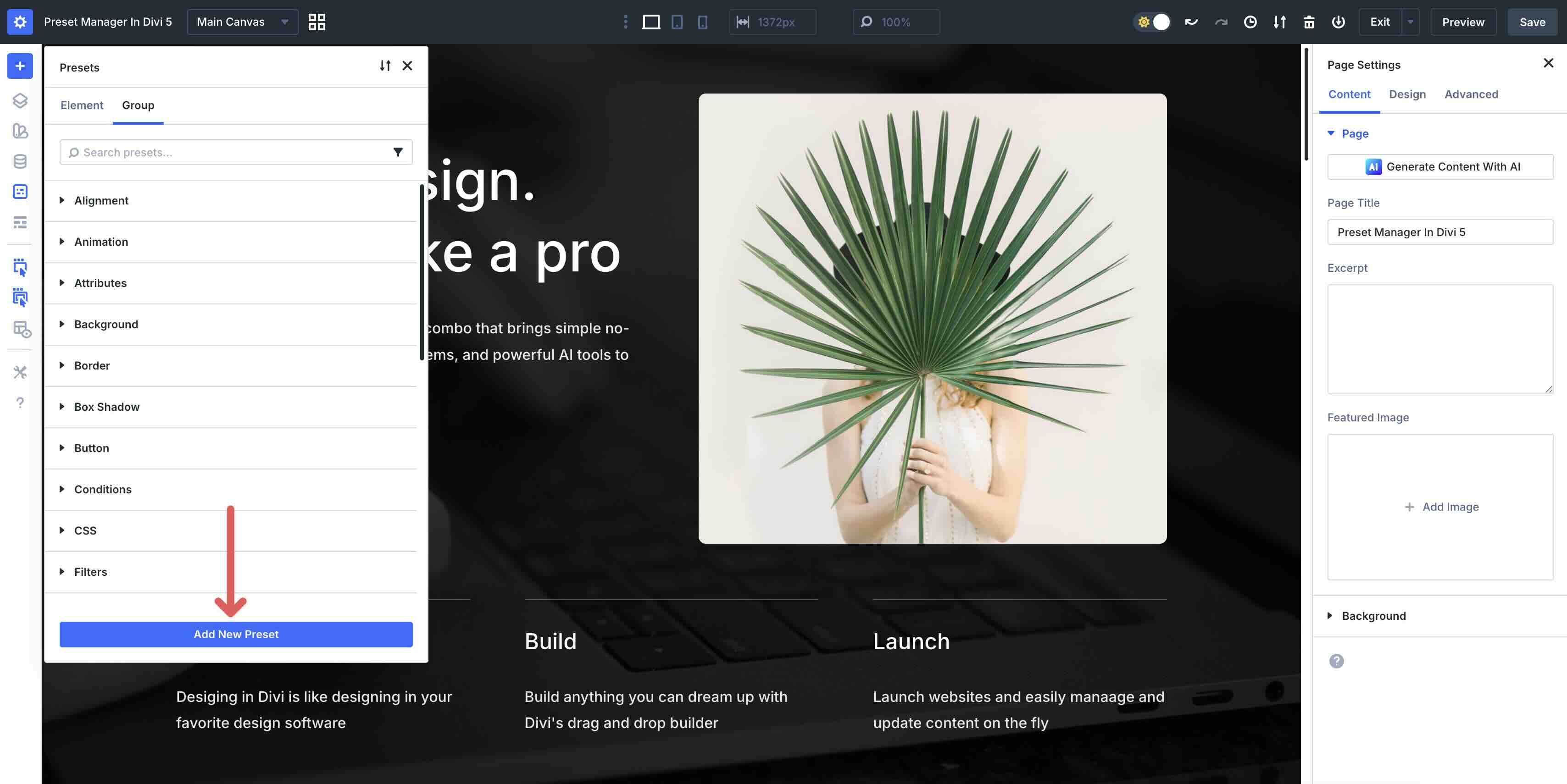
For example, after you click on the Add new preset button in the Element tab, you will be presented with a list that you can scroll through to create a new preset.
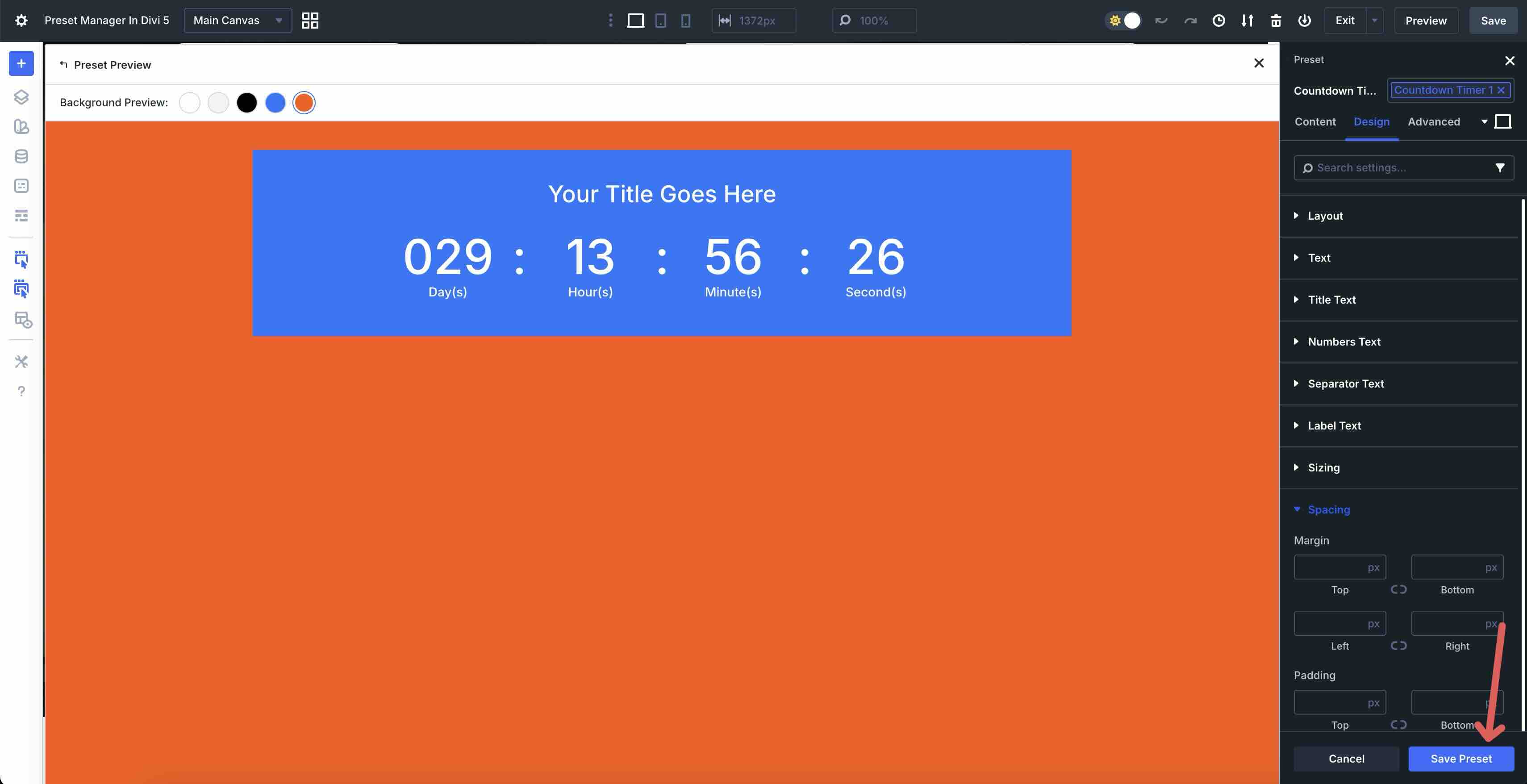
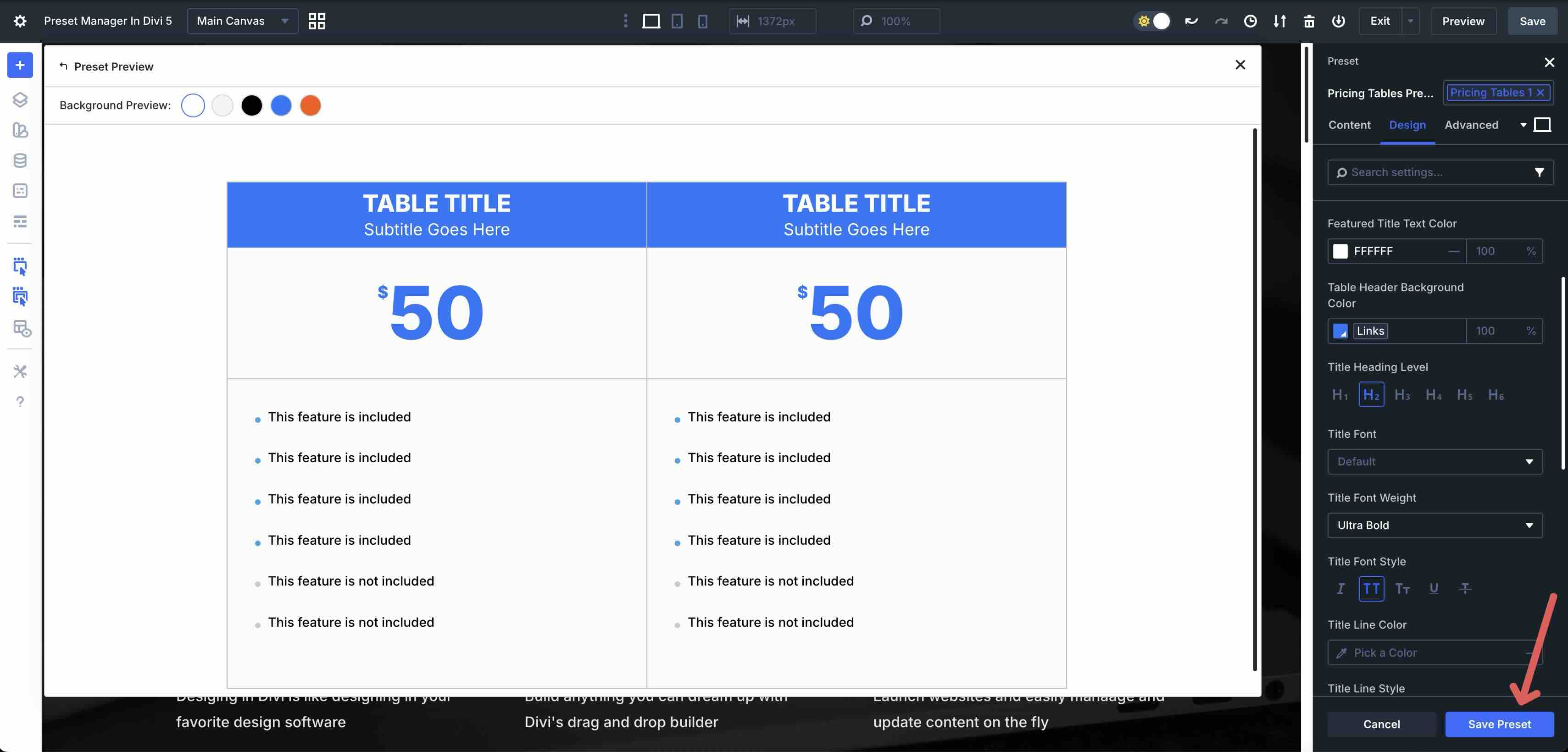
When you select an element, the Preset example will launch, along with the Presets panel. Make any content or design changes and then save the preset by clicking Save preset knob.
Edit an existing preset
Use Preset Manager to select a preset to edit. Click on the Edit preset icon to make changes to your preset.
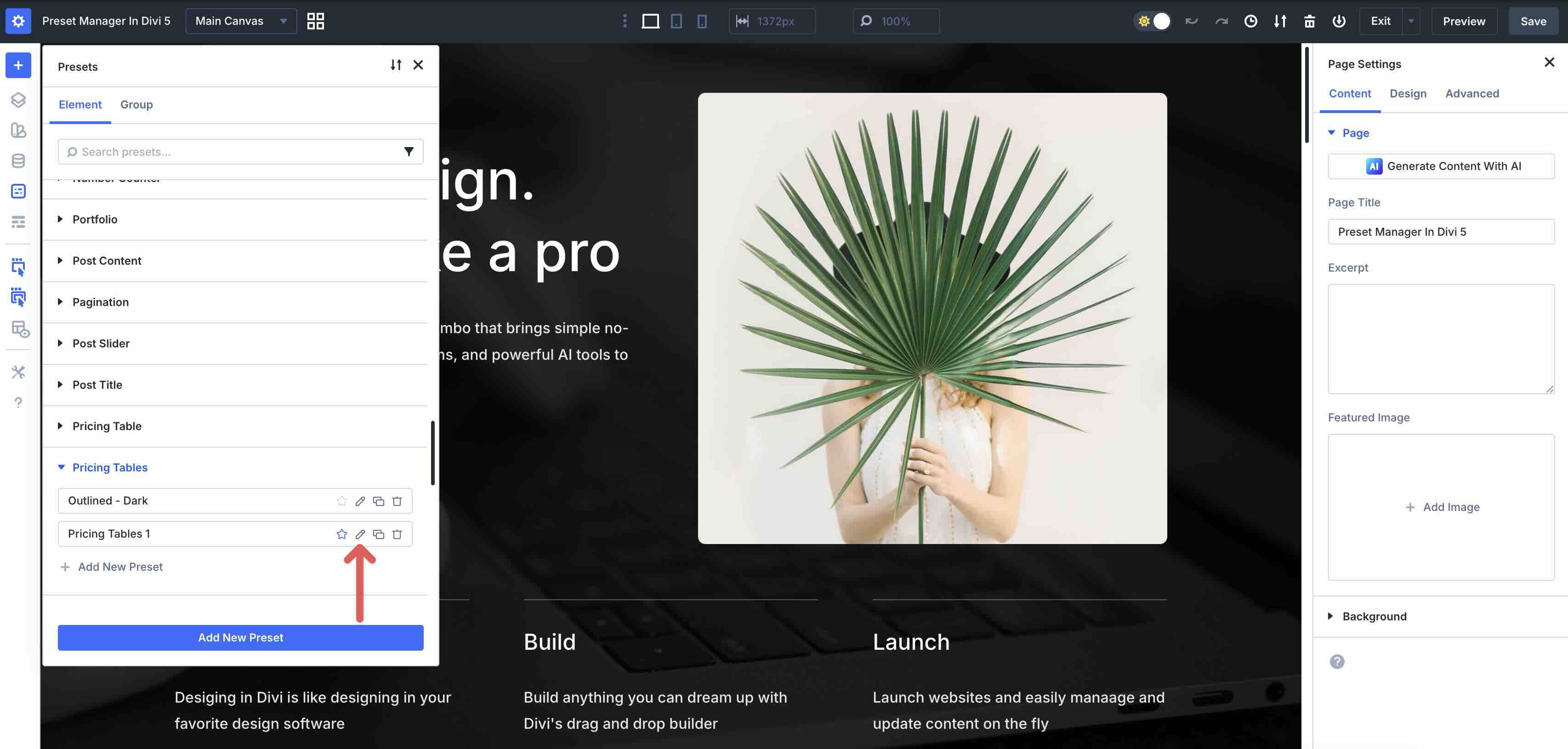
This will start the preset preview. Use the Preset settings in the Contents tab to change the name of the preset. Use the Design tab to make style changes to colors, typography, spacing, shadows, or other settings.
Once all changes have been made, complete them by clicking Save preset knob.
Duplicate and reorganize presets
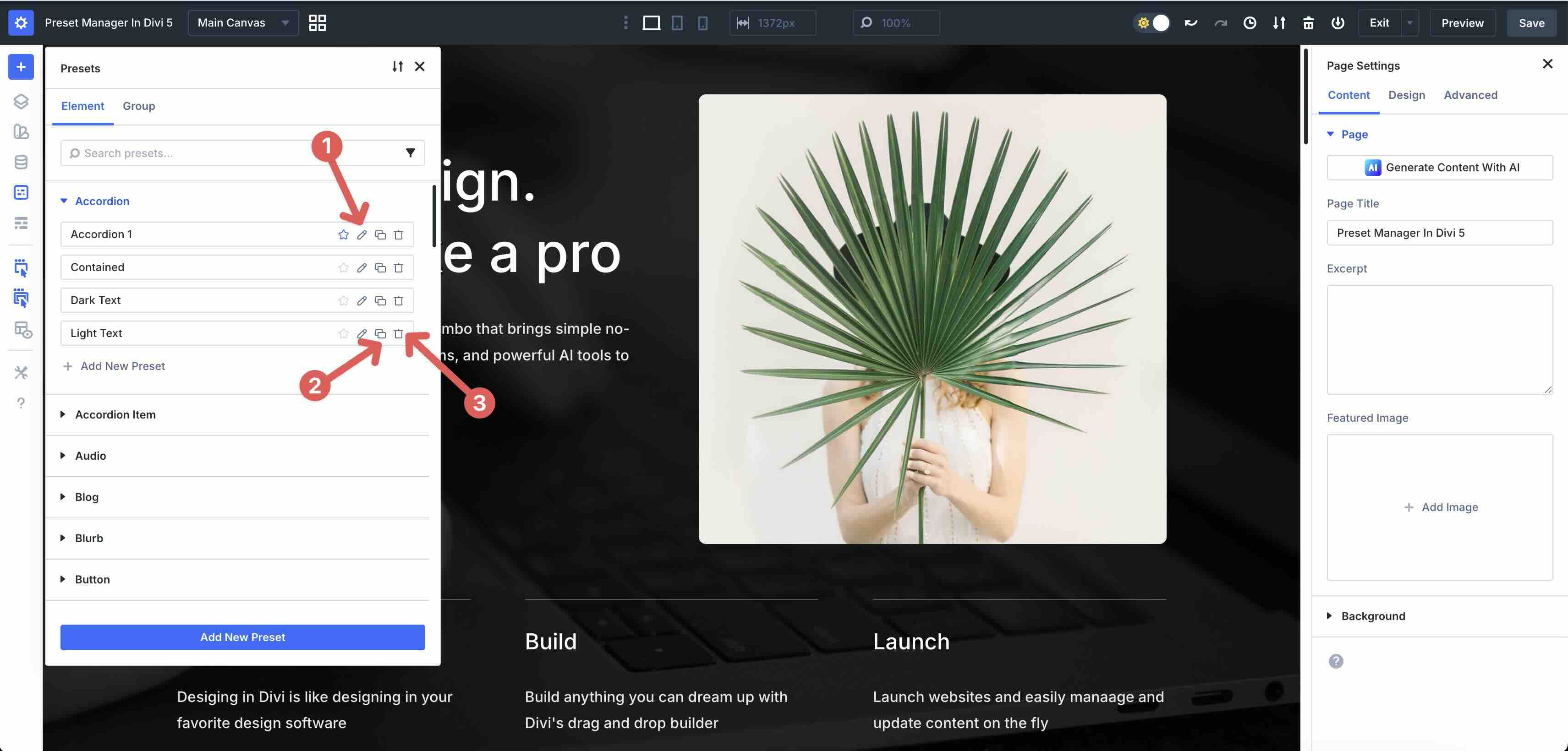
Each preset in the list contains action options for easy management. Hover over a preset to display actions for it duplicate or to delete.
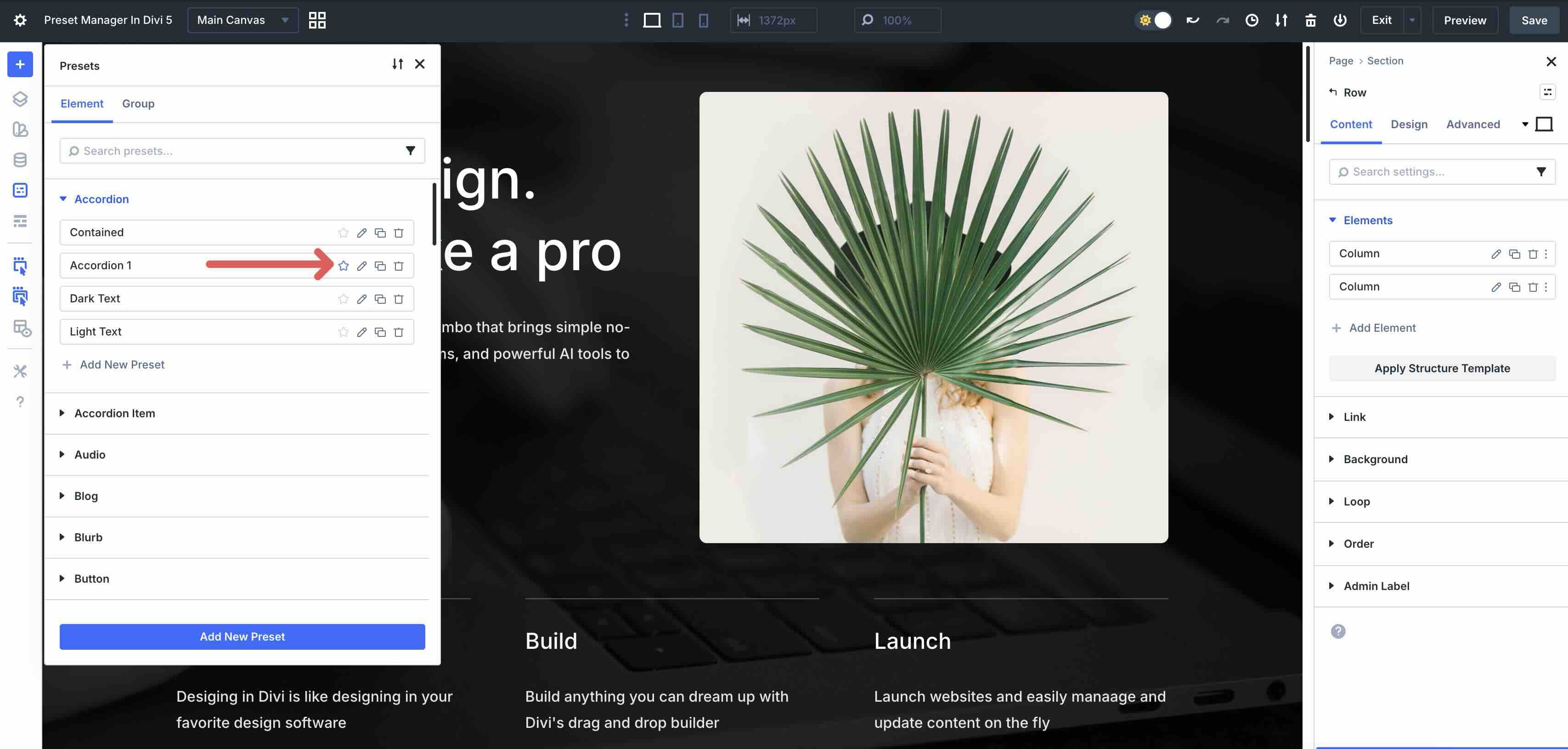
You can also easily assign a preset as a favorite by enabling the star icon.
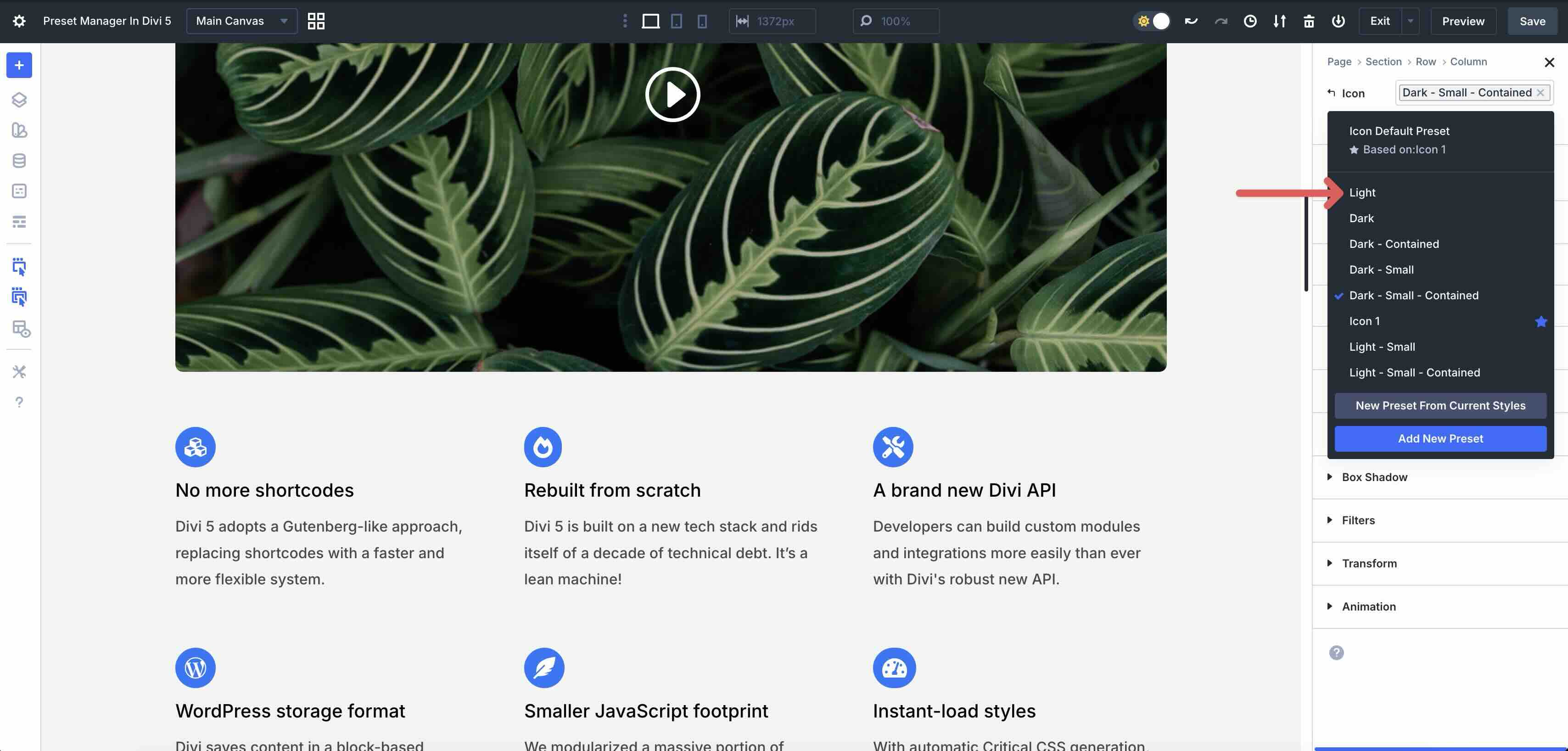
To reorganize presets, simply drag them to reorder them.
You can move your favorites to the top for priority access, and the new order will immediately appear in preset menus on your pages.
Benefits of using Preset Manager
Streamlined workflow
The Preset Manager transforms the way you work with Divi 5. Instead of jumping between modules, pages, or scattered settings, you can control everything from a single, intuitive panel. This centralized approach leads to noticeably faster design decisions, allowing you to spend more time building pages and less time managing styles.
Improved consistency
One of the biggest benefits is the consistency it brings to your entire website. The Preset Manager makes maintaining and updating styles faster and clearer. Make a change to a preset once and it will immediately be reflected in every element or option group that uses it. That way, all your typography, colors, spacing, shadows, and other design elements stay perfectly aligned.
Greater efficiency
The Preset Manager can handle even the largest preset libraries. Built-in drag-and-drop search, filter, sorting, and reordering lets you find, edit, or reorganize presets in seconds. What used to feel overwhelming with dozens of presets now feels organized and approachable.
Experiment safely
The Preset Preview system allows you to safely experiment with styles without breaking them on your site. You can edit or create presets with confidence, viewing each adjustment live in a sandbox that never touches live page content. This risk-free environment encourages users to try new color combinations, refine shadows, or test typography.
Scalability
Finally, the Preset Manager is built with scalability in mind, making it an ideal companion for complex sites, growing teams, agencies, freelancers, or anyone looking to create powerful, reusable design systems. If you want to bring consistency to your brand or export presets to kick-start new builds, this feature will grow with you.
Try the Preset Manager in Divi 5 today!
The new Preset Manager in Divi 5 offers a quantum leap in the way you design and maintain consistent websites. By putting complete control over your presets in one dedicated tool, it streamlines your workflow, increases efficiency, brings harmony to your brand styles, and gives you the freedom to experiment. Whether you’re a freelancer or an agency owner, these features make managing presets more productive than ever.
Now is the perfect time to dive into Divi 5. Download the latest Divi 5 public beta, experiment with the Preset Manager, and let us know what you think in the comments.
#Divi #Preset #Manager