

If you use Gmail every day, you probably don’t think much about how it works. You open your inbox, check a few messages, respond to what feels urgent, and move on.
But over time, the unread threads pile up, newsletters crowd out the real work, and it takes longer than necessary to find the email you need.
Google is now relying on Gemini-powered AI alongside familiar Gmail tools to make inbox management easier and more efficient. Rather than asking users to change the way they use the platform, these features focus on summarizing conversations, highlighting urgent messages, and automatically reducing clutter.
Here are five Gmail features to help you organize your inbox.
1. AI overviews for faster catch-up
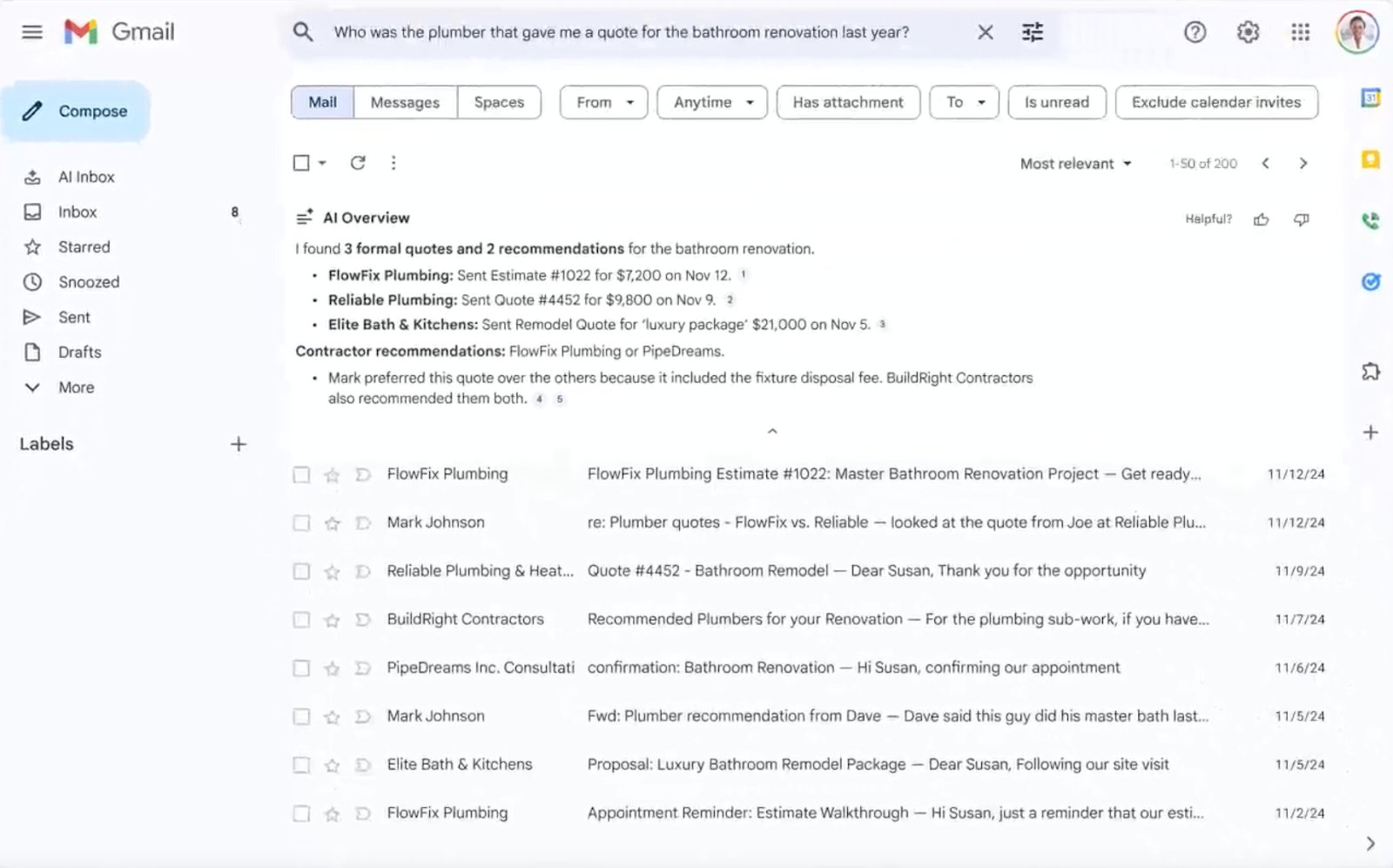
Imagine opening Gmail after a few days of absence and seeing dozens of unread messages buried in long reply chains. Instead of scrolling through each response, Gmail now summarizes the conversation for you.
AI overviewsnow rolling out to Gmail, you can type a question or short phrase into the search bar and get a straight answer straight to your inbox. Gmail searches for the most relevant emails first, then compiles the most important details into a quick summary that appears above your search results. This feature saves you time, especially when the information you are looking for is spread across multiple emails.
For example, you can search for “What have we decided about the second quarter budget?” Instead of opening multiple threads, Gmail generates a summary showing the final decision, the amount approved, and who signed up, even if these details are spread across several messages.
2. AI Inbox priority for urgent messages
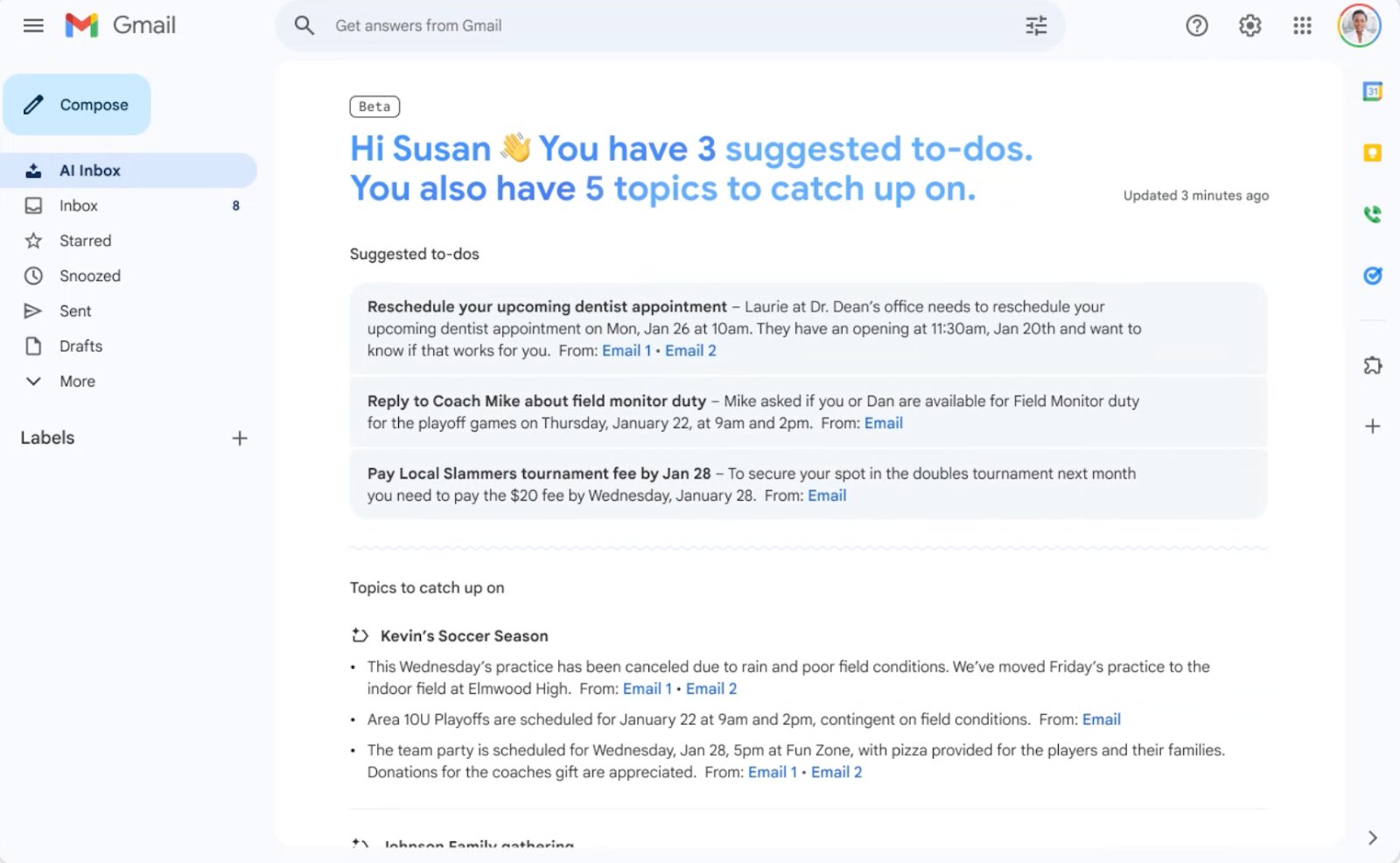
Imagine this: your inbox is filling up quickly and some emails need immediate attention. It’s easy to feel overwhelmed, but Gmail’s AI Inbox feature is designed to help you manage your inbox more efficiently.
AI inbox is a new Gmail view that highlights priority emails in two sections: suggested tasks and topics to stay on top of. Suggested tasks show messages that require immediate attention, such as an invoice due date, while Topics to Stay Informed summarizes important updates such as travel plans or reservations.
For example, you open your AI Inbox and you immediately see a reminder that a utility bill is due tomorrow, followed by a summary of your upcoming flight and a restaurant reservation. Instead of manually searching your inbox, you know exactly which messages need attention. According to Google, this feature identifies priority emails using signals such as frequent contacts and message context, with the same security and privacy protections as the rest of Gmail.
3. Manage subscriptions to reduce clutter
Subscription emails are quietly piling up. You sign up for a discount, download a white paper or order something once and forget about it while the emails keep coming.
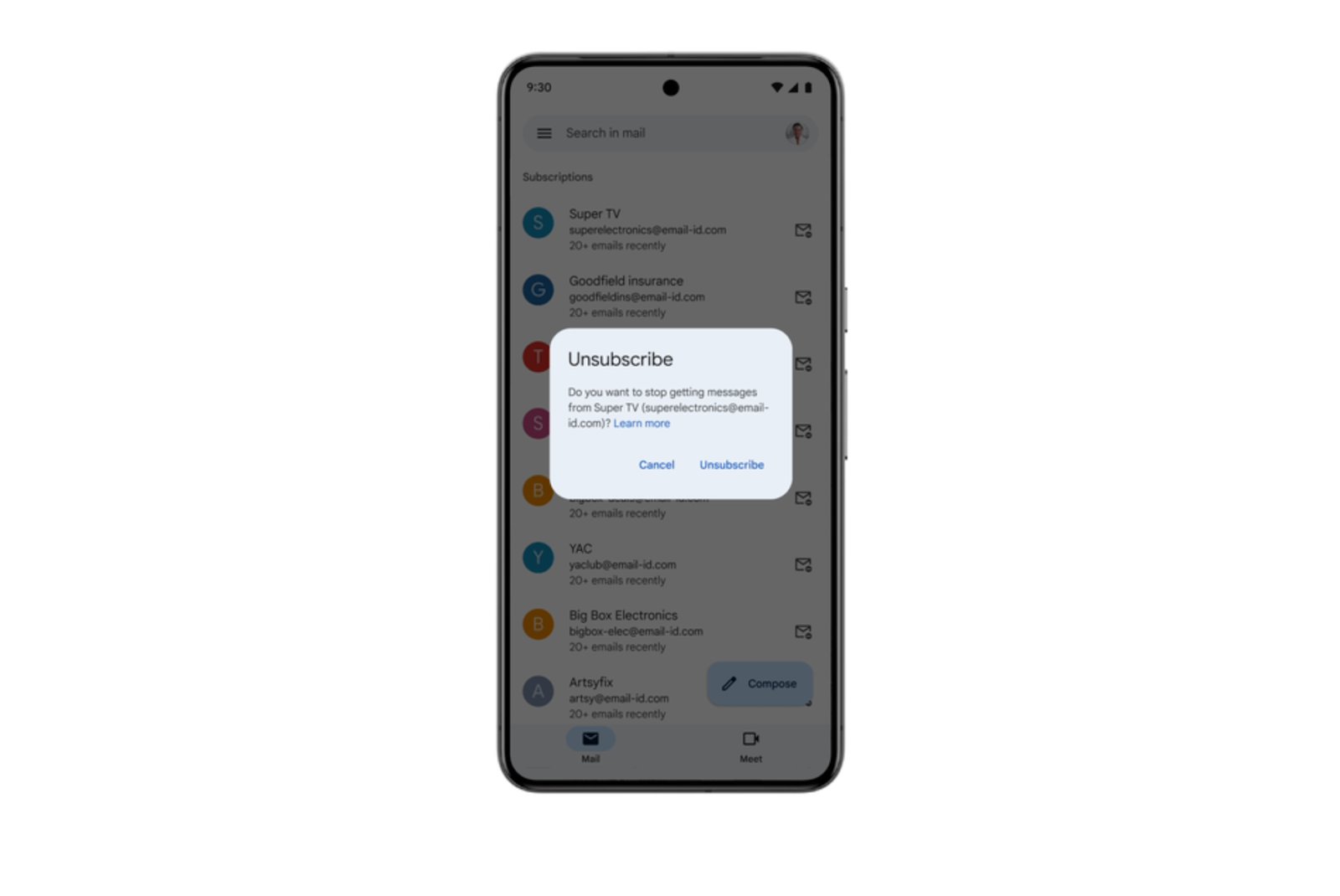
Gmail’s View manage subscriptions is designed to make it easier to deal with that mess. From the Gmail navigation menu, you can open Manage Subscriptions to see all active subscription senders, sorted by how often they email and how many messages they’ve sent recently.
From there you can unsubscribe with one click and Gmail will send the request to the sender on your behalf. Unsubscribing will remove you from all related mailing lists, although it may take a few days for the messages to stop completely.
For example, you open your inbox and realize that half of yesterday’s messages came from newsletters you don’t remember signing up for. In Gmail’s Manage Subscriptions, these senders appear at the top of the list, making it easy to unsubscribe and move on.
4. Filters and labels for automatic organization
Some of the chaos in your mailbox comes from emails you expect and need, like order confirmations, shipping updates, billing alerts, and password resets. They’re good to have on hand, but they don’t have to interrupt your day by sitting in your main inbox.
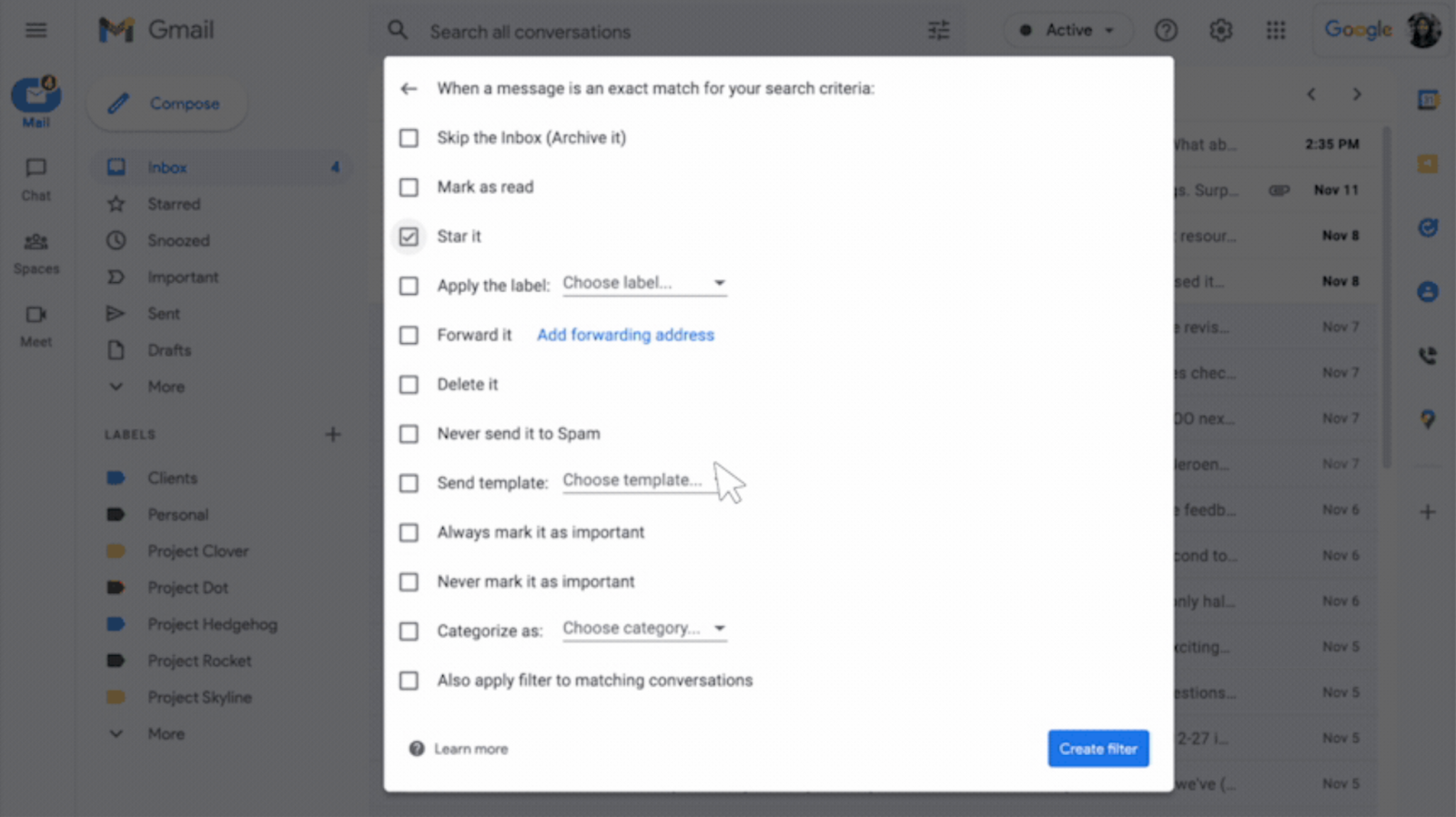
Filters and labels in Gmail This allows you to automatically organize incoming emails based on criteria you choose, such as sender, keywords, or subject lines. You can use these features to tag, archive, star, forward, and delete messages. This way, your email ends up exactly where it belongs as soon as it arrives. Labels add an extra layer of organization by allowing emails to be in multiple categories at once, instead of being stuck in a single folder.
Imagine: you receive notifications every day that you want to keep, but not immediately read. A filter labels these messages and automatically archives them so you can easily find them later without cluttering your main inbox.
5. Help me write to speed up answers
Answering emails is not always difficult, but it can be time-consuming. If tone matters or the message needs polishing, comments may stay in your inbox longer than necessary.
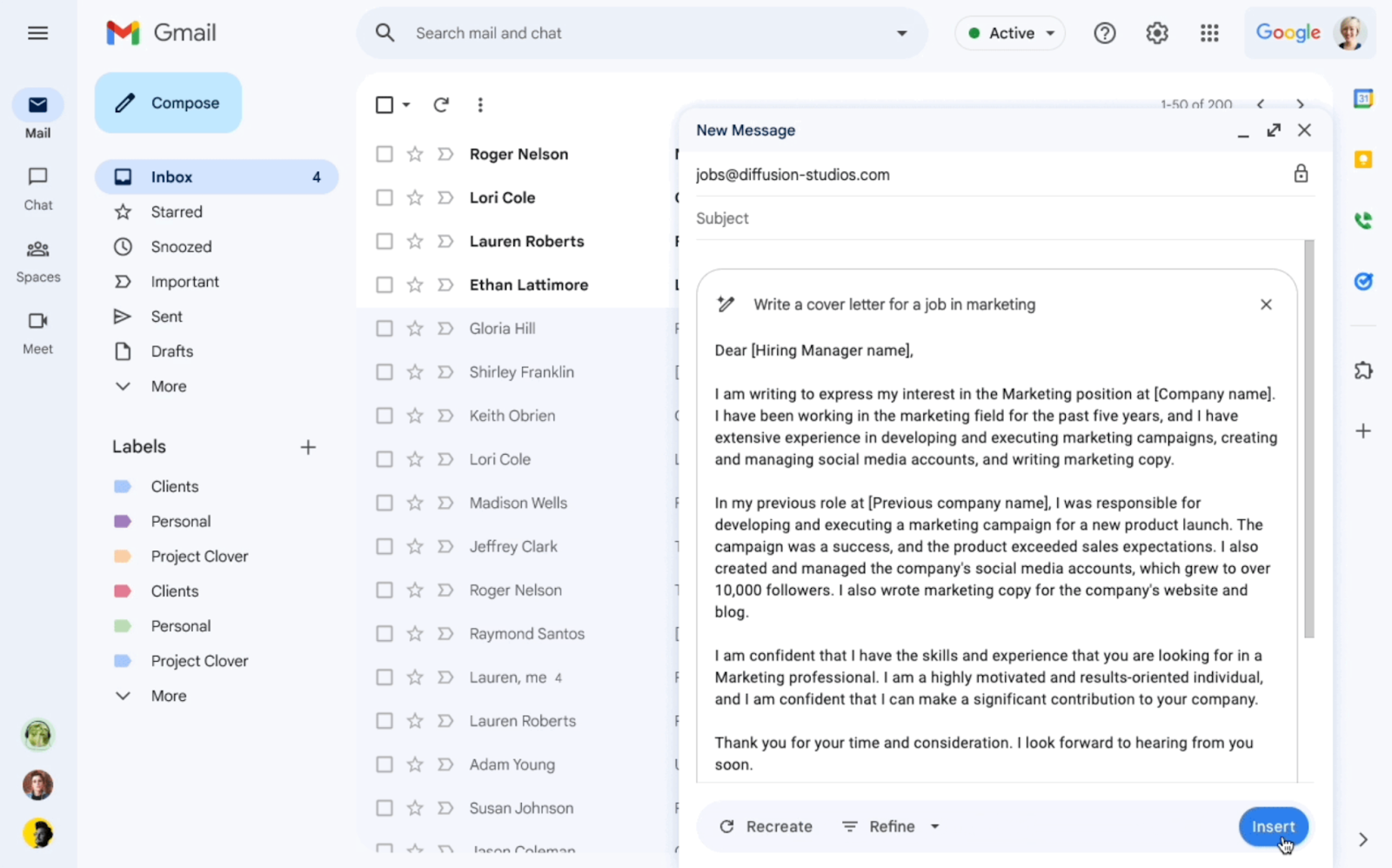
Help Me Write is an AI-powered feature in Gmail that lets you generate a new draft or refine text you’ve already written based on a simple prompt. It understands the context of the email thread so replies stay relevant, and you can adjust the tone and length with options to make the language more formal, provide detailed explanations, or shorten the message before you hit send.
According to GooglingHelp Me Write is available on web and mobile and is expanding to more languages including Italian, French and German.
For example, suppose you need to introduce a colleague to a new client, but only have a rough outline in mind. You ask Help Me Write to draft the introduction, then edit it into more formal language and insert the final version before sending it.
Bottom line: Gmail does more of the inbox work for you
Gmail’s latest features signal a shift from manual inbox cleaning to built-in help. Instead of relying solely on folders or constant searching, Gmail now automatically summarizes conversations, identifies urgent messages, and reduces subscription clutter.
For users who manage a large email volume, these tools are designed to make your inbox feel less overwhelming without adding extra steps to your daily email usage.
Read our coverage of how Gemini arrives on Chromebooks and what it means for managing day-to-day work.
#Gmail #features #inbox #chaos #easier #manage