

Take Black Friday as an example. According to NPR, American consumers have been spending money $10.8 billion online in one day in 2024and even the smallest stores felt the ripple effects. A campaign that typically gets a few hundred visits can suddenly push thousands of people into your checkout flow.
As a Kinsta customer, you don’t have to switch hosting levels every time that happens. This guide discusses three effective options: using a PHP performance add-on, maximizing caching, and reducing database load.
1. Use the PHP performance add-on
Most traffic spikes overwhelm sites as PHP reaches its capacity to process requests. When too many uncached page views or checkouts occur at once, threads pile up and visitors see errors, delays, or abandoned carts.
That’s where the Kinsta PHP performance add-on can really come in handy. Instead of upgrading your entire hosting plan, you can temporarily increase PHP threads and memory allocation during peak times. It’s prorated, so you pay for the extra funds when you need them and nothing more.
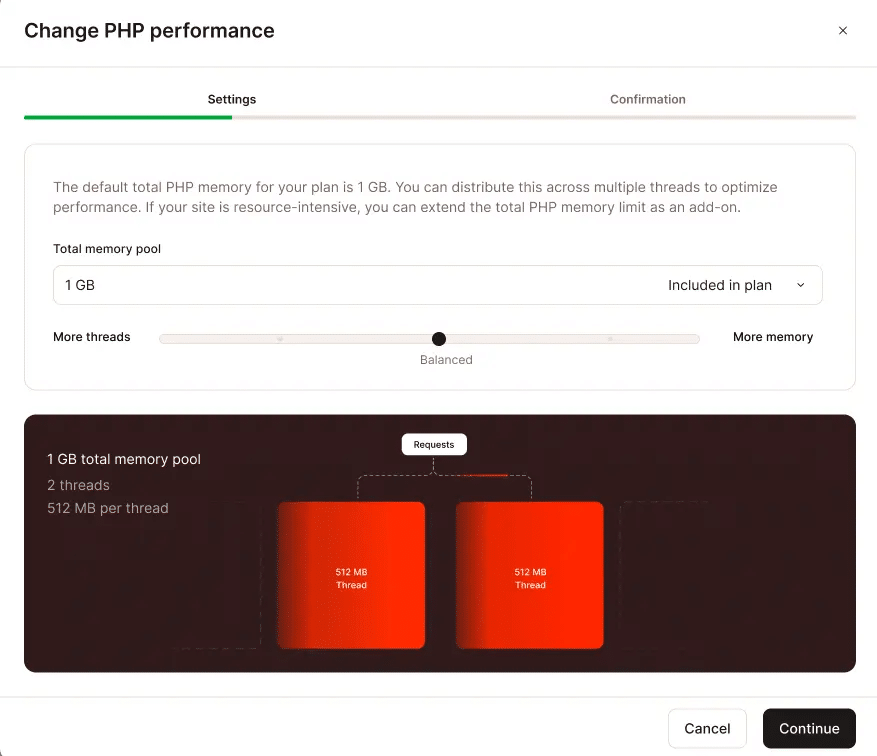
Consider a small WooCommerce store with a 48-hour flash sale. Their email campaign triples traffic overnight, and while caching absorbs most of the product page visits, payment requests increase.
Without additional PHP threads, shopping carts get stuck and orders fail. Research shows that one in three online shoppers abandon their carts if pages load too slowly, which can result in thousands of dollars in lost sales. If you enable the PHP Performance add-on the day before the sale, the store checkout will continue to run smoothly and will be disabled afterwards to avoid paying for unused capacity.

2. Maximize caching before starting your plan
Before you scale resources, make sure caching does the heavy lifting. Caching provides ready-made versions of your pages, so visitors don’t land on PHP with every request. If configured correctly, the majority of visits to product and category pages never contact the server.
The problem is that stores often undermine their own caching without realizing it. Plugins or themes may enforce ‘no-cache’ headers, shopping cart and checkout pages may unnecessarily bypass caching, or CDN settings may be misconfigured. Each of these issues consumes PHP resources and slows down your store.
An example can illustrate this concept very quickly. Let’s say a small clothing store is having a summer sale and sees a sudden spike in browsing. Product pages need to be cached, but because their theme added ‘no-cache’ headers, every visitor request ends up in PHP.
Load times take longer than three seconds and shoppers start to bounce. After correcting headers and confirming “HIT” responses in their CDN, the same level of traffic barely impacts PHP, leaving resources available for real shopping cart and checkout activities.
To apply this to your store, run a quick caching checklist:
- Check your top cache bypasses to catch unnecessary skips.
- Test in a private or incognito browser to see what new visitors experience.
- Confirm that caching headers are working and look for ‘HIT’ instead of origin responses.
Caching layers in Kinsta
Kinsta automatically handles multiple caching layers, but you can refine or clear them all in MyKinsta:
Server level caching
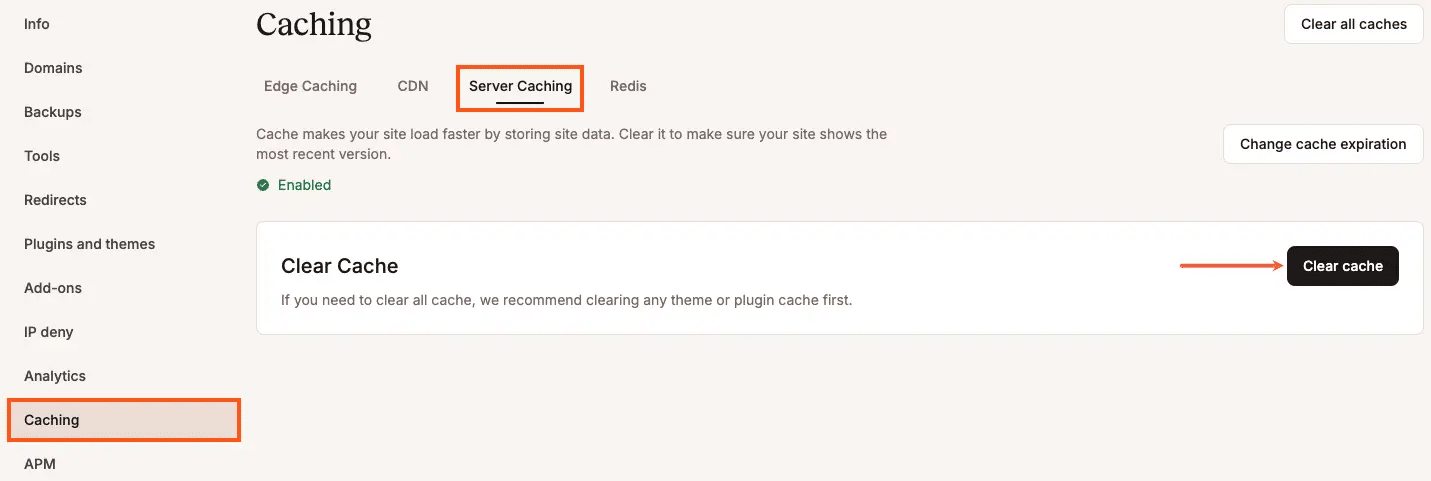
Kinsta’s server-level page caching stores entire HTML pages on the server, so PHP doesn’t have to rebuild them for each visit. It is enabled by default on all sites.
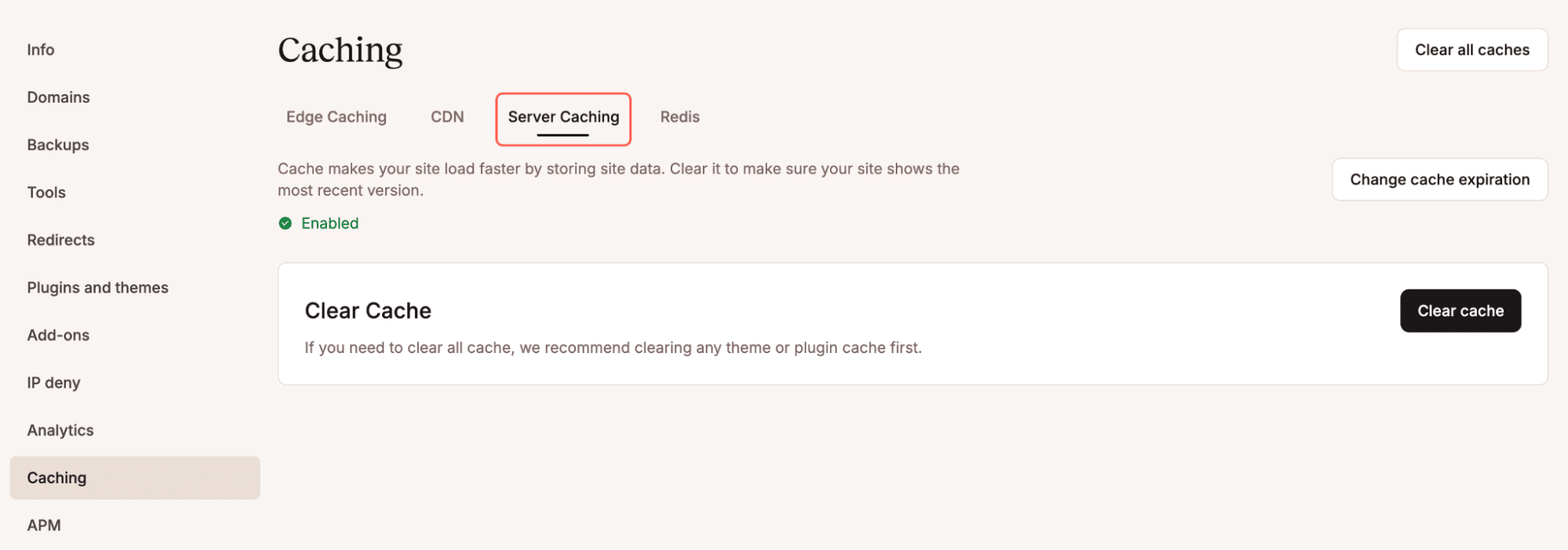
You can also clear this cache by going to MyKinsta > WordPress sites > sitename > Caching > Server caching and then click Clear cache.
Edge caching
Edge caching pushes those same pre-built pages to Cloudflare’s global network and serves them from the data center closest to each visitor. You can turn it on or off at the bottom WordPress sites > Edge caching in MyKinsta.
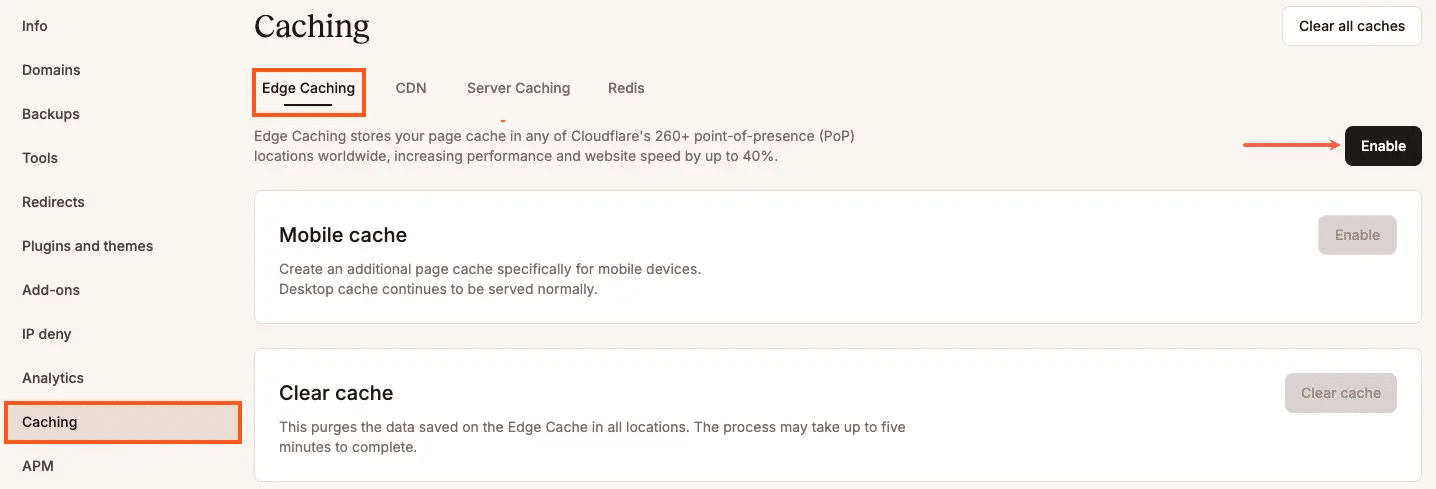
This dramatically reduces latency and takes even more load off your origin server.
CDN caching
Kinsta’s integrated CDN caches static files, such as images, CSS, and JavaScript, at the edge.
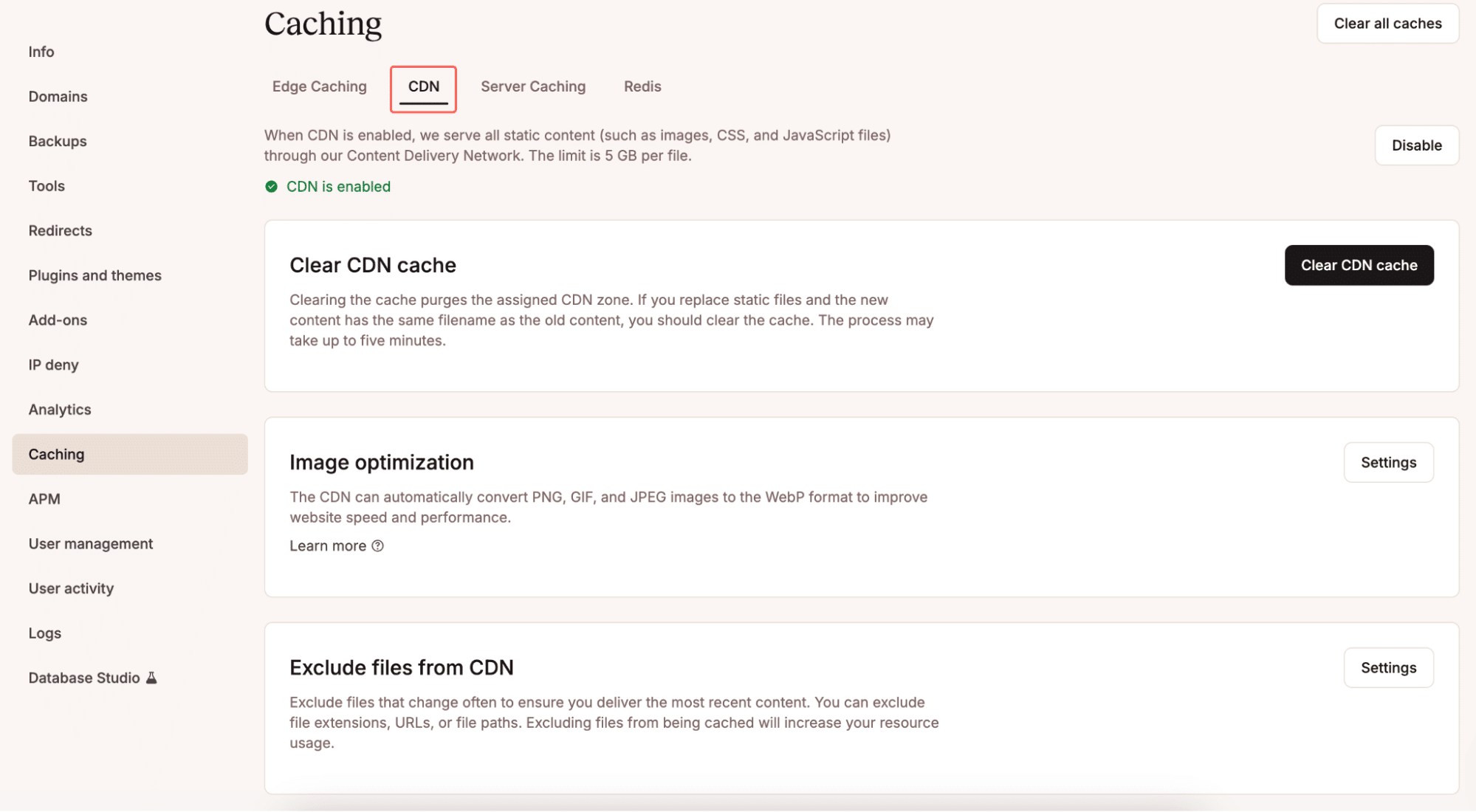
You can configure image optimization and exclude specific files.
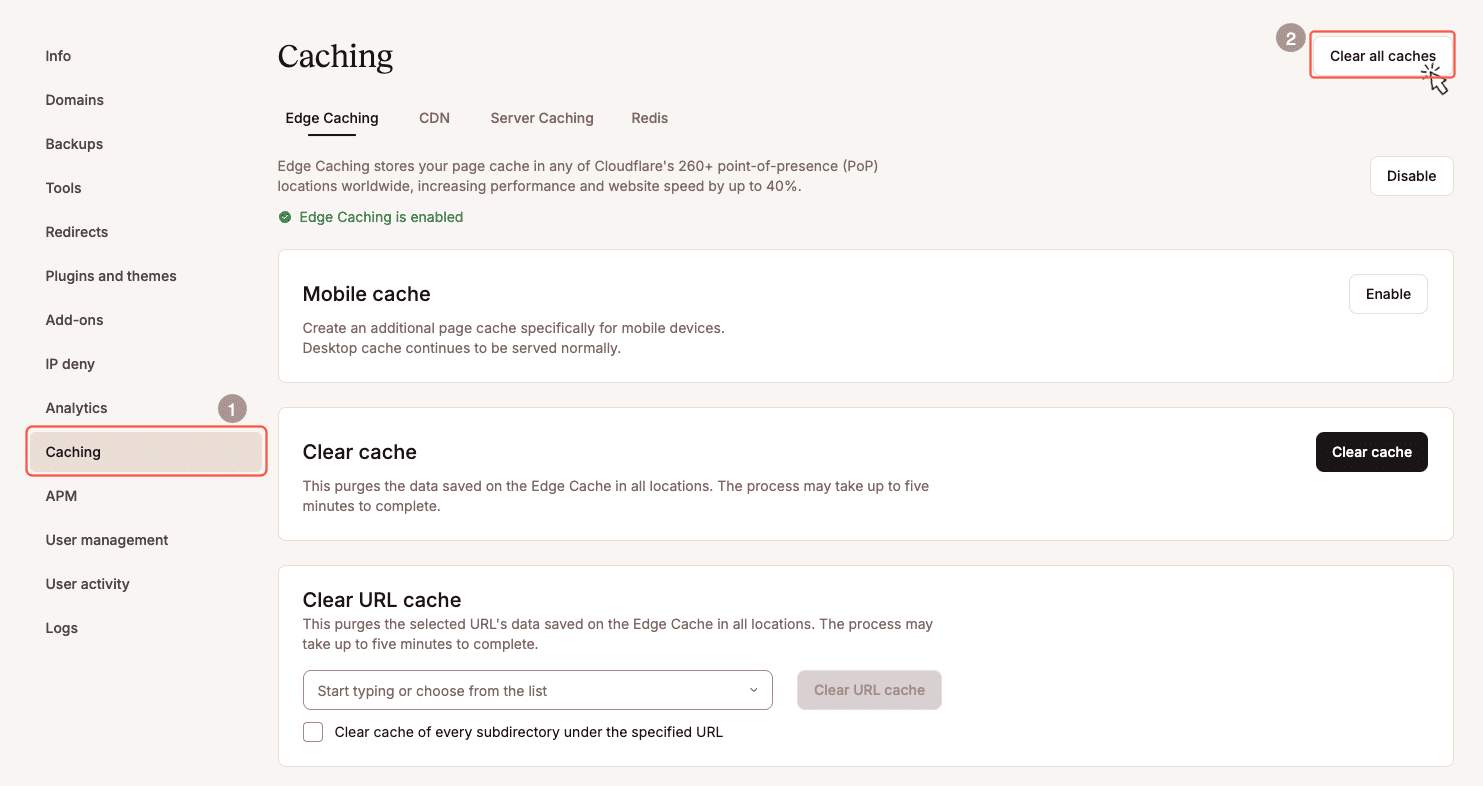
Manually clear caches
To clear everything at once (server, edge and CDN), click Clear all caches under MyKinsta > Cachingor use the WP-CLI command wp kinsta cache clean –all.
3. Reduce unnecessary database load
Even if PHP and caching are in good condition, your database can still degrade performance. Every product filter, category page or search increases the workload, and during high traffic periods that pressure increases quickly.
For example, imagine a home goods store with hundreds of products and a promotion for the holiday weekend. Their category pages load all items at once and every filter option triggers heavy database queries.
As traffic increases, pages crash and frustrated shoppers leave one by one. However, by properly paginating product results and removing unused filters, the store can dramatically reduce database load. Checkout requests stay fast even when traffic spikes.
Here are a few simple ways to keep your database organized:
- Clean up autoloaded options. Old plugin settings and unused data can accumulate in the
wp_optionstable and slow queries. In Kinsta you can view this data via phpMyAdmin (available under MyKinsta > Sites > Info > Database access) or connect via SSH and run a query likeSELECT option_name, length(option_value) FROM wp_options WHERE autoload='yes' ORDER BY length(option_value) DESC;to identify major autoloaded options. - Trim unused product filters. In WooCommerce or your filter plugin settings, remove any filters (color, brand, size, etc.) that do not affect conversions. Each active filter adds searches to your product archive pages. Use Kinsta’s APM tool to see which searches spike when shoppers use filters, then disable the ones that aren’t worth the cost.
- Paginate long loops. Loading hundreds of products or messages at once puts an unnecessary burden on the database. Use in your theme or custom templates
WP_Queryimmediatelyposts_per_pagelimit (e.g. 20 or 30) and enable pagination or ‘load more’ buttons. Keep your product grids lightweight so pages render quickly, even during peak times. - Check transients and search plugins. Misconfigured search tools often hit the database harder than necessary. Transients often live in
wp_optionsand may swell over time. You can safely delete expired files using a plugin such as WP optimization or directly in phpMyAdmin withDELETE FROM wp_options WHERE option_name LIKE '%_transient_%';. We recommend doing this in our accelerated WordPress guide.
You may be wondering now: when should you consider Redis? Only if your monitoring tools (such as APM) show repetitive identical queries or consistently high database time per request. As a rule of thumb, most stores don’t need Redis if caching and PHP are properly aligned. But if the expected revenue at risk exceeds the cost, it may be worth switching on this month.
Cleaning up the database ensures that your store doesn’t waste resources, leaving more capacity for the requests that actually generate sales.
Check performance with monitoring tools
Applying these solutions is only half the battle. You also need to confirm that they work. Tools like MyKinsta (particularly the included analytics) and APM make it easy to spot bottlenecks, whether they’re PHP threads piling up, cache misses, or slow database queries.
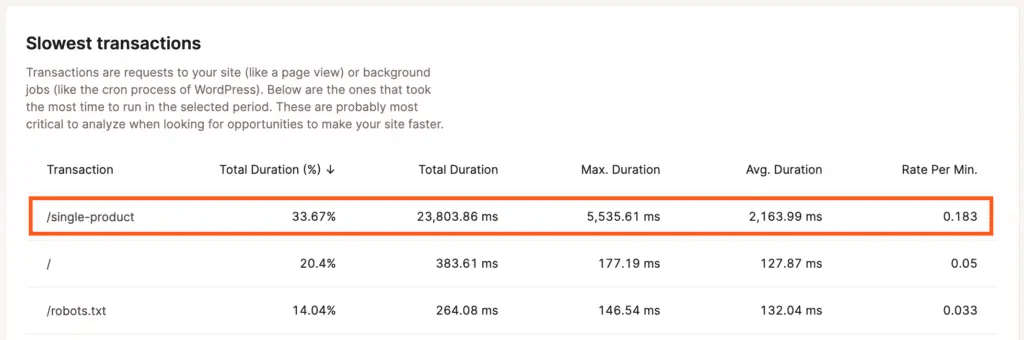
By checking these metrics before, during and after your campaign, you’ll know exactly where your site is under pressure and whether your adjustments are paying off.
Summary
You don’t need a full hosting upgrade to survive big sales or traffic spikes. With the right setup, smaller stores can handle sudden demand just as effectively as large stores.
The key is combining three practical steps: use the PHP performance add-on to handle temporary spikes, ensure caching is running at full capacity so that most visitors never touch PHP, and clean up unnecessary database load to keep checkout fast and reliable.
Together, these solutions prevent 500 errors, reduce delays and help more customers complete their orders. If you are planning a campaign or seasonal promotion, enable the PHP performance add-on in advance and couple it with effective caching and regular database maintenance.

Kinsta
Joel is a frontend developer and works at Kinsta as a technical editor. He is a passionate educator with a love for open source and has written more than 300 technical articles, mainly around JavaScript and its frameworks.
#ways #handle #traffic #spikes #downgrading #upgrading #plans