

Long articles work well with sections. Product pages do that too. Take a landing page: heroes area at the top, features below that, testimonials after that and prices at the bottom. Each becomes his own
Sections nest when necessary. Keep nested sections aligned with your heading levels to keep the outline coherent. A substantive chapter may contain three or four subsections, each with a subtitle. Browsers and screen readers follow that hierarchy naturally, just as people flip through the chapters of a physical book.
How to use the aside element
Here’s the test: if you removed all the aside content, would your page still make sense? It should. A blog post works without a “recent articles” sidebar. A product page functions without a ‘you might also like’ widget. Other than that, the content adds depth, but it isn’t required to understand what you’re reading.
Most screen readers handle
You can place a side in the middle of your content or place it on the side in your layout. An article may contain an aside with a relevant statistical right between two paragraphs. Your page’s design can place a column of content next to everything else. Both settings work fine. What matters is that the secondary content connects to the main content without being part of it.
What is the most important element
The
This container contains what someone came to your page for. A blog post, product details, your portfolio and a contact form. Whatever the page exists for goes in
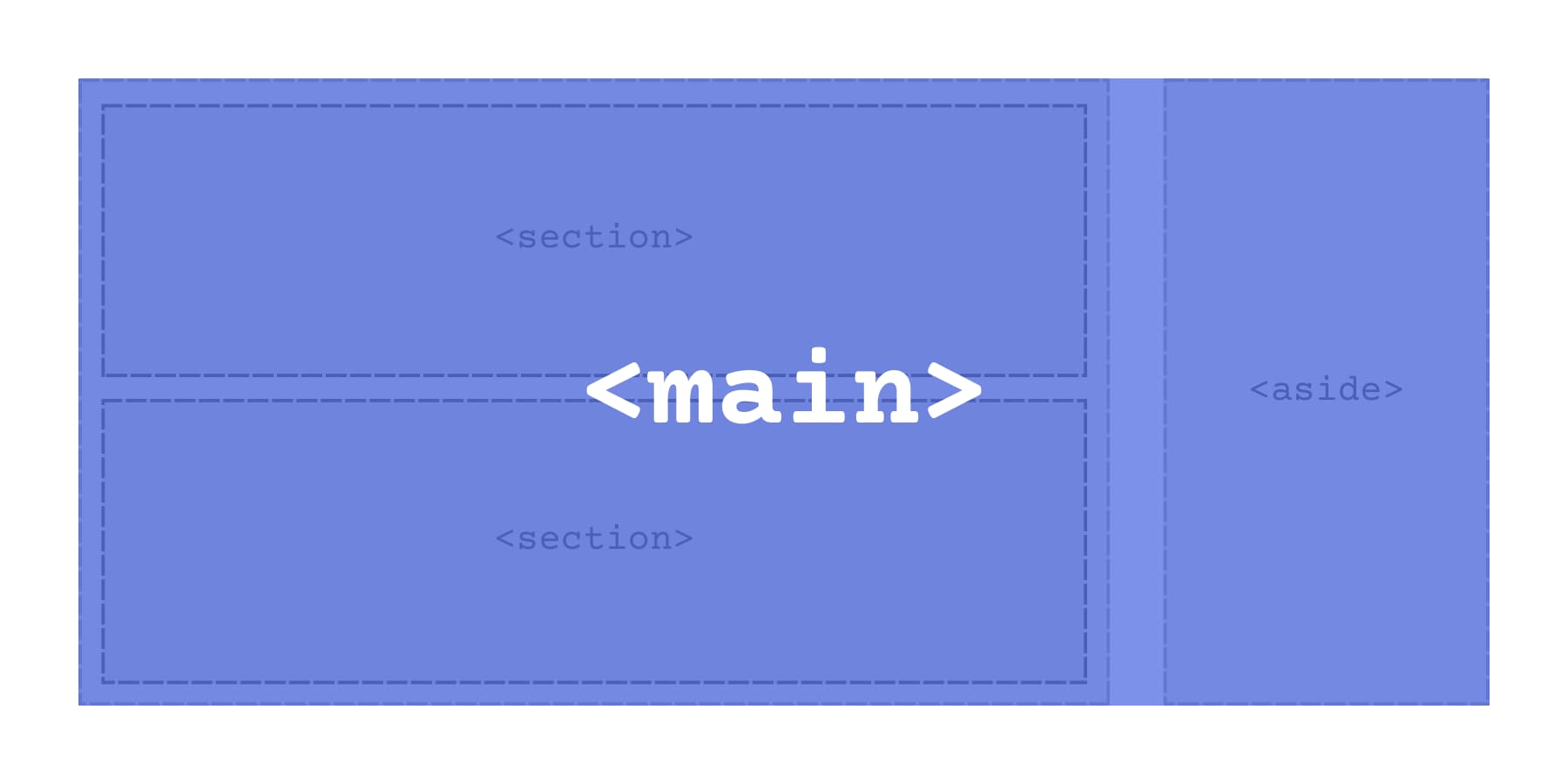
You can only use one
Search engines also take this element into account. Semantic structure can help search engines interpret which content is primary, but it does not replace strong content or a clear heading structure.
The main element does not change the appearance of your page. You still style everything the same way with CSS. But underneath, it creates a landmark in your HTML that makes your site work better for anyone who navigates it.
Section vs. aside vs. main: the main differences
Choosing between these three tags becomes easier if you focus on content relationships:
contains what your visitors came to see. organizes different topics that need to be labeled.
Here’s a quick overview to get a better idea:
Aside works anywhere on your page, not just in sidebars. The deciding factor is independence. Pull out the content completely and check that your main story still flows and makes sense. Author bios work without reading the article. Related posts add value, but are not required. Optional definitions or clarifications can support your content without being part of the core story. Visual placement does not determine whether something is a
Introducing semantic elements in Divi 5
Divi 5 puts semantic HTML controls right in the builder, where you can actually use them. The tools are available in the same settings panels you already use to style everything else.
Modules and containers in Divi 5 include Element Type controls, so you can choose the most appropriate semantic wrapper for each part of your layout. The styling remains exactly the same. What changes is the code underneath and what it tells browsers about your page structure.
This can improve accessibility by adding clearer landmarks and providing search engines with more structural context about your page. Screen readers use semantic tags to help people navigate your page faster. Search engines read them to understand how your content connects. Neither tool cares what your design looks like. They mainly care about your content and the structure that your HTML communicates.
The workflow remains simple. Build your layout as normal, then determine what each piece semantically represents.
Change element types in Divi 5
Open any module or container settings. Go to the Advanced tab. You will see an HTML options group at the top. That’s where Element Type lives.
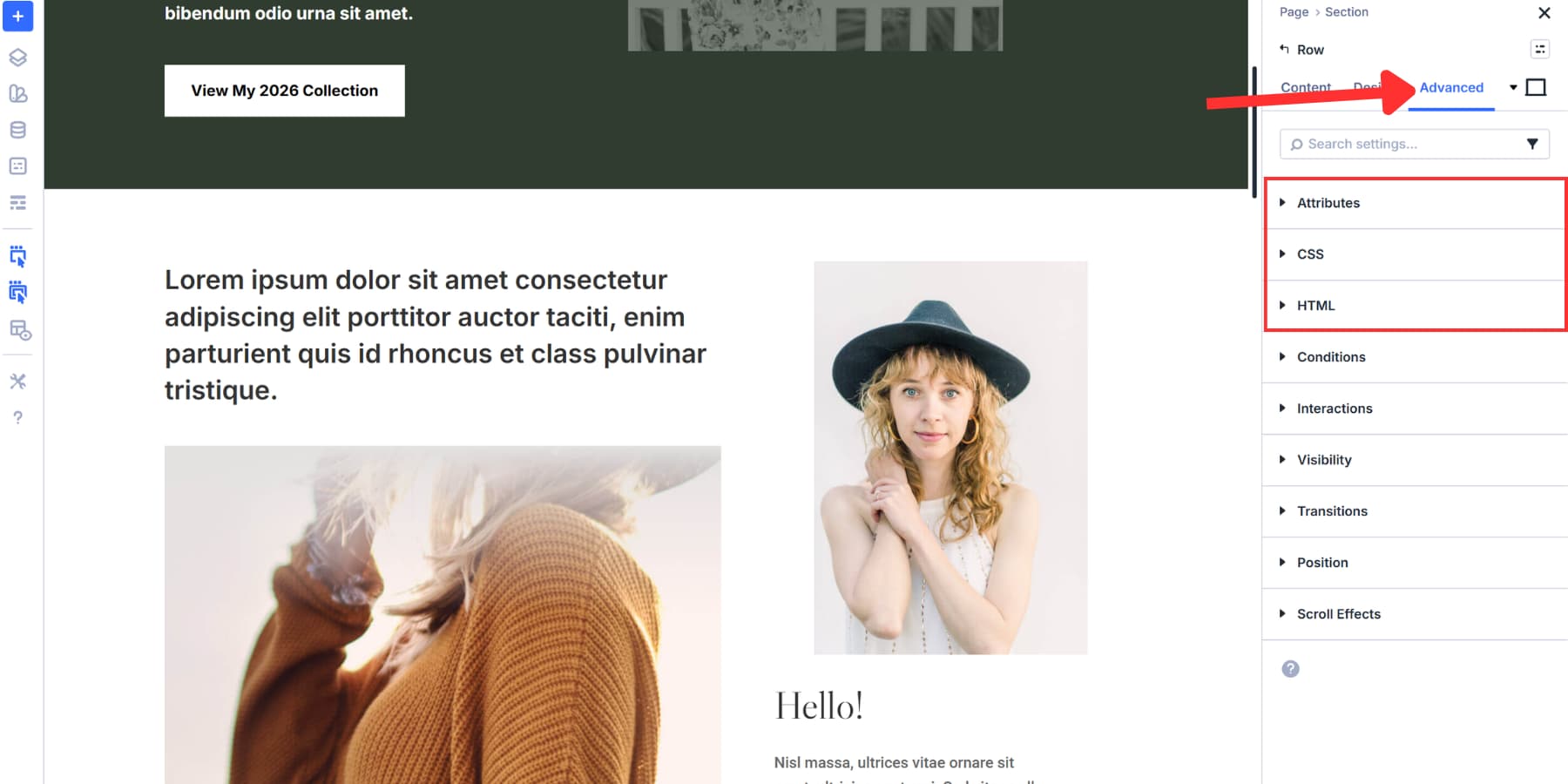
Click that dropdown and you’ll see every available semantic tag. Section, aside, body, header, footer, nav, article, button. The whole list is there.
Choose what matches what your content actually does. The content of your sidebar becomes an aside. The site header becomes a real header tag. Blog post is wrapped in an article element.
The visual design remains. Nothing moves or changes color. Your layout remains exactly as you built it. The shift happens in the underlying code, where it actually matters for accessibility and search engines.
This works the same whether you are updating a single text module or refactoring an entire container. Build your design first and then assign meaning to each piece.
How to use these elements: create a blog post layout
Let’s see how you can practically use these wraps. We’re going to use this layout we created to demonstrate how to build a Holy Grail layout with Divi 5.
The middle column contains the primary page content. Wrap that column
The left sidebar contains ‘Who are we?’ text, a list of popular articles and courses of the month cards with UI/UX Design offers. That all becomes an aside. Someone could read the article without ever looking at the course maps or article links.
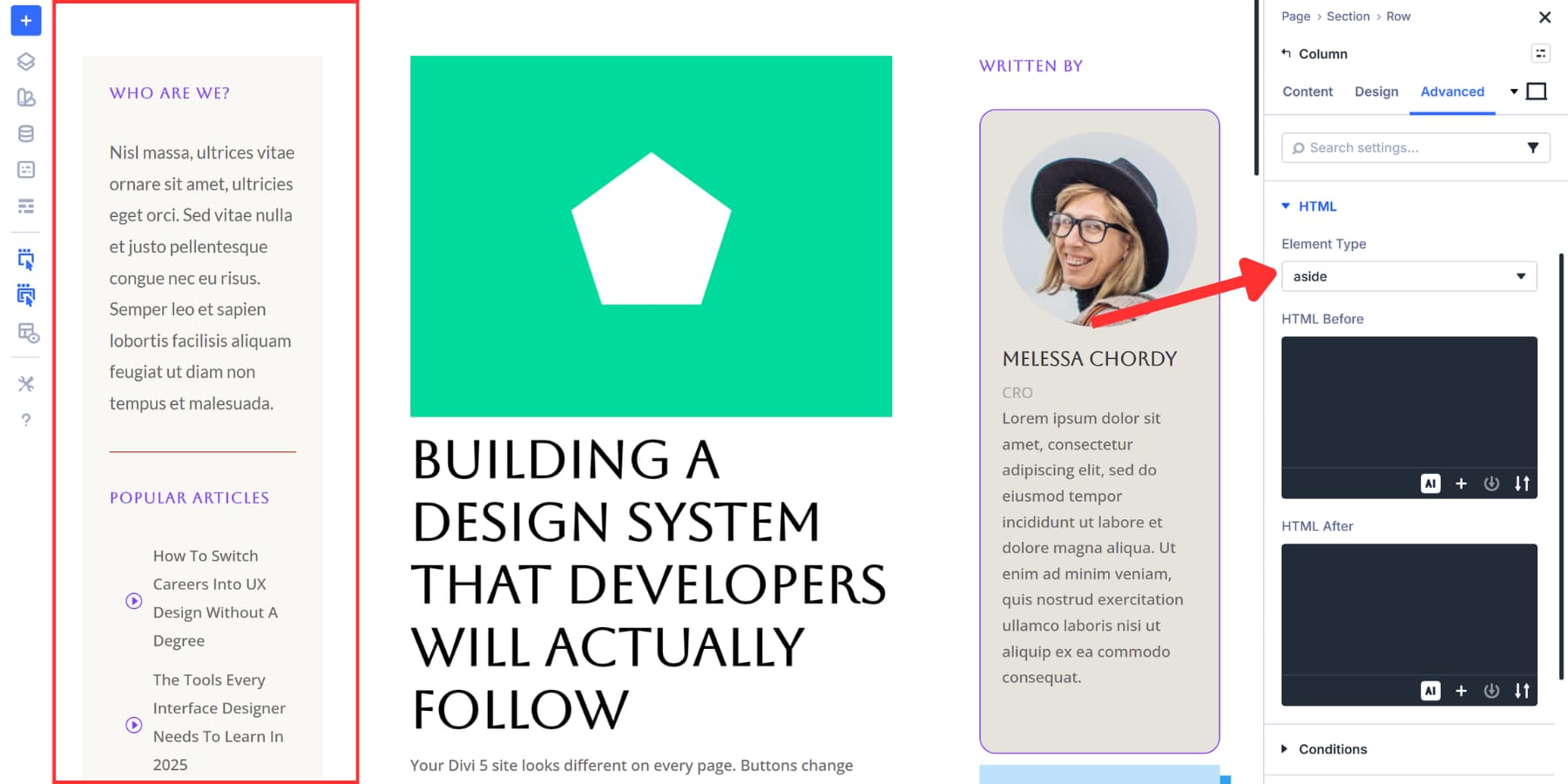
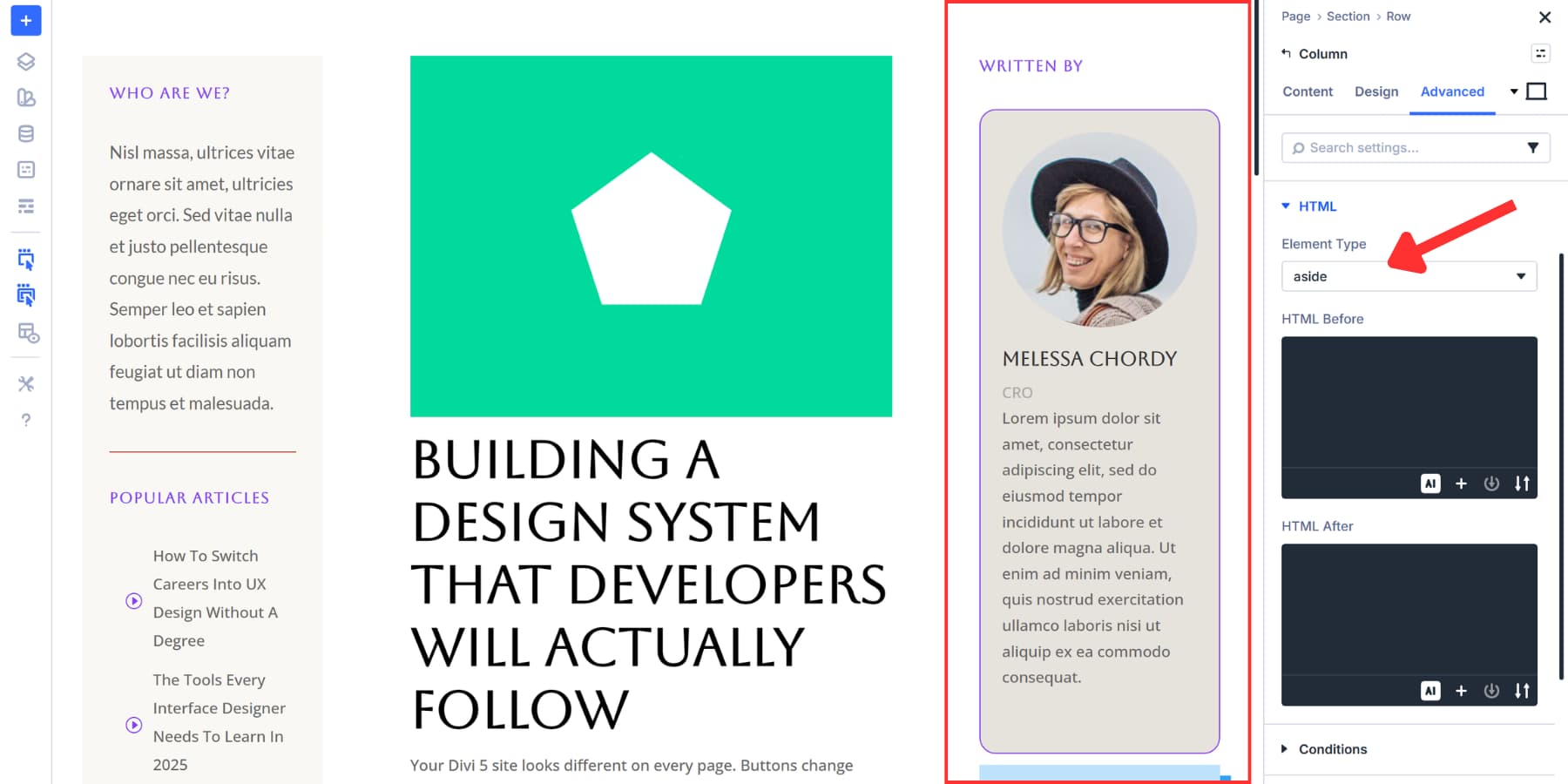
The right sidebar shows Melissa Chordy’s biography card and the ‘Reach For The Stars’ promotional section with an illustration. Another side note. Both sidebars add value but are not required to understand the design system article.
Within the main content area there may be several sections. For example, you can mark the call to action as a
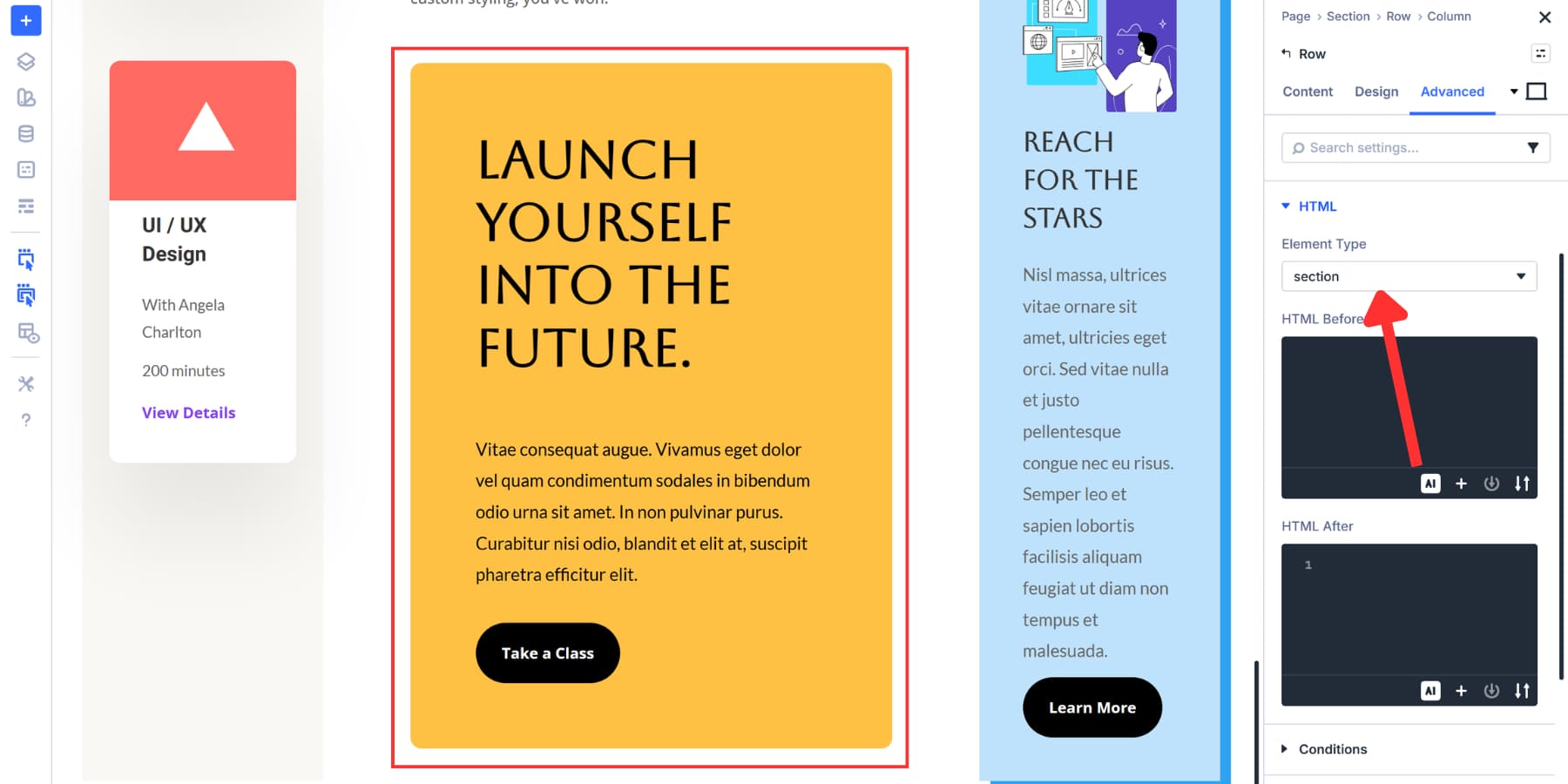
We can set up all these element types in Divi 5 without touching any code. Build the layout and then assign the appropriate semantic tag to each piece via the Advanced tab.
Try Semantics in Divi 5 today!
Clean semantic markup makes your pages make more sense to both humans and machines. When your layout uses the right structural elements, screen reader users can navigate faster and search engines get clearer context about what is primary and supporting.
Divi 5 allows you to apply these semantic wrappers directly in the builder. Build your layout as usual, then choose the element type that matches the function of each part. No custom code required.

Are you a Divi user? Find out how to get more out of Divi! 👇
Browse hundreds of modules and thousands of layouts.
Visit Marktplaats


Find out how to improve your Divi workflow 👇
Learn about the new way to manage your Divi assets.
Buy Divi Cloud


Want to speed up your Divi website? Find out how 👇
Get fast WordPress hosting optimized for Divi.
Accelerate Divi

#section #main #HTML #elements #Divi