

Divi 5’s new Loop Builder takes a fundamentally different approach to building product features. You design the product card with the modules you choose, then dynamically enter WooCommerce data into it. Both tools display product listings, but each excels in different scenarios. You can use both, but the Loop Builder offers much more flexibility, helping you build a better online store. Let’s compare the two.
Display product feeds with the WooCommerce Products module
The WooCommerce Products Module is built for standard ecommerce patterns. It assumes you want recognizable product cards and lets you switch between what’s displayed, keeping setup fast and decisions simple.
Think about how WooCommerce products work. Each product has certain common elements that make it recognizable as e-commerce content. These shared characteristics include:
- Product title
- Product image
- Price
- Sales badge
- Star rating
The Products module was designed with these traditional elements in mind. Images show what you sell. Titles identify the product. Prices tell customers what it costs. Complete the sale with the ‘Add to cart’ button.
Divi’s Product Module automatically syncs with these elements. You place it on the page and choose what you want to show. The feed appears without the need for any custom searches (unless you want to limit what’s shown, in which case there are built-in filtering tools).
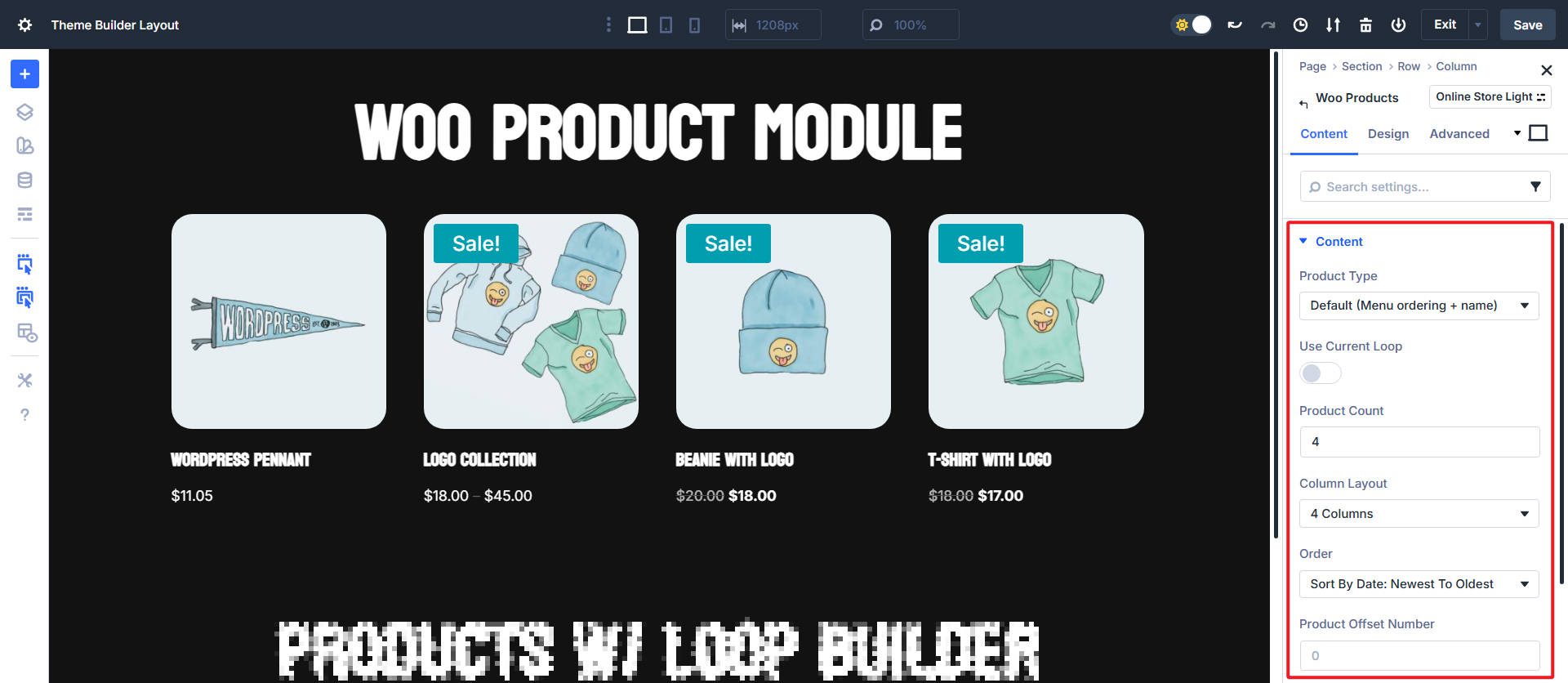
The toggle approach makes changes painless. You can hide the rating but keep the price, show sale badges, or skip the description. Small decisions and quick results.
Product features
The Products module can display WooCommerce products along with filter options for product types (such as featured products).
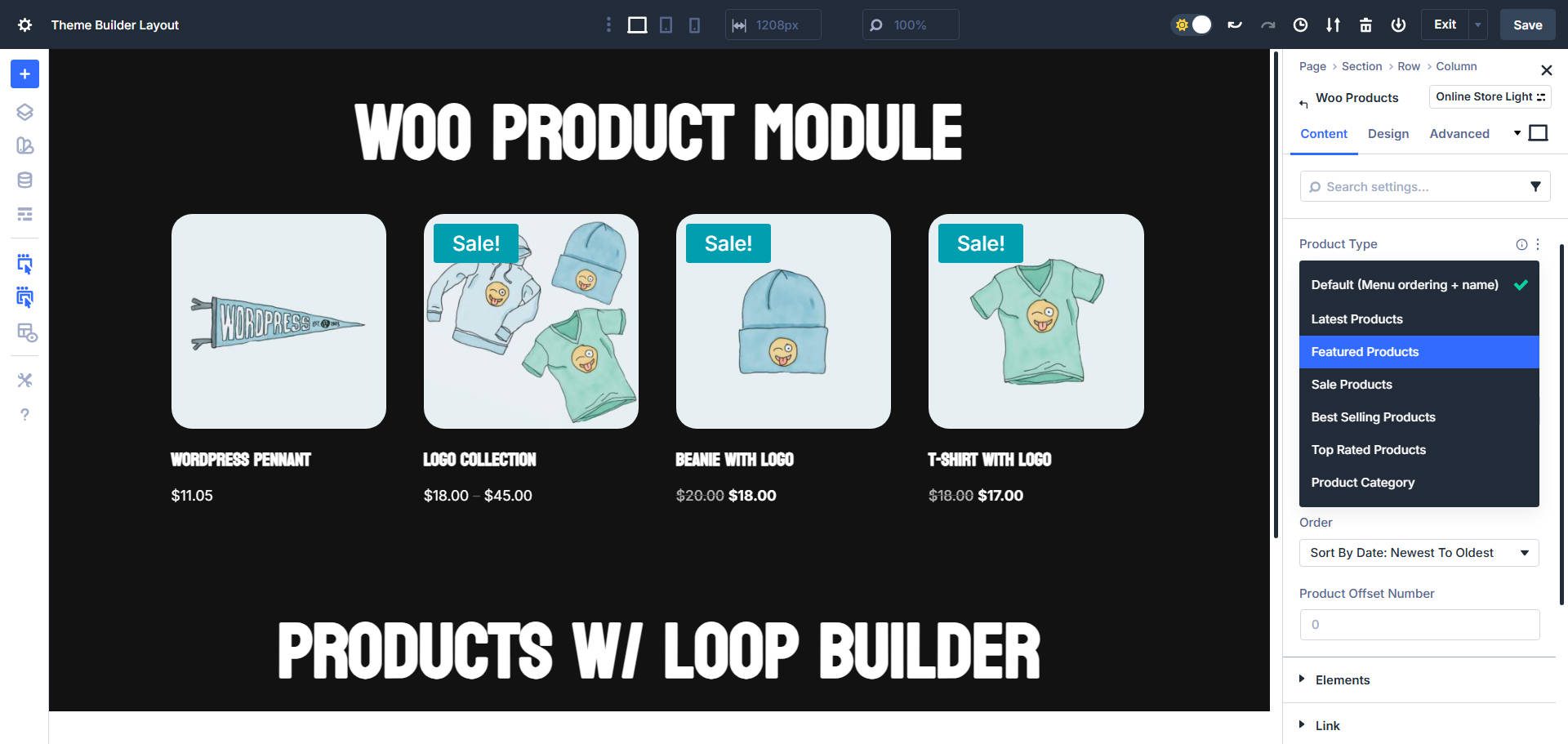
The Products module works fine if you stick to WooCommerce’s standard data structure. It limits its options to fields native to WooCommerce’s standard product data.
Detailed specifications, custom badges, shipping estimates, or other custom things won’t appear in the Products module because it’s built for standard WooCommerce fields. The module does not have a switch for those custom product details.
Custom layouts
Layout control is also somewhat limited; the module uses a fixed grid structure, allowing you to set the number of grid columns. However, it does not include Divi’s latest Grid and Flex CSS layout controls.
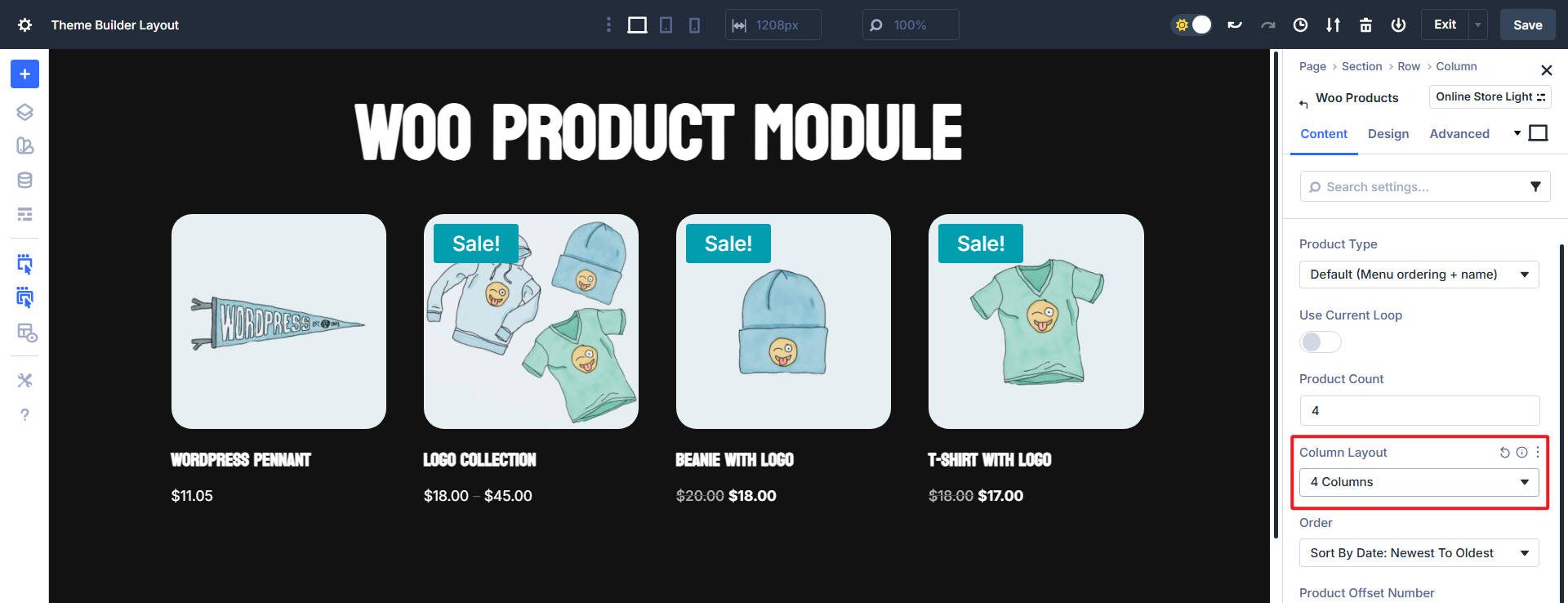
Custom product views with Loop Builder
Divi’s Loop Builder gives you a different approach to displaying WooCommerce products. Rather than working within the constraints of a single module with predetermined elements, the Loop Builder lets you build your product display from individual Divi modules arranged exactly as you envision them.
Using the Loop Builder requires more thought and preparation, but you won’t be limited in the way you were with the Products module. With the Products module you work within existing limitations and make the most of predetermined options. With the Loop Builder, you start with a blank canvas and build exactly what you need using any combination of Divi modules.
Mini Glossary
This is a quick set of terms for beginners new to working with custom product displays:
- WooCommerce product details: Standard product information such as price, SKU, stock status and reviews that WooCommerce automatically stores.
- Product features: Custom product properties such as size, color or material that you define in WooCommerce.
- Custom fields: Additional data you add to products outside of WooCommerce’s standard fields. Examples of this are care instructions, country of origin or sustainability assessments. These are usually added with plugins.
- Product categories and tags: WooCommerce’s built-in taxonomies for organizing products.
If you get lost in some of the details, consult this glossary. But we make it easy for you along the way.
How the Loop Builder works with WooCommerce
The Loop Builder is not a single module. It is a container with your chosen modules inside. When the container is set to ‘Loop’ with the match type ‘Products’, it will repeat for each matching product. In the container you can place Image, Heading, Text, Button and other Divi modules.
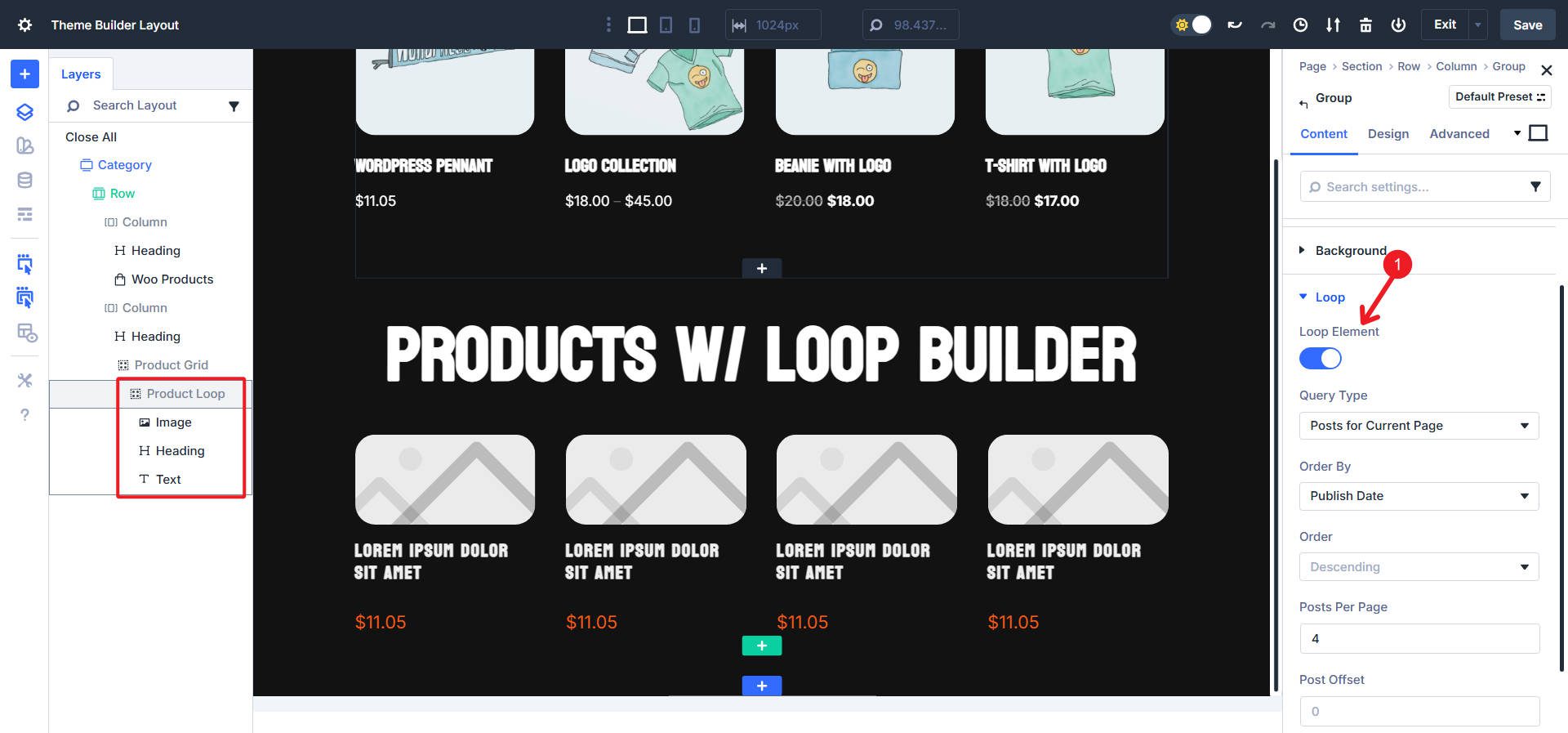
Can also be used in Theme Builder set to ‘Posts for current page’
You bind the contents of each of those modules to the appropriate WooCommerce data token. Divi’s user interface makes this easy. The image refers to the product image. The headline refers to the product title. The Text module can display the price. The button links to the add to cart action or to the product page.
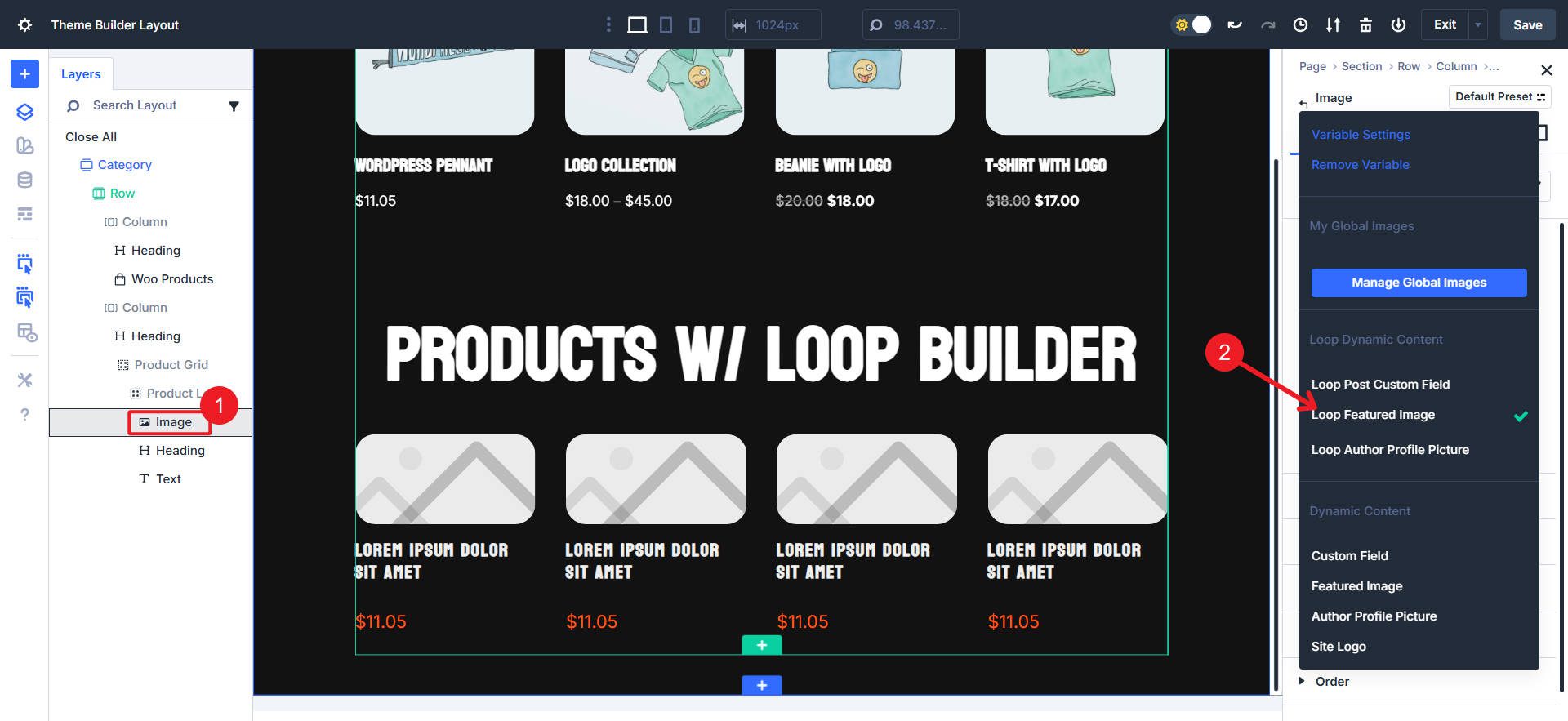
This modular approach gives you complete control over the structure and spacing. You can place images above or next to titles. You can add multiple text blocks for price, SKU, and custom fields. You can create unique badge designs or custom review displays. This way you build the product card you need, and not a card that is pre-configured via a module.
Examples with WooCommerce products and custom fields
Let’s make this concrete with a quick scenario. We’ll quickly build a similar product map (compared to the Product Module example above) and swap the data sources to demonstrate the flexibility of the Loop Builder.
And apply some styles used with each message item in the loop.
Then build a custom Loop for standard WooCommerce products. Use the message type ‘Product’. We will also use four post items in this loop.
Now we’ll quickly assign some basic dynamic content to the sub-modules of this Loop. We’ll start with the product featured image, product title, and product price.
Now, if you have custom fields with data applied through a WooCommerce extension, you can apply them through custom field mappings in the dynamic content chooser. I also went ahead and added an icon and changed the flex settings to better organize the items.
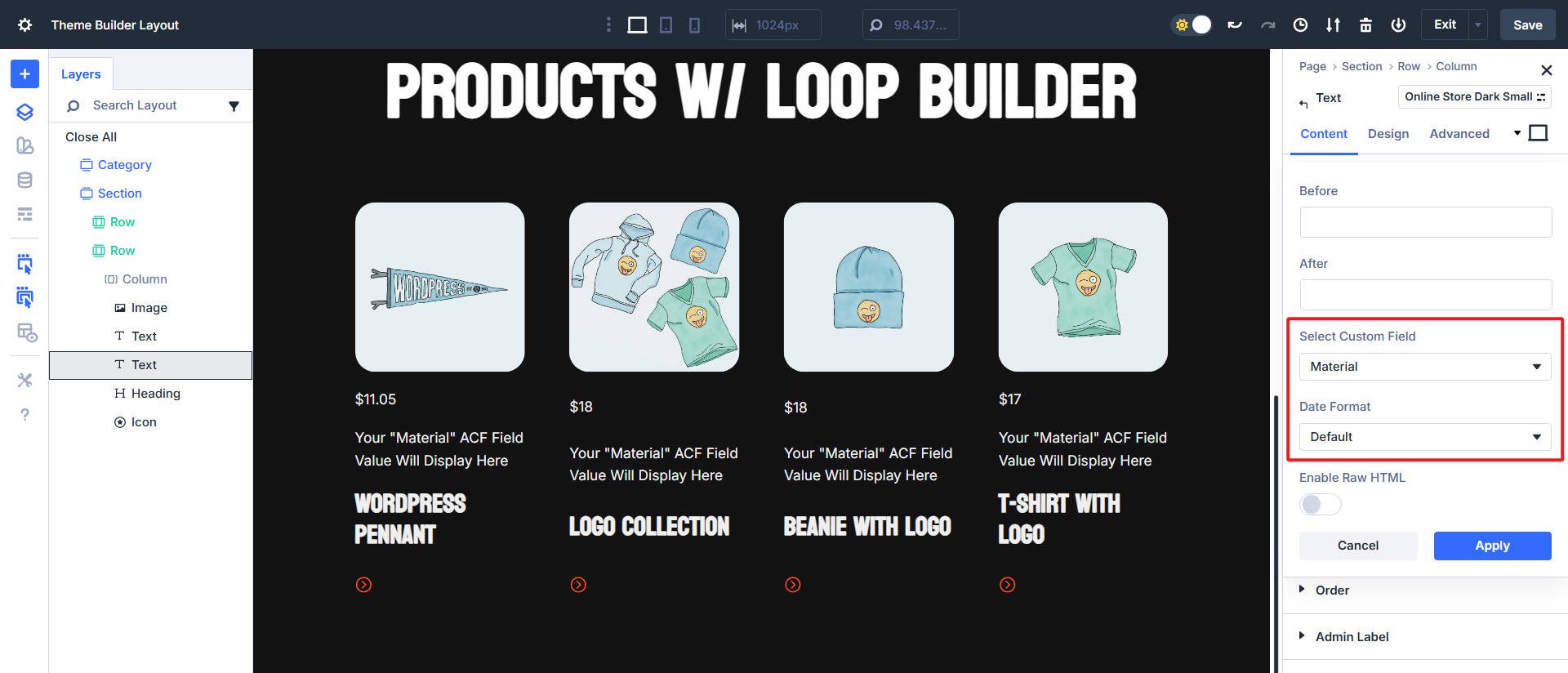
And this is the end result. A clear map for a product category page via the Theme Builder. It uses a custom field and simple filtering, making the Loop Builder ideal for this purpose.
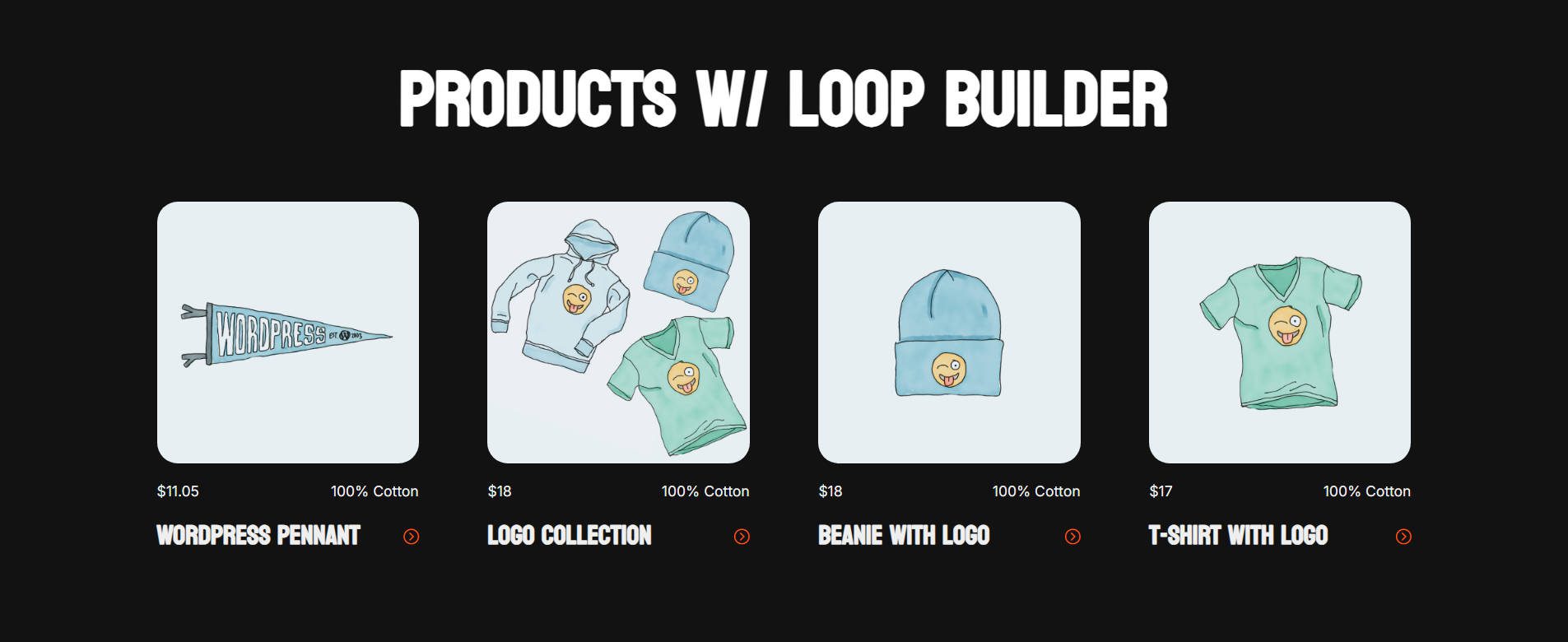
How do you add those custom fields to WooCommerce products? Advanced Custom Fields (ACF) is the best choice here, while Pods, Meta Box, ACPT and Toolset can also do the job. Numerous WooCommerce extensions provide this functionality specifically for WooCommerce.
Choosing the right tools for your shop
This is less about raw features and more about finding the right fit. Choose the fastest path that meets the requirements. Change tools as needs change. Sometimes the Products module is sufficient, but if not, you have a strong twist with the Loop Builder.
When the products module is ideal
Use the Products module if the card you want to design contains only standard WooCommerce fields. Clear product catalogs with links to individual product pages. The Products module also has slightly better filtering options, allowing you to present recommended products or products on sale.
When the Loop Builder is ideal
Use the Loop Builder when you need custom fields that standard WooCommerce products don’t include, or when your product card design doesn’t match an inventory pattern. The downside is that you have to bypass the missing WooCommerce-specific filters by using categories, tags, or custom fields instead.
Build your own product displays with Divi 5
Divi’s products module is still the fastest way to display a standard WooCommerce product grid, and it remains the only option for WooCommerce-specific filters, such as featured products, sale items, bestsellers, and sorting by price or popularity. The Loop Builder unlocks custom product cards, custom fields, unique layouts, and full design control. The Loop Builder can also be customized and shaped into the exact layout and design you have in mind, while the Products module has some limitations.
The best part about this decision is that you can keep both in your toolkit and choose based on the specific section you are creating. Divi 5 comes together and is more powerful (and stable) than ever.
#Replaced #Woo #Products #module #custom #loops #Divi