

Nowadays there are plenty of ways to unlock your car without a physical metal key. Ford has been putting Securicode keypads on the doors of its vehicles for years, and numerous other manufacturers have their own keyless entry mechanisms, such as Toyota’s Smart Entry and Nissan’s Intelligent Key. Many keyless entry systems that require a key fob are proximity-based and hands-free; When the car’s key fob is close enough to the car, it will automatically unlock.
Now that we’ve already entered the age of the digital car key, an iPhone can also serve as an additional key fob, working in the same way as traditional key fobs, but with a few added benefits. The specific steps you need to follow to set up and save your car’s digital key to your iPhone depend on your vehicle. That said, the general procedure involves opening your car manufacturer’s app, clicking on the digital key setup app’s settings, and using the now open Wallet app to pair your iPhone with your car’s key reader.
The process also requires a compatible vehicle and device (iPhone/Apple Watch XS and newer or fully updated SE models) signed in to your Apple Account. Digital keys can be used with brands like Audi, BMW, Hyundai, Kia, Genesis, Mercedes-Benz and more. If your preferred brand doesn’t have a compatible model, it may still get this functionality in the future.
How iPhone keyless entry works
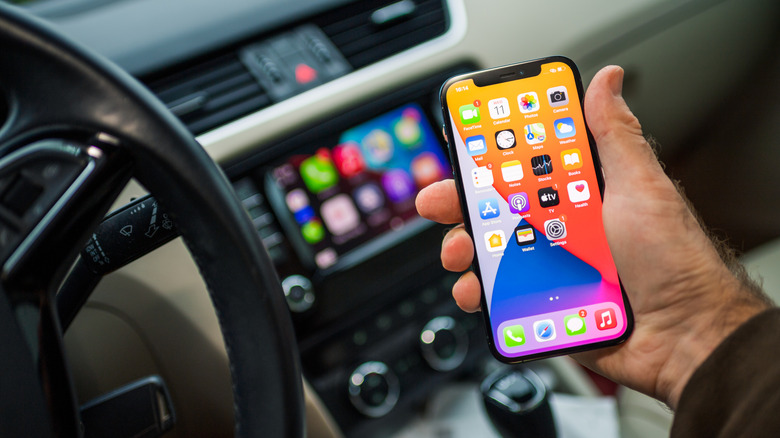
Apple is becoming increasingly integrated into the automotive sector. CarPlay is almost ubiquitous in new vehicle production and is even gaining new features with iOS26. It seems only logical that a digital key on the iPhone becomes part of this ecosystem.
The three main functions of the iPhone digital key are passive access, remote access, and remote access. Passive access works most like traditional keyless entry. The car will automatically unlock or lock when your device is within or outside a certain distance from the car, and can be started if the car is anywhere within that distance. Meanwhile, what Apple defines as remote access still requires some manual input from the user, requiring him or her to hold the phone against the door handle or key reader to unlock and start the car. Remote access features allow you to unlock and lock the car by simply pressing the appropriate buttons in your Wallet app.
The exact features available with your iPhone key will depend on your vehicle, but being able to use your phone as an additional remote can make your life a lot easier, especially if you ever lose your actual key. Additionally, some vehicle models allow the digital key to be shared with other people’s devices, and even if your own device fails, some iPhones have backup power that keeps the digital key operational. Considering all these benefits, it’s hard to say if there’s any kind of limitation to Apple’s ability to improve the car experience.
#save #digital #car #keys #iPhone