

Carousels are a design element that almost every site needs, whether for products, testimonials, or customer logos. In the past, Divi users often relied on third-party plugins or custom code to achieve the desired results.
With Divi 5, that is no longer the case. The new Group Carousel module allows you to build fully customizable carousels directly within the builder, eliminating the need for additional plugins.
Why build carousels without plugins
Slider plugins can be powerful, but every additional plugin you install causes more code to be loaded and increases the chance of something breaking. With the carousel now built into Divi, you’ll get four big wins right away:
- Faster loading: No extra plugin scripts to complicate things. Your pages stay lighter and snappier, which is most important on mobile, where seconds count.
- Updates remain simple: You don’t have to worry about updates every time WordPress is updated. Because the carousel is in Divi, everything updates at the same time, which makes it less likely to break.
- Design that fits: Third-party plugins often challenge your theme’s design system. With Divi’s native module, you use the same tools you already use for fonts, colors, and spacing, so the carousel feels like part of your site and not an add-on.
- Future-proof: Plugins can disappear overnight. Because this module is part of Divi itself, you know that it will remain supported and continue to evolve with the builder.
Introducing the group carousel module in Divi 5
Divi 5’s Group Carousel module lets you build smooth, flexible carousels right in the builder.
The real benefit is that each slide works as a container for other Divi modules, so you’re not stuck with one template. You can design them however you want.
Each slide is more than an image placeholder. You can visit a gallery to showcase products, link a headline to text to highlight a testimonial, or add buttons and icons for calls to action. For more complicated layouts, slides can even contain entire modules, such as presentation texts, maps or pricing tables.
The carousel settings put the most important controls at your fingertips.
- Navigation options: Show arrows, dots, both, or keep it clean without.
- Slides to show: Control how many slides appear at once, with separate values for desktop, tablet and mobile.
- Transition settings: Enable auto rotation, set transition speed and fine-tune animations.
It also connects directly to Divi 5’s Loop Builder, so you can pull in messages, products, or custom fields. New content automatically appears in the carousel, making it ideal for blogs, shops, or portfolios that require constant updates without manual edits.
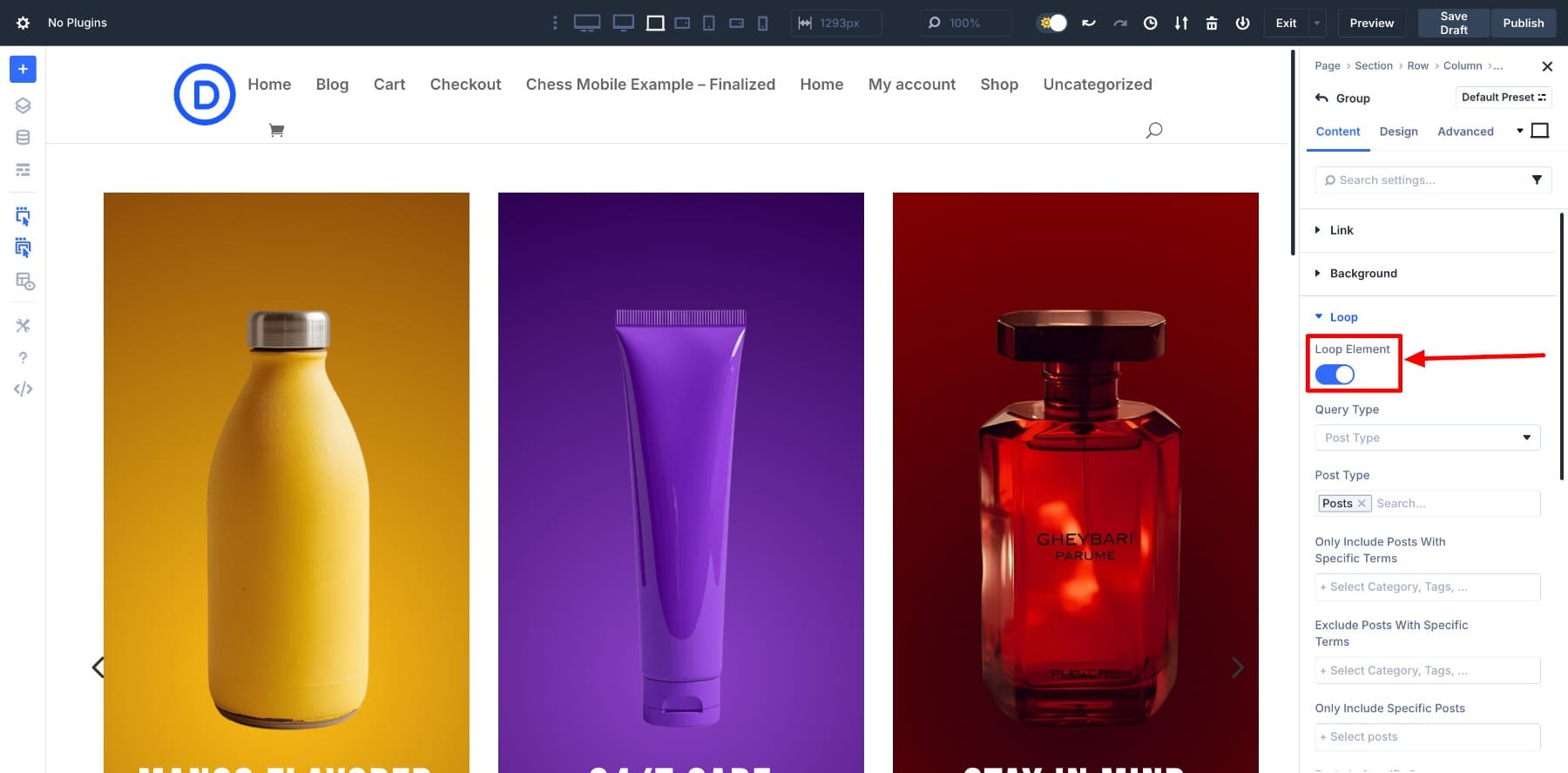
The styling remains consistent because the module uses the same design controls as the rest of Divi. Colors, typography, spacing, and effects all follow the same system of variables and presets, so changes can be applied across your entire site in one operation. And because it’s built on the new foundation of Divi 5, the carousel runs smoothly: fast to load, smooth on mobile, and free of the hang-ups often experienced with third-party plugins.
Learn all about Divi 5’s group carousel module
How to Create a Carousel Without Plugins in Divi 5 (Step by Step)
Before we get into the steps, here’s what we’ll be building: a product carousel designed entirely with Divi’s native controls. Each slide contains an image, text, and a button, which displays items in an organized, scrollable layout.
1. Add the group carousel module
Start by adding a new row to your layout. For a hero-style product carousel, set up the Row’s Width Unpleasant 75% And Maximum width Unpleasant no so it doesn’t stretch too wide across the screen.
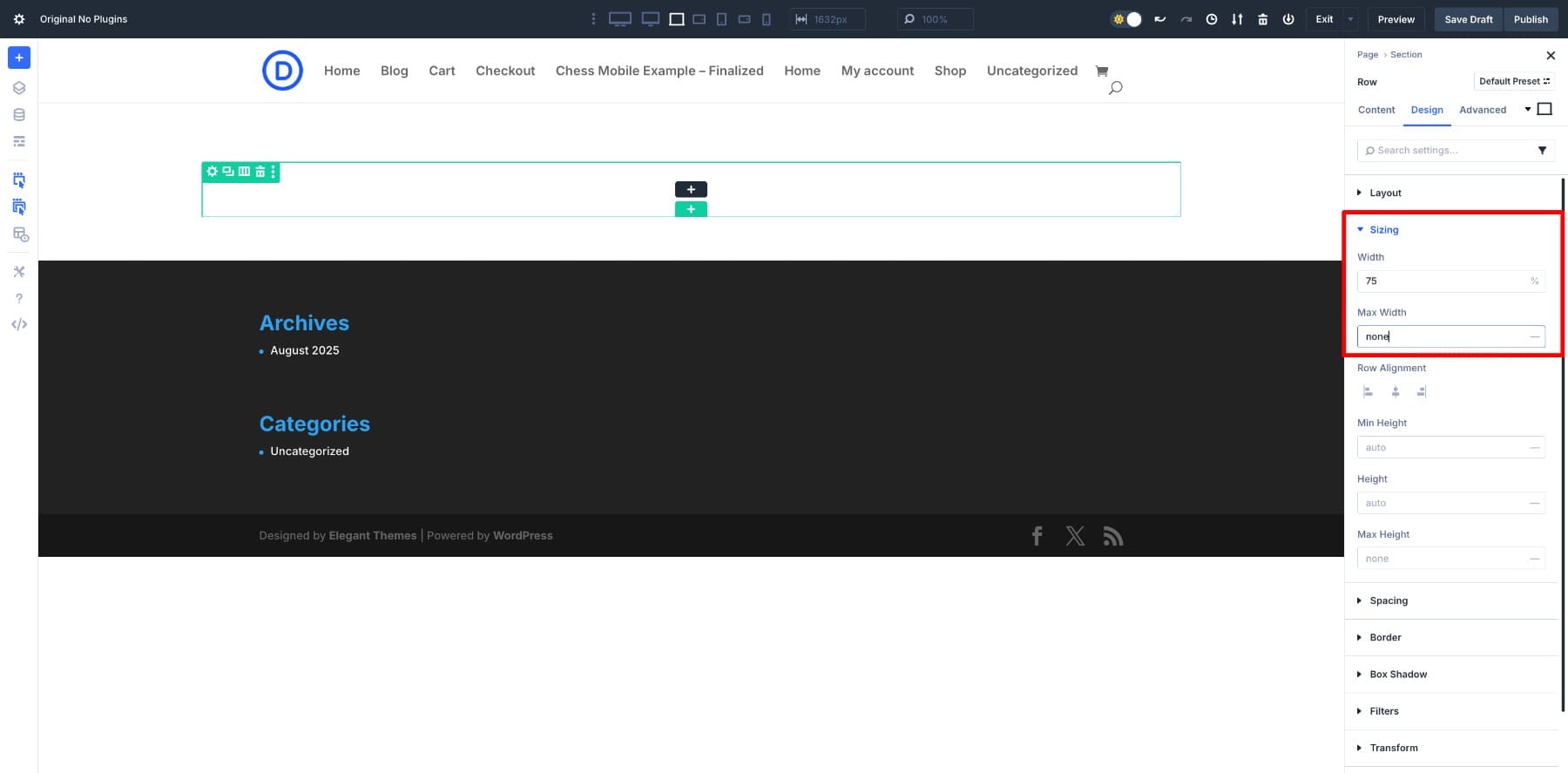
Then clear the default padding that Divi adds to columns. Removing that space around the edges gives you a clean base to build on.
Once that’s done, open the module list and insert the Group carousel module.
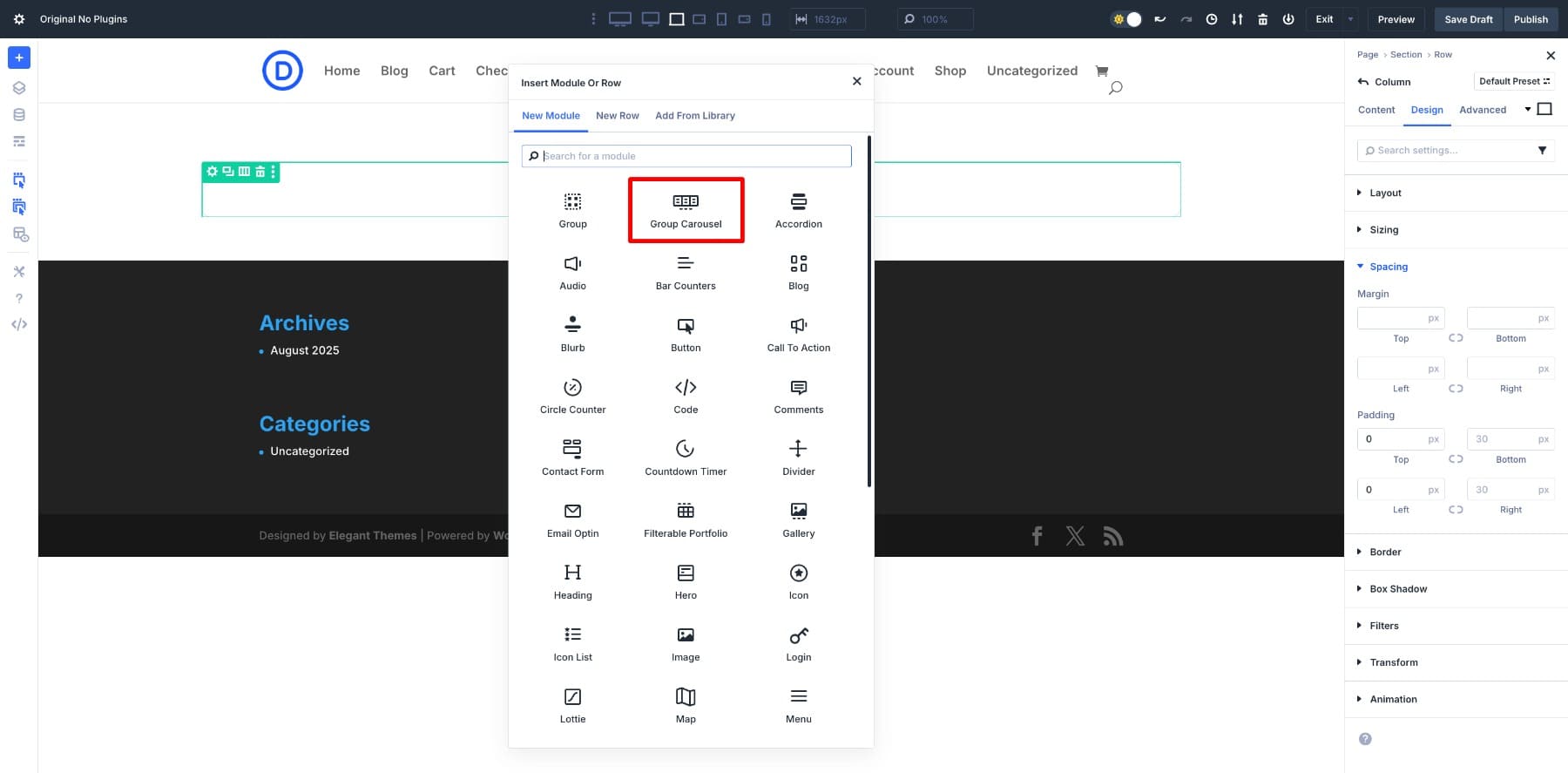
2. Change the group carousel settings
Next, let’s adjust the behavior of our carousel. Open the Carousel settings on the Content tab.
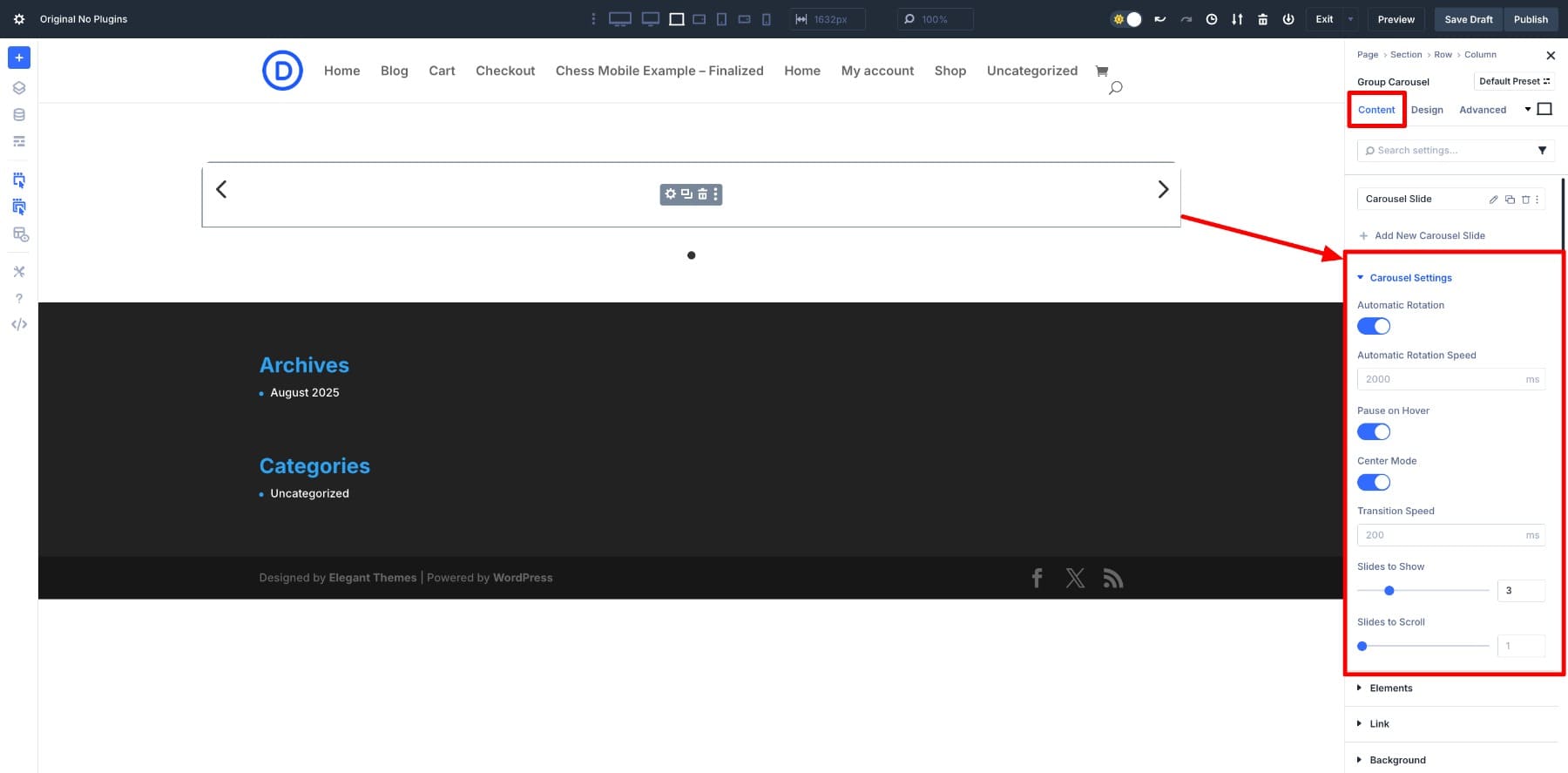
Here’s how you can style it for a product showcase:
- Autoplay: Enable this option to have the carousel automatically scroll through products.
- Pause on hover: Let visitors pause the movement by simply hovering over a slide.
- Center Mode: Keep the active product centered, with a glimpse of the next and previous slides on each side.
- Slides to display: Set this to 3 so that three product cards are displayed at the same time.
- Slides to scroll: Keep this at 1 so that the cards advance step by step.
For smaller screens, adjust the responsive settings to show one map on tablets and phones. Hover over the Slides to scroll field and click Edit responsive modes to refine.
3. Design the first slide
Now that the carousel behavior is set up, it’s time to design the first product slide. Slides can contain any combination of Divi modules, but we’ll start simply with an image, a heading, and a button.
Click on the black plus (+) icon within a group and add the three modules: Image, Header and Button.
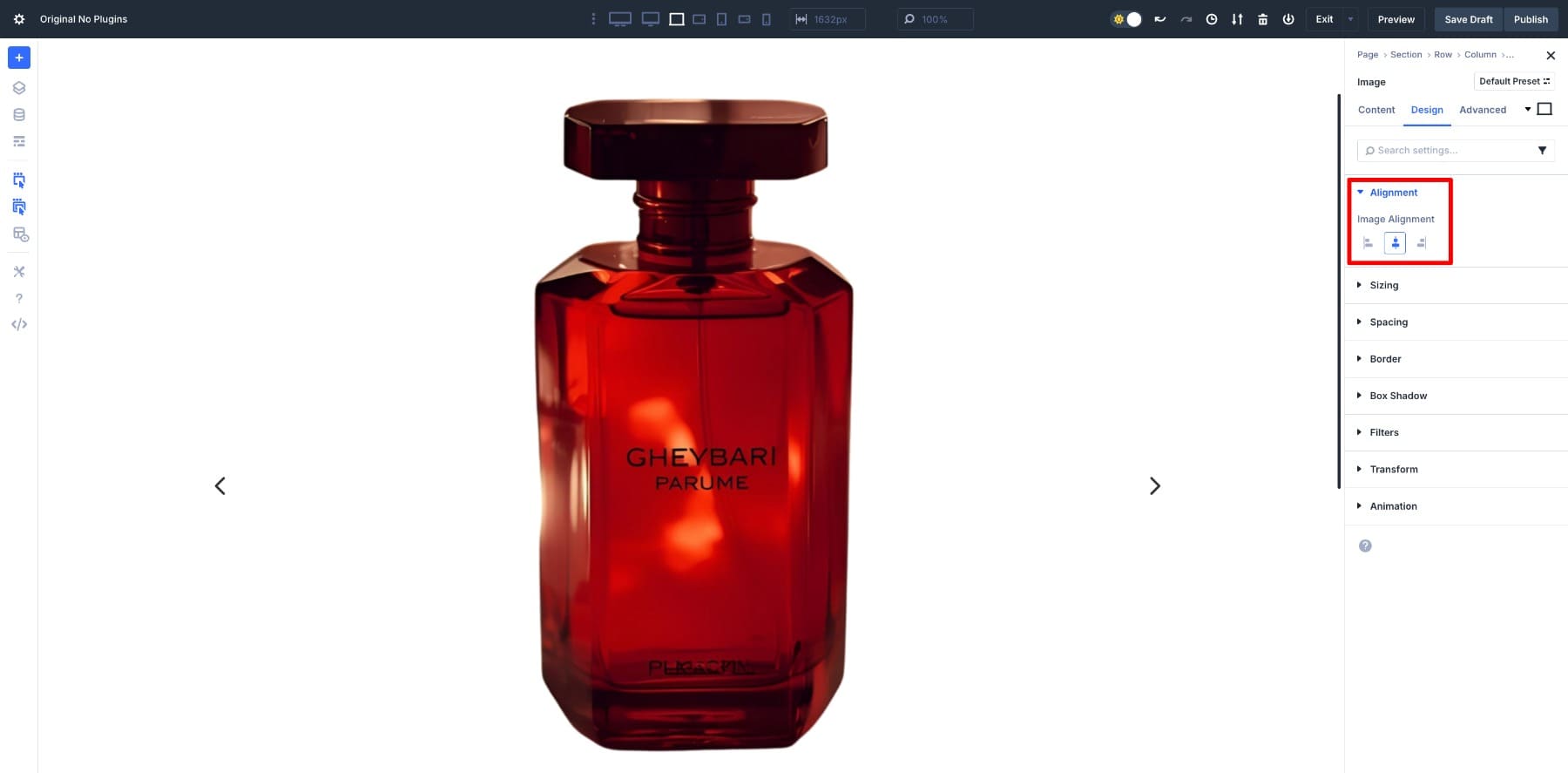
Start with the image. Set the Alignment to the center.
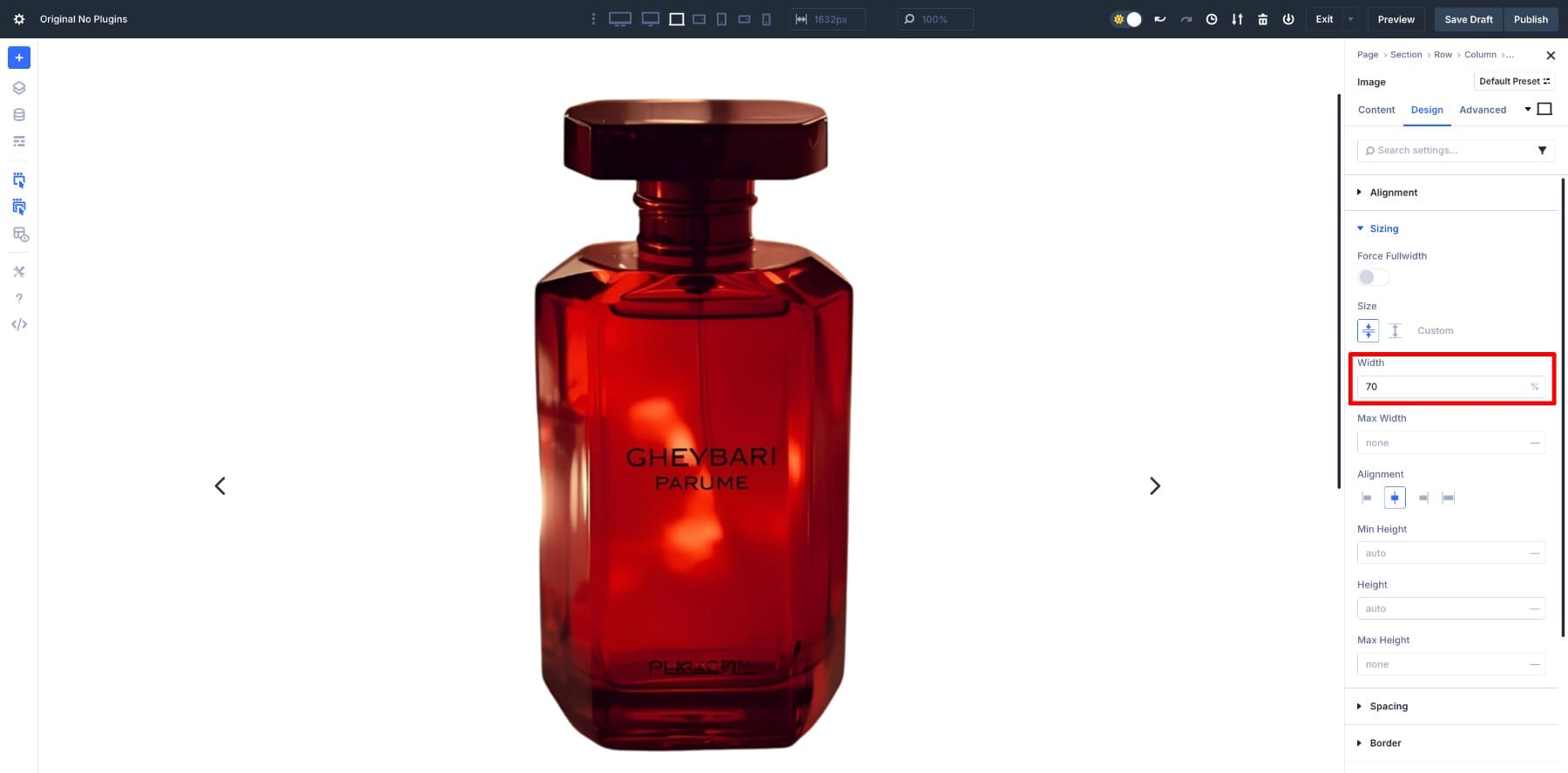
And adjust the Width Unpleasant 70% so it doesn’t feel overly large.
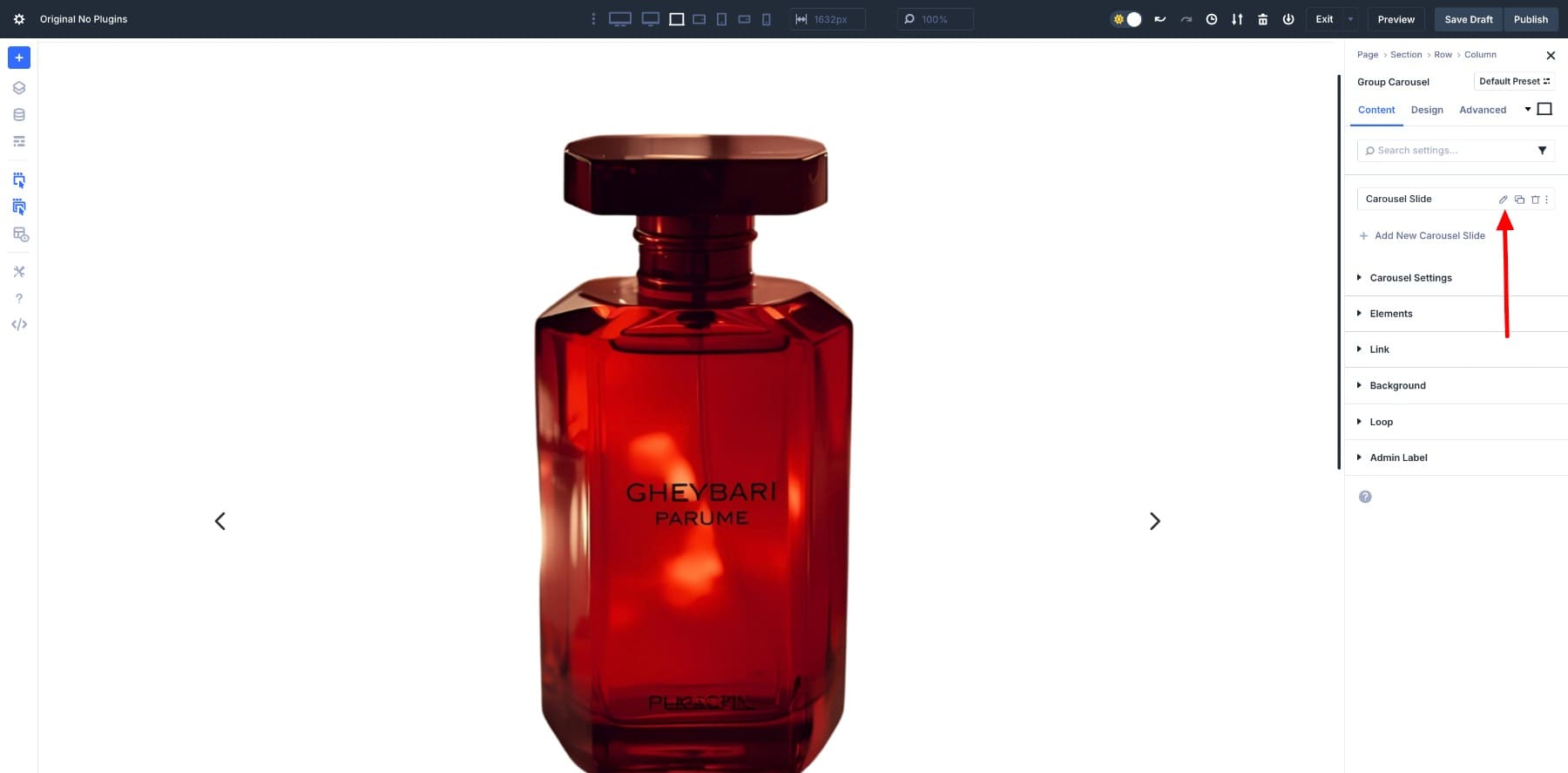
Then give the slide a background so that the headline and button stand out. In the Group Carousel settings, select Carousel Slide and click the pencil icon.
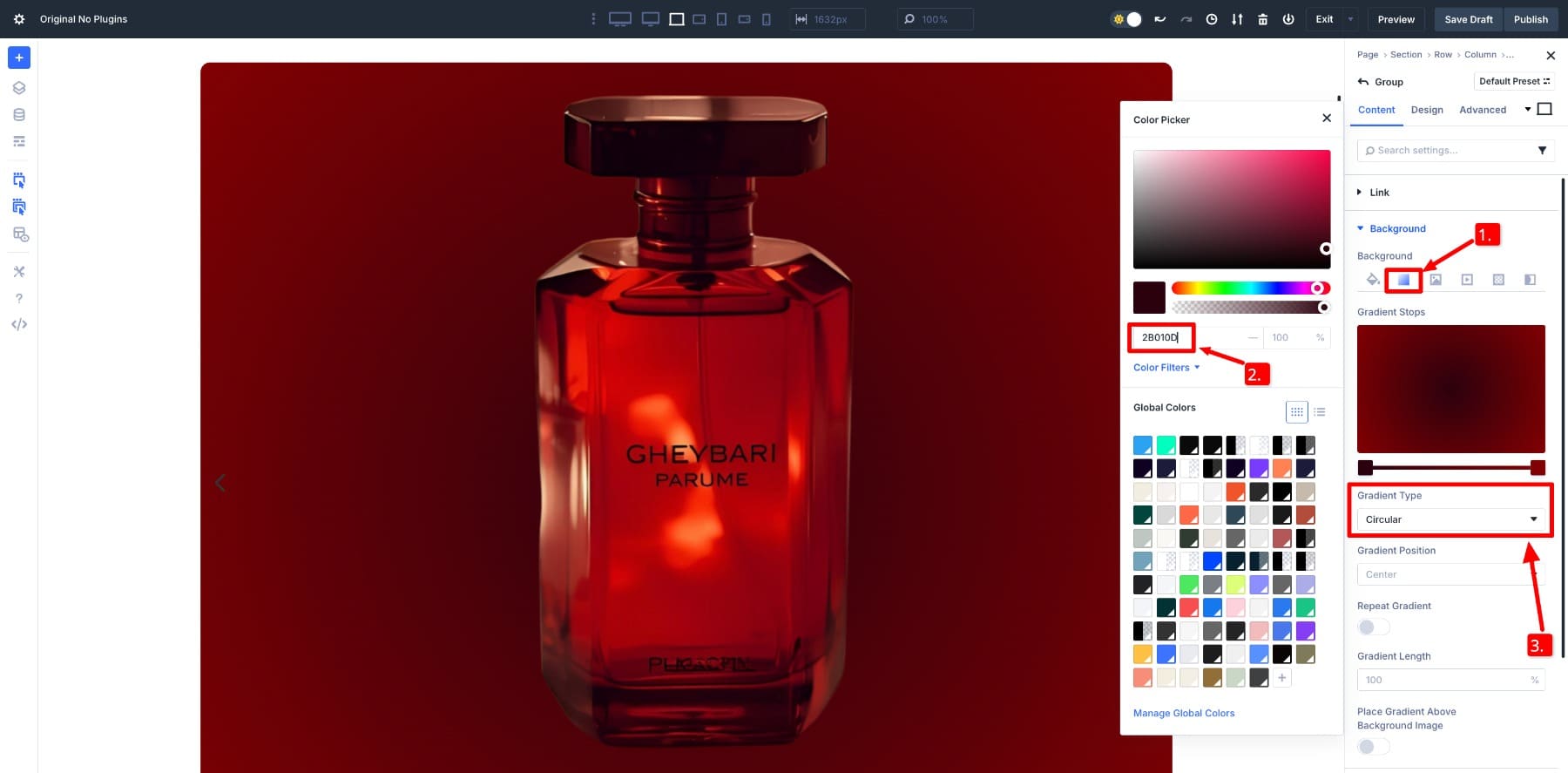
Below Background > Gradientchoose your colors. For this design, the gradient uses #2B010D and #820002 with a Circular type.
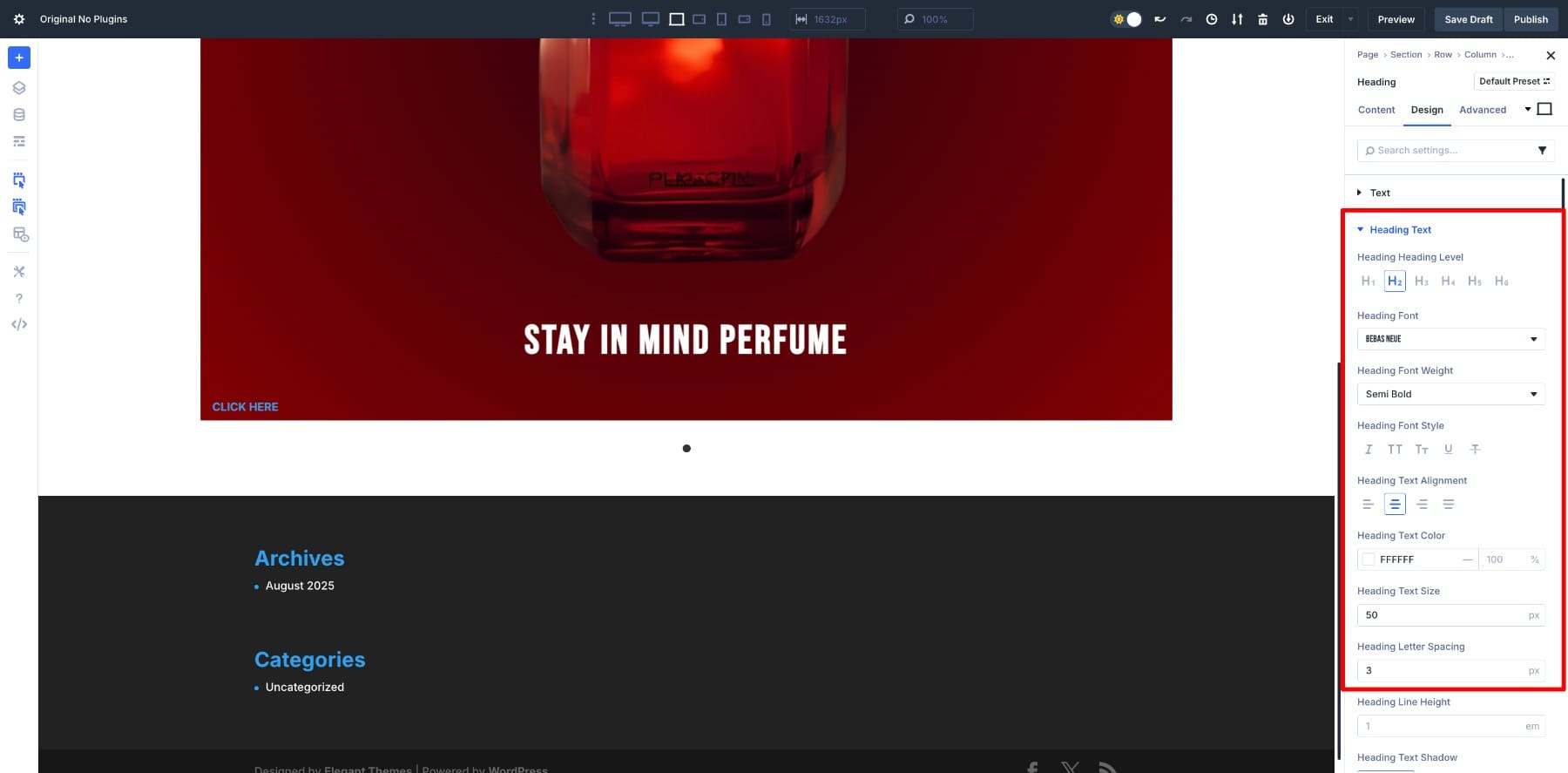
Now go to the headline. I set the font to Free NeueSemi-fat weight, 50px size, and 3px letter spacing for a strong, sleek appearance.
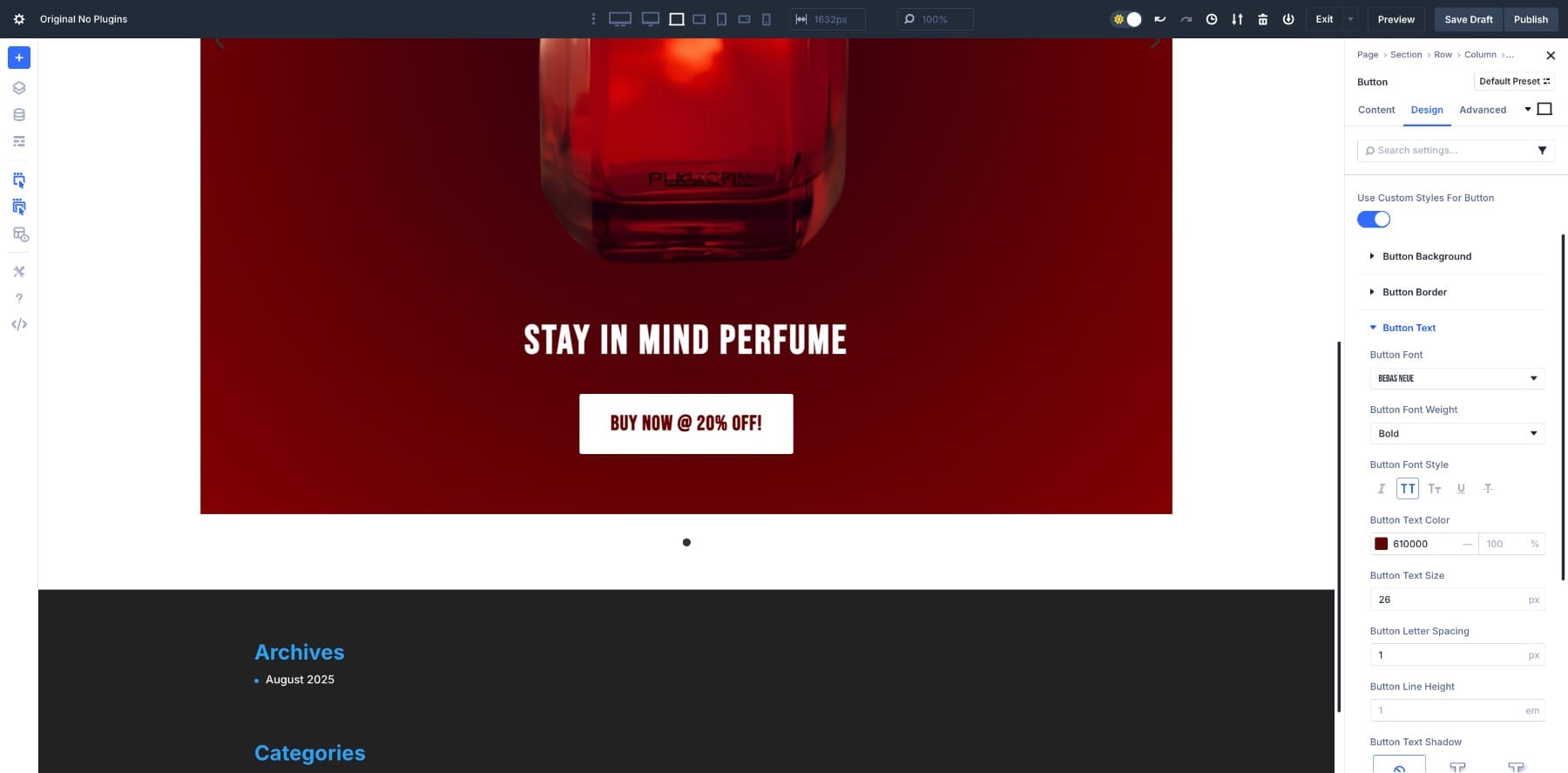
Finally, customize the button. Keep the background white, use Free Neue again 26px, and align it in the center.
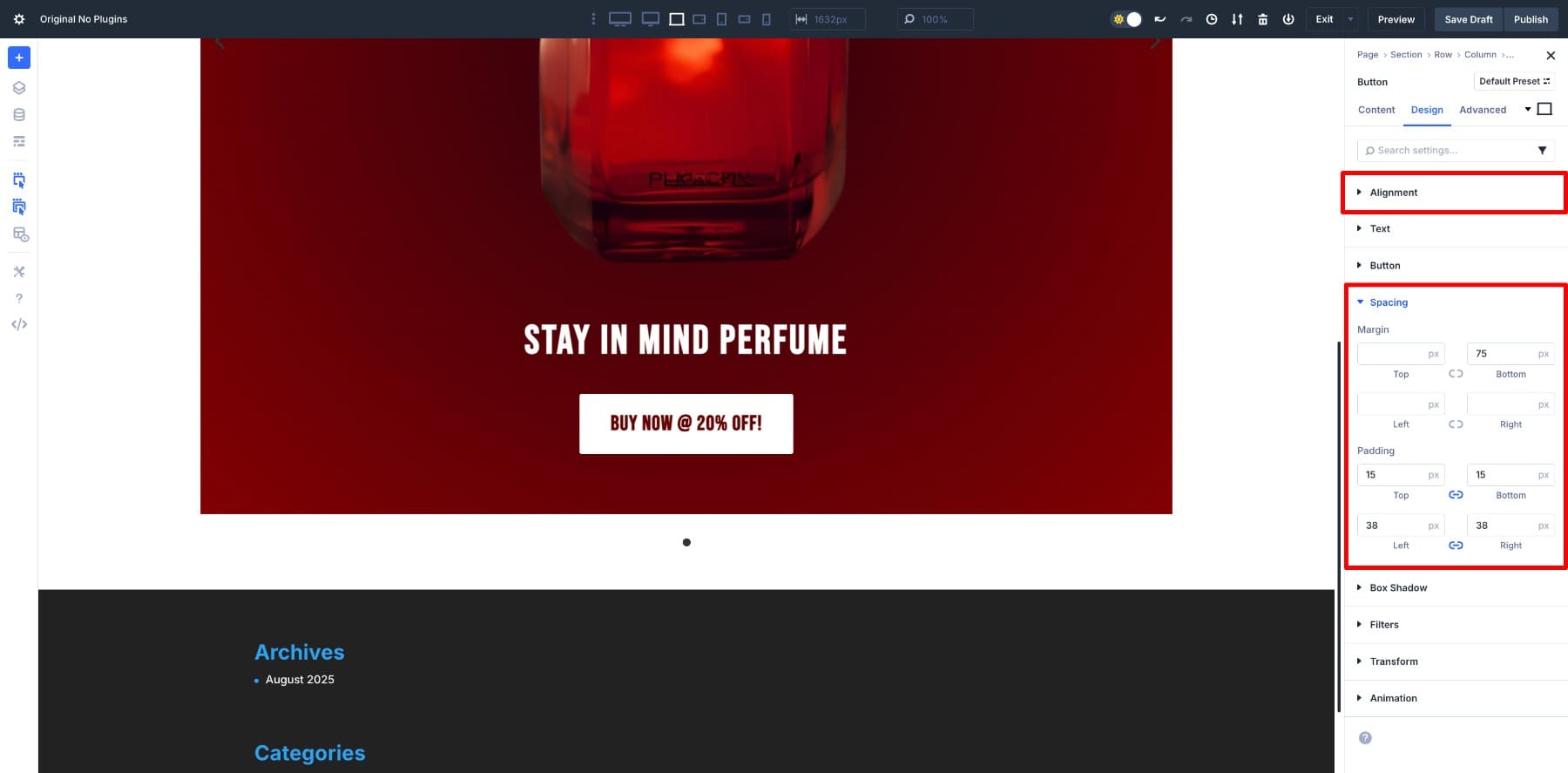
Add padding values from 15px And 38px, has more 75px bottom margin to give it breathing room.
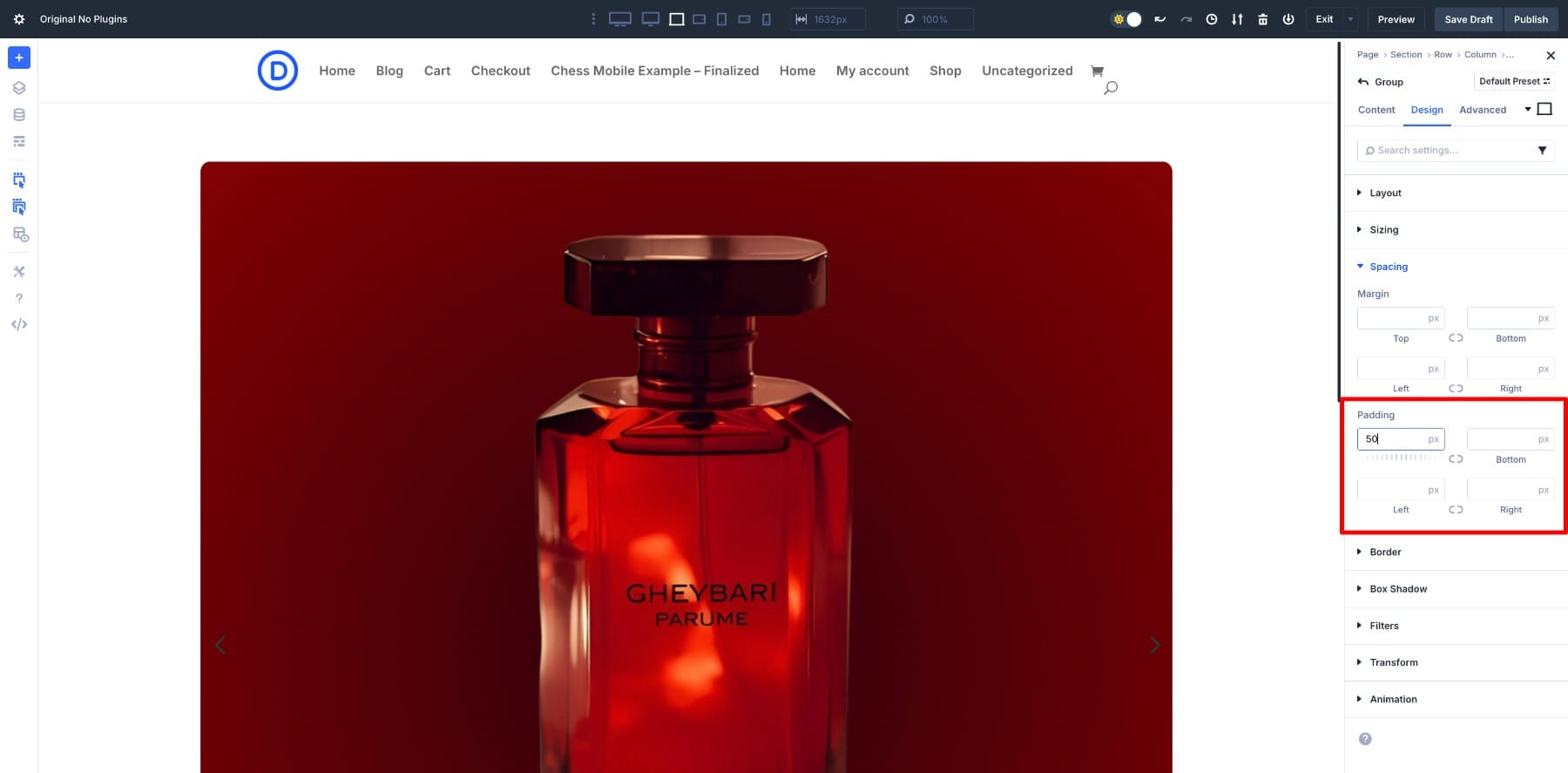
To finish, add 50px from the top padding to the group, leaving space above the image.
4. Design other slides
Once the first product card is styled, duplicate the slide for as many products as you want to show.
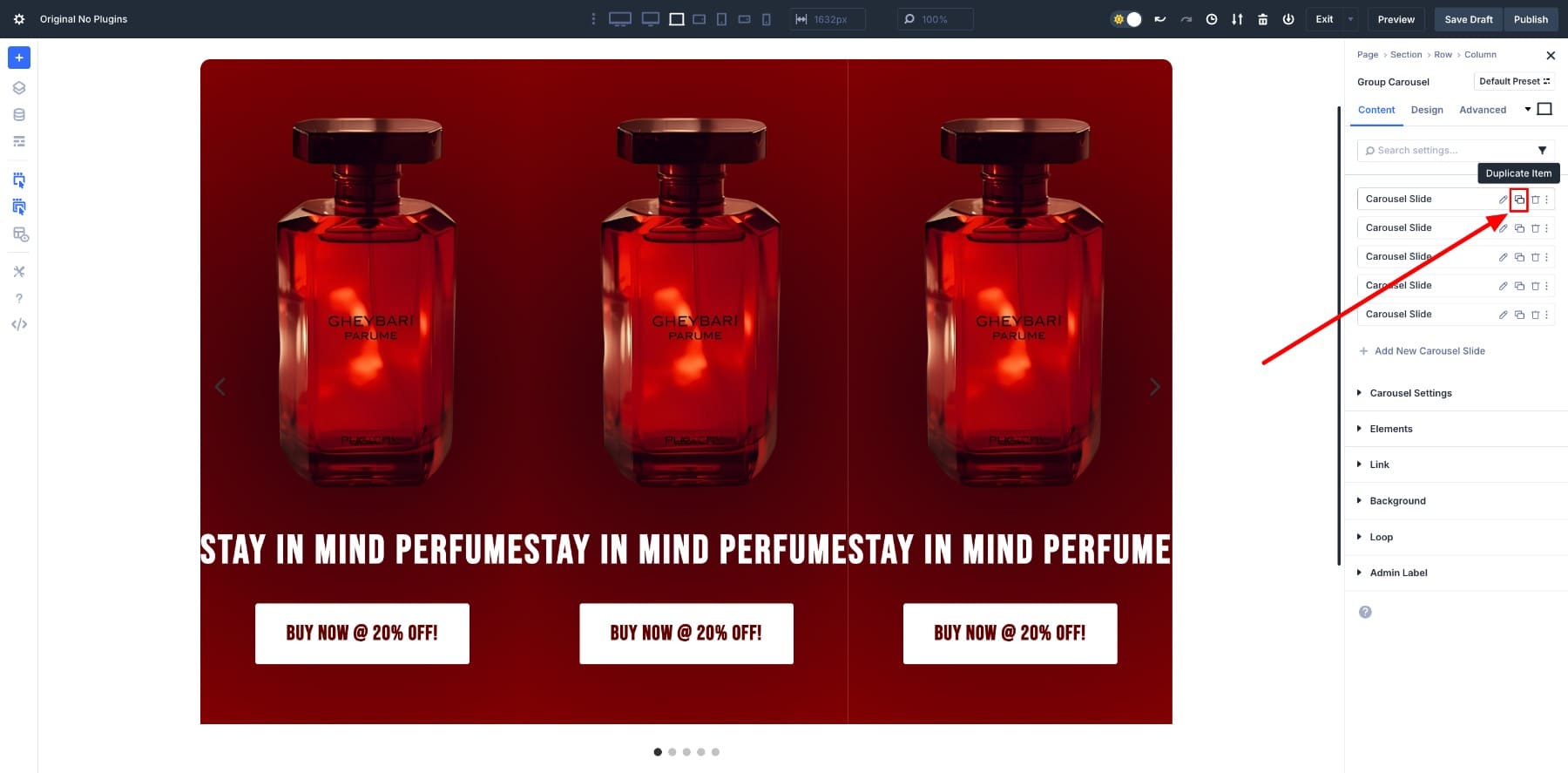
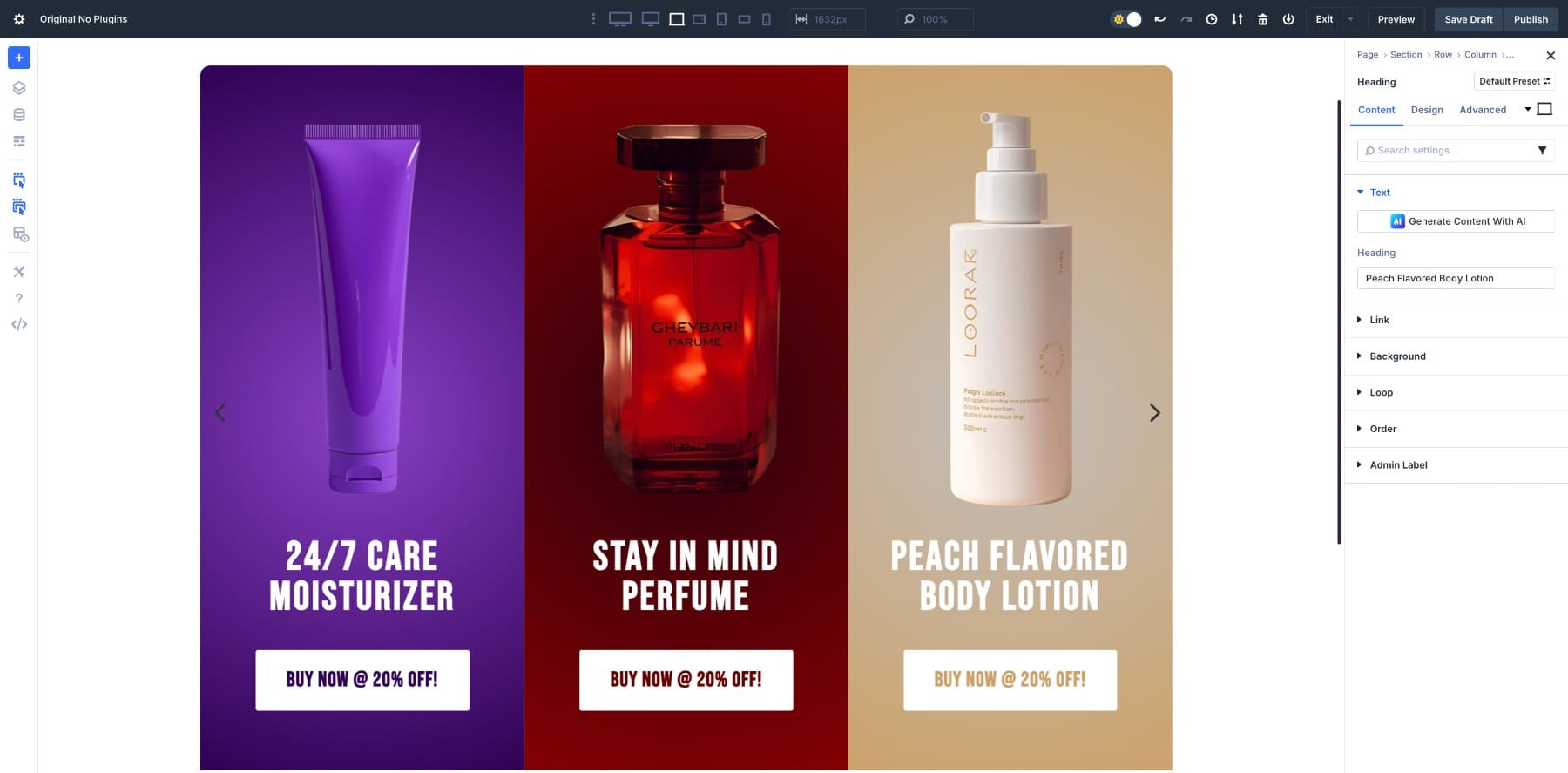
After duplicating, you can swap the images and background colors for each slide to keep the design varied.
Do the same with the content; replace the text and buttons so that each card displays the correct product.
At this stage the slides can look a bit cramped. Add one to open things up 40px left margin for each group slide. This creates enough breathing space between them.
You can also give each slide a softer edge by adding a 20px Edge radius. The rounded corners help smooth out the overall appearance.
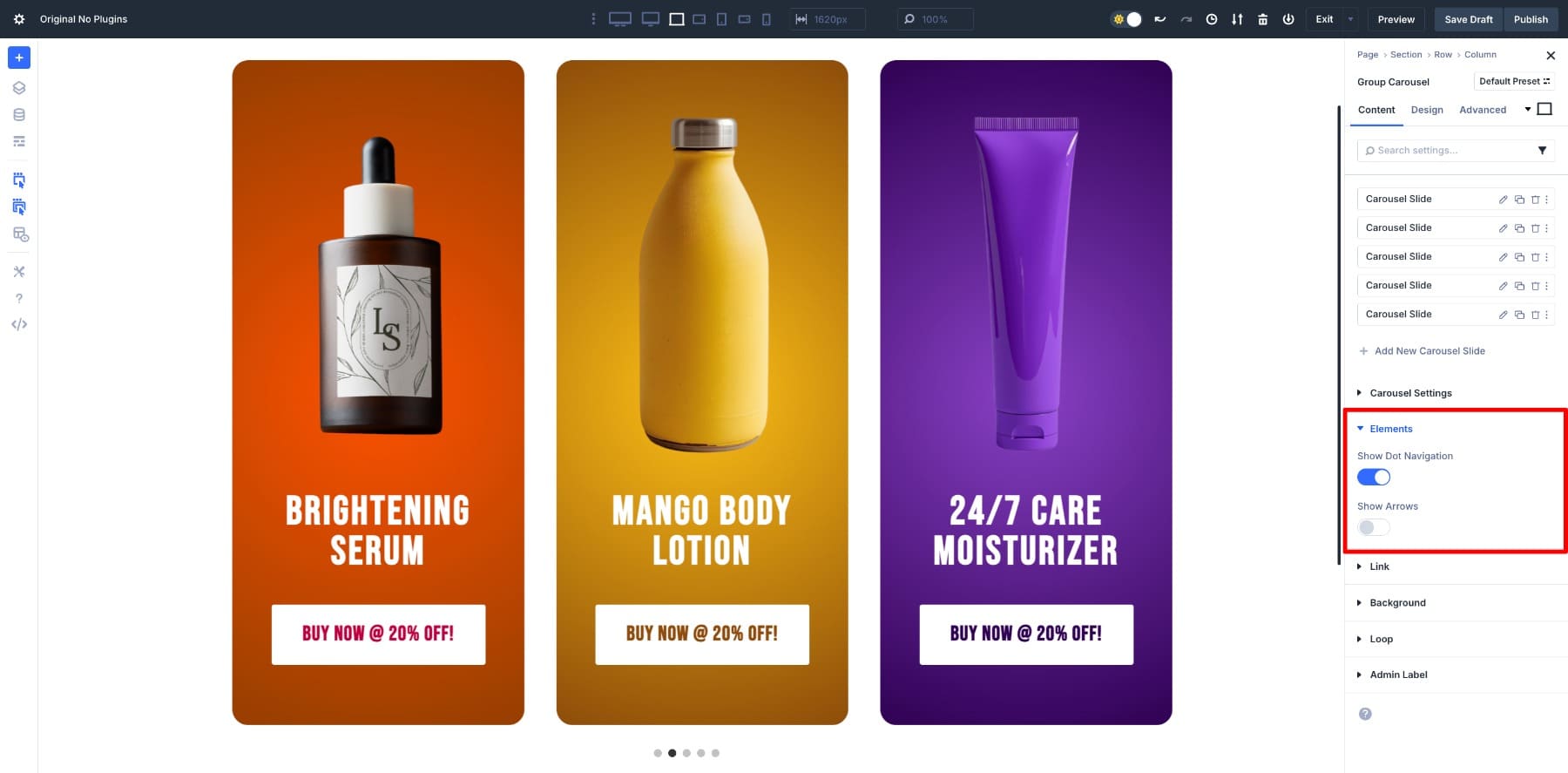
Navigation makes the carousel easier to use, so it’s worth customizing it to suit your design. In this construction the Arrows are disabled while Point navigation stays on. You can manage these options in the Elements tab.
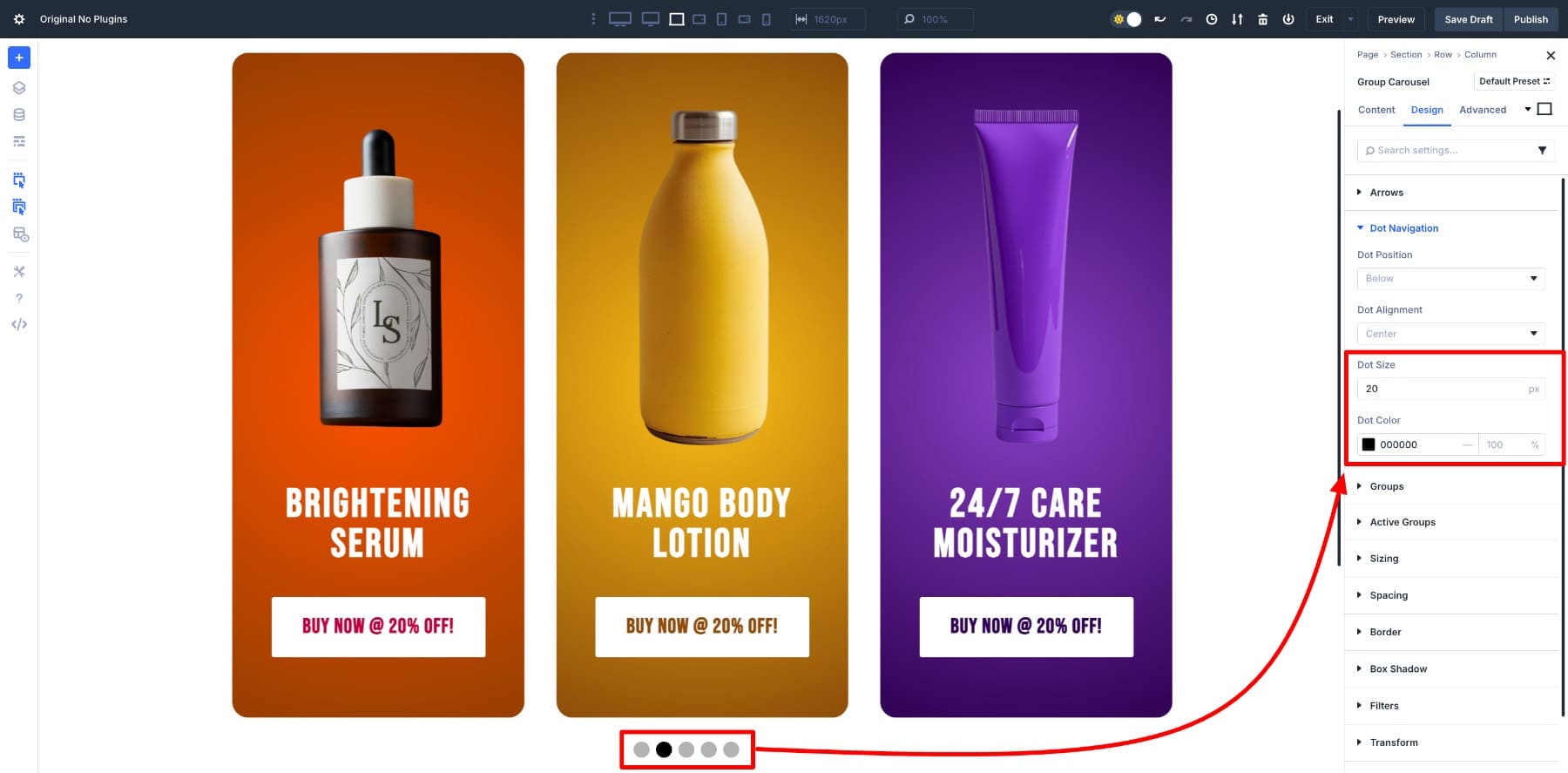
For better visibility, increase the point size. Go to Design > Point navigation and adjust the dimensions until they are in balance with the rest of the layout.
6. Adjust responsive settings
We have already set different values for Slides to display using the responsive editor, but it’s good to refine the design for smaller screens. Use the responsive editor again to check how the carousel looks on tablets and phones, then adjust the spacing and size as necessary.
If everything looks good, you can preview the design. For the demo here, the row width is set to 100% and Slides to Show is increased to 5 so you can see the full set of slides in action.
Real world examples you can build
You don’t have to stop at product carousels. The same module can be customized in different ways depending on what you want to highlight. Here are a few ideas to get you thinking:
1. Logo brand bar to build credibility
A logo carousel is probably the simplest application, but also one of the most effective. Place customer or partner logos in a scrolling row and you immediately show visitors that they are in good company.
It takes up very little space, yet goes a long way in building trust. Ideal for homepages or service pages.
Reviews stacked in a column are often skimmed or ignored. A testimonial carousel makes everyone feel like their own highlight.
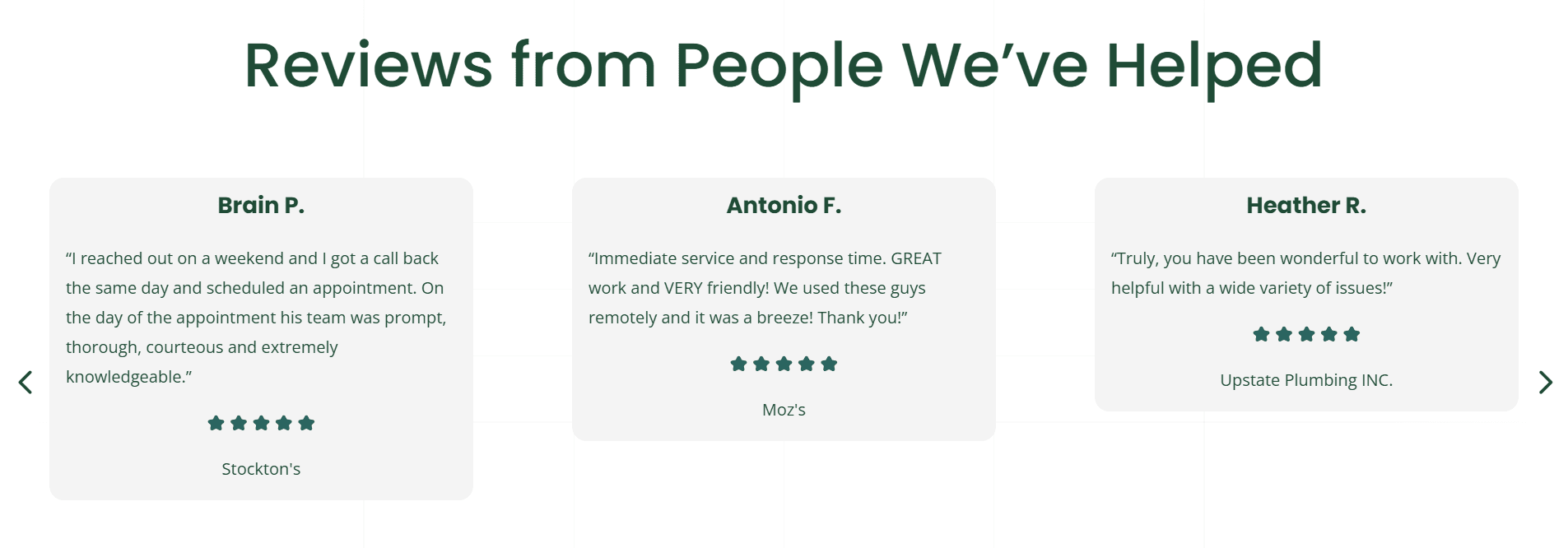
Add a short quote, a name and possibly a photo and arrange them in a clear layout. Place this on a homepage or landing page and it will support your offering with real voices, right where decisions are made.
Do you want something daring? Go to full screen. Each slide can contain a background image, a headline, and a call-to-action button.
It’s a powerful way to open a site, or to run seasonal promotions and campaign launches where the design needs to grab attention from the very first scroll.
4. Team members on a career page
This one works well on career pages. Each slide can contain a photo, name, role, and a short biography or fun fact.
Instead of a static grid, a moving carousel gives the page a friendlier, more personal feel. It’s a simple touch that makes company culture visible and shows potential employees who the people behind the brand are.
Build custom carousels with Divi 5 today
Divi 5’s Group Carousel module gives you the freedom to design sliders directly in the builder – no plugins, no extra code. From product cards to testimonials, logos or even full-width headers, the same steps can be customized to whatever you need.
Because it’s part of Divi, your carousels stay fast, consistent with your design system, and easy to update as your content grows. Build it once, customize the styling to fit your brand and let the module do the rest.
#Create #Carousel #Divi #Additional #Plugins