

Divi adds even more features to your tool belt. The native Group Carousel Module was recently released and comes standard with every Divi 5 website. It allows you to create a fully customized carousel for testimonials, products, feature cards, videos and more.
In a previous tutorial we showed you how to create a testimonial carousel, and in this post we’ll focus on creating a media-rich video carousel. Follow us to learn how. The video carousel JSON file can also be downloaded at the end of the post. Let’s get started!
The ingredients of a video carousel
A video carousel is a row that scrolls horizontally through cards. Each slide is a group within the carousel module. Each group can contain a header module, a video module or any arrangement of elements. Because you’re using a group, you can add whatever you want and organize it the way you want. You’re not tied to a specific set of elements or layouts you can use, because you have all the power of Divi on every layer of a carousel.
The parent carousel module controls arrow and dot navigation, autoplay, looping, and a mid-snap. The Visual Builder shows everything in its place, so there is literally no guesswork.
How to build a video carousel in Divi
In this tutorial, we’ll create a multi-slide video carousel. It has a nice blurry effect on unfocused groups.
The easy groundwork
Before creating your video carousel, I find it helpful to figure out which videos you will be using. It can even be helpful to have the video’s thumbnail images handy. To make it easier in advance, you can also use placeholder images with an aspect ratio of 16:9.
First, determine your video source. You can upload videos to YouTube and Vimeo, but a self-hosted option of WebM or MP4s also works.
From there, all you have to do is build your video carousel.
Building the video carousel
Add a normal section to the page. Choose a single row/column layout
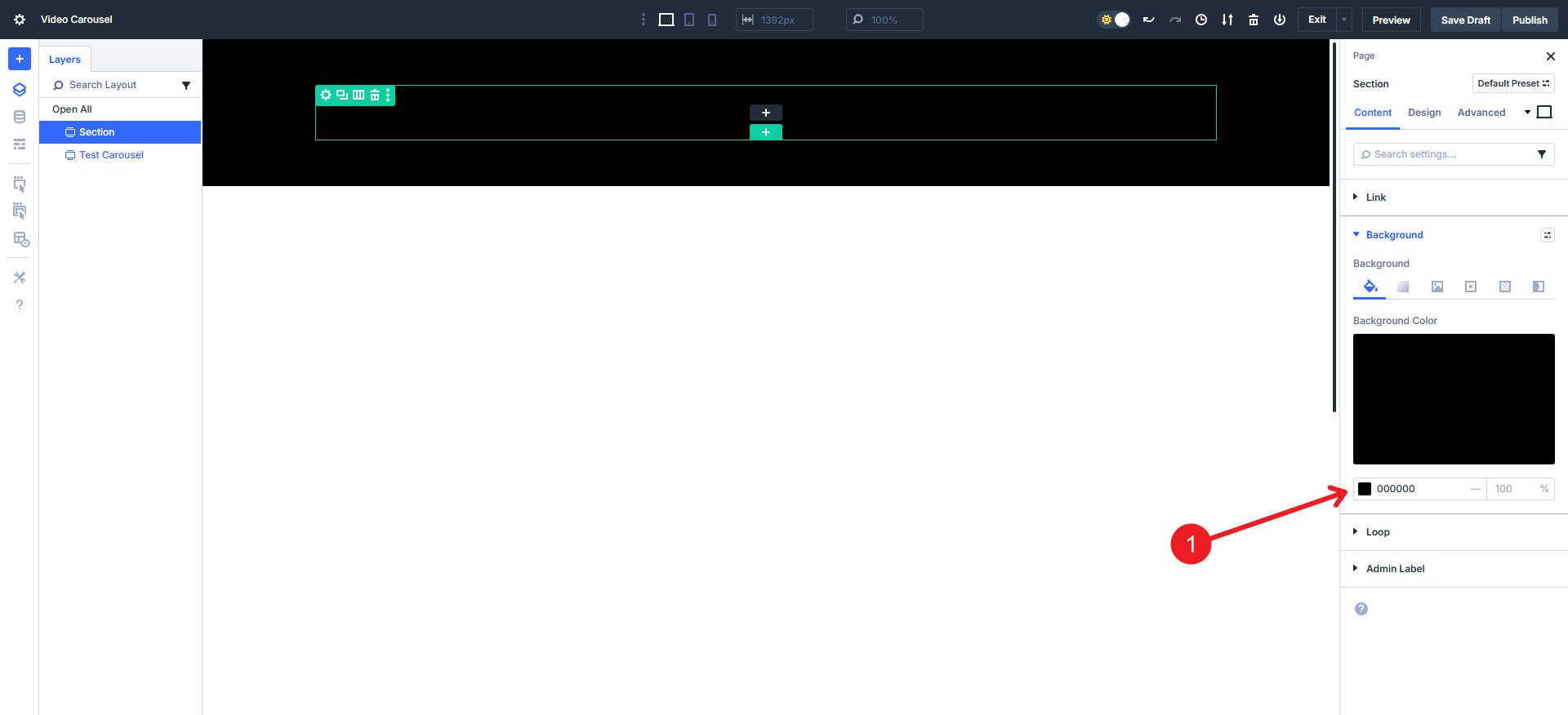
Then give it a black background with #000000 or your design variable.
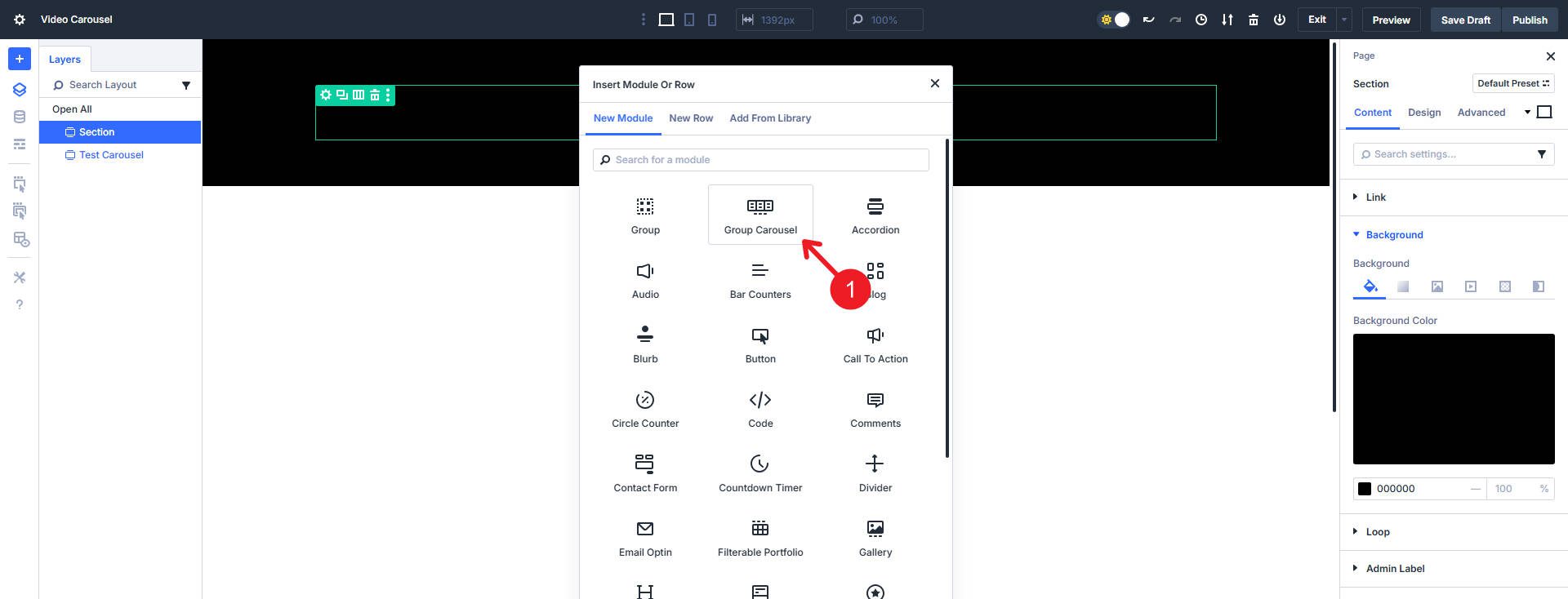
Place the carousel module in the row.
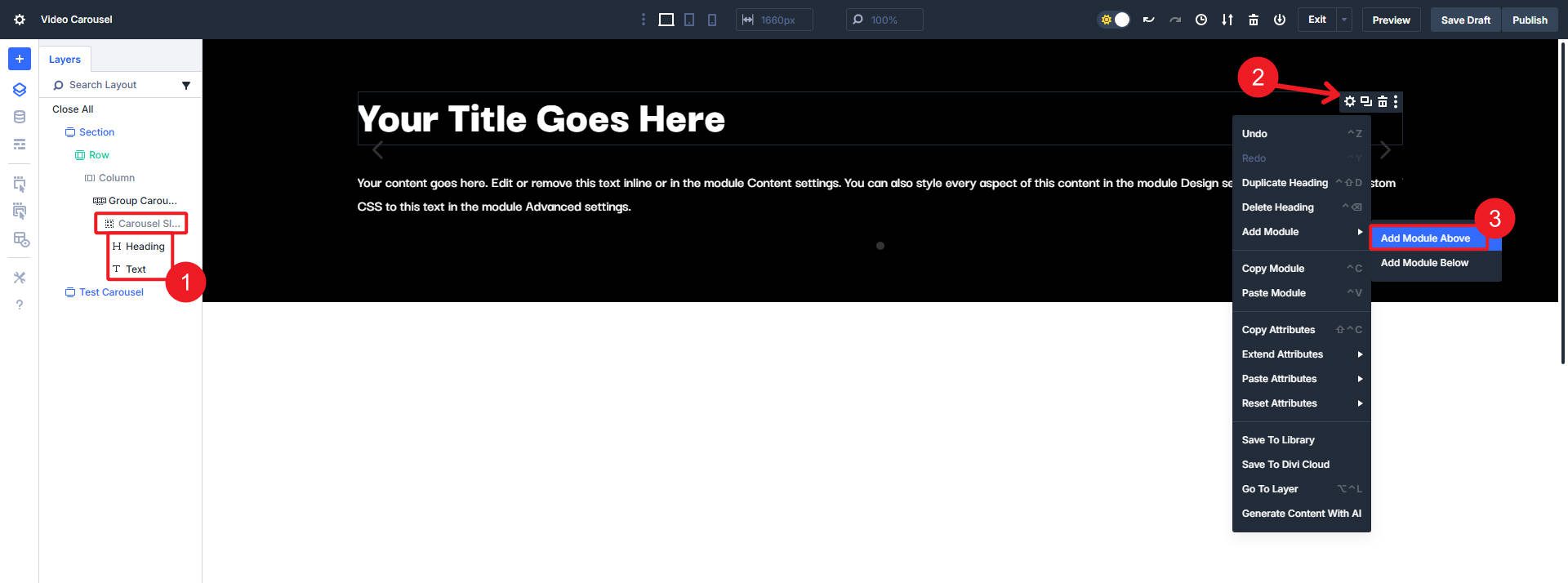
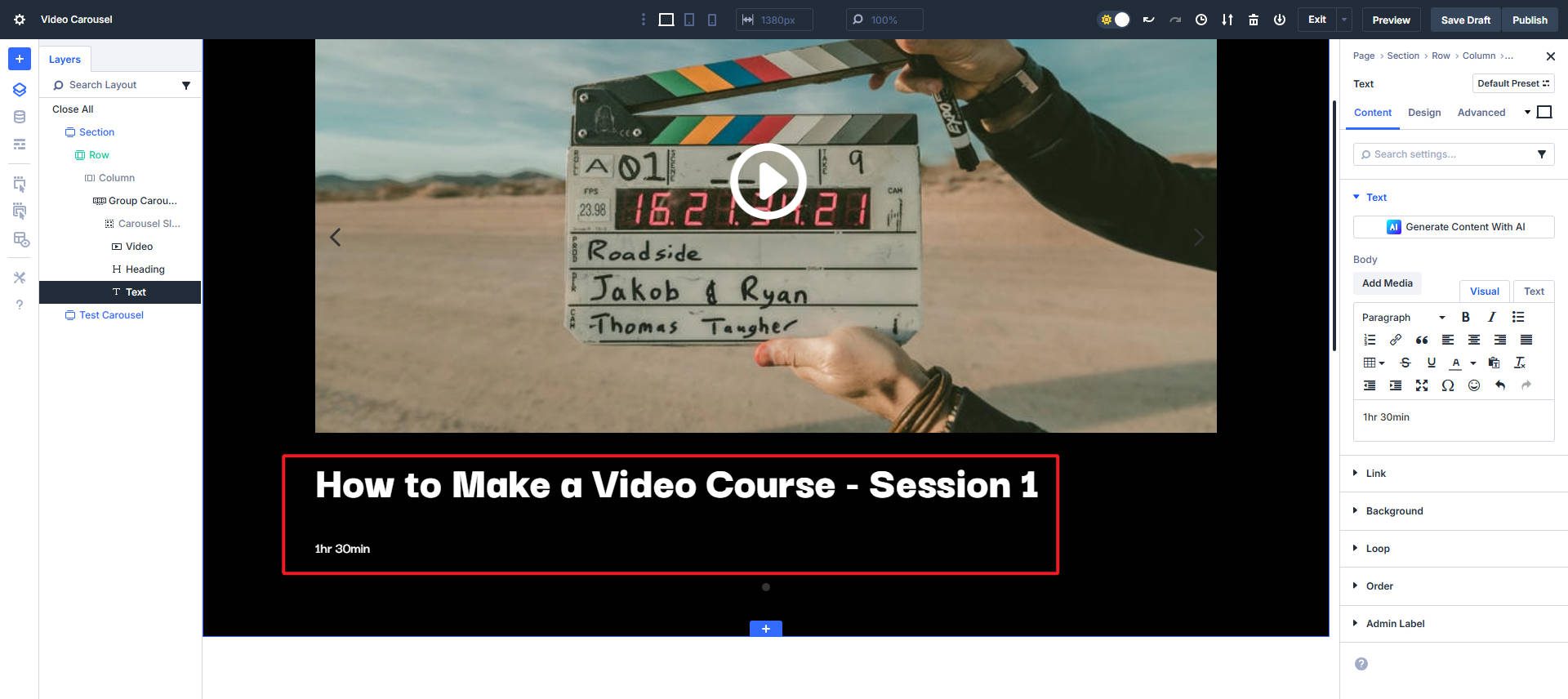
From here you don’t add “video slides”, you build the video card/slide yourself. The carousel module comes standard with one slide/group. We’ll use that to start by adding a video module, a header module, and a text module.
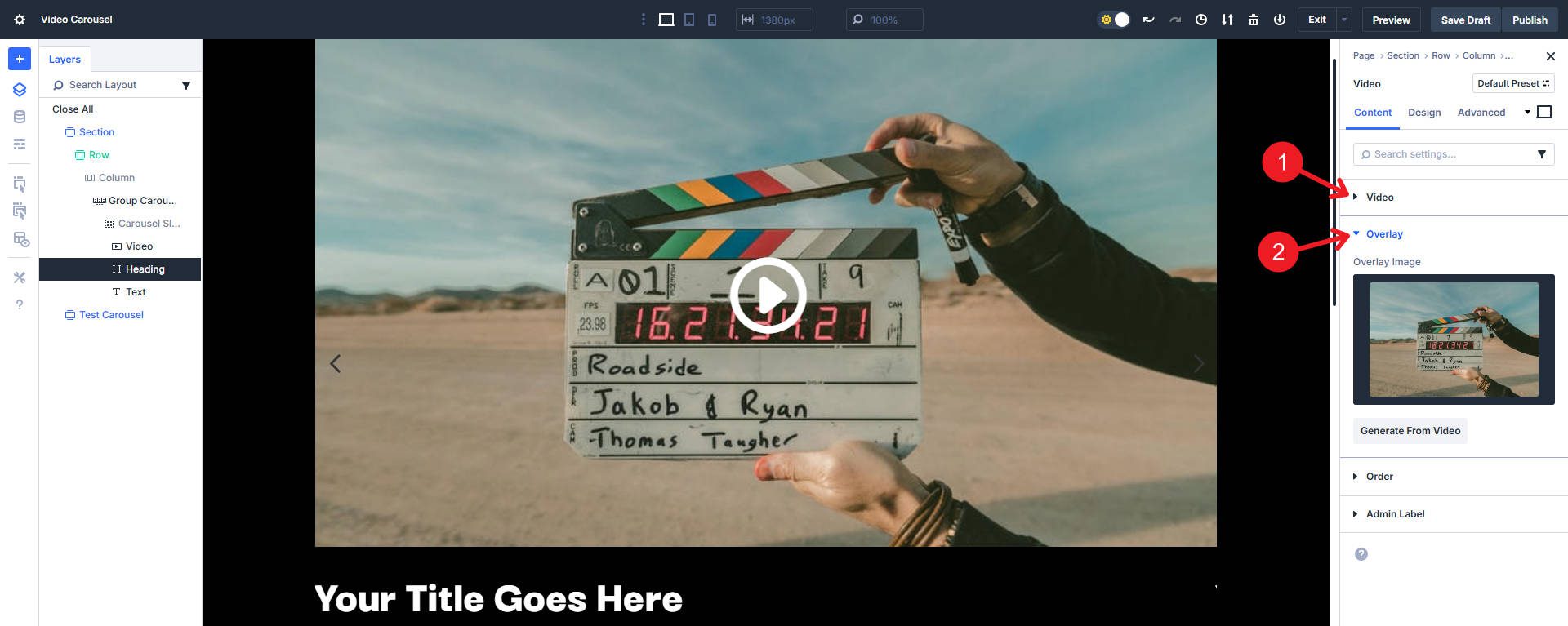
Paste the URL into the video module or choose your media file. Then set the overlay image so that visitors see it before clicking the play button.
You can now add temporary content to any of the other modules.
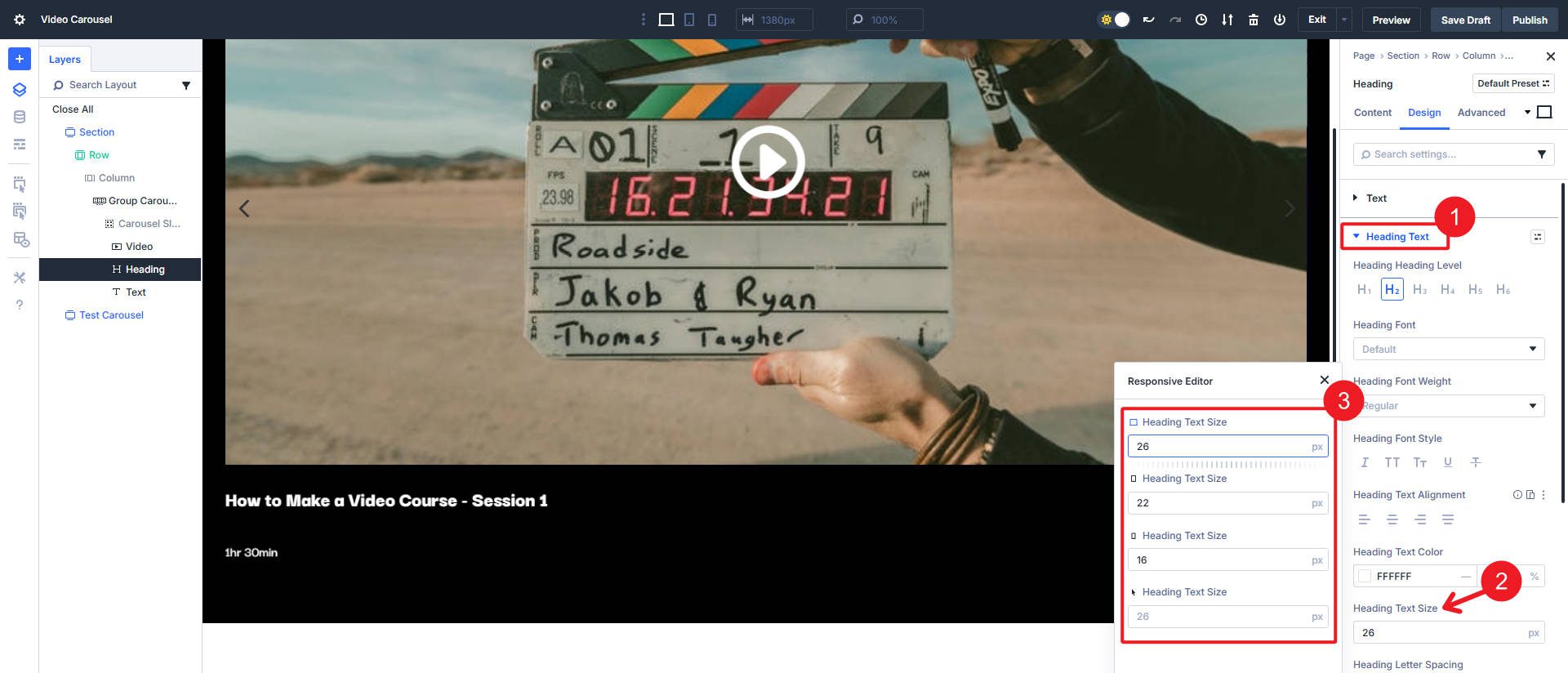
At this point I will set my header sizes for three breakpoints. You can use clamp(), but here’s how to set multiple breakpoint sizes in one view.
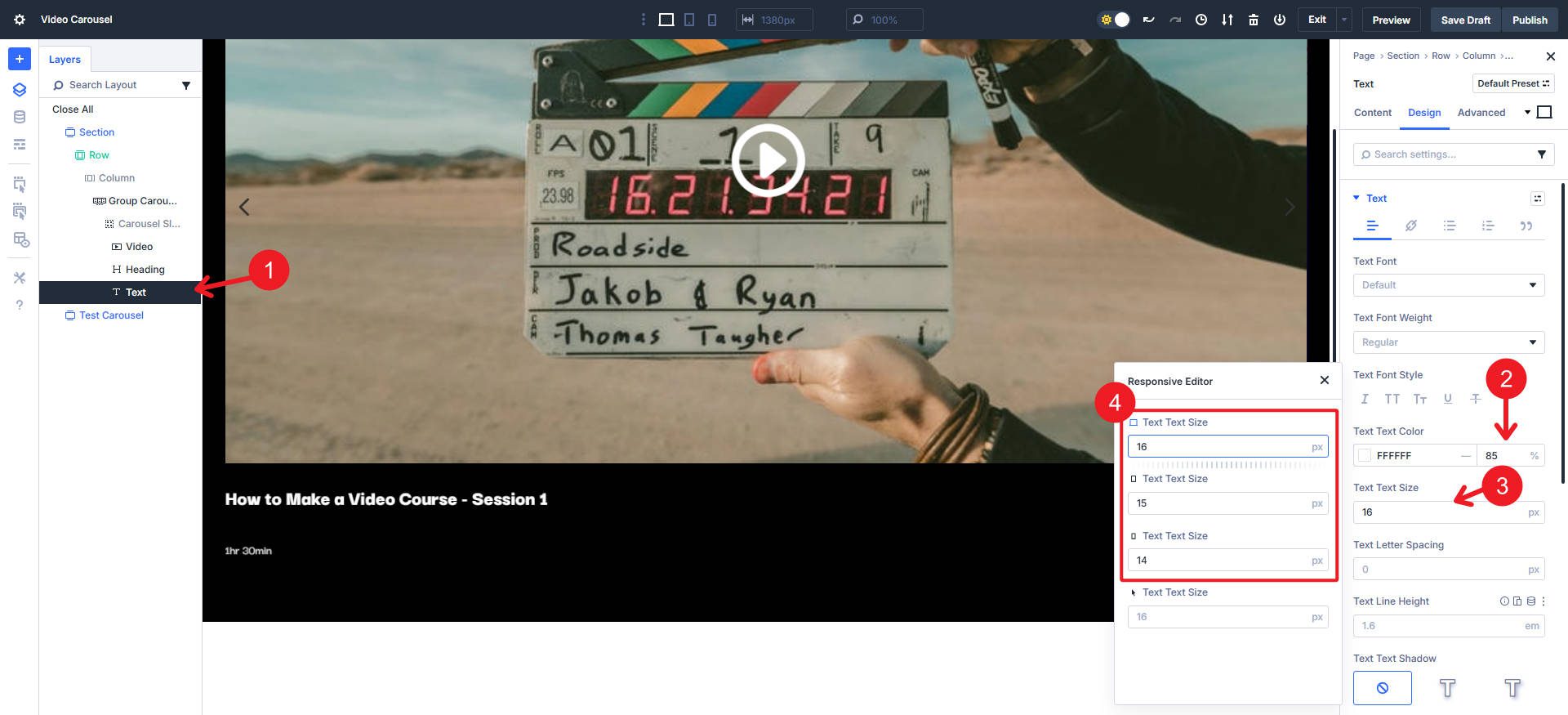
I will also change the text size in the Text module and the text color to #ffffff and 85% transparency for a little intrigue.
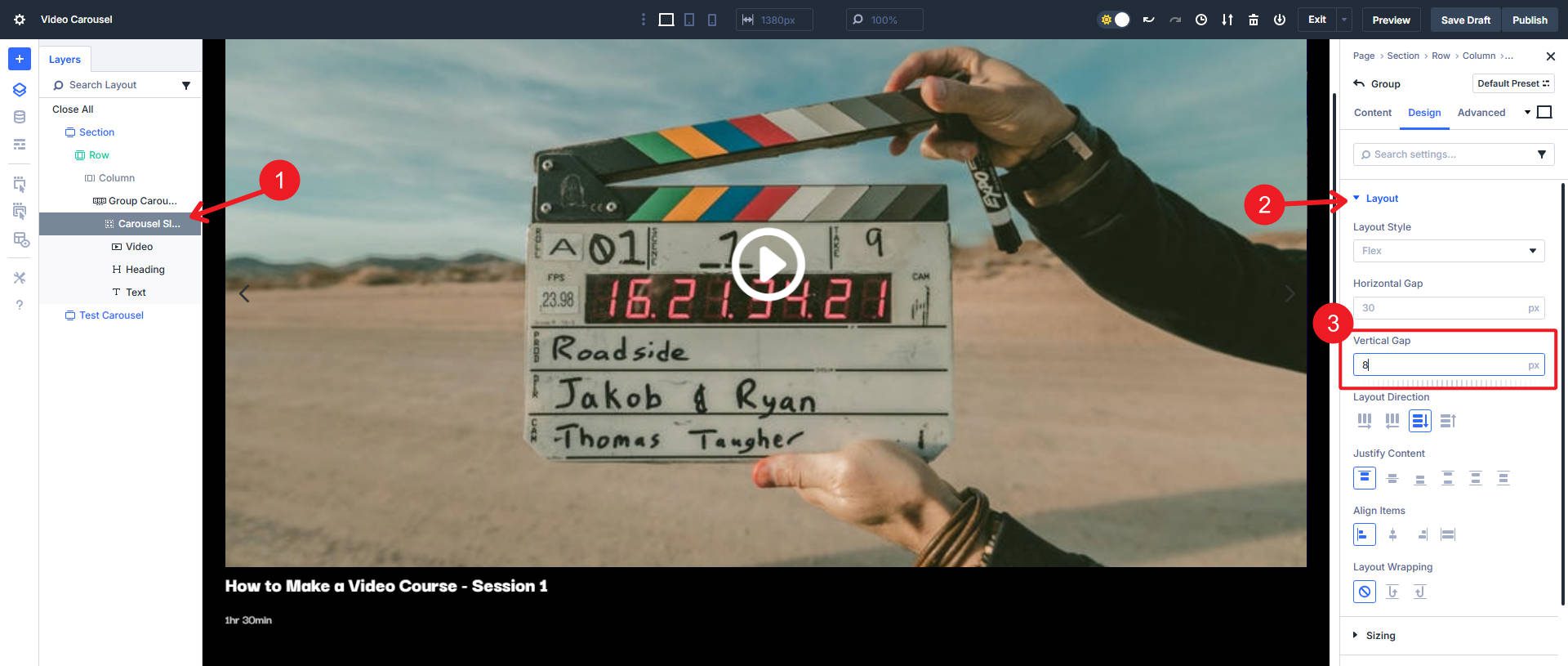
Set the vertical opening within the group to 8px to secure the three modules. You can also use the responsive editor here.
At this point we have the structure needed for a carousel with the contents of one card.
Carousel settings to make it come together
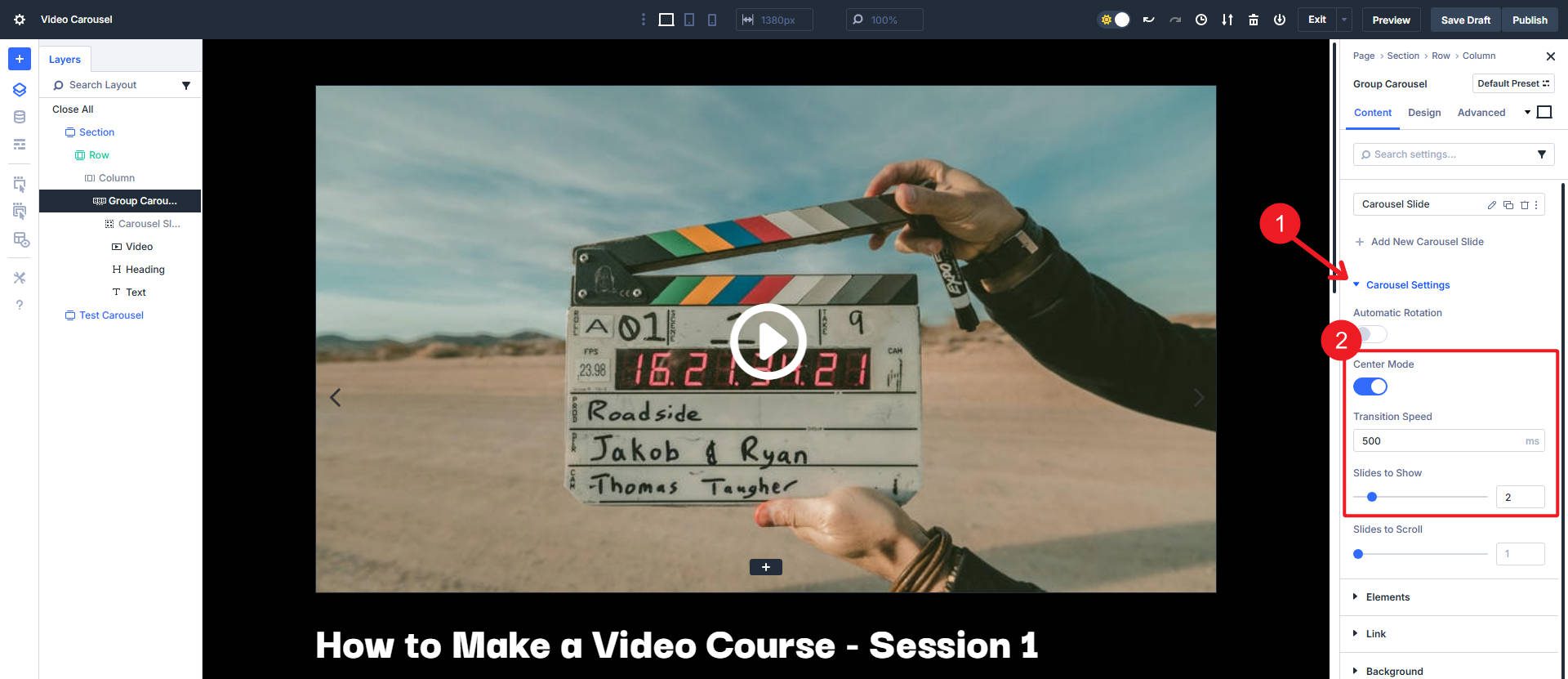
Open the carousel settings. Set the number of groups shown on desktop, tablet and phone. Two or three on desktop is common, and one on mobile is a safe bet. In this example I use two “Slides to show” on all breakpoints, so if you set it to Desktop it will be routed to all other breakpoints.
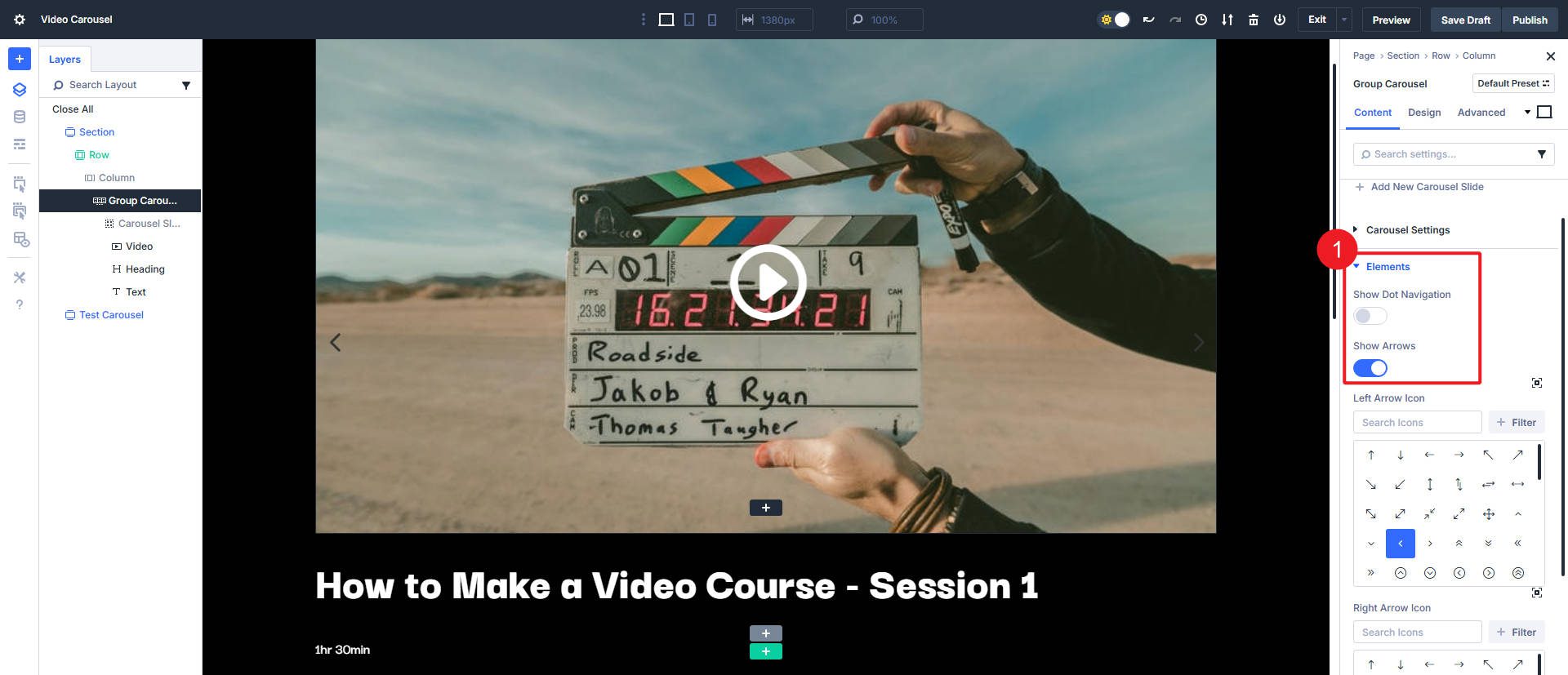
Enable the arrows for control and disable pagination points if you want. At least one of these options is good for helping users navigate between slides independently. They are especially important if you have turned off the autoplay setting. If autoplay is enabled, use ‘pause on hover’ for better usability.
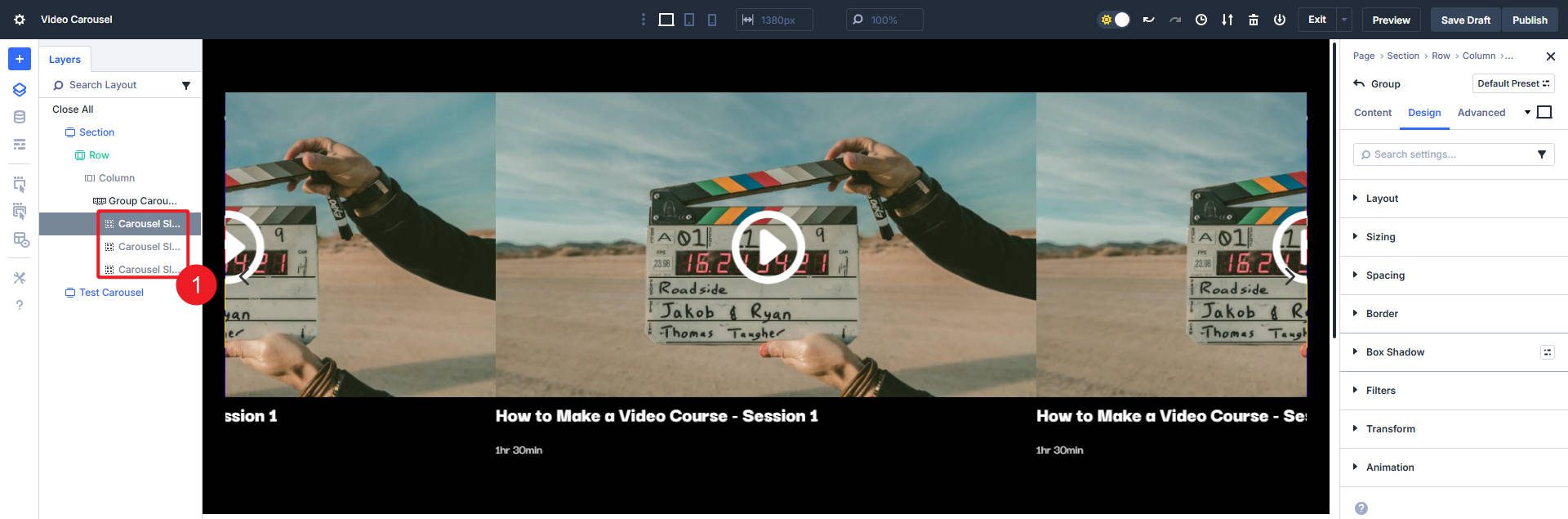
Now let’s duplicate our main slide twice. This shows us how the carousel module currently handles multiple slides. Later you can choose to delete it and create a loop on your first carousel slide.
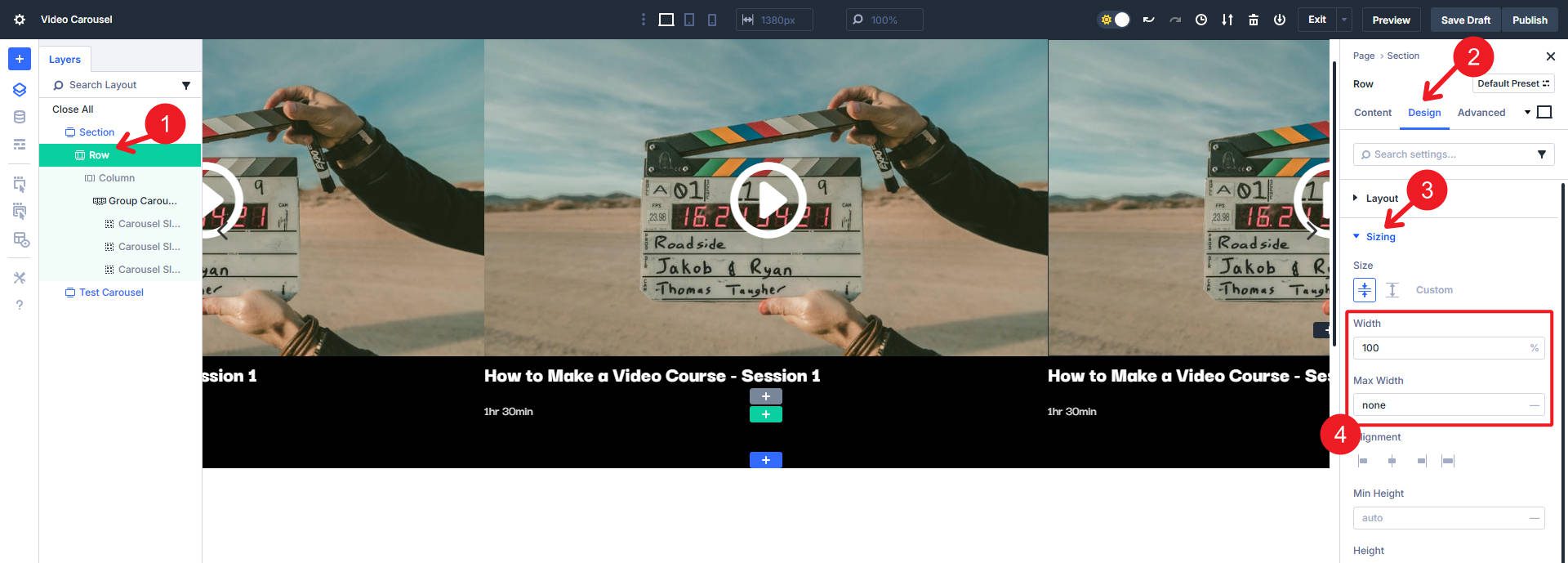
Now to give the carousel some space. Go to row settings and set the width to 100% with no maximum width.
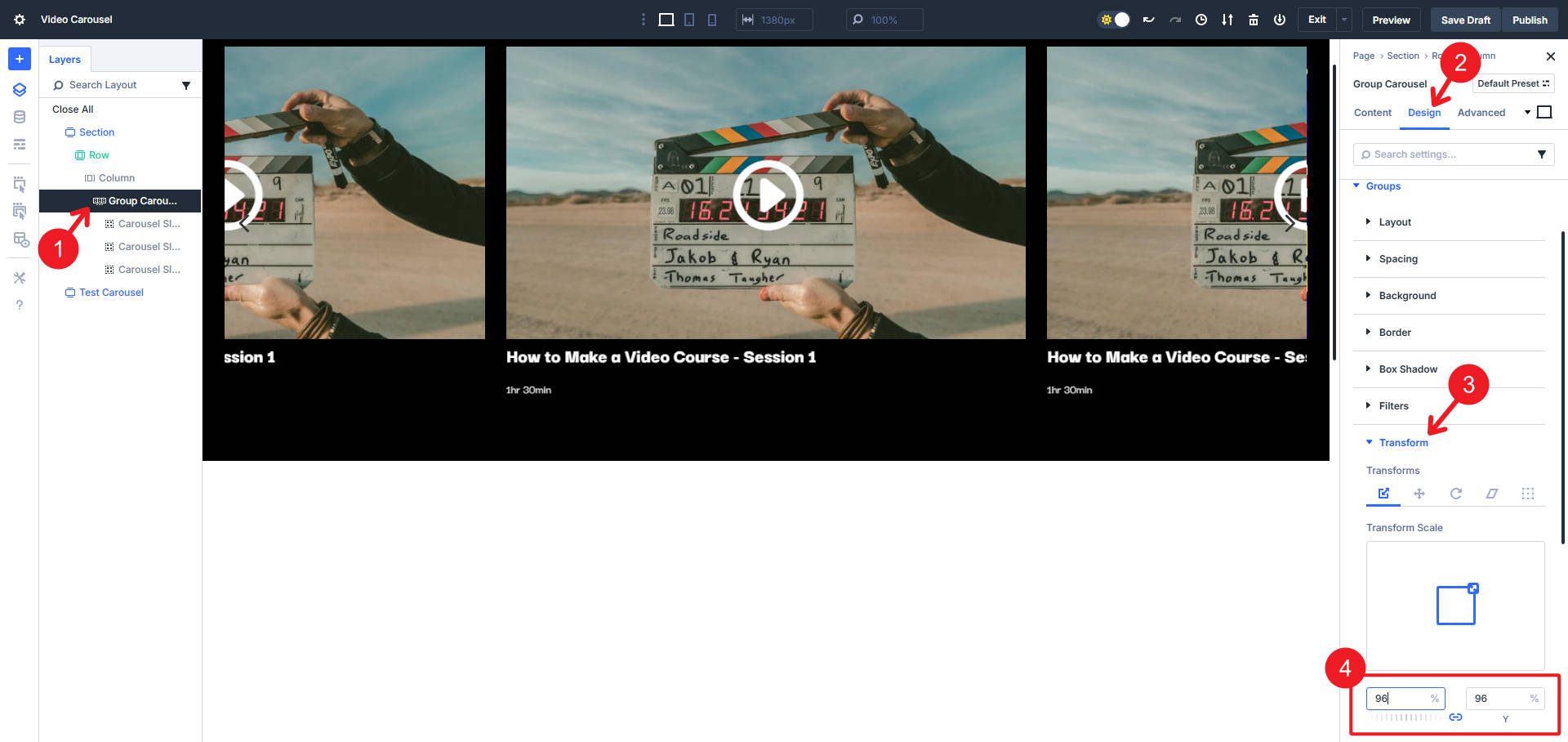
In the carousel module, enter a transformation on the groups (not the active group) and use a 96% transformation scale to create a small separation (you can also experiment with a margin here).
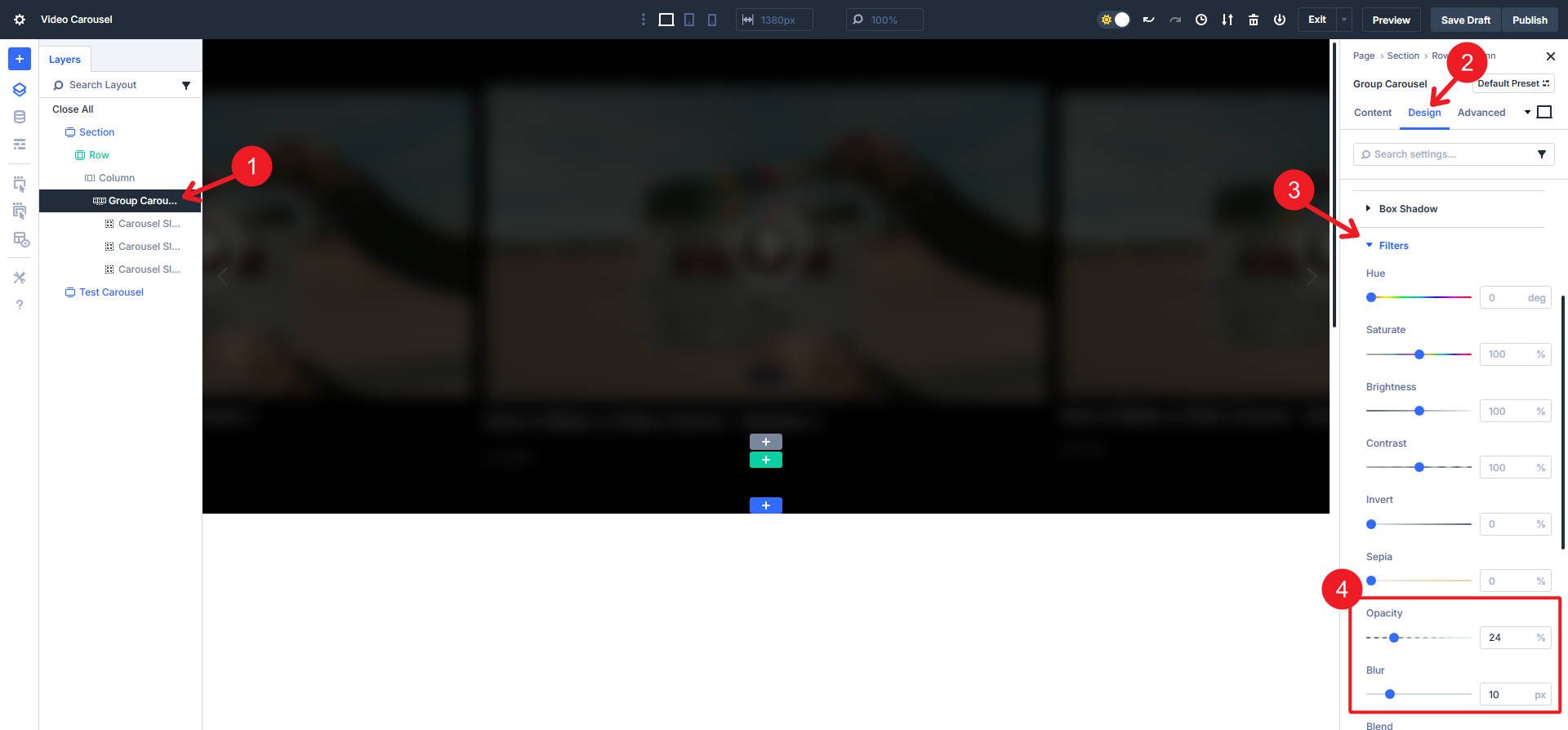
We apply two filters to that same ‘Groups’ tab. Set them Opacity 24% and Blur 10px. Now you can see it taking shape!
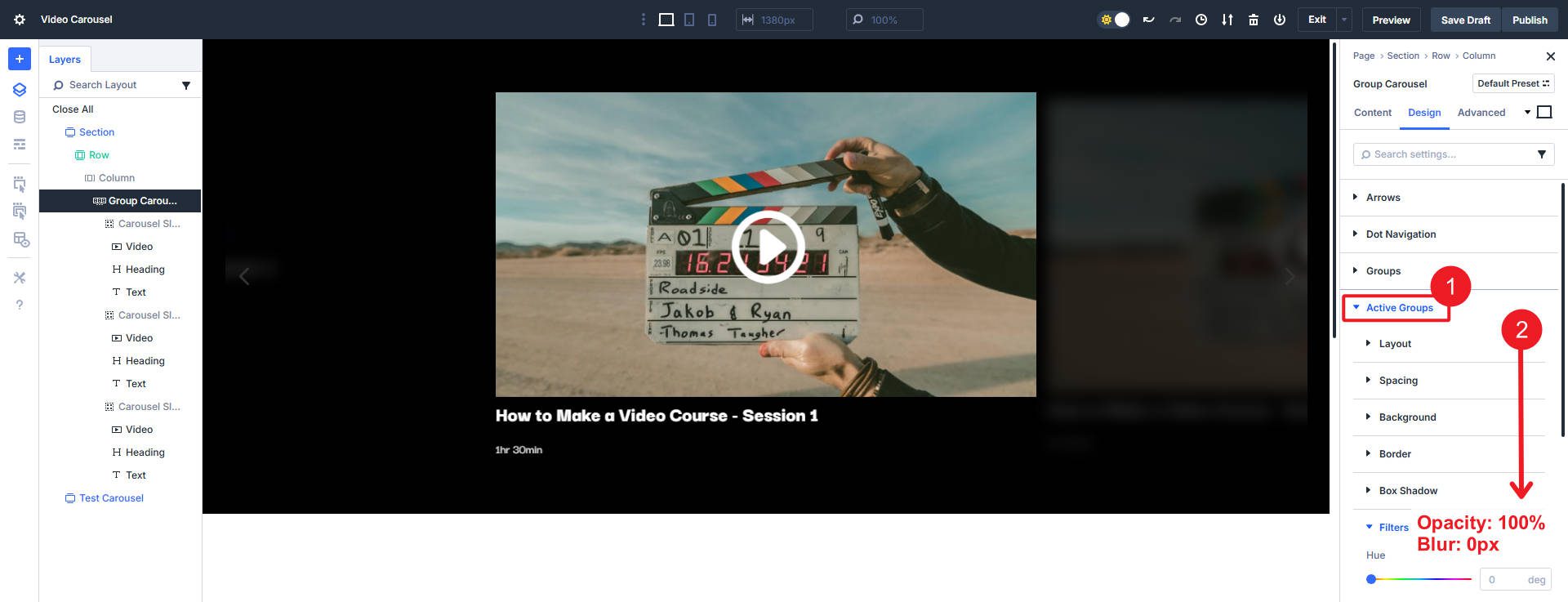
Now go to the “Active Group” tab and make sure the Opacity is set to 100% and the Blur is 0px. This keeps the Active Group (in the center) from being blurry and completely visible.
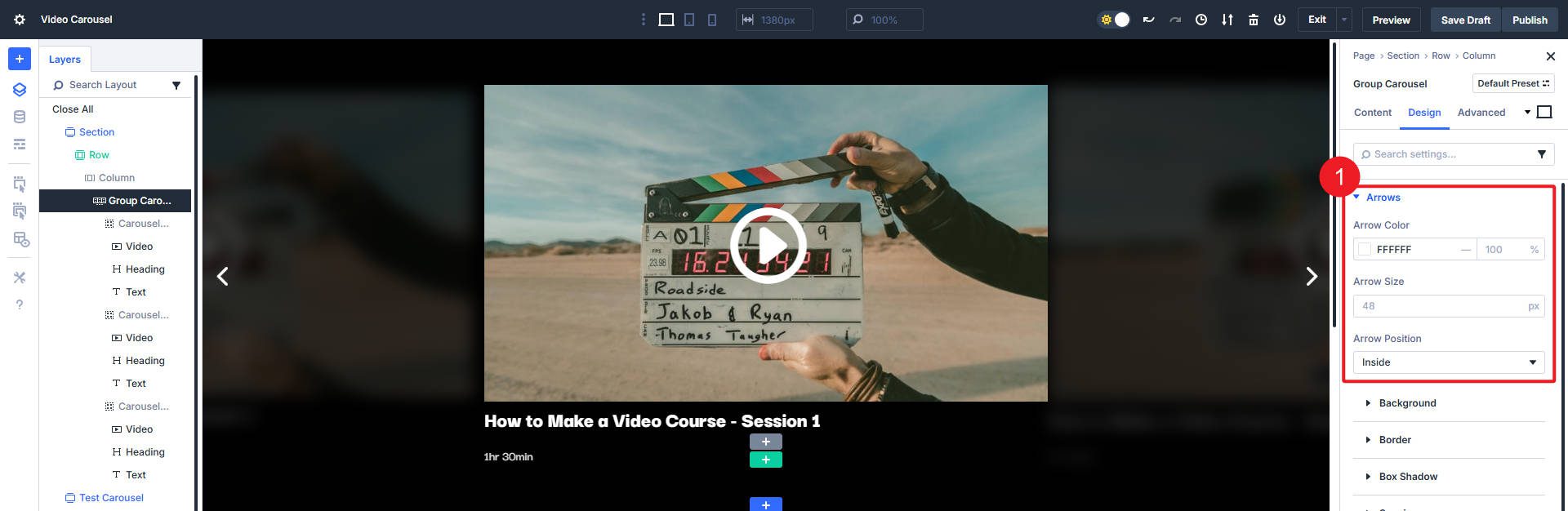
Now we can tackle the navigation arrows. Set them to white and Arrow position inside.
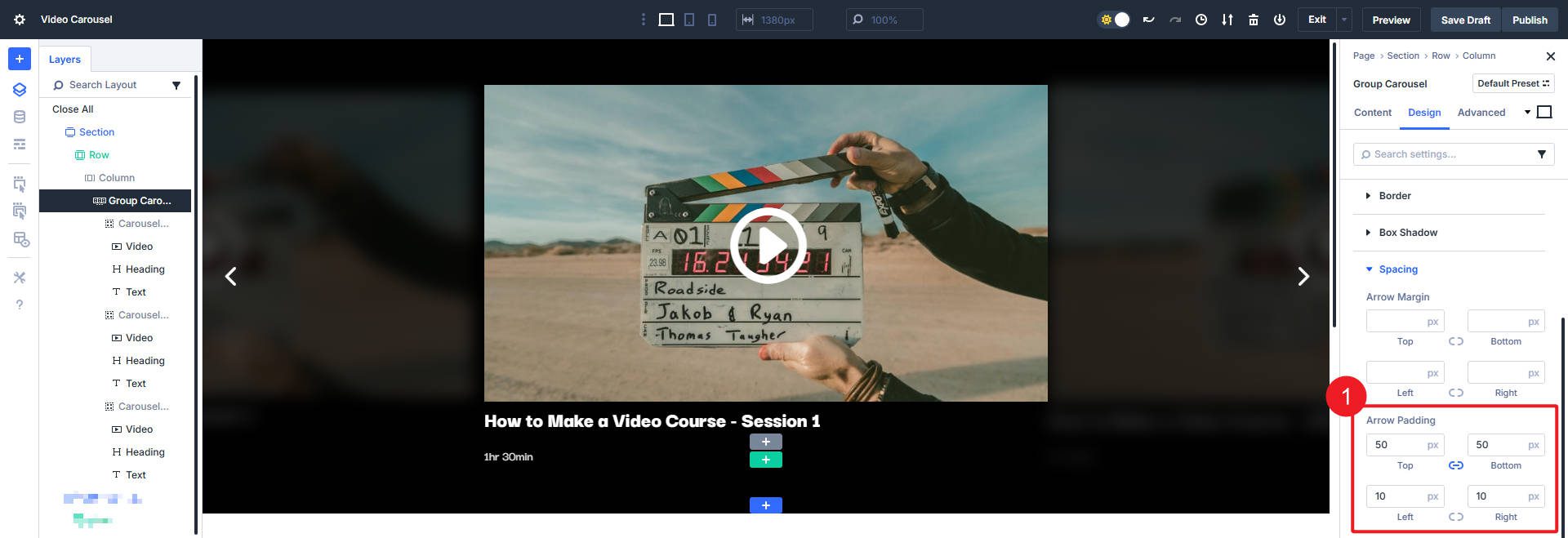
These arrows are quite small targets to tap or click. We can expand the area around these navigation arrows so that when they are clicked they will not play a video but will navigate to other slides. We can set the padding on all sides to create a larger target.
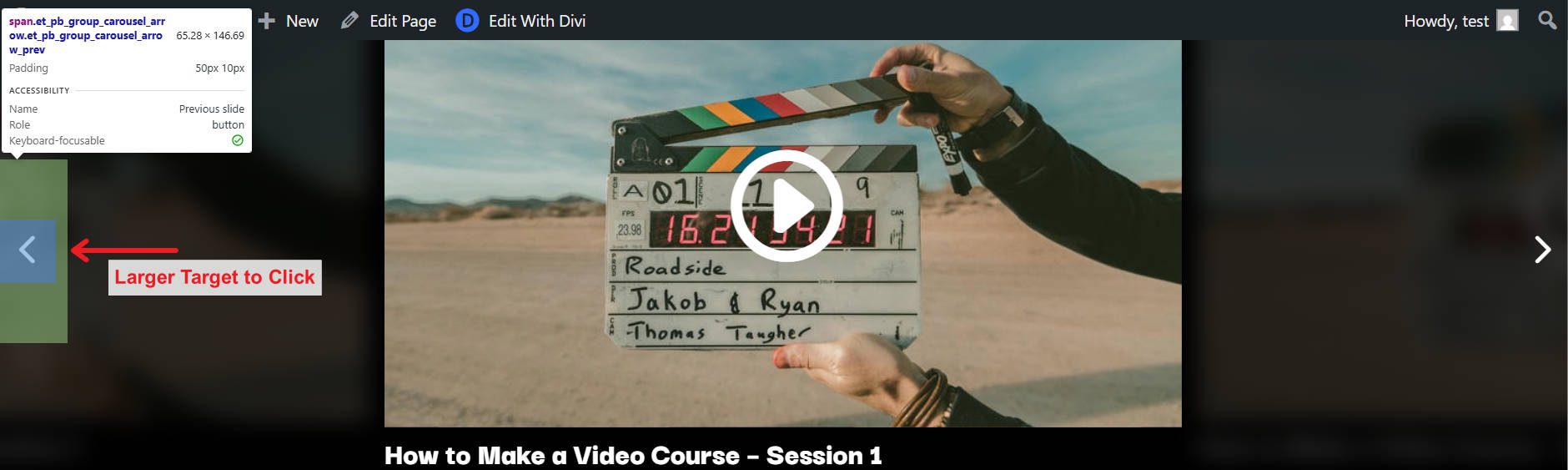
The Dev Tools show that this clickable target is now larger and easier for users to use.
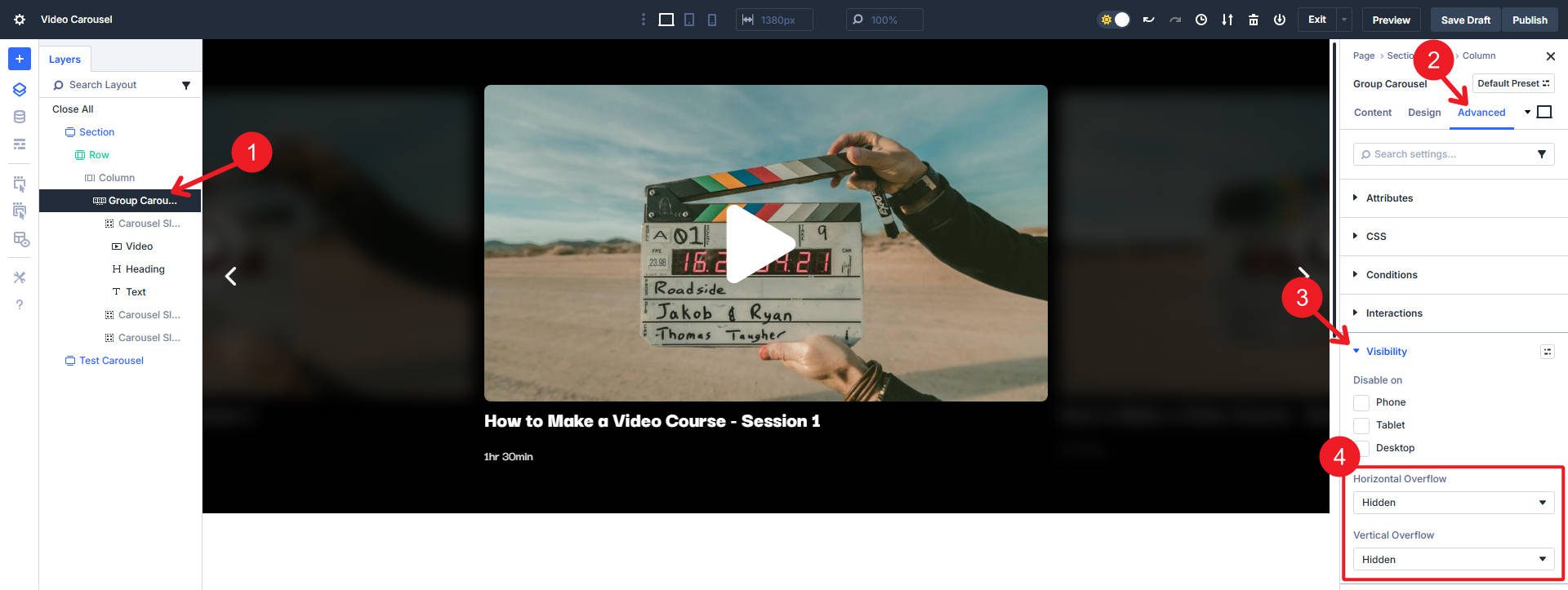
Now go to the Advanced tab and under Visibility set the Horizontal and Vertical blends to Hidden.
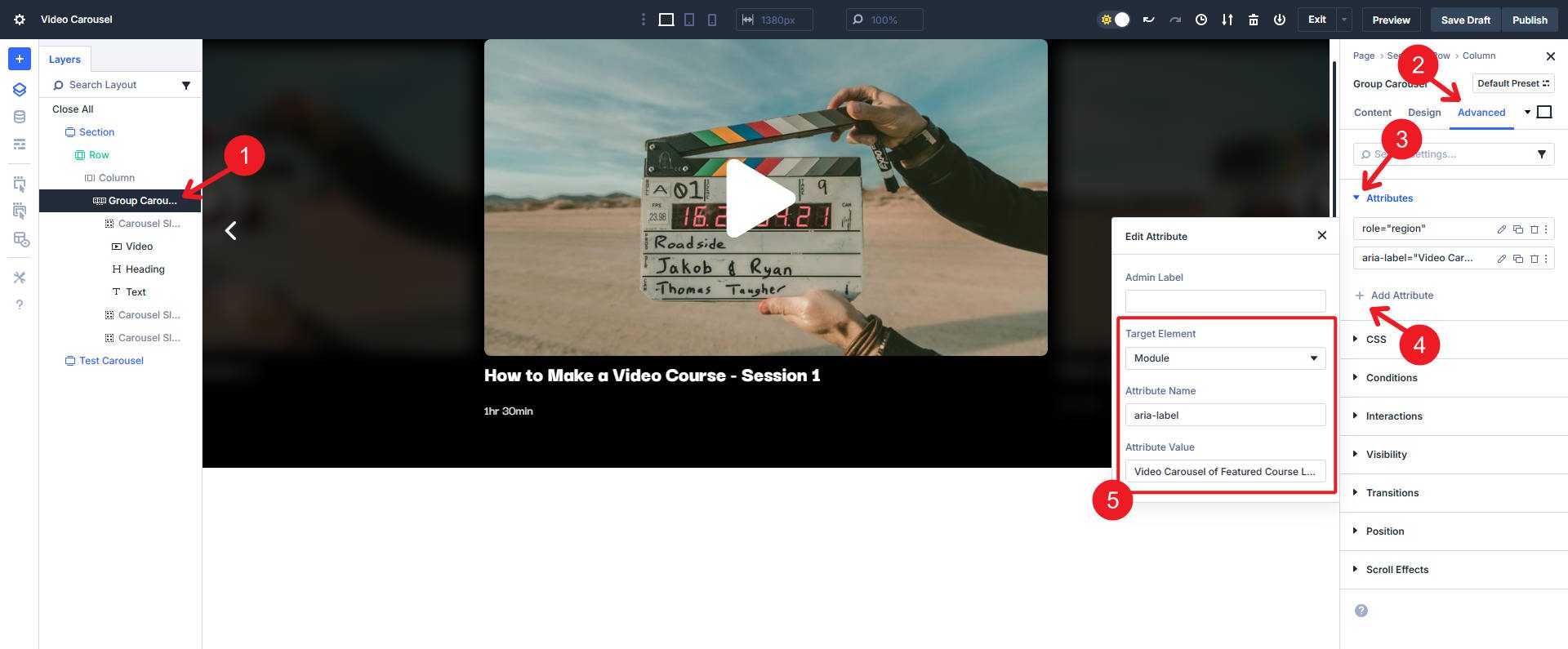
Now we can focus on some accessibility improvements for our carousel. Divi’s Carousel Module already adds role=”button”, tabindex=”0″ and an aria label to our navigation arrows (one less thing for us to do!). Divi also adds the attribute aria-hidden=”true”. on all inactive slides, so screen readers can only see the active slide (which changes if they use any of the navigation settings). But we can add a few optional attributes to make things clearer for those using assistive technologies.
- Target element:Module, Attribute name: “roll”, and Attribute value: “region”
- Target element:Module, Attribute name: “aria label”, and Attribute value: “Video carousel of recommended course lessons” or whatever makes sense for your video carousel
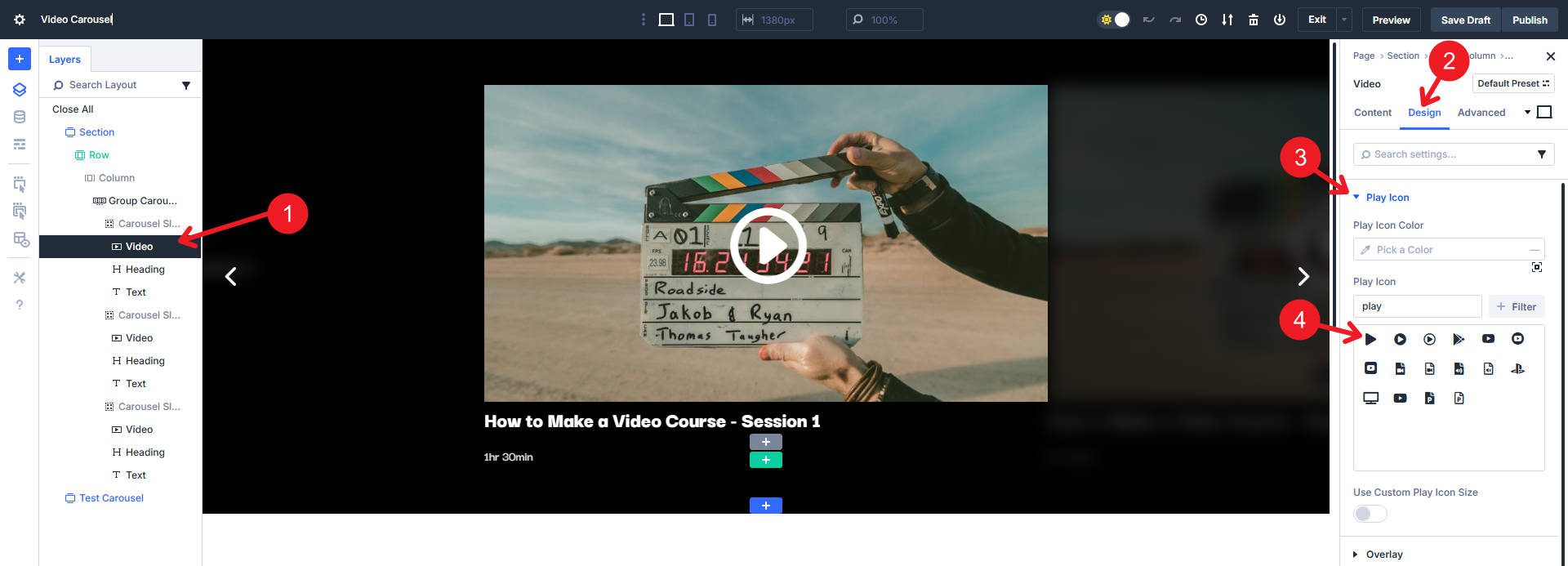
We can make changes to improve the appearance of the video cards. If you want, you can start by changing the default play icon on your main video module. We’ll expand the styles in a moment so you only have to work on your main video.
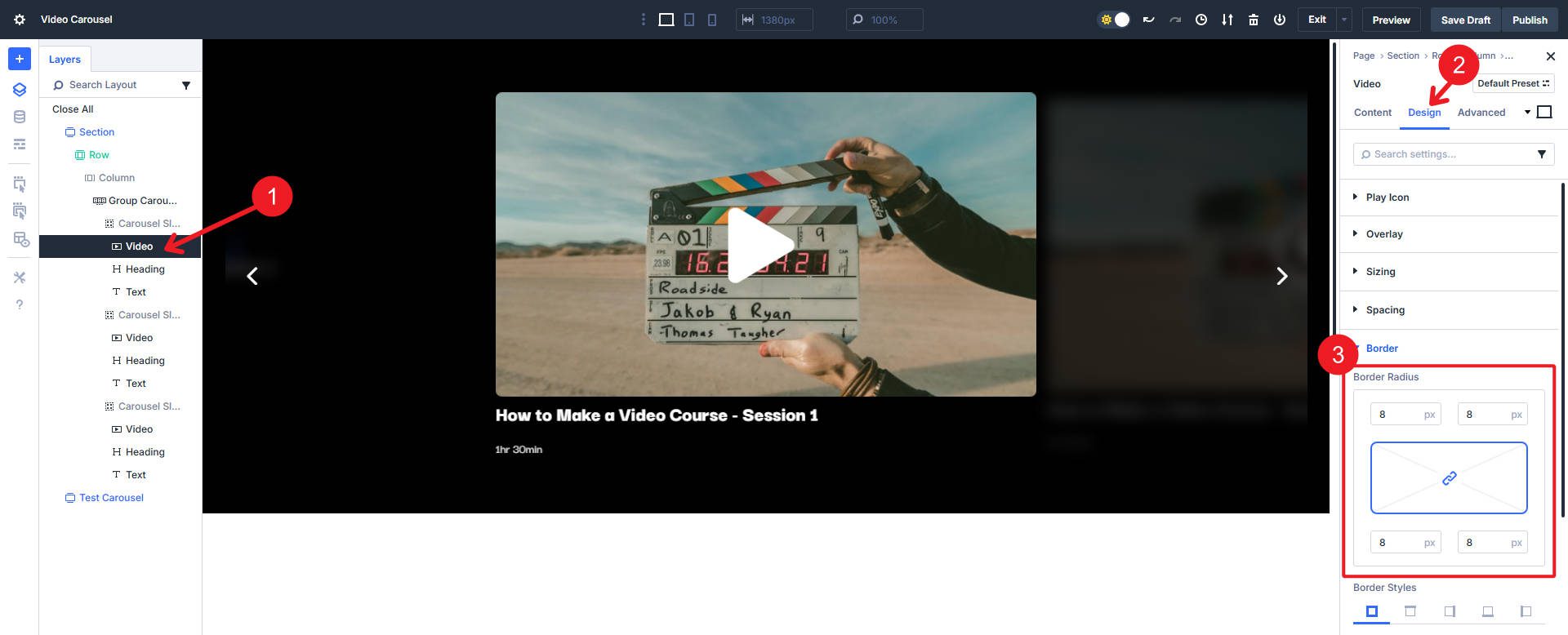
We can also add a subtle border radius if we want. Below I’ve added an 8px border radius on all corners.
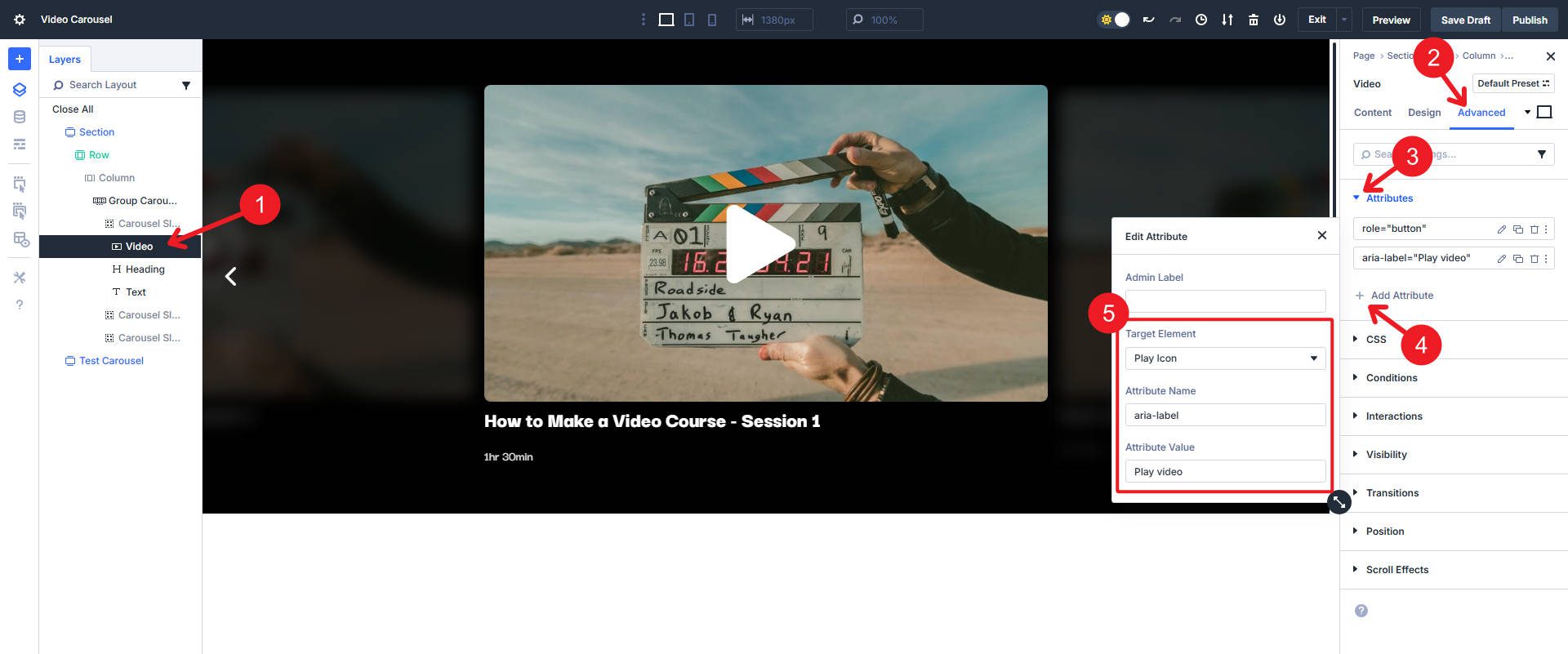
We can make the video module a bit more accessible by adding two custom attributes.
- Target element: Play icon, Attribute name: “roll”, and Attribute value: “knob”
- Target element: Play, Attribute name: “aria label”, and Attribute value: “Play video”
Now that we’ve made some changes we’d like to the other video modules (in other slides), we can expand attributes to clean things up in a pinch. Right-click the video module in the layer view and select “Extend Video Design Attributes.”
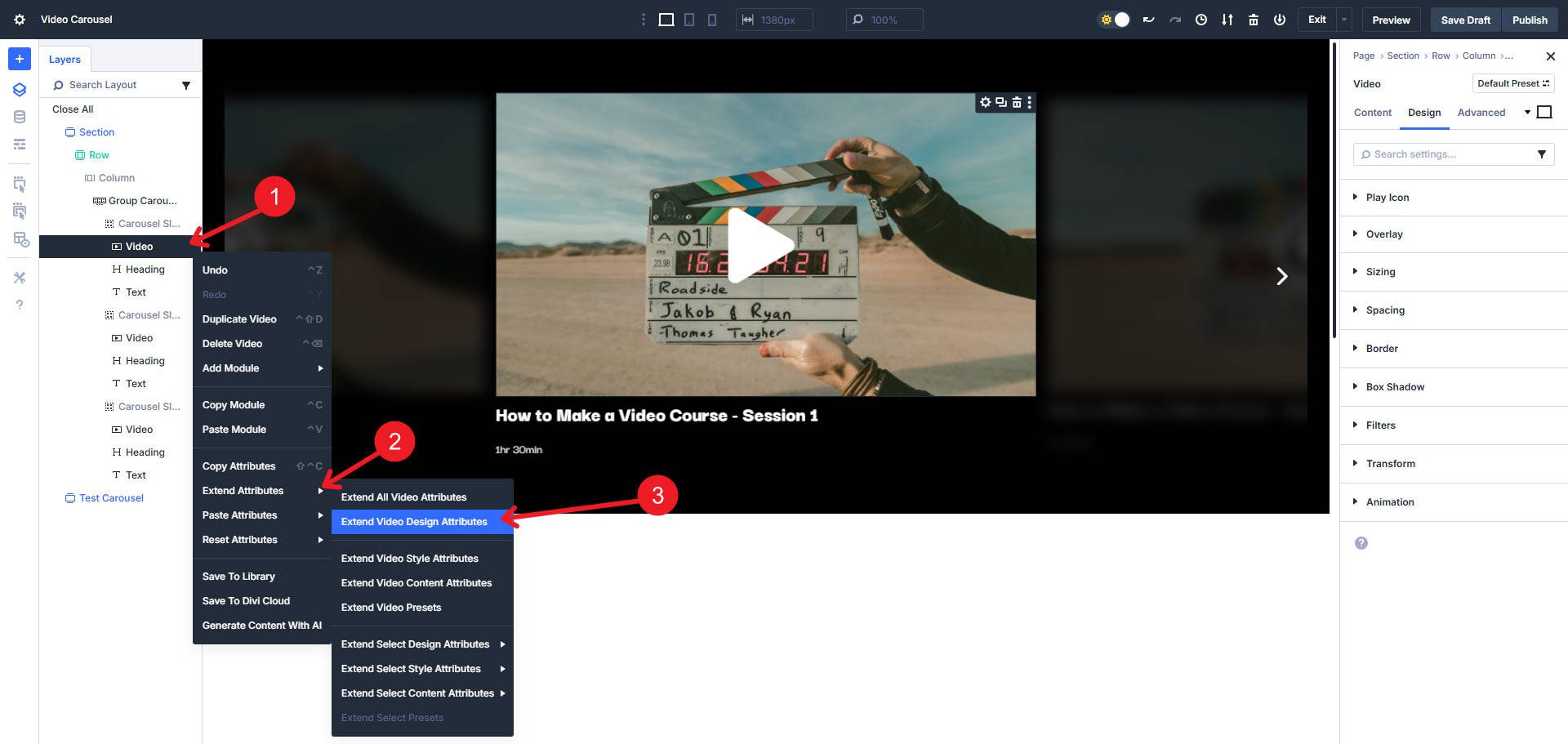
For this I extend from our main line Video module to others Types of video elements in the same Parenthood.
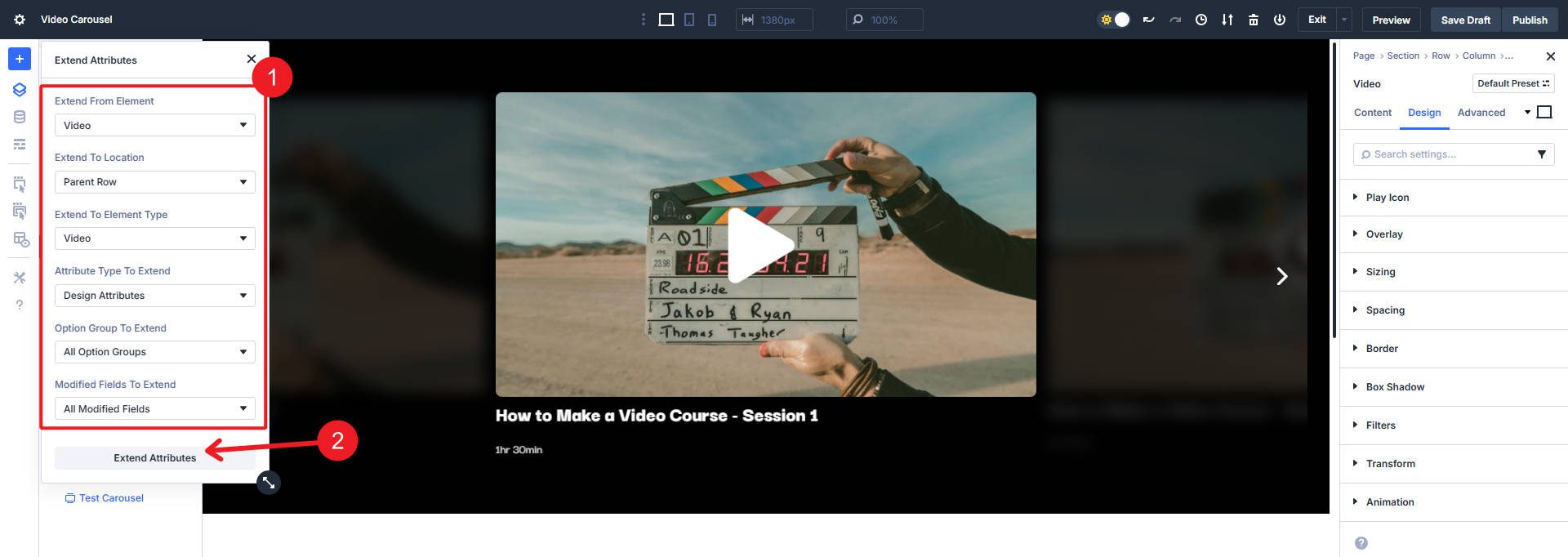
From here you can duplicate your slide as many times as you want to show videos. Make sure to update the content of each slide and change the video.
You can download the video carousel in this post below. Once you upload the section layout to your Divi library, you can access it on every page you create.
Try building video carousels in Divi 5 today
Divi keeps getting better. It is faster, has a better and more powerful user interface and includes new features and modules. The Carousel Module is just one of the many new things in Divi.
If you haven’t yet experienced the new Divi for yourself, try it on a new website, on a test site for your current Divi website, or on the Divi 5 demo site. Now is the perfect time to start using it and get to know all the new features.
If you want to get a bigger picture of the carousel module and its many uses, read our dedicated post about it. It also covers the new Lottie and Icon List modules.
Learn the carousel module
#build #video #carousel #Divi