

In this post, we’ll take a closer look at what nested modules are, what their benefits are, and show some examples of them in action. Let’s dive in!
What are nested modules?
Nested modules allow the placement of any module within another module with infinite nestability. This means that you are no longer limited to predefined modules. You can now build layered, custom layouts by embedding rows or modules within each other, as many layers deep as you like.
At its core, a nested module turns each Divi element into a flex or grid container. Whether it’s a Blurb, Accordion, Tab, Slider, or any other Divi module, you can now treat it as a parent layout element. These child elements can be simple text modules, complex row structures, or even other nested modules, creating reusable design patterns.
Each parent module now includes layout controls, such as Flex Direction, Content Justification, Item Alignment, Spacing, and more, giving you control over how child elements are arranged. In practice this means that you:
- Place a call-to-action (CTA) button directly in the content area of a short text.
- Embed an entire row with multiple columns in one tab.
- Build a pricing table where each plan contains its own nested row for feature comparisons.
The result is a more logical, component-based design approach that reflects modern web development practices. Nested modules not only expand what’s possible in Divi, they redefine the way you think about building with it.
Advantages of nested modules
Nested modules don’t just add a new feature; they transform the way you design, build, and maintain websites in Divi 5. Here are the key benefits that make this capability so unique:
Infinite design flexibility
Thanks to infinite nestability, you are no longer limited to flat, linear layouts. Create deeply layered, interactive designs, such as a three-column row with Blurbs and buttons nested in a Tab module. This opens the door to highly customized layouts and user experiences, such as interactive product presentations, multi-step onboarding flows, or dynamic content hubs that adapt to user behavior.
Improved layout control
Each parent module now supports full Flexbox and CSS grid settings, allowing you to control the kids’ alignment, spacing, and responsiveness. Apply ready-made templates directly to modules for instant, professional layouts. This is especially useful for pricing tables, team grids, or galleries, where consistent layouts of underlying items are essential.
Simplified positioning and editing
Native content within modules can now be moved with a single setting. Change the Flex direction of a Blurb from column to row and instantly transform it into a side-by-side layout. All child elements are displayed in an intuitive, sortable list within the module settings, allowing full drag-and-drop reordering directly on the canvas or panel.
UI and workflow improvements
The Visual Builder now includes right-click menus that let you add, paste, or duplicate elements above, below, or within any target with one click. Visual indicators clearly highlight flex and grid containers on the canvas, reducing guesswork. Combined with real-time responsive previews, these improvements make complex builds faster and cleaner.
Using nested modules
Getting started with nested modules is easy. Start by adding a new one Flex row with two columns to a page.
Add one Category Modulate and style it the way you want. Under the Category module, add one Number counter snap and style it.
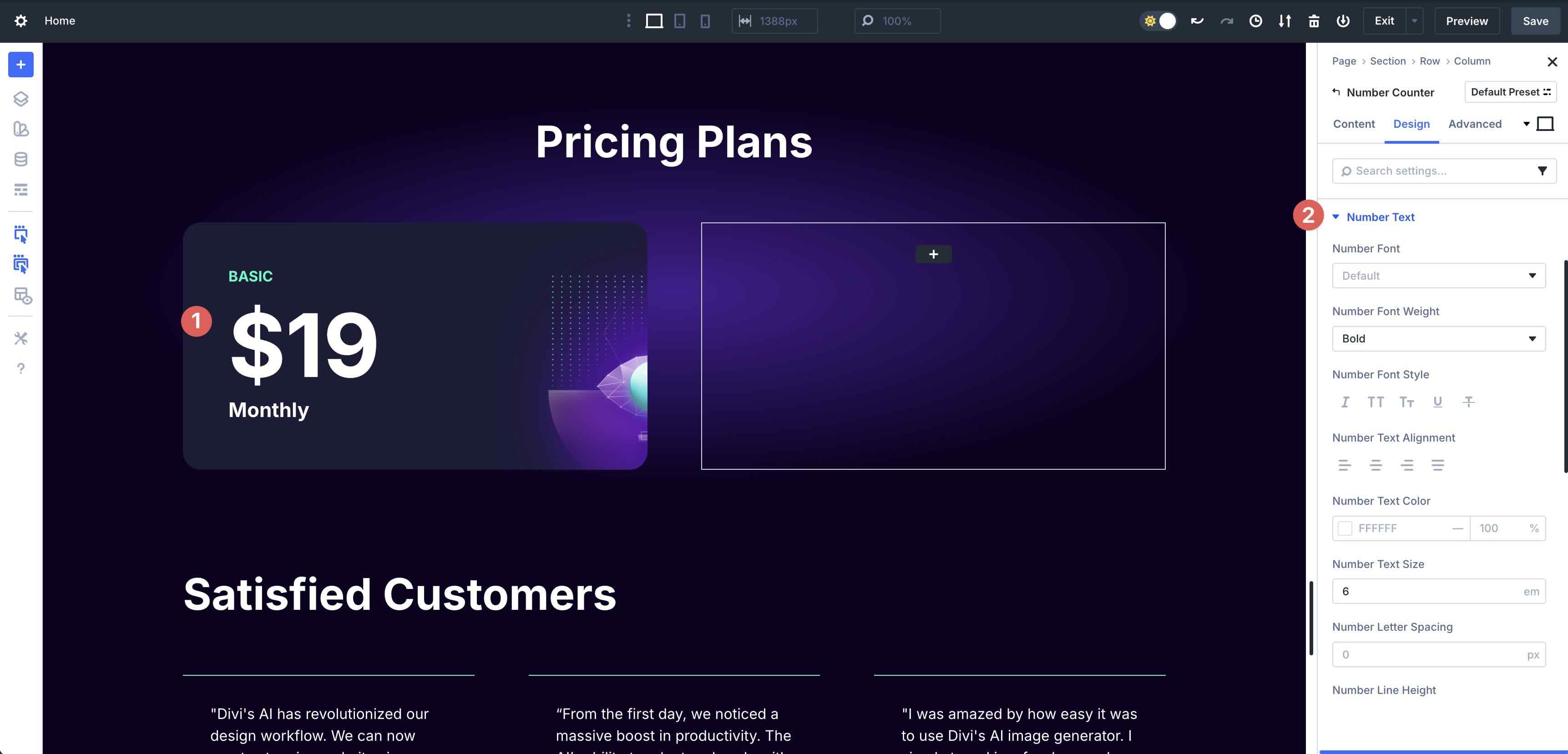
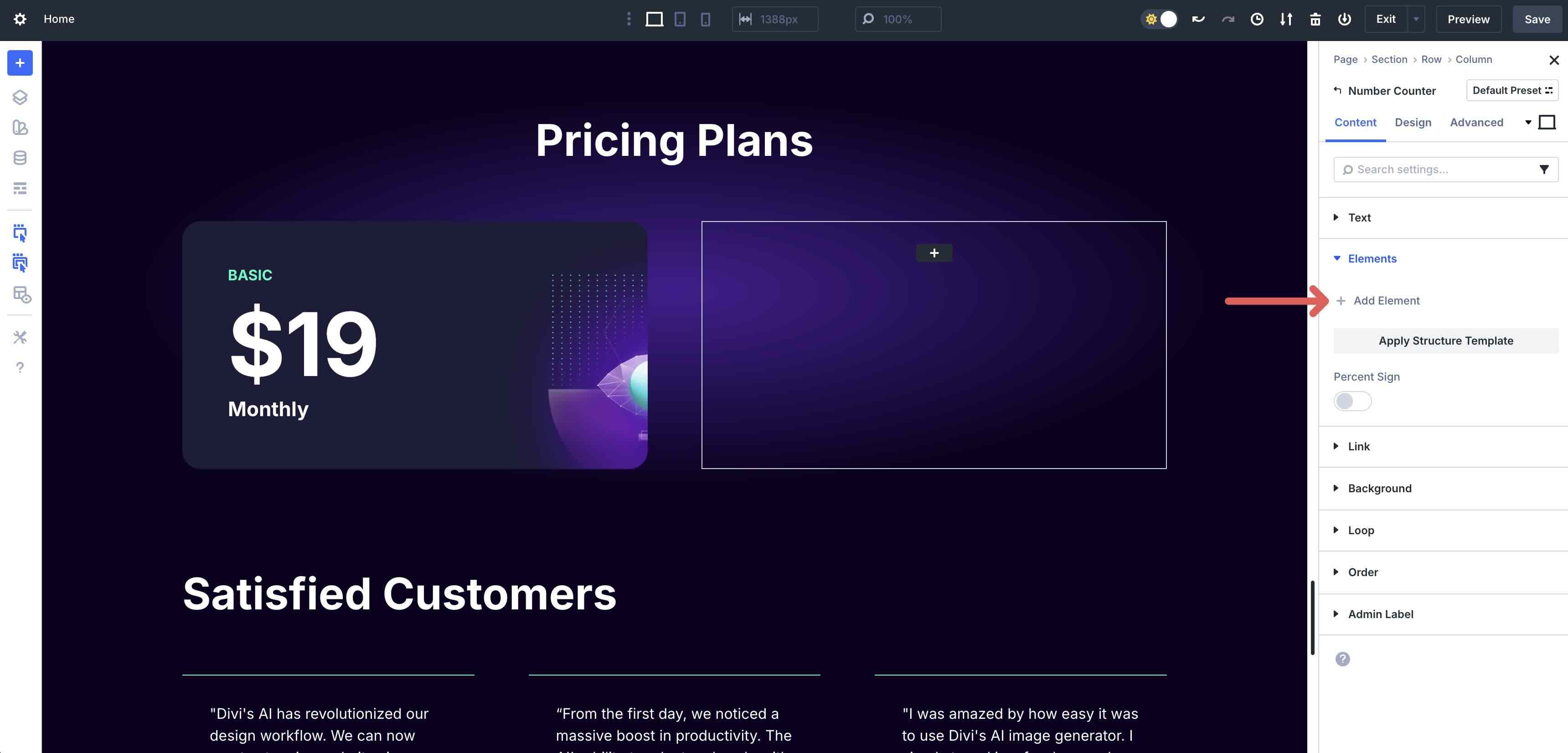
Fold the Elements drop-down menu in the Contents tab. Click on the + Add element button to add a new module.
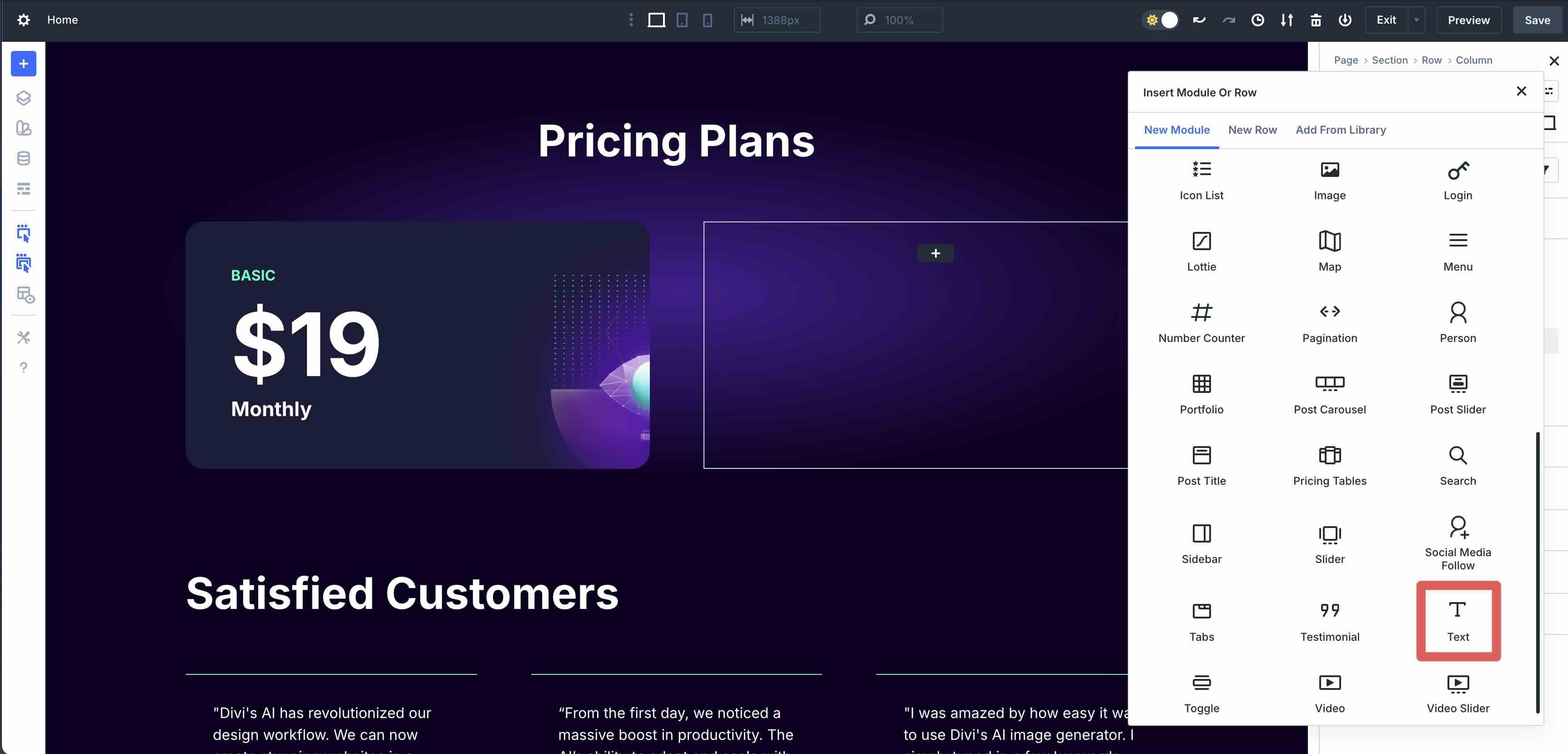
When the Insert module or row modal appears, select a Text module.
Style the Text module as desired. Repeat the steps to add a new one Elementbut this time add one Knob module.
Add content to the second column and then use Divi 5s Adjustable responsive breakpoints to make adjustments to the layout.
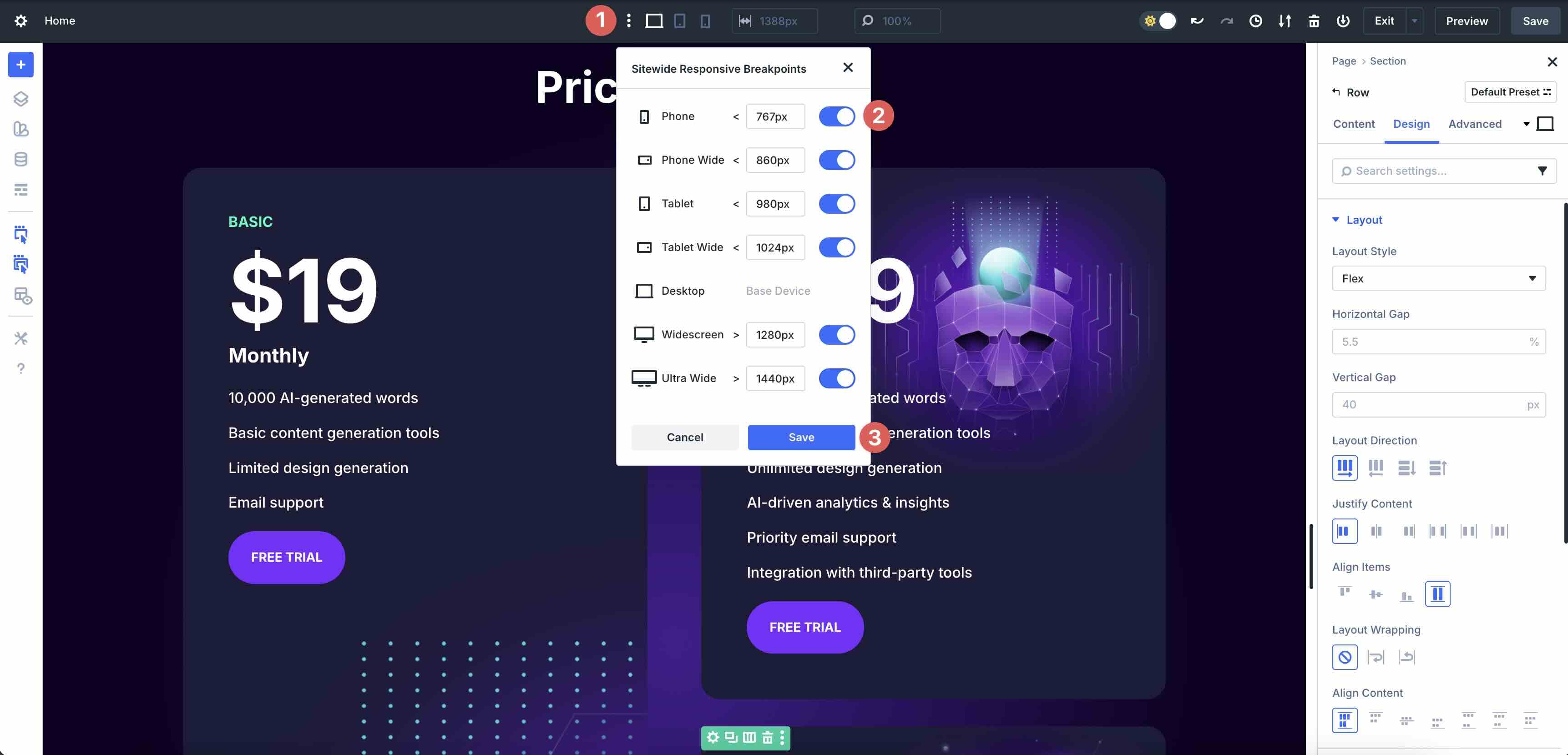
To adjust the columns on smaller devices, click the Apply structure template button at the Row level.
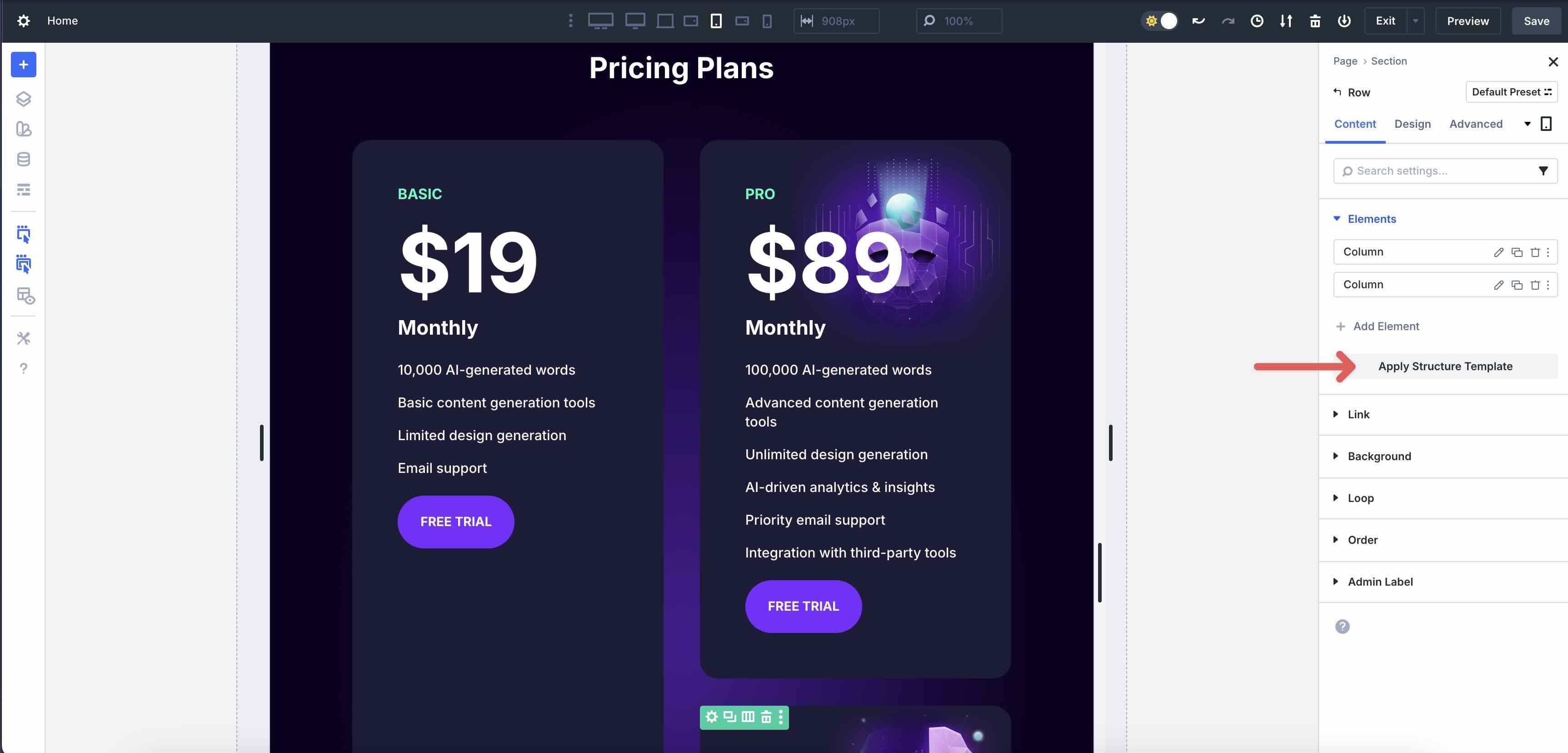
As you go through the Breakpointsadjust the columns by choosing a Structure template from the available options.
As you can see, adding nested modules to your layouts is intuitive and only requires a few steps.
Real world examples
Now that you know how to build complicated layouts with nested modules, let’s show some examples of it in action. Below are three practical examples that demonstrate how nested modules elevate everyday designs to dynamic layouts.
1. Dynamic tab modules
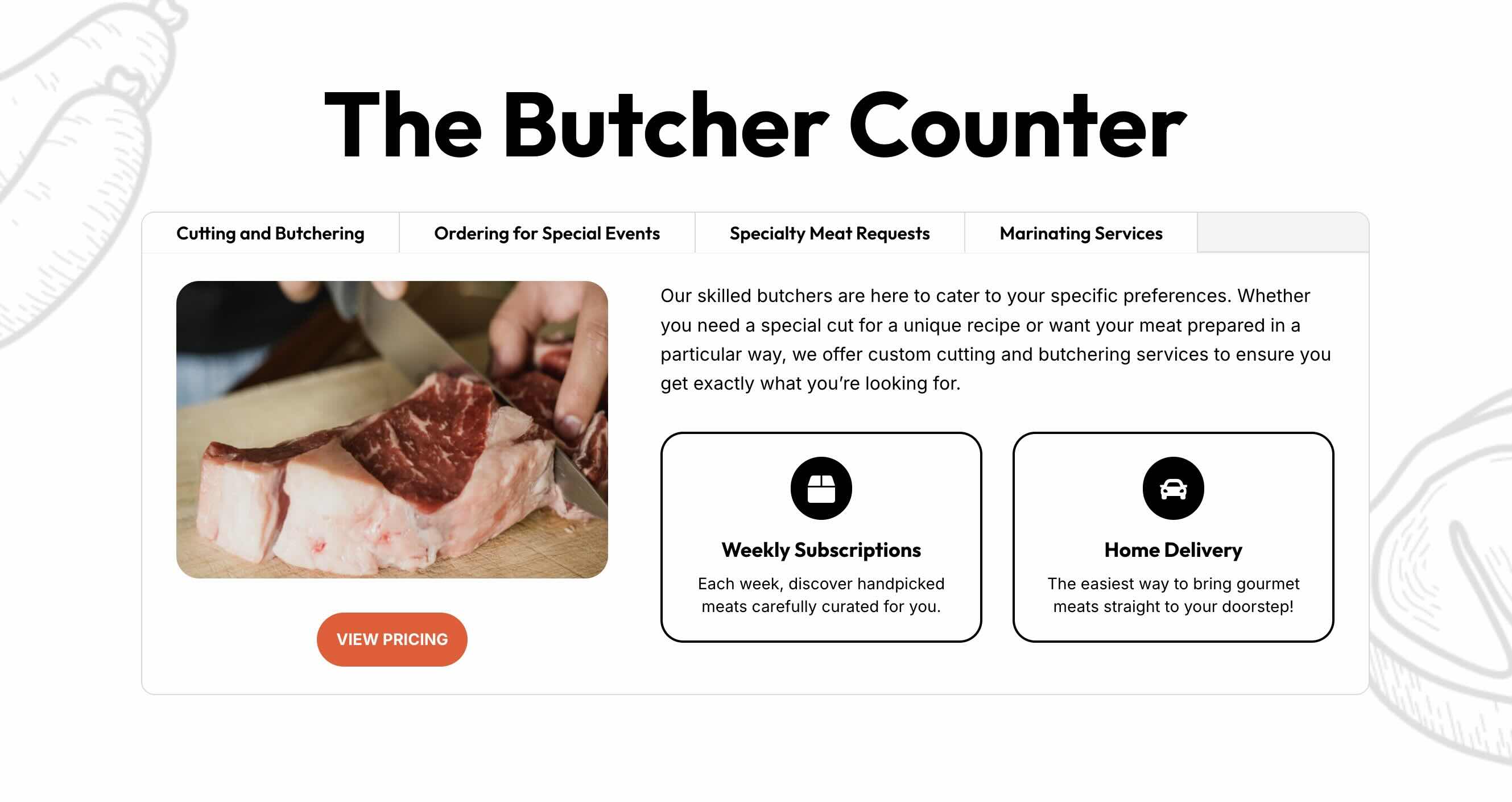
Nested modules work incredibly well on the Tabs module. You can use them to create multi-column layouts with nested rows to display services and other important information on your site. Use Divi 5s Flexbox controls allow you to rearrange and apply columns Structure templates on smaller devices to ensure your layout looks great on any screen size.
2. Integrated CTA into a blog grid

Nested modules allow you to seamlessly integrate promotions into content feeds without breaking the layout. Easily set the number of posts in the Blog module, add a CTA element and style as desired. Divi 5 adds the nested module after the last blog post, while maintaining the grid structure of the blog. As you use the pagination module to scroll through the posts, the CTA remains in the same place regardless of the number of posts.
3. Project features slider
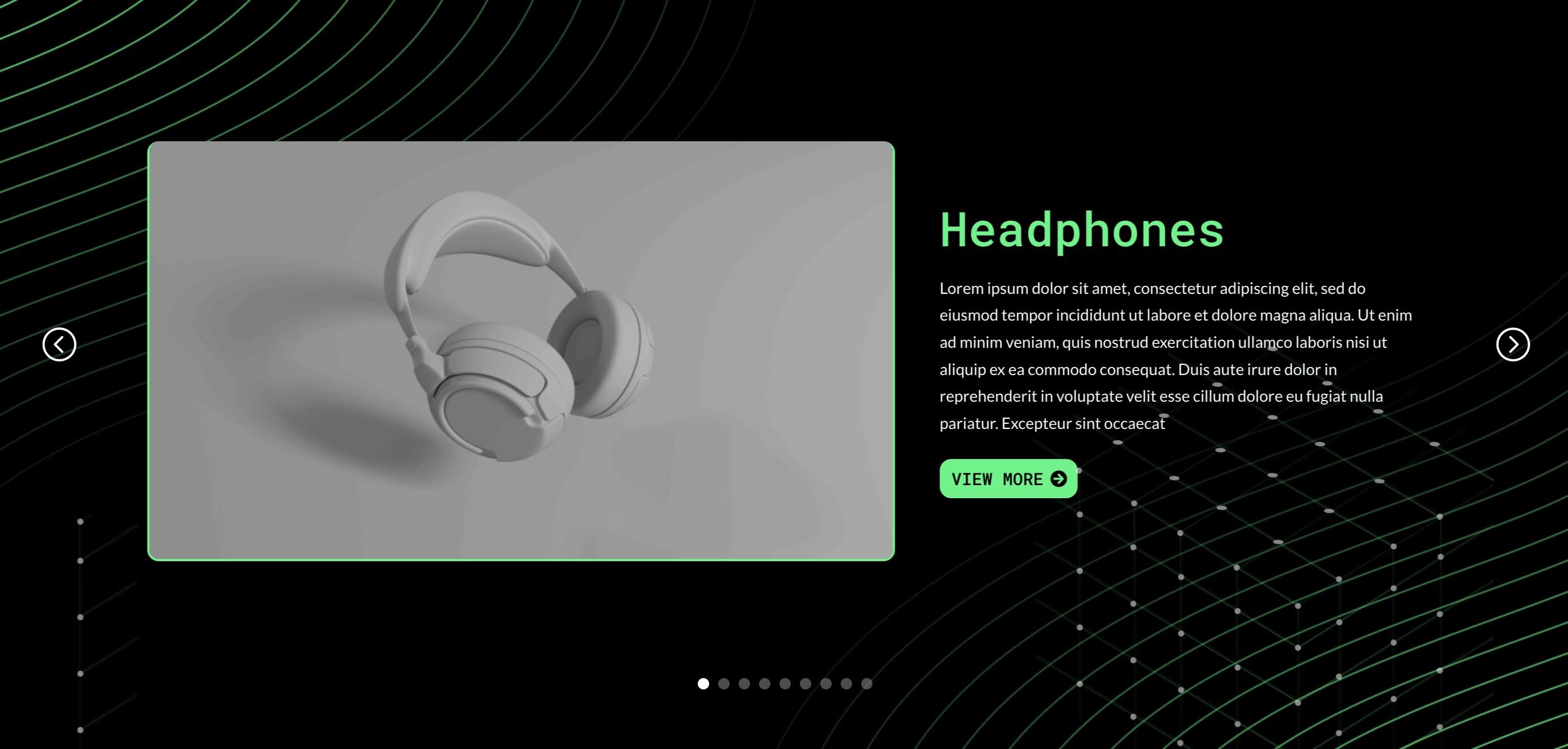
Nested modules are useful for adding accents to layouts, like in this example. Here we use a group carousel module and enable the Loop Builder to present the custom post type Projects. To give the design more depth, we added a background image to the section and then used a nested module on the nested row in the carousel to add another image with transform buttons. This simple nesting trick turns flat carousels into rich, engaging showcases without any additional plugins or code.
Download the examples of nested modules
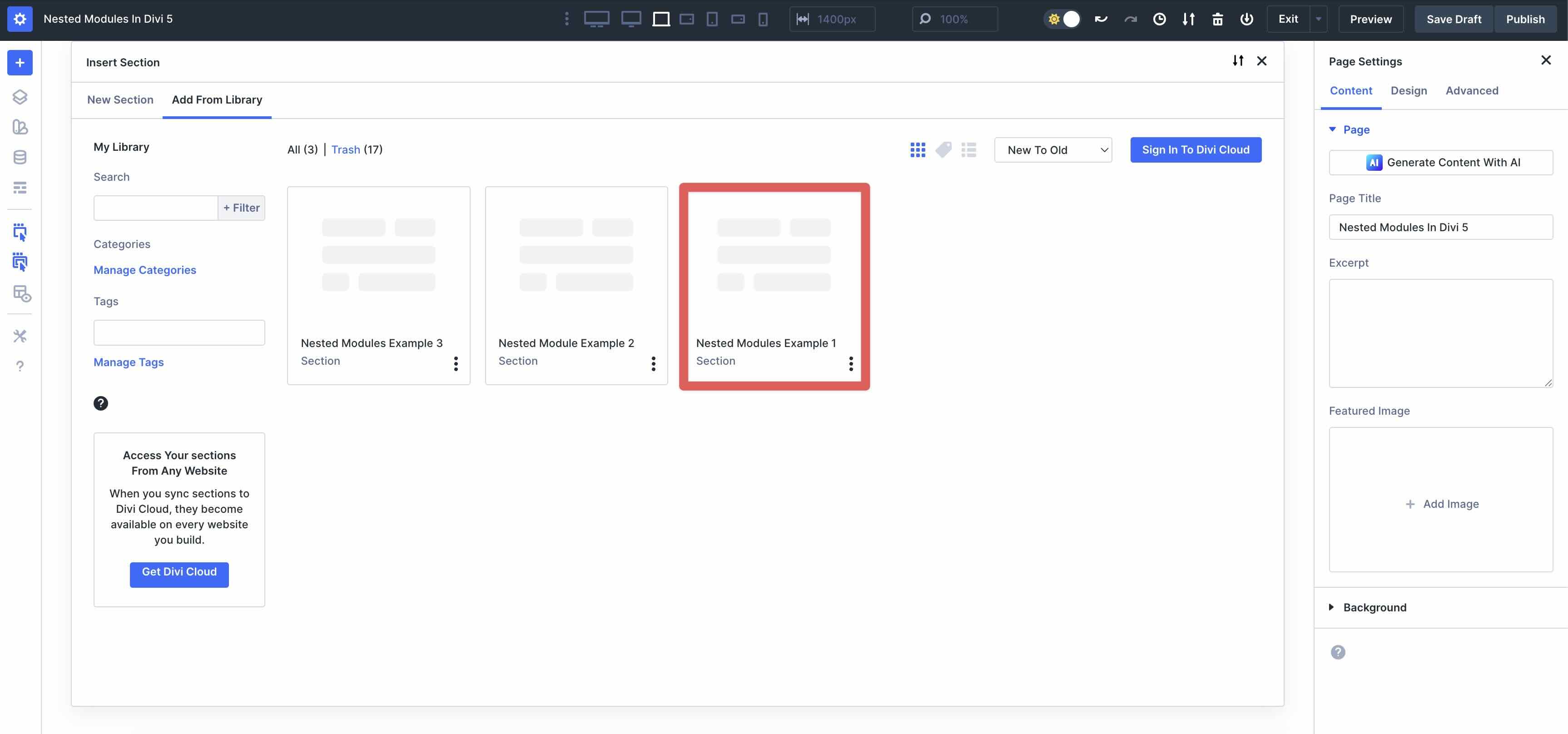
Complete the form below to download all the layouts in this post. Nested modules Example 1, 2 and 3 can be imported by clicking the button blue + icon while working on a Divi page.
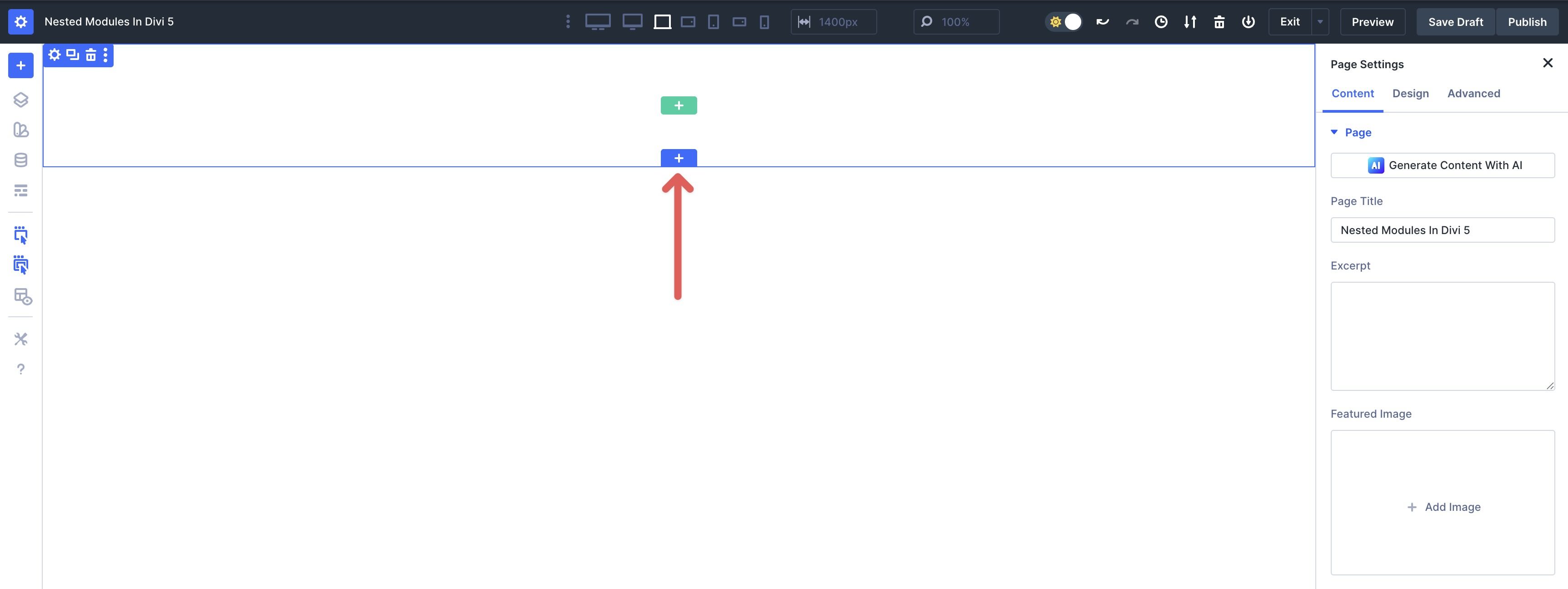
When the Insert section modal appears, click on the Add from library tab and then select the sample you want to import.
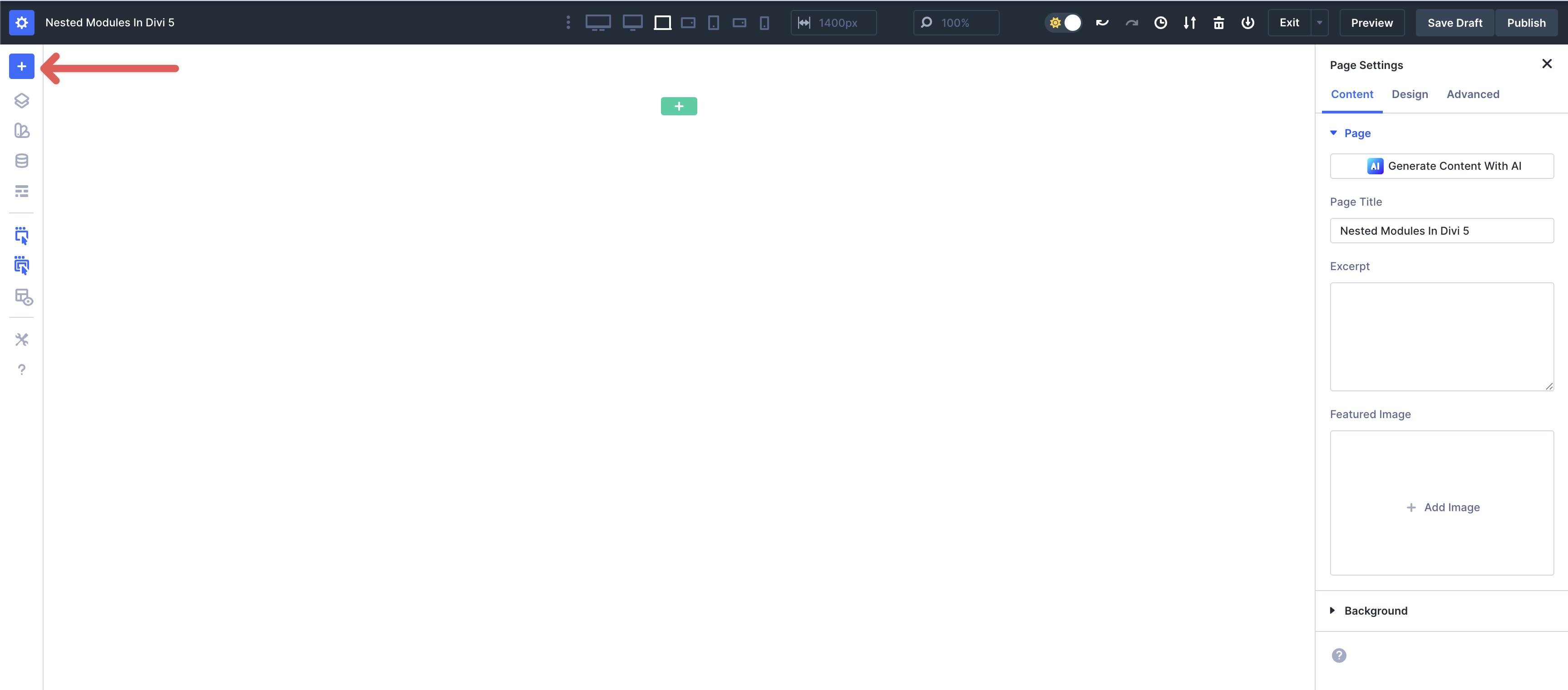
The full page preview can be imported by clicking the button blue + icon at the top left of the Visual Builder.
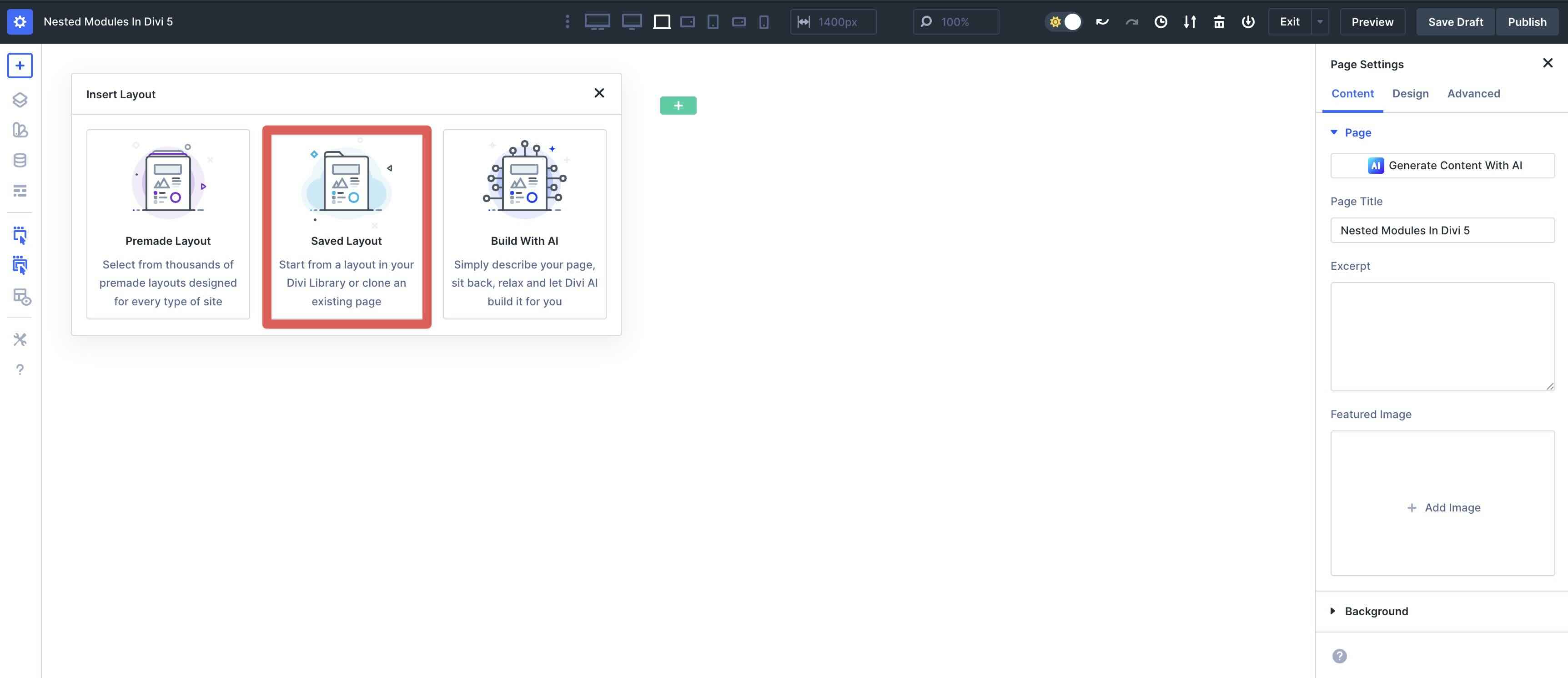
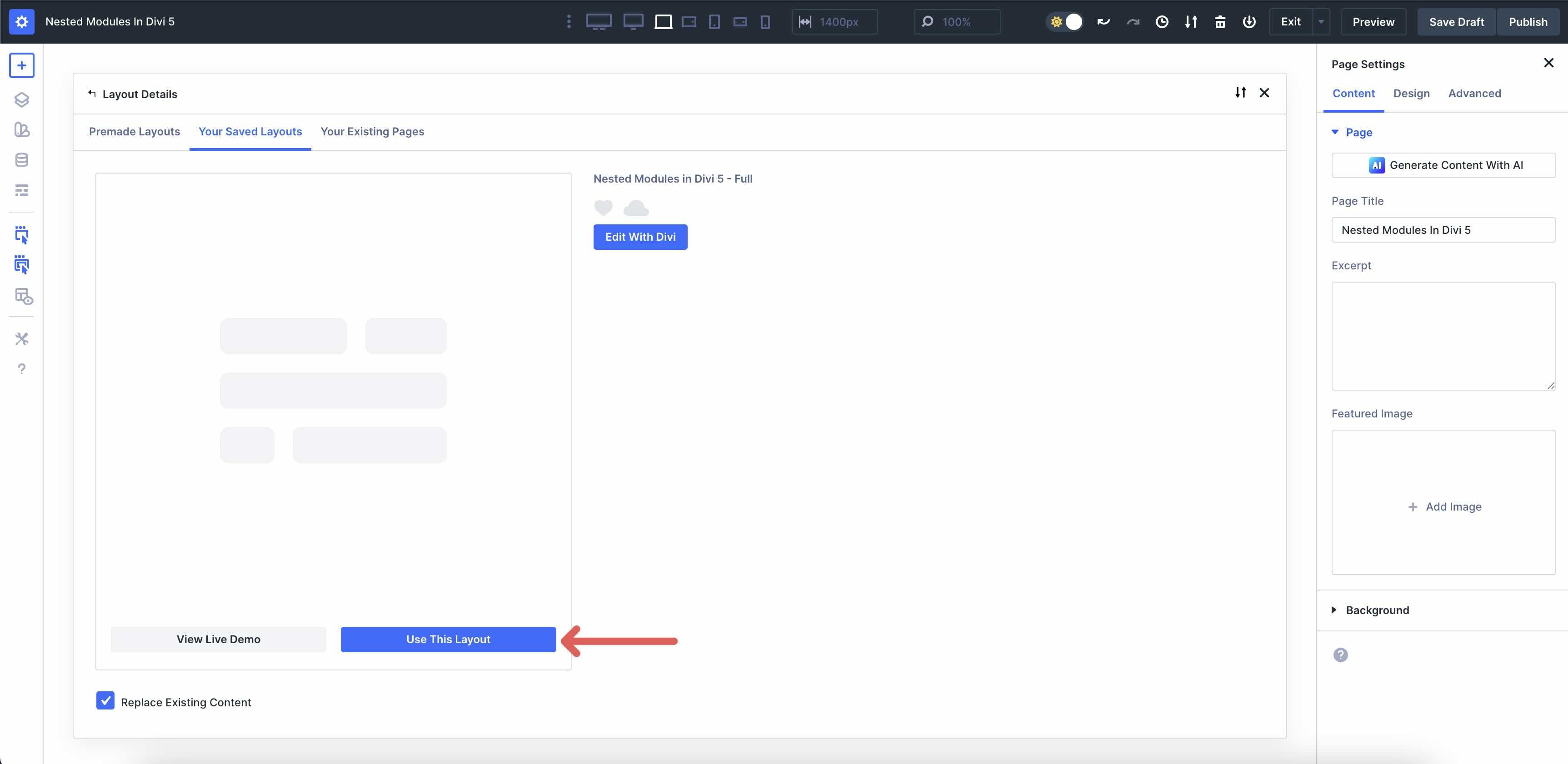
When the Insert layout modal appears, click Saved layout.
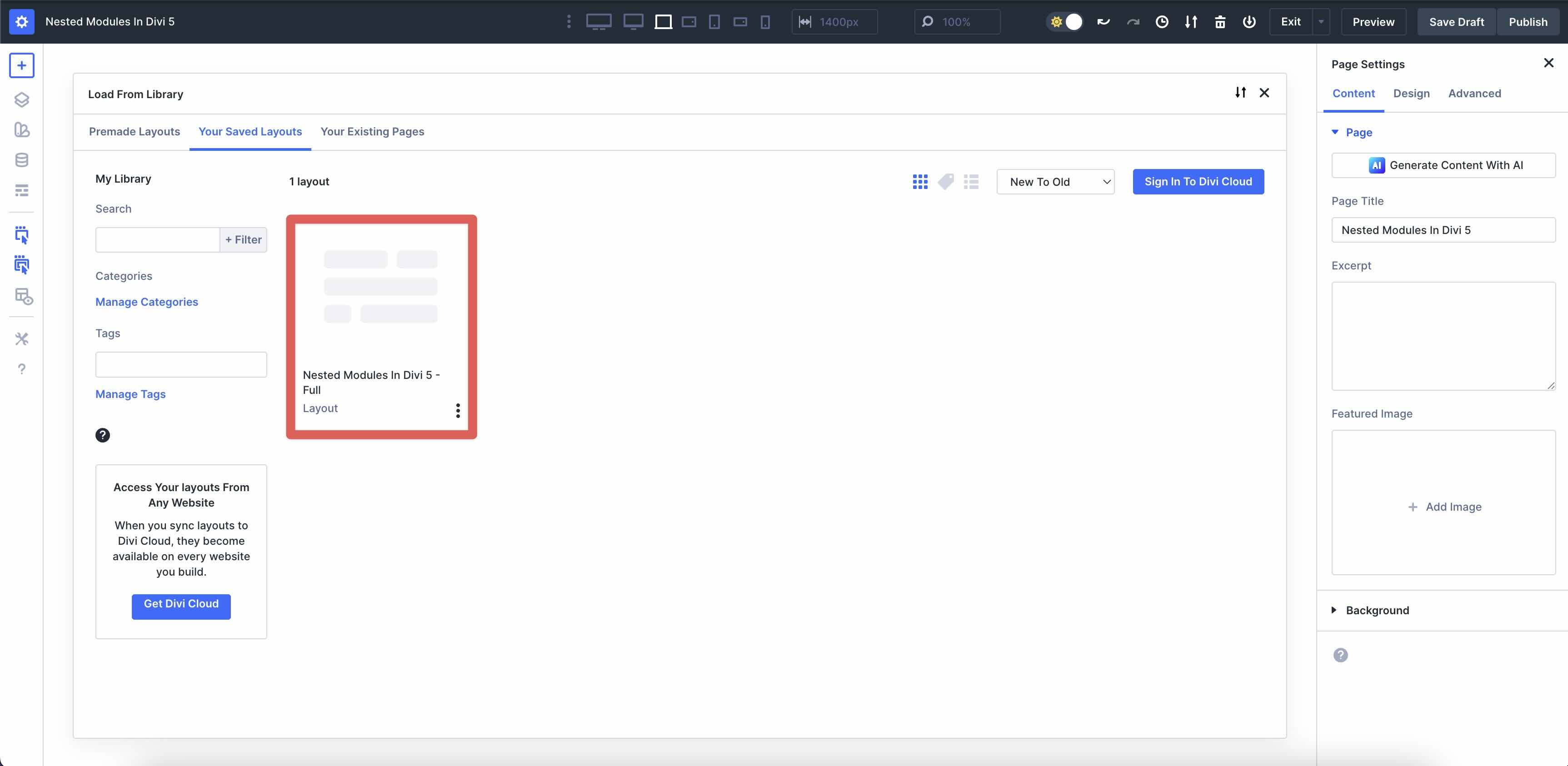
Select the Nested modules in Divi 5 – Complete layout.
Click Use this layout to import the layout into Visual Builder.
Try nested modules in Divi 5 today
Nested modules in Divi 5 unlock infinite creativity through limitless nestability and provide superior layout control with native Flexbox and CSS Grid. It enhances your workflow with intuitive drag-and-drop editing, right-click menus, and real-time responsive previews. With a faster foundation and over 20 new features so far, Divi 5 is ideal for creating advanced, modular designs that make working with a WordPress page builder fun again.
Are you ready to experience Nested Modules in Divi 5? Download the latest Divi 5 Beta today and start experimenting. The possibilities are endless!
#nested #modules #Divi