

The situation
You receive a certain type of email that requires the same response every time. You’re tired of replying manually and want to activate an email that will be sent automatically.
Tools required: Gmail account (free)
As a blogger, I receive several emails every day asking me to add backlinks to my website. Every time I received one of these requests, I would copy and paste the same response.
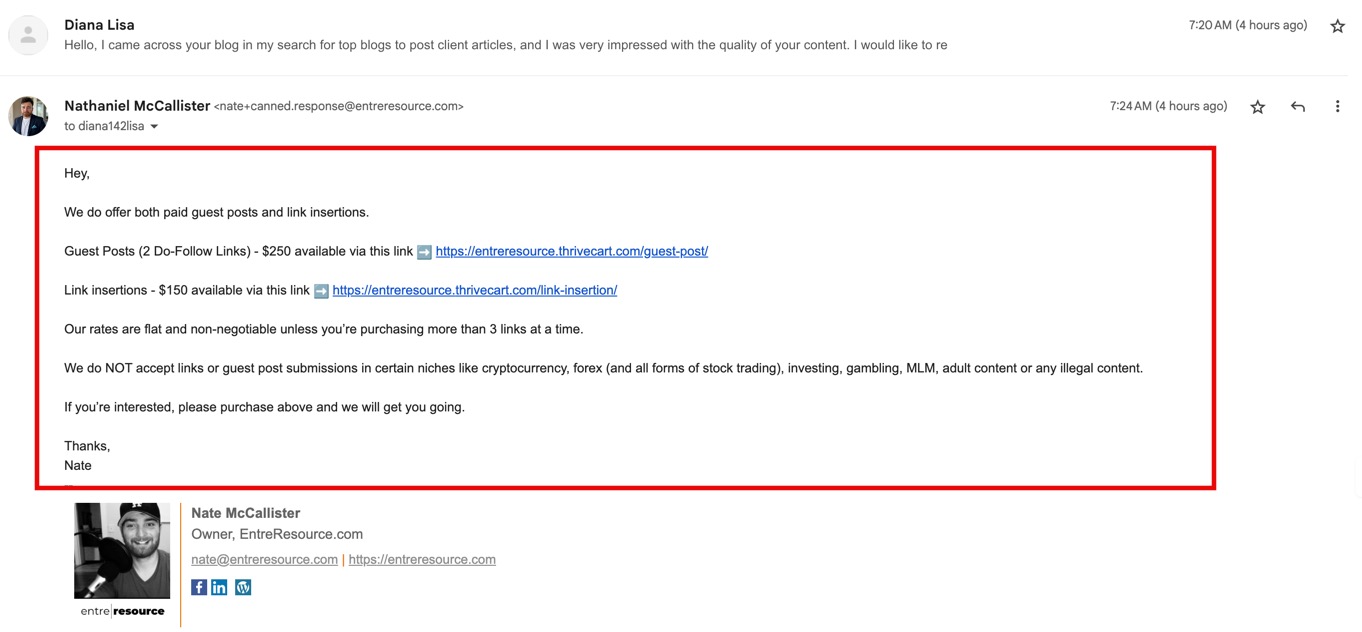
Now it’s not the end of the world that I had to do this manually, but why repeat the same thing multiple times a day when I could automate it?
I researched my options and found a few paid solutions. However, I passed on that one because I felt there should be a free, easier method.
There was, and that’s how you do it.
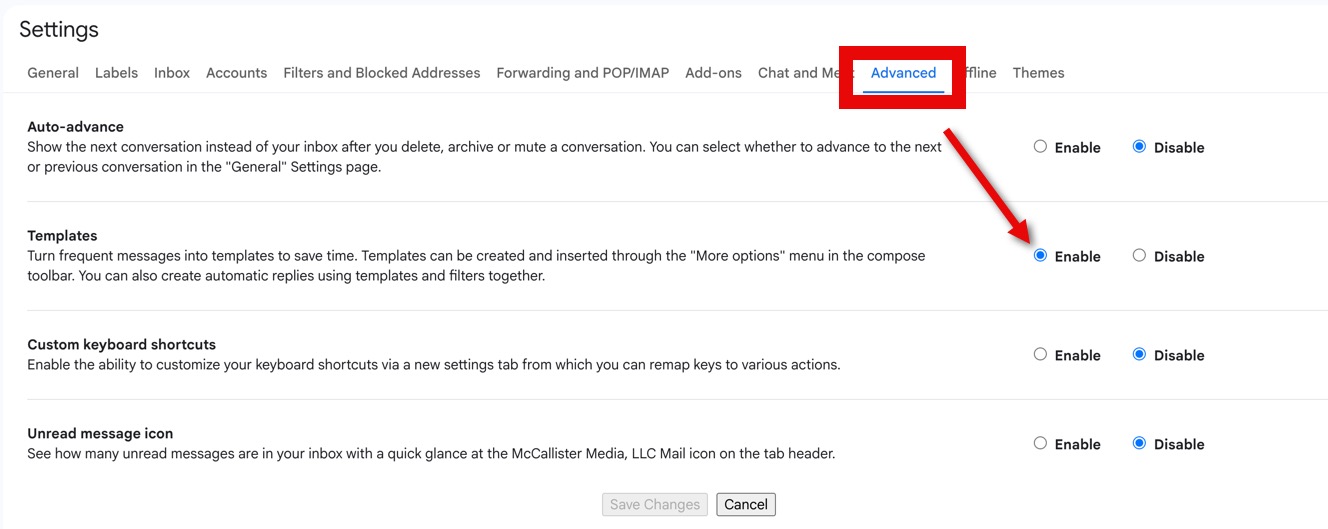
Step 1 Make sure “Templates” is enabled
You may already have this enabled, but some accounts may not.
Navigate to all settings and go to ‘Advanced’.
Make sure the templates are enabled.
Step 2 Create your email in Gmail
This will be the last time you have to do this 🙂
You literally write this as an email in Gmail. Just choose “compose” and don’t worry about the recipient.

Step 3 Save as template
Once you’re happy with the email, click the 3 dots at the bottom and choose…
“Templates” > “Save Draft as Template” > “Save as New Template”

Give the template a name and you can now exit the email composer.
Step 4 Create a filter
Now you need to create a filter.
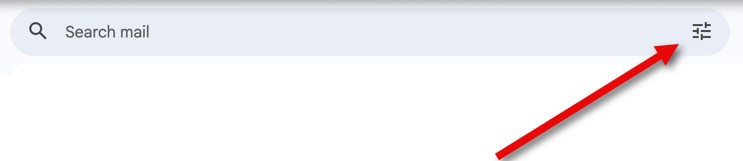
Navigate to the search bar in your Gmail and click on the icon to the right of it.
This is the only tricky part.
You need to create a rule that is refined enough to only fire for the right context.
For my last auto-reply, I wanted to message people who wanted backlinks from my site. There are keywords that make it clear.
- “Link Change”
- “Guest Post”
- “Backlink”
When someone uses these words, I know my canned response needs to be sent.
Important tip
Don’t make your trigger words too vague. If they are vague, you run the risk of sending them to the wrong people.
So I created a filter that looks like this.
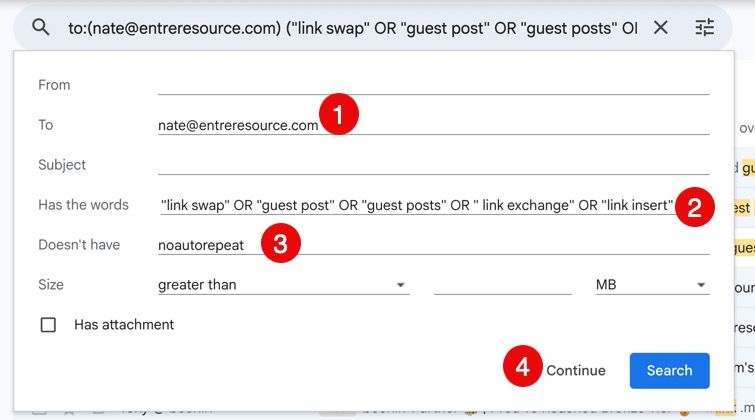
Note the brackets and the capital letter OR.
Both are important. They will make sure the rules aren’t too broad, which will cause irrelevant posts that will confuse people and make fun of me.
Important to avoid circular shipping ♾️ 📧
To avoid sending replies to myself or multiple replies to the original sender, I added my email address in the ‘to’ field and the text ‘no automatic repeat” in the “Doesn’t have” field.
This is very important to avoid ‘circular sends’, where you continually trigger the auto-reply email when you or the original sender uses the trigger words in reply emails.
You can go much further than what I have done here. You can get creative with it, but I like the trigger on ‘Has the words’ the best.
Step #5 Create a filter rule
Once you’ve created your filter, you can now create the action.
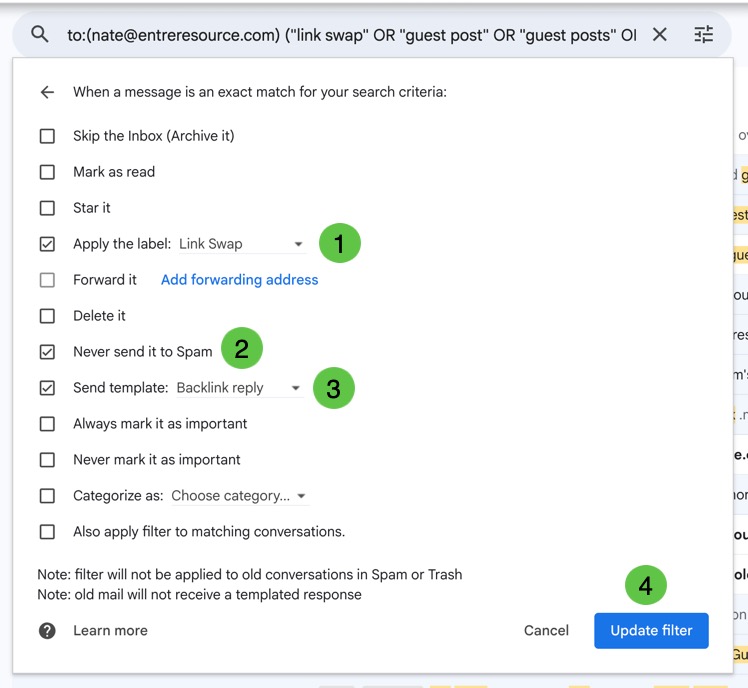
I chose this example
1. Apply the label (optional)
2. Never send it to spam
3. Check “Send Template” and then choose the template I created.
4. Click Update Filter
You’re done!
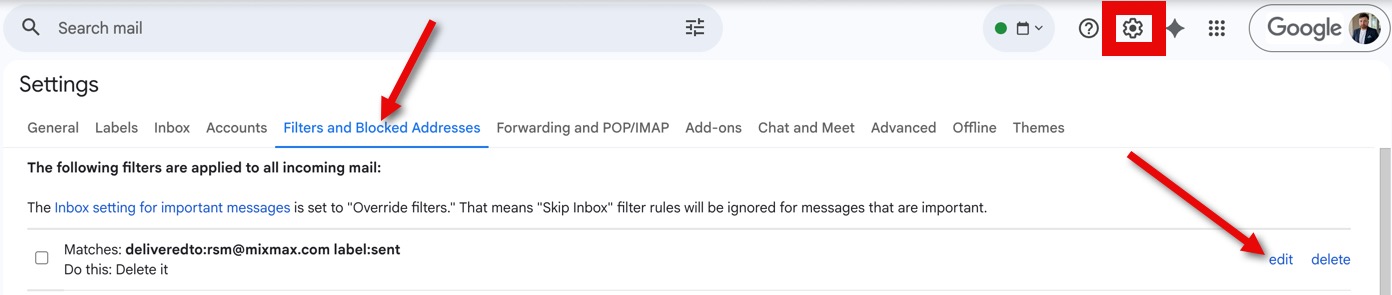
It will now look something like this.

You can edit this at any time in the settings.
Make sure you monitor this closely in the initial stages to ensure it is triggered correctly and the response isn’t sent to the wrong people.
#Create #custom #Gmail #automatic #response #free #method