

Time for another Divi 5 freebie! This time we offer you 6 Off Canvas menus, each available in two versions. Standard (inherits your global styles) and Pre-styled (ready-made look). Import them to your Divi 5 library, assign them in the Theme Builder and customize them to your needs.
Example
Let’s take a look at all 6 Off Canvas menus in this pack. The download is later in the message.
Get all 6 Off Canvas menus for free in both standard and pre-styled versions. Each layout is ready to import into your Divi library and can be used in your Global Header template.
What’s included (14 exports)
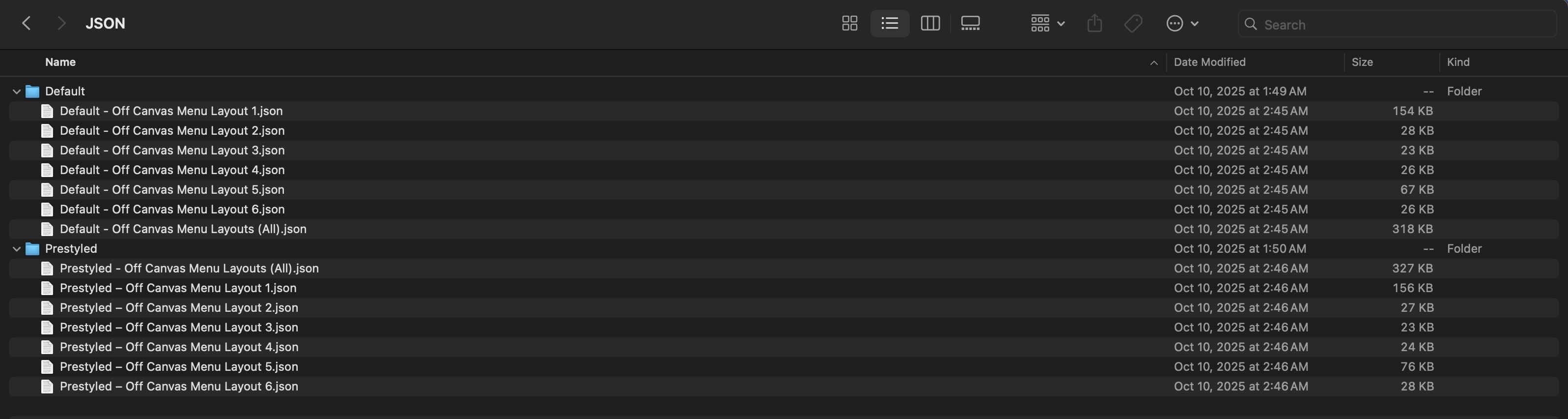
Once you download and unzip the folder, you’ll find all 14 layout exports neatly organized in standard and pre-styled versions as individual menus and as full “All Menus” packages.
Standard – Individual Menus (6) → Uses your global styles.
Standard – All menus (1) → Full suite of your global styles.
Pre-styled – Individual menus (6) → Includes inline styling for an instant, out-of-the-box look.
Pre-styled – All menus (1) → Full package with inline styling applied.
How to install the layouts
Have your downloads folder ready to import the files to your Divi website.
1. Import layouts into the Divi library
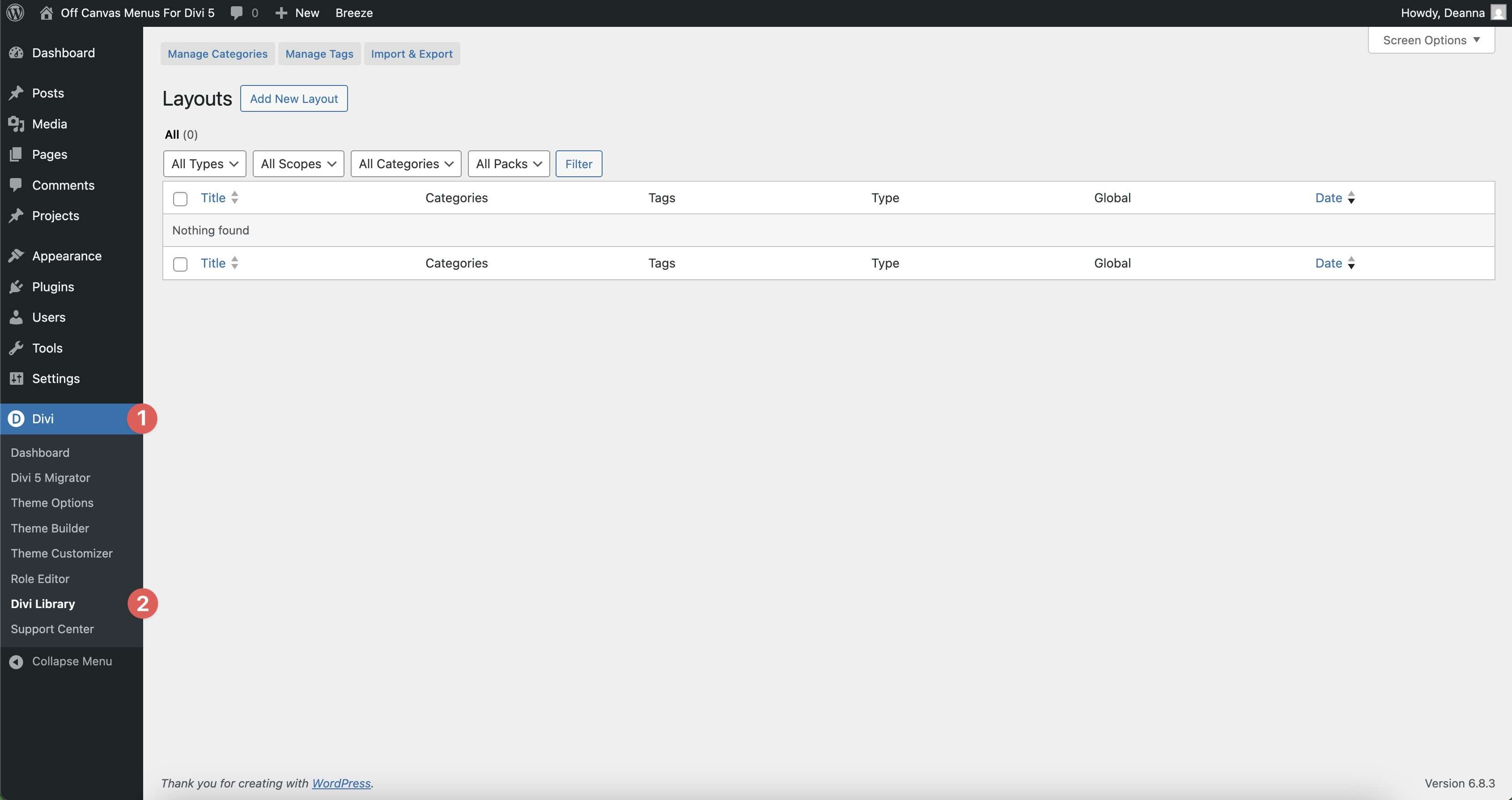
Go to Divi → Divi Library.
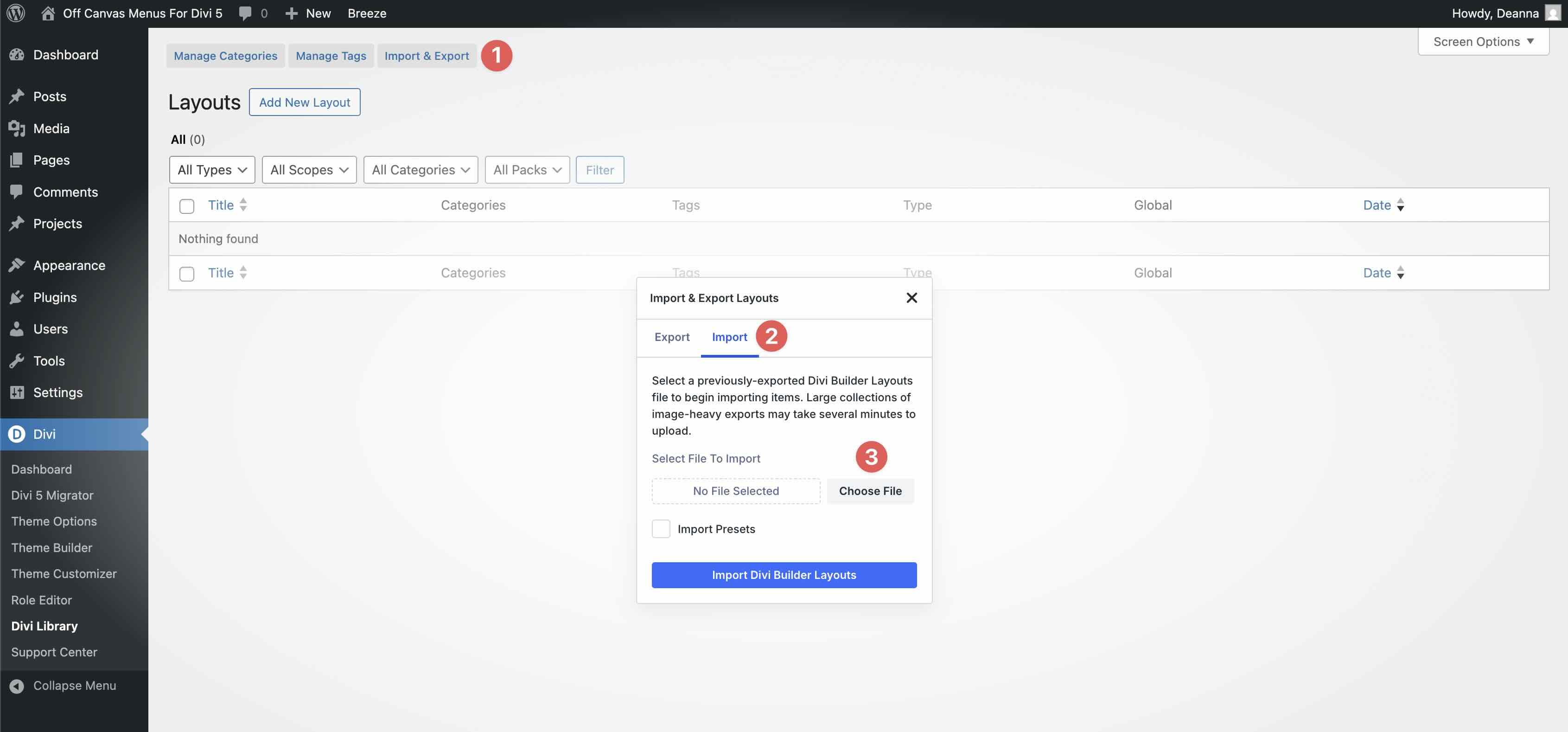
Click on the Import and export button and select the JSON files you want to install.
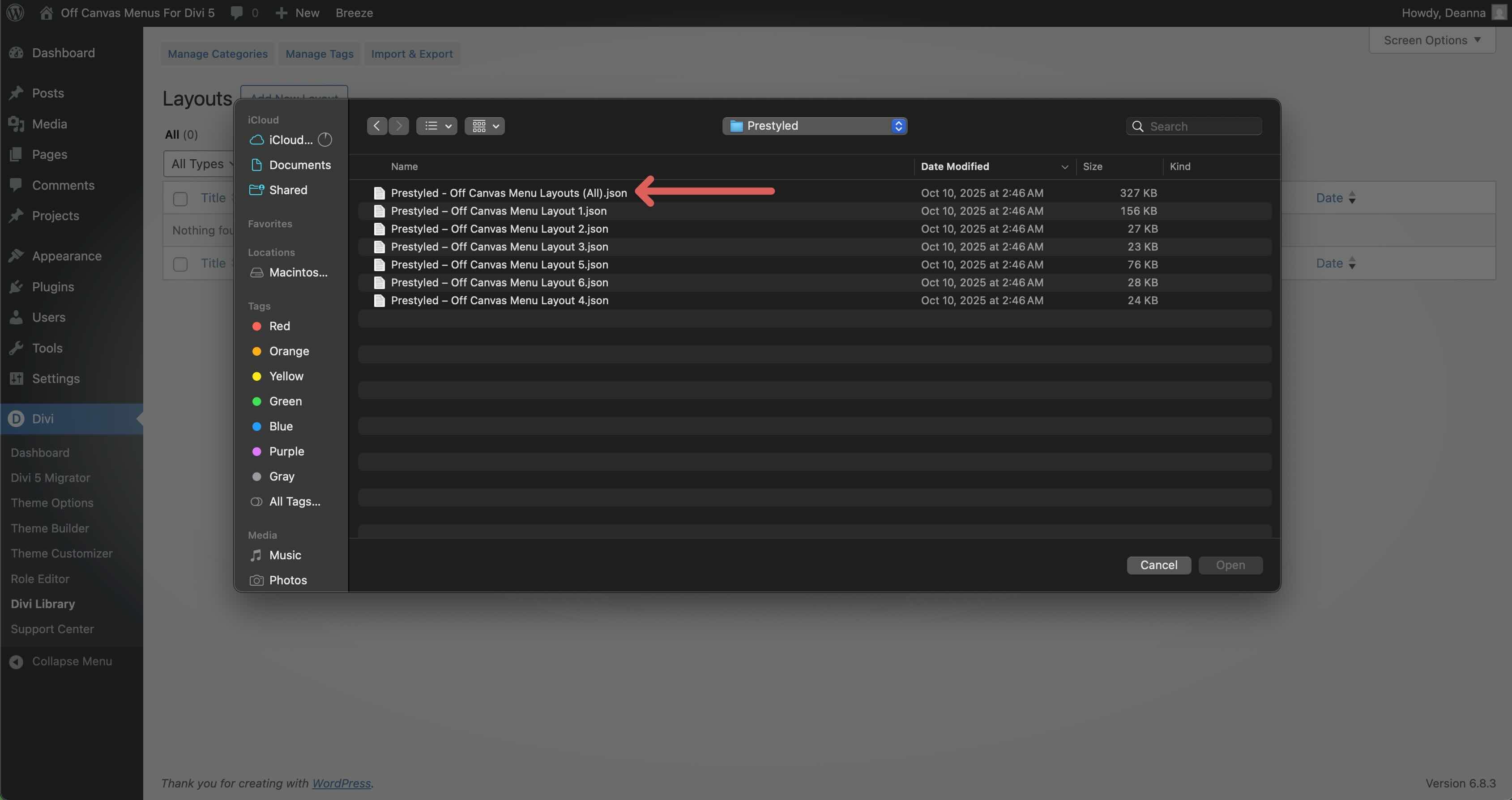
To get started quickly, locate and import the Off Canvas Menus (All) file.
Go to Divi → Theme Builder.
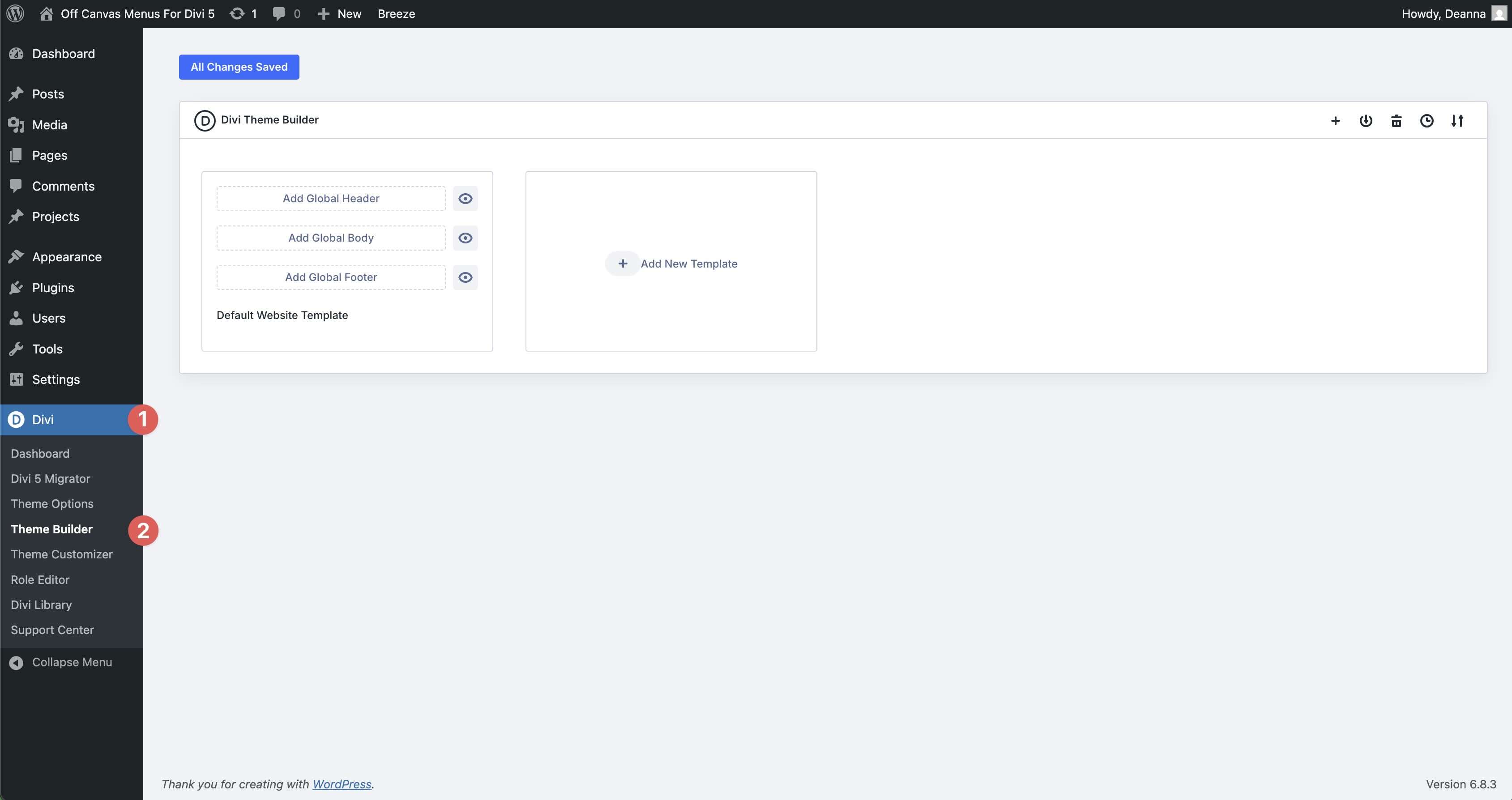
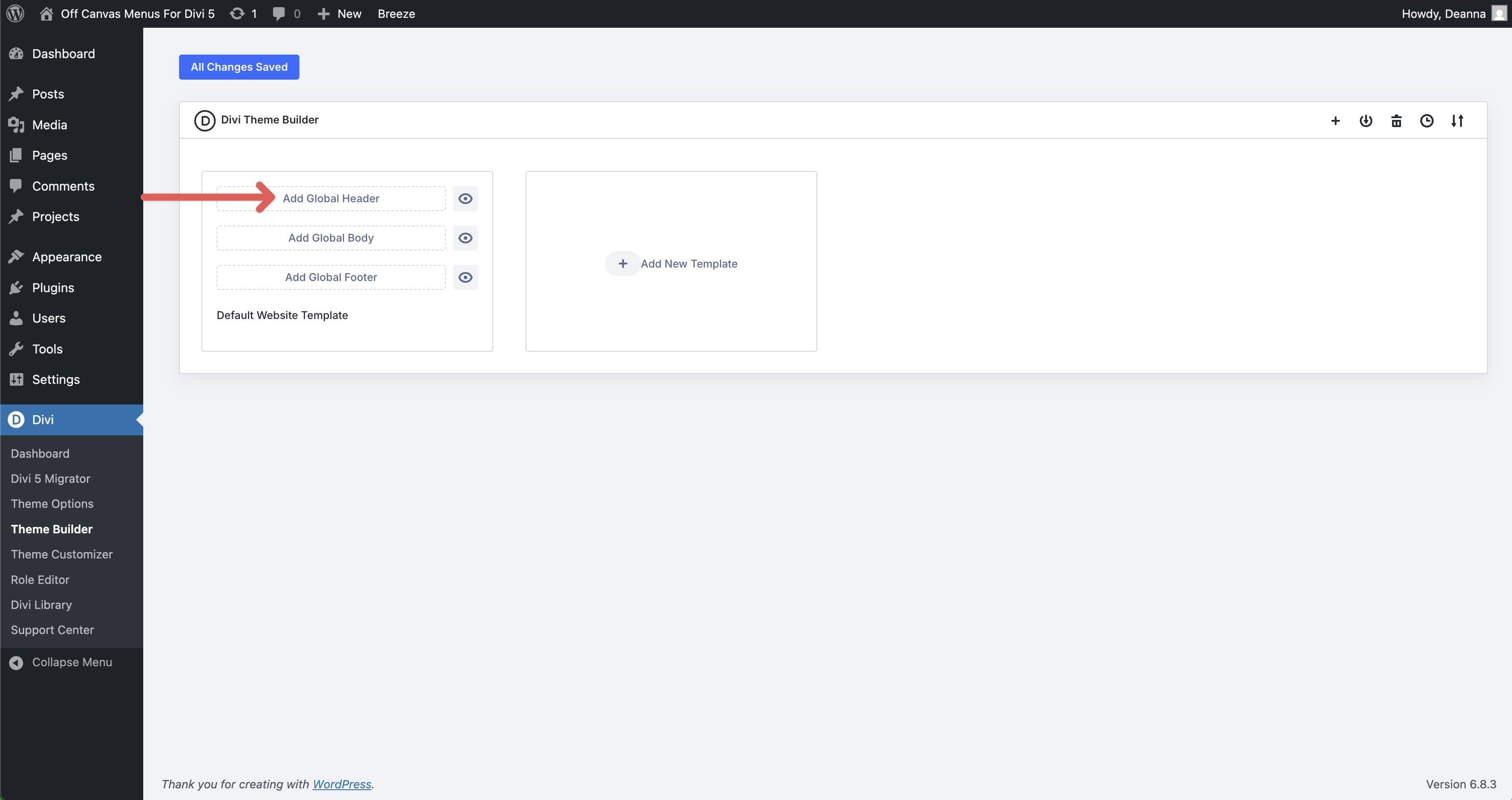
Create a new one Global headline template or open an existing one.
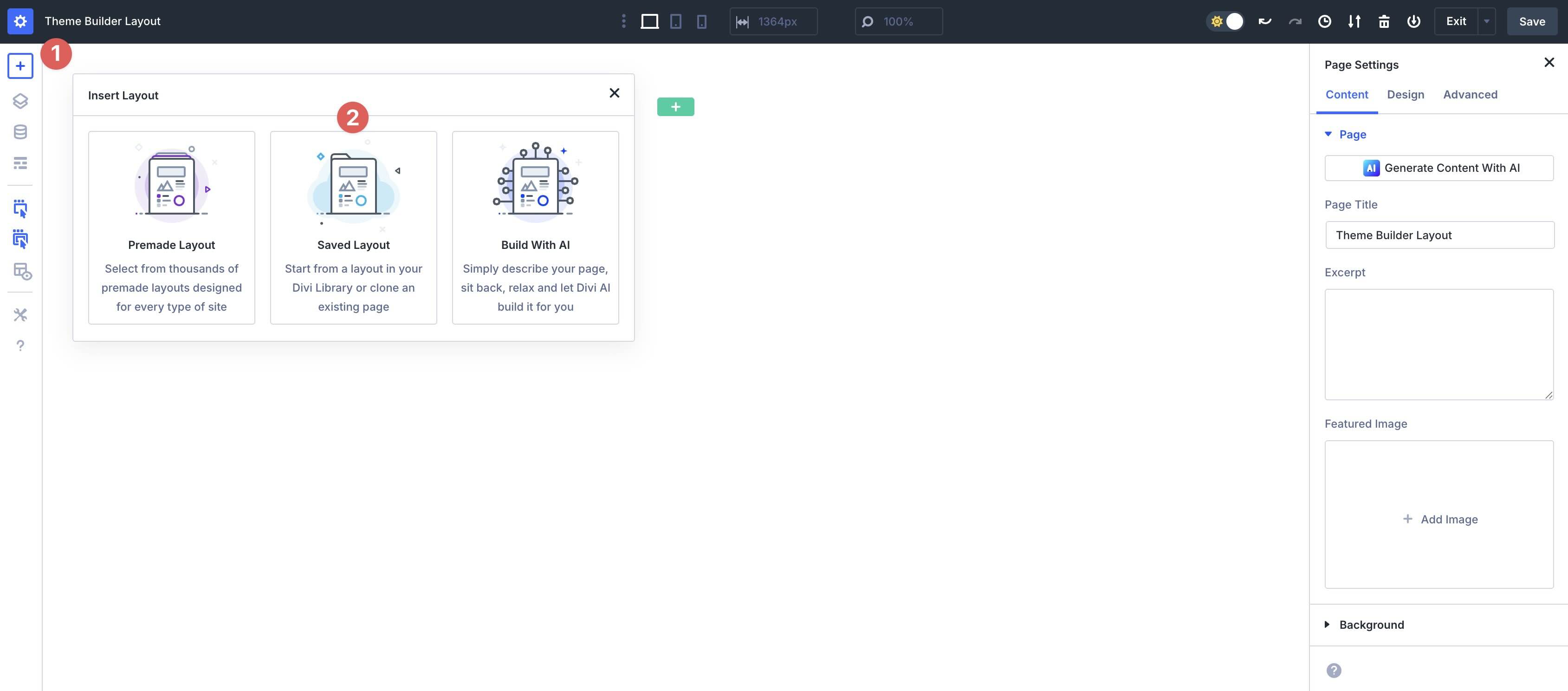
In the header canvas, click the Add layout button at the top left and choose Saved layout .
Select one of the Off Canvas menu layouts from your library.
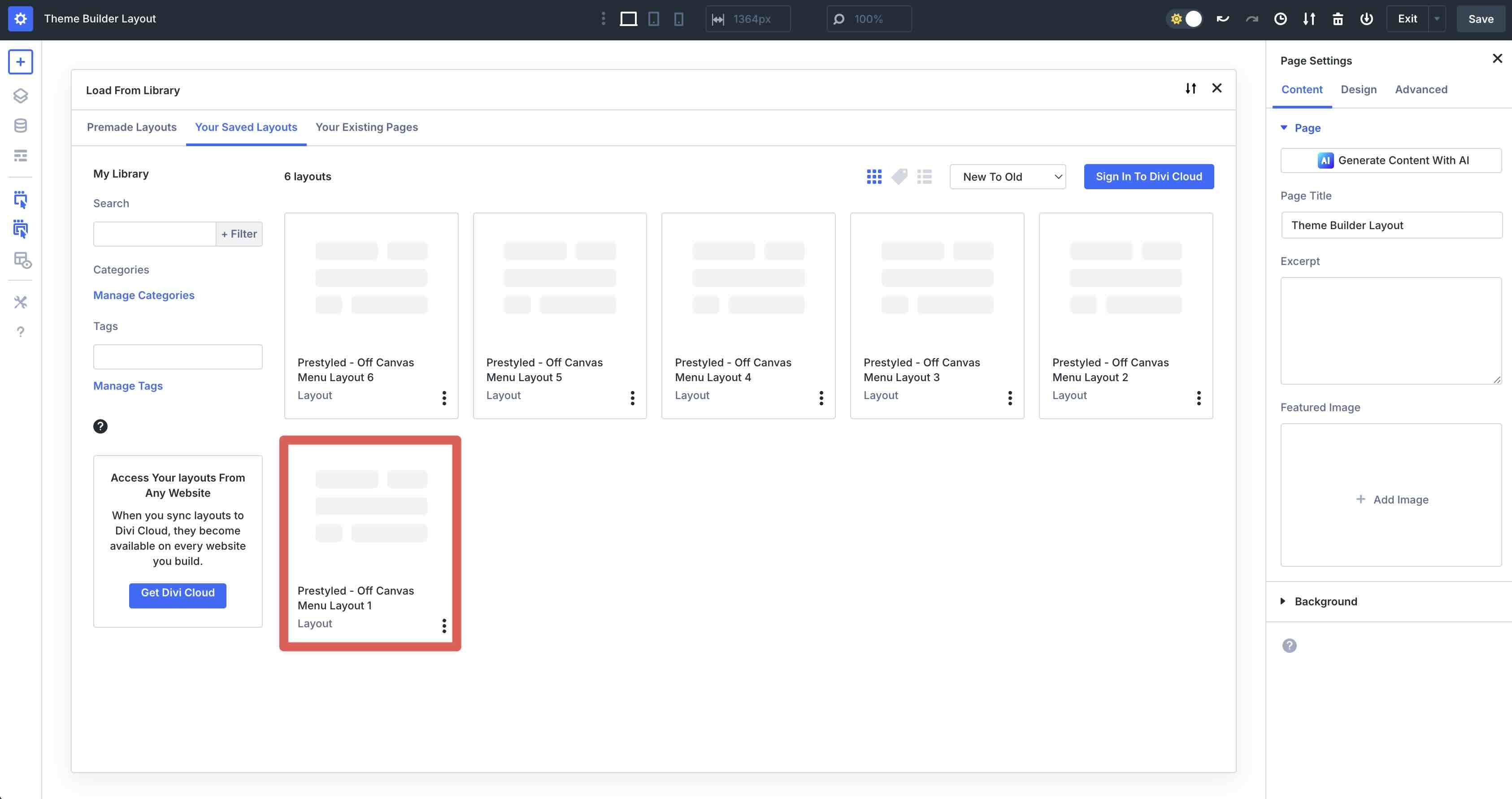
Click Use this layout to load it and then save your header and Theme Builder changes.
Standard vs. pre-styled: which one should you choose?
When you open the download folder, you will see two versions of each menu: Standard And Pre-styled. The structure is identical; the difference lies in the way styling is applied.
Standard menus inherit your global styles. Your brand colors, fonts, and button styles are applied automatically. Once your variables are set, Standard gives you a seamless match with minimal editing.
Pre-styled menus include inline styles for colors, fonts, and buttons so they instantly look exactly like the examples. Ideal for demos, rapid prototyping or when you want the on-display look straight away.
In short, choose Standard to blend right into your site. Choose Prestyled to get the exact sample design.
These menus take advantage of Divi 5’s Flexbox controls, interactions, and responsive settings, allowing you to fine-tune behavior at different breakpoints. By default, each of these Off Canvas header layouts comes with interaction and visibility settings, so we’ll focus on customizing the headers to meet your needs.
When using one of these templates, first make sure the correct menu is selected in the menu module. Start by opening Divi 5’s Layers View.
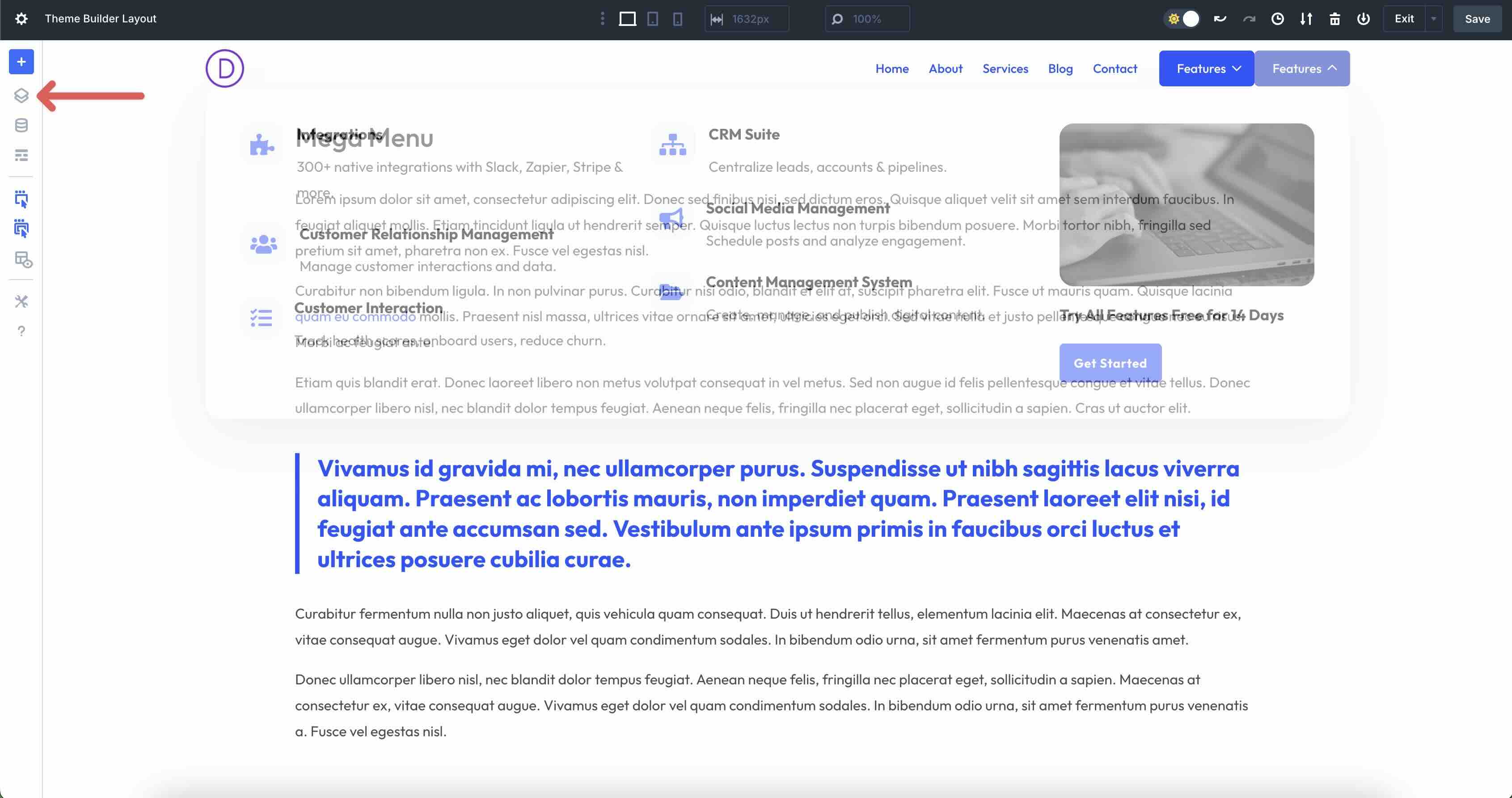
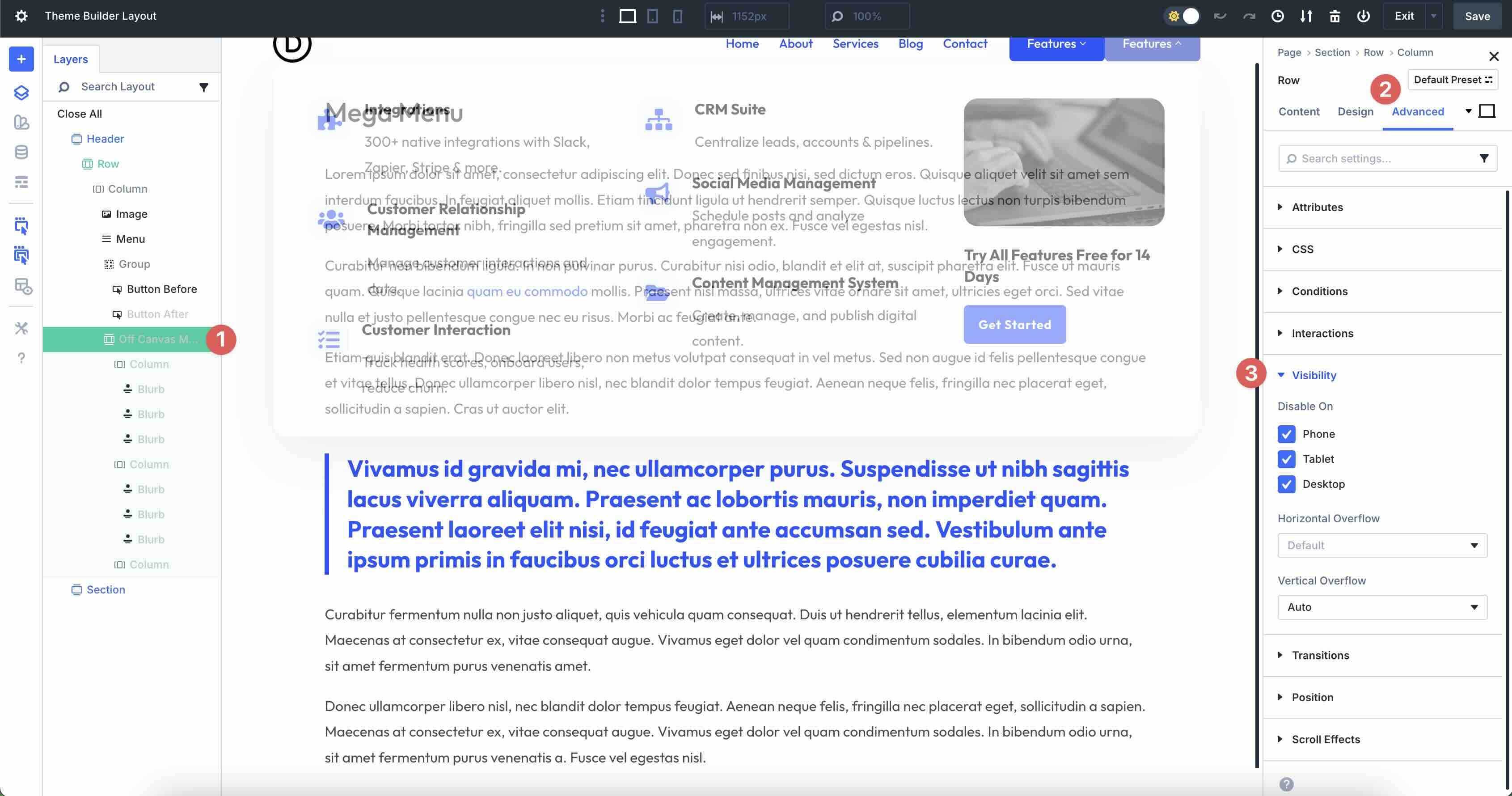
In the layers view, each gray module or row has visibility settings set. To make changes to any of these areas, click on it, navigate to the Visibility tab and adjust the settings accordingly. This makes it easy to edit icons, replace images, or make other design changes.
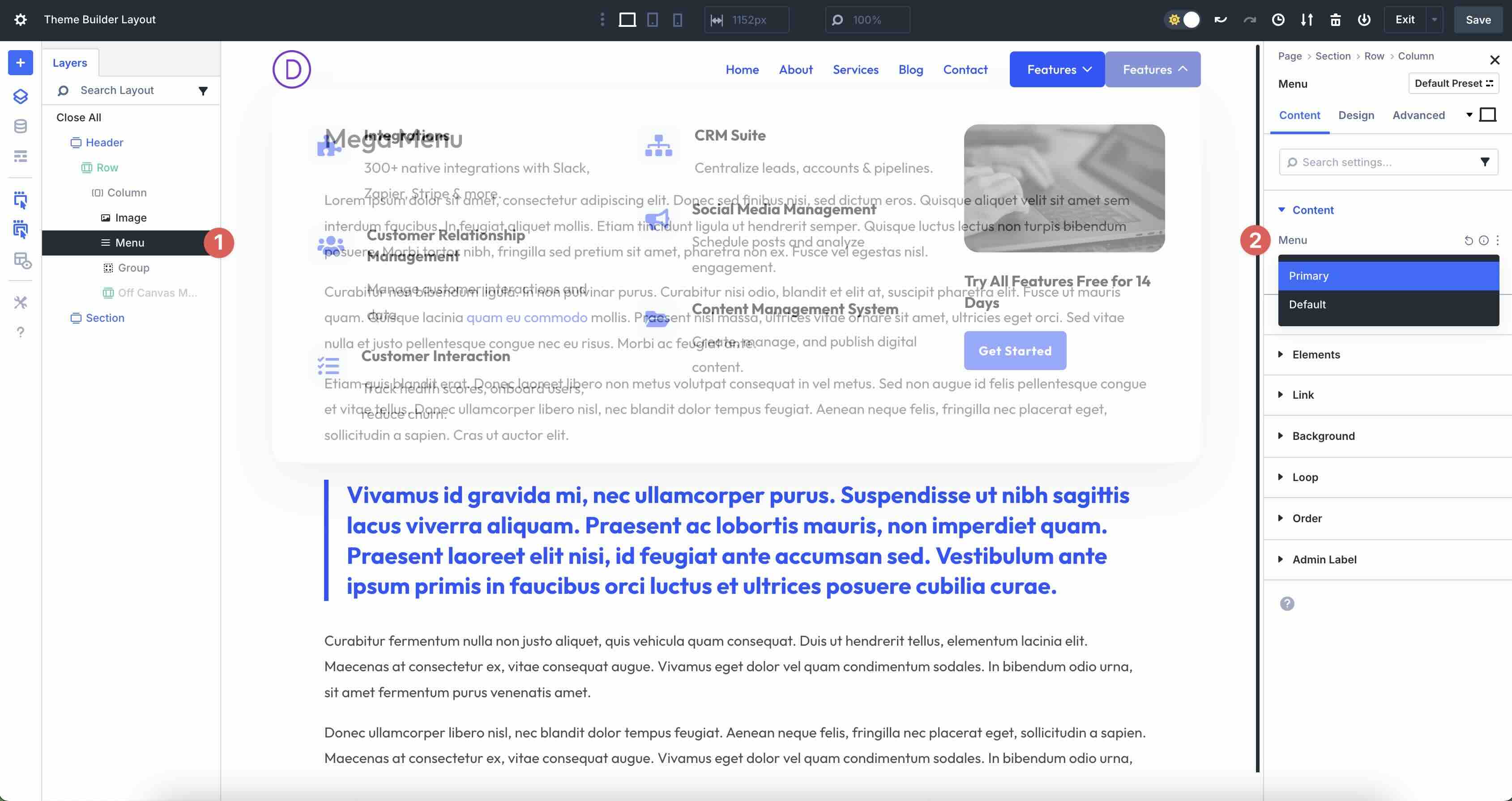
Fold the Header section and search for the Menu module. In the Contents tab, select your menu from the available options.
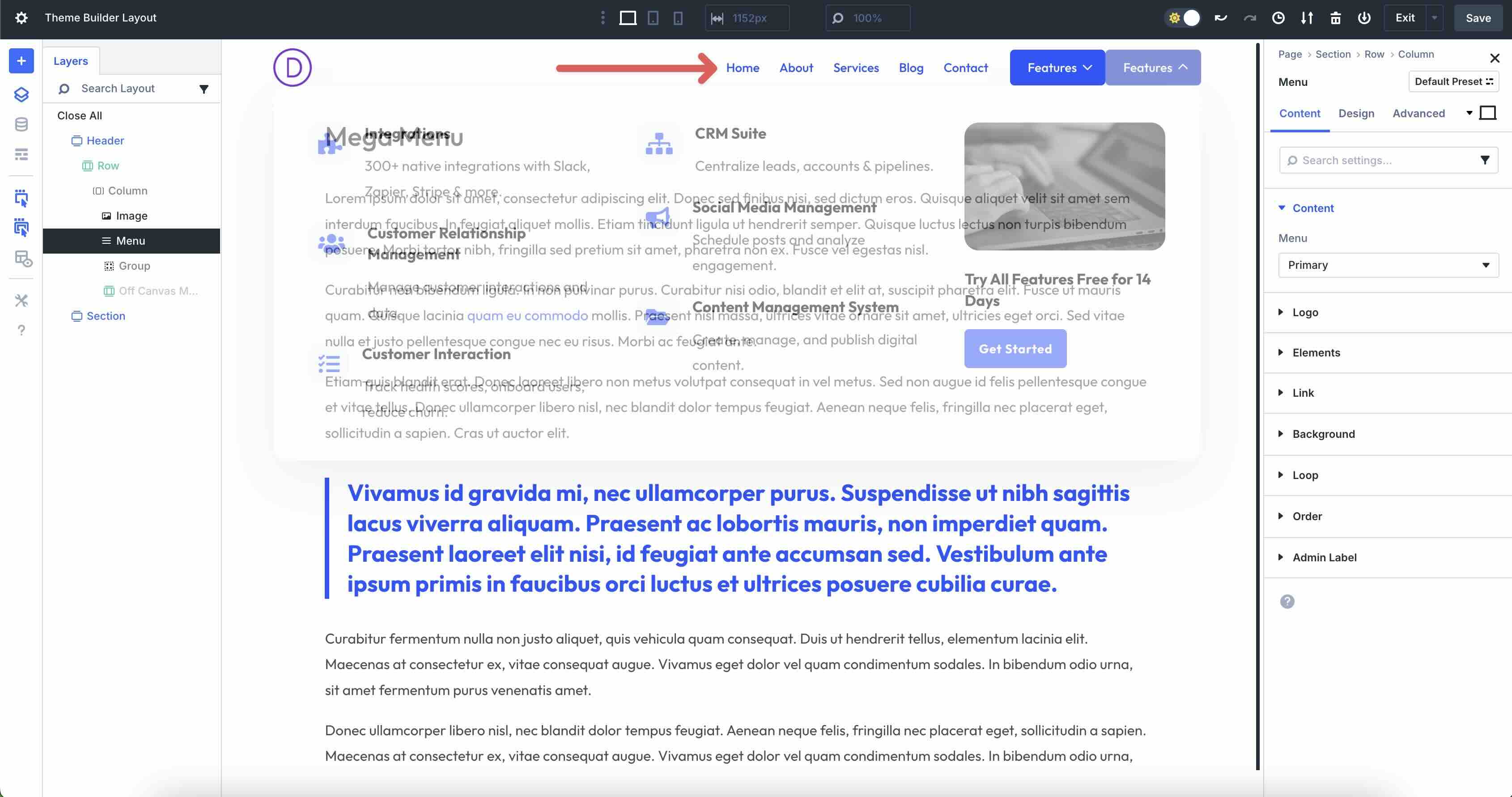
Once selected, the Menu module is updated with the menu items in the menu.
If you don’t have a Logo for your menu you can use the Logo menu and select an image from the Media Library or upload one. In this example, the logo is in an image module, dynamically set as the site logo.
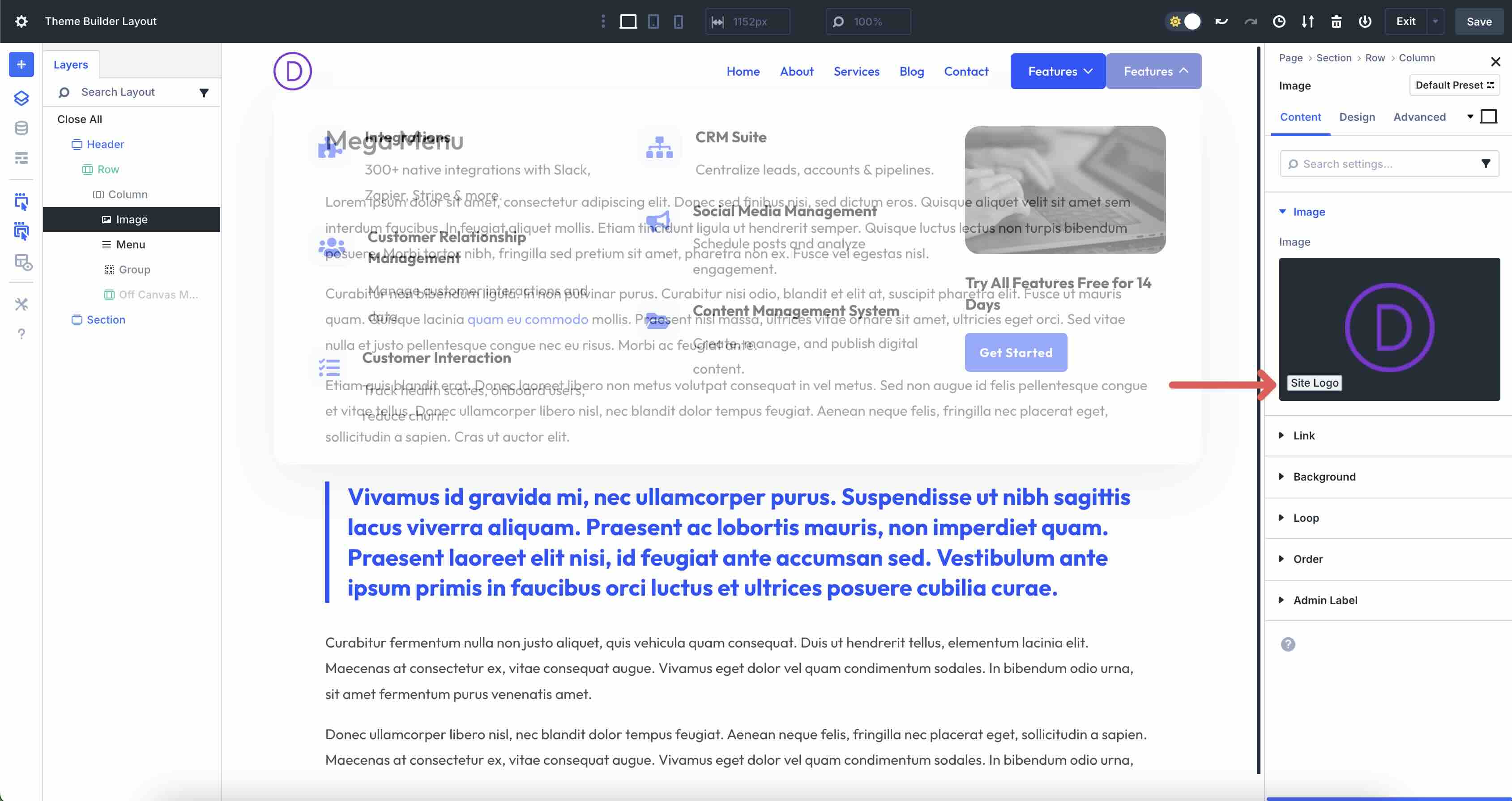
2. Adjust styles
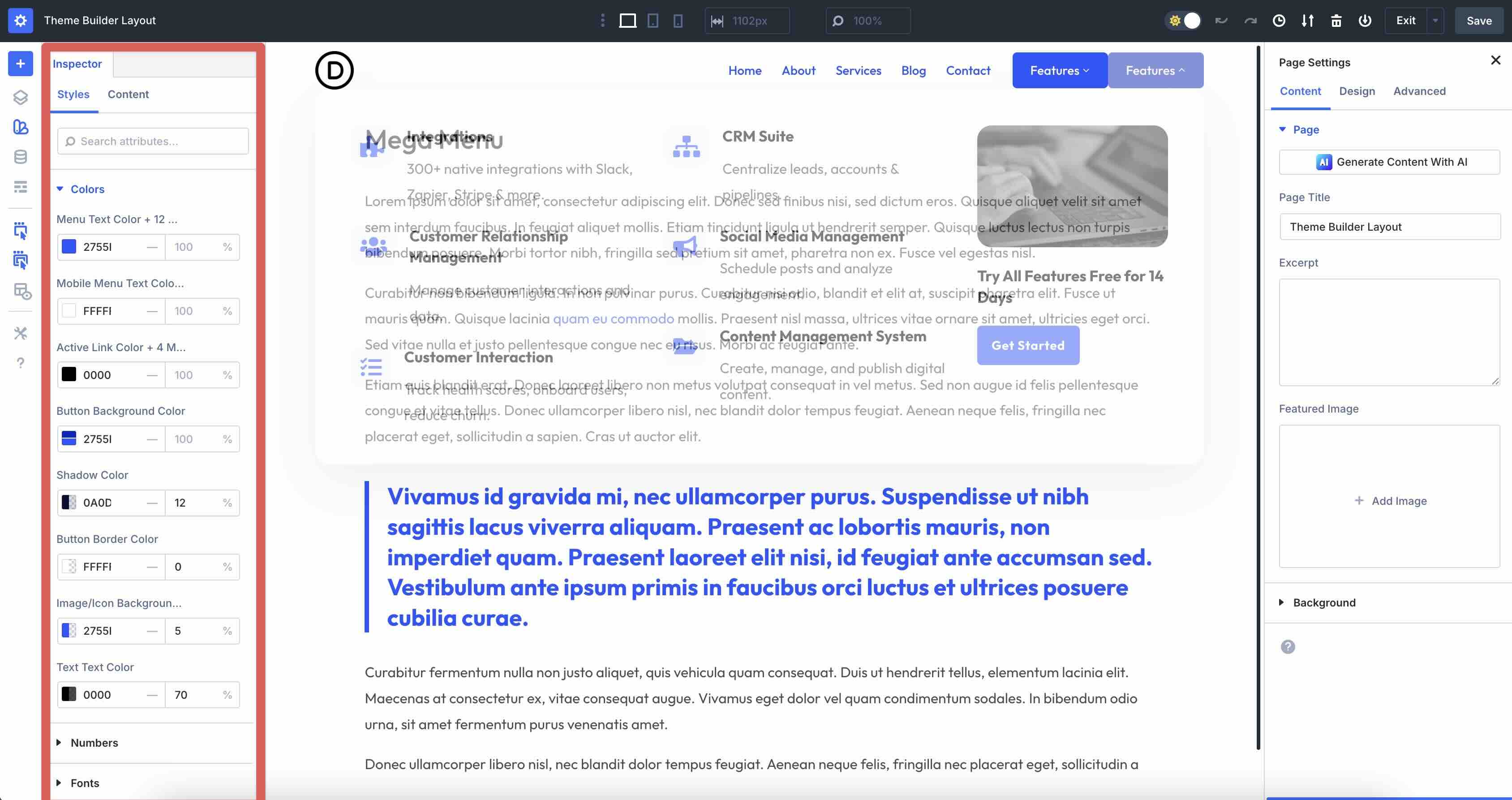
For standard menus, your global styles (colors, fonts, and button styles) are applied automatically. When using a pre-designed menu, there may be situations where you want to customize it to suit your brand. Use Divi’s Inspector feature to easily change colors, fonts, and numeric values to match your branding.
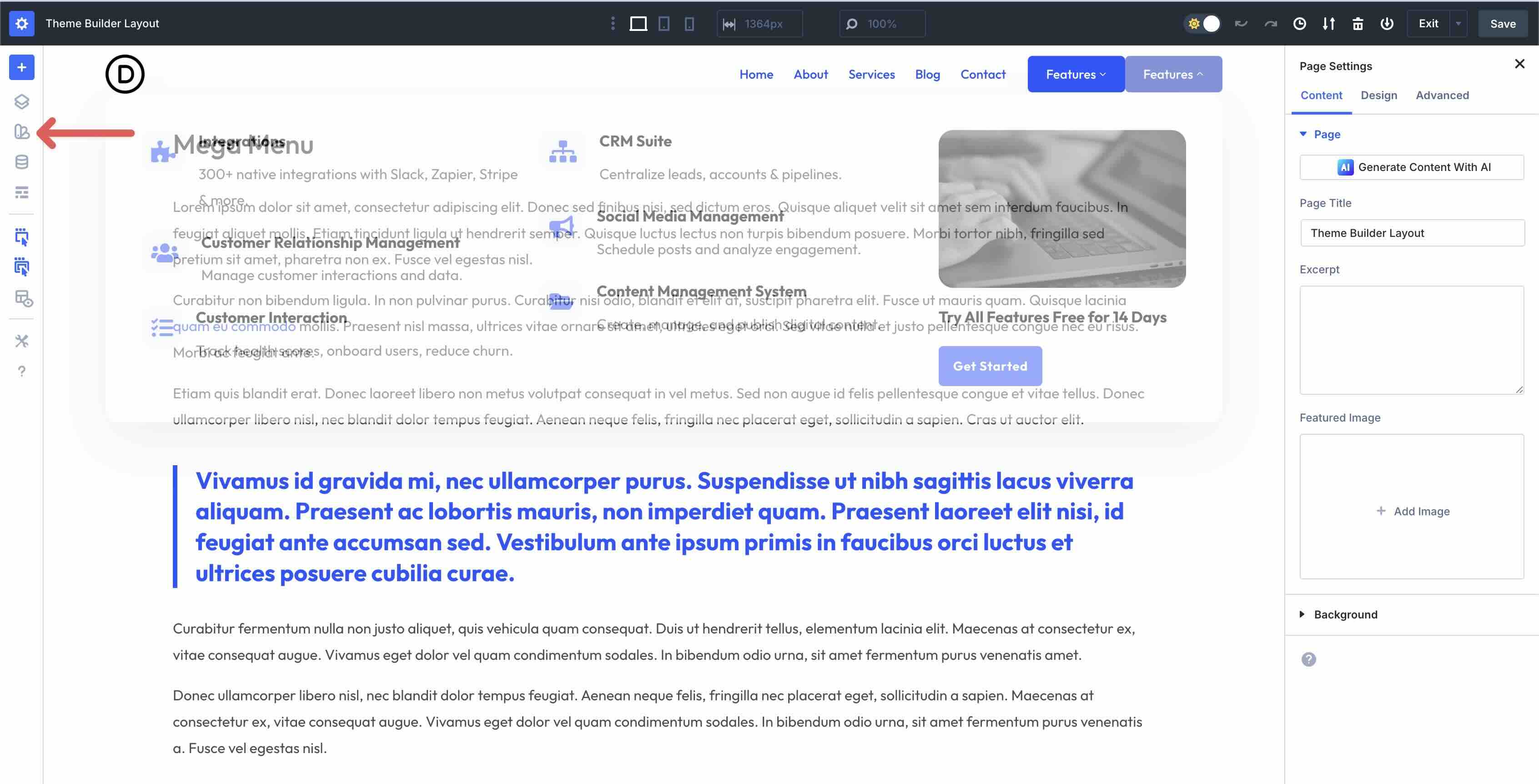
You can change the entire look of the layout with a few clicks.
3. Refine responsive behavior
You can customize how the menu behaves on different devices. This can be done using Divi’s customizable responsive breakpoints, the responsive editor, or at the module level with a quick dropdown menu.
4. Review and save the changes.
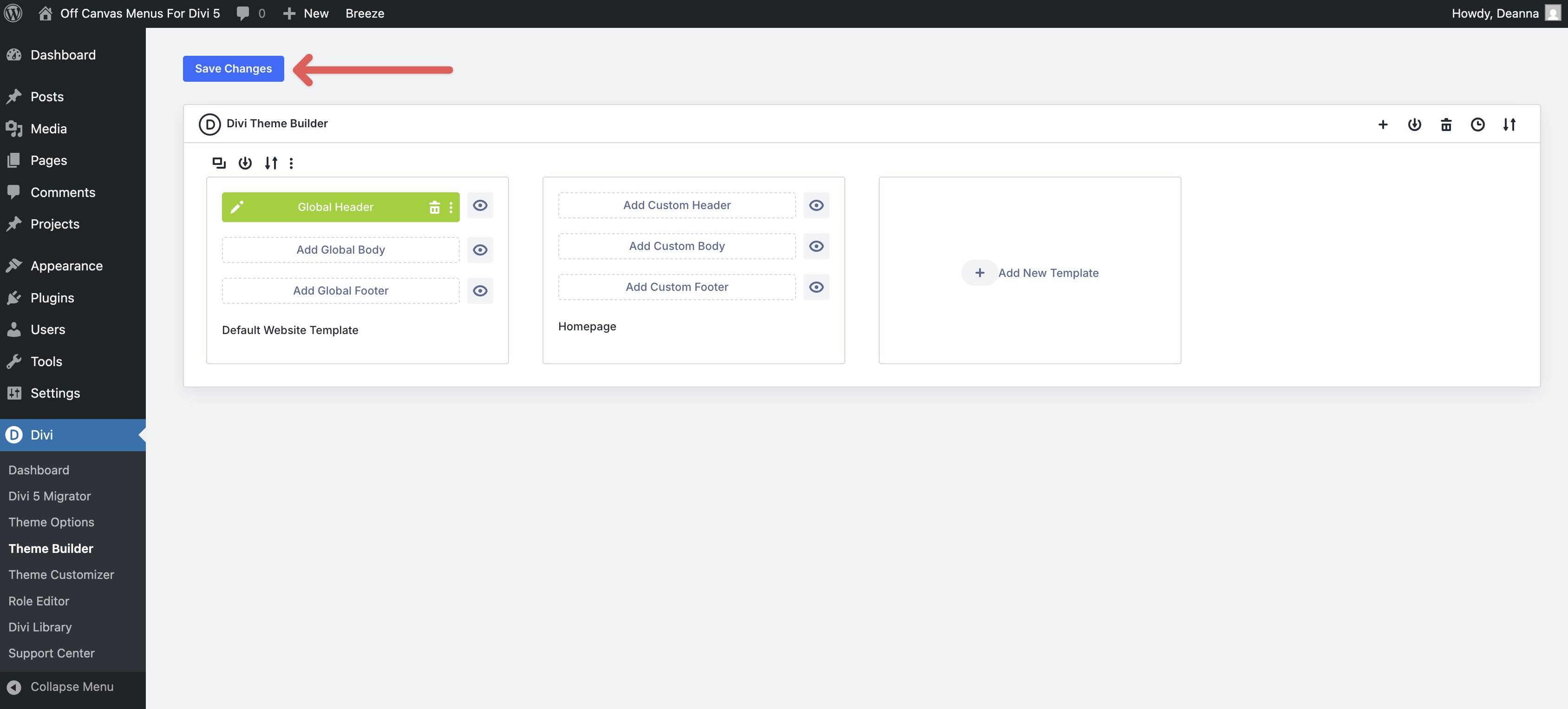
Once you are happy with all the adjustments, save the changes to your Global Header by clicking To rescue button at the top right of the Theme Builder.
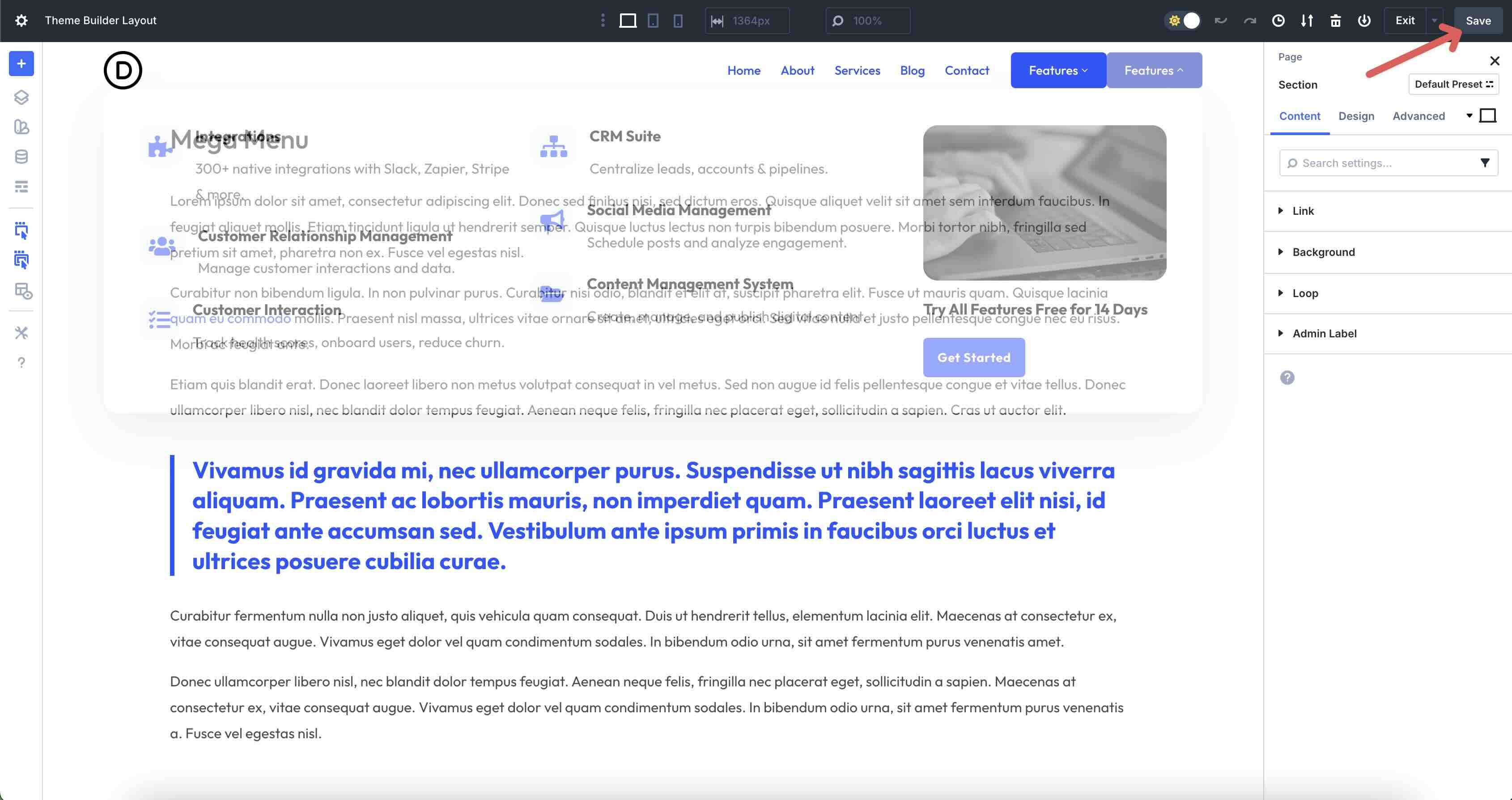
Exit the Theme Builder and make sure to save the layout by clicking Save changes knob.
Try Divi 5’s interactions today
These 6 Off Canvas Menus are a quick way to modernize your site navigation in Divi 5. Import the JSON files, load a layout in your Global Header and customize the behavior with Interactions. These layouts are also a great way to get familiar with Divi 5’s new features!
#Canvas #Menus #Divi #Free #Download