

In this post, we’ll show you what separates them and show you exactly when to use each one. Let’s get started!
Subscribe to our YouTube channel
What is the inspector of Divi 5
The Inspector analyzes each design element in your selection. It is a panel that collects all the colors, fonts, sizes, images and presets used in that element and its children. The panel groups everything by type. All your colors appear together instead of spread across different tabs and settings.
The same goes for typography, spacing and media. You can pin the Inspector under your settings panel so it stays visible as you work.
When you select a section, the Inspector lists each color used in that section. Change one and everything will update together. The Content tab displays text, media, code, and attributes.
On the Preset tab you can see which module and group presets are active. You can swap or delete presets here, and all instances will be updated at the same time.
The Inspector even shows the changed attributes within your presets, giving you control over each design layer.
How to use Inspector
Right-click an element in the Visual Builder. Select Inspect from the menu that appears.
The Inspector opens and shows you everything about that element, plus all its children.
Alternatively, you can use the new Inspector option in the sidebar.
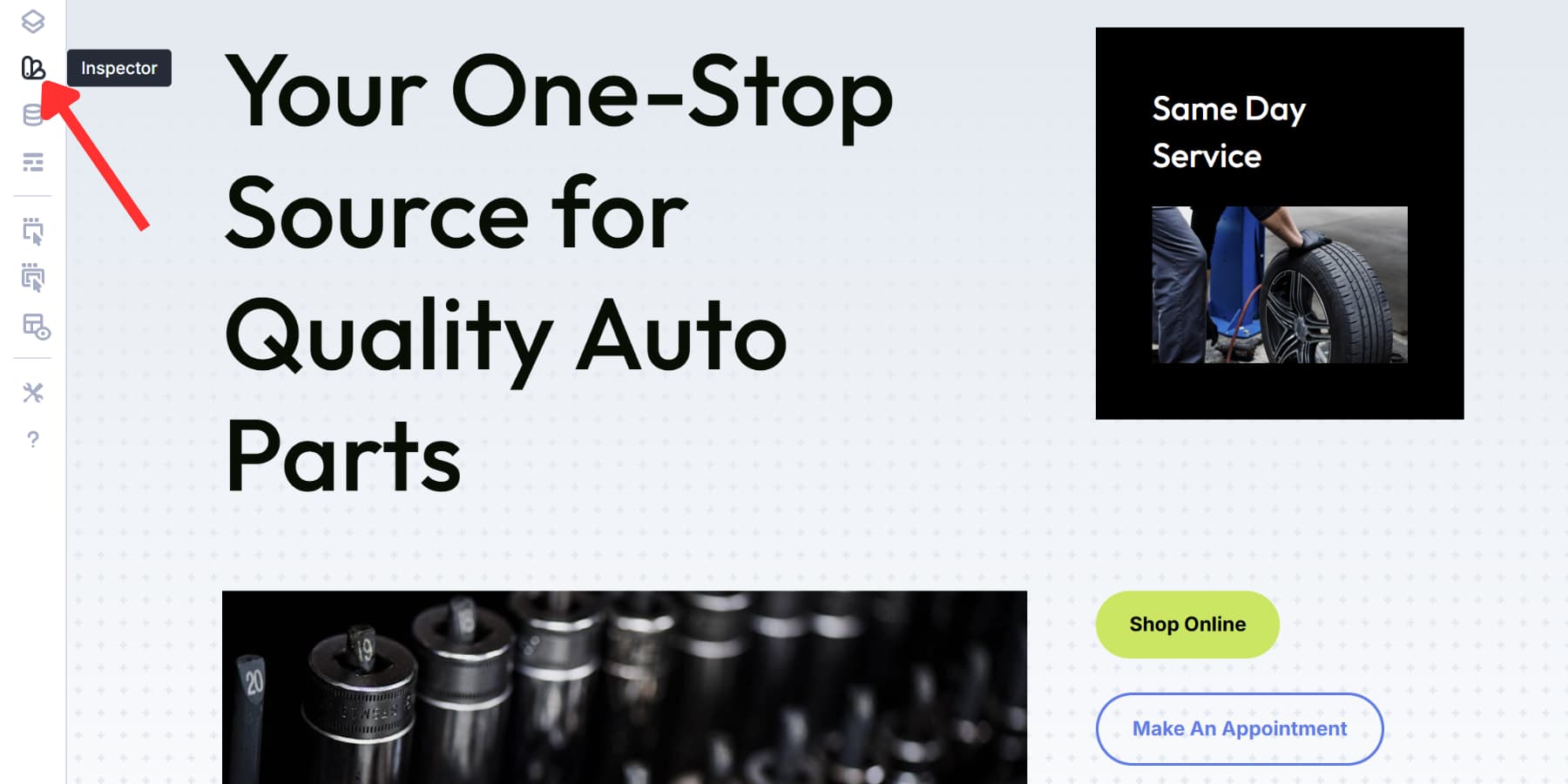
While the panel remains open, click around your page. Each click refreshes the panel with new data. You can even use the breadcrumbs in your settings panel to target a specific module.
Three tabs organize everything: Styles, Content, and Presets. Styles show colors, fonts, and spacing. Content reveals text, images, and code. Presets indicate which ones are active.
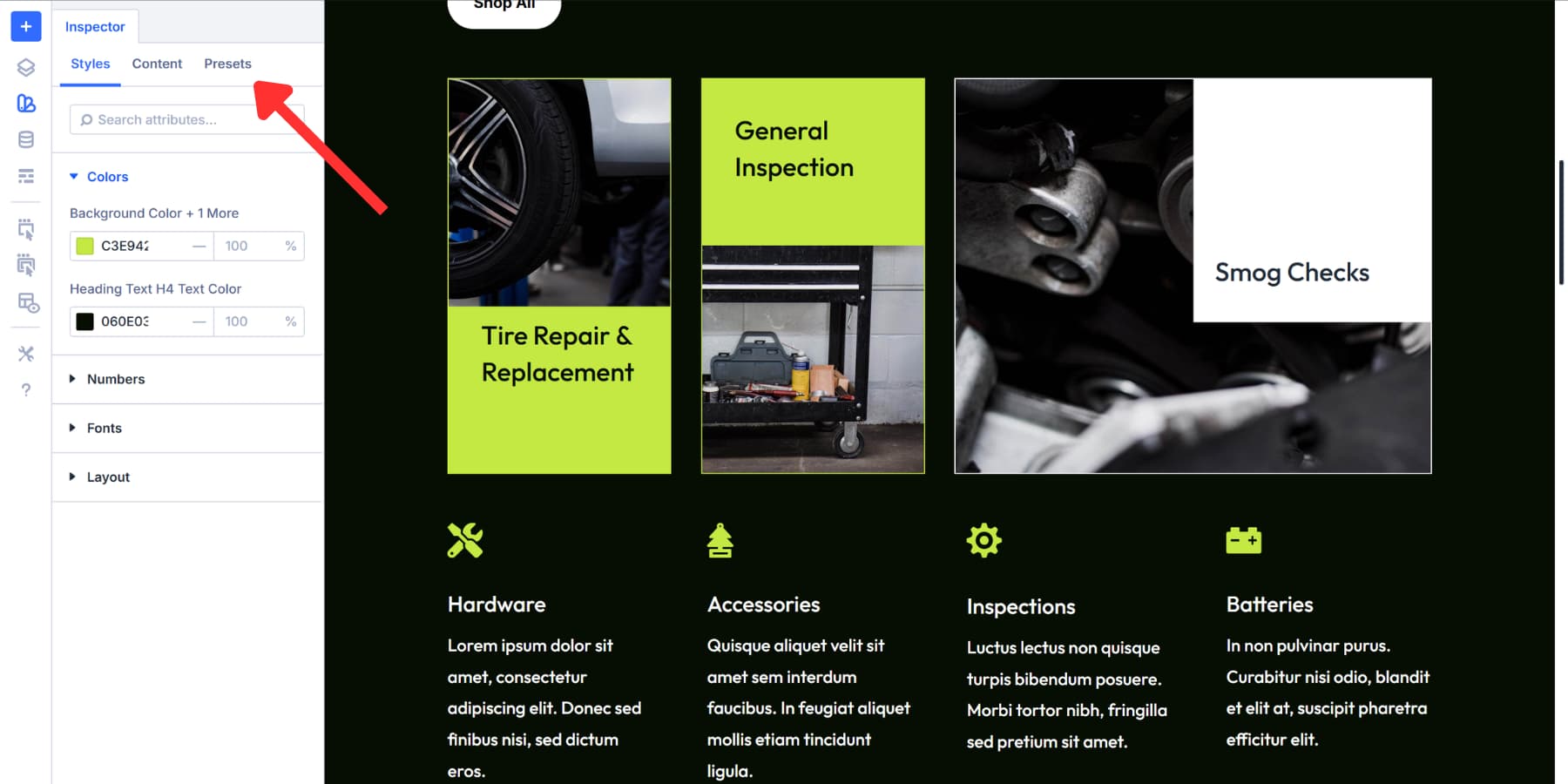
Click on a value to change it. Update a color and watch each instance within your selection shift. Presets work the same way. Exchange or remove one; all elements that use it change together.
What is Find and Replace in Divi 5
Find and Replace lets you swap design values on your page in seconds. Right-click a field in Visual Builder, choose a new value, and watch each matching instance update together.
You can replace colors, fonts, padding, borders, and virtually any design setting you touch. The tool works at any desired scale. You can change one module, update an entire section, or revise your entire page. You choose the range.
Most page builders require you to search through dozens of settings panels to change repeated values, which is a waste of time. Find And Replace takes everything in one go. You select a color field with #FF5733, type #2C3E50, choose where to apply it and click replace. Finished.
This really eases the pain when you need to update a site built months ago or handle customer revisions. You can also target specific element types. Replace padding only in columns, or swap fonts only in headings. The controls are exactly where you need them.
Use find and replace
Open the settings of each element in the Visual Builder. Find the field you want to change. Click the three dots next to that field and select Find and Replace.
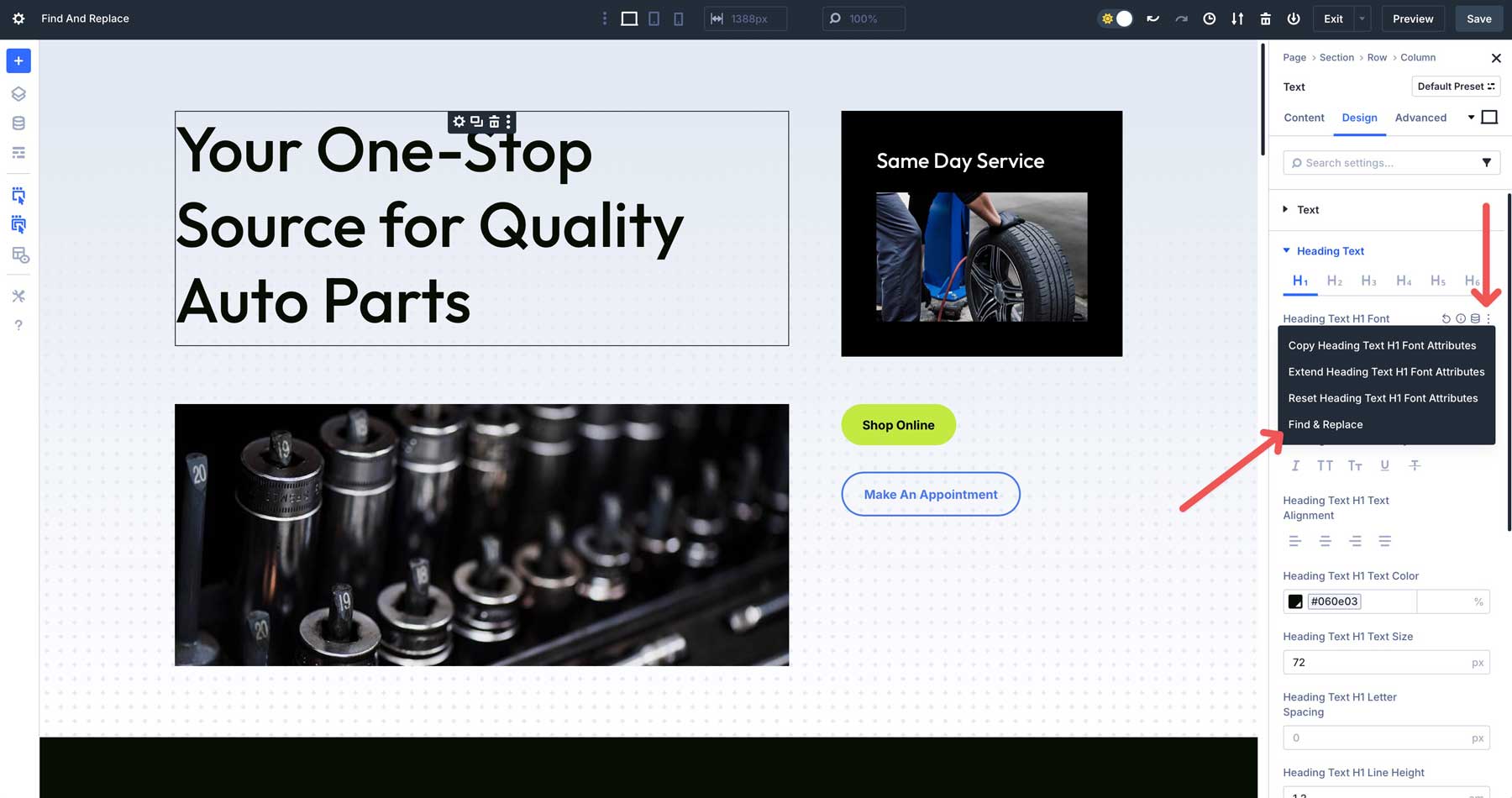
A panel will open with your current value already loaded. Type your new value in the replacement field.
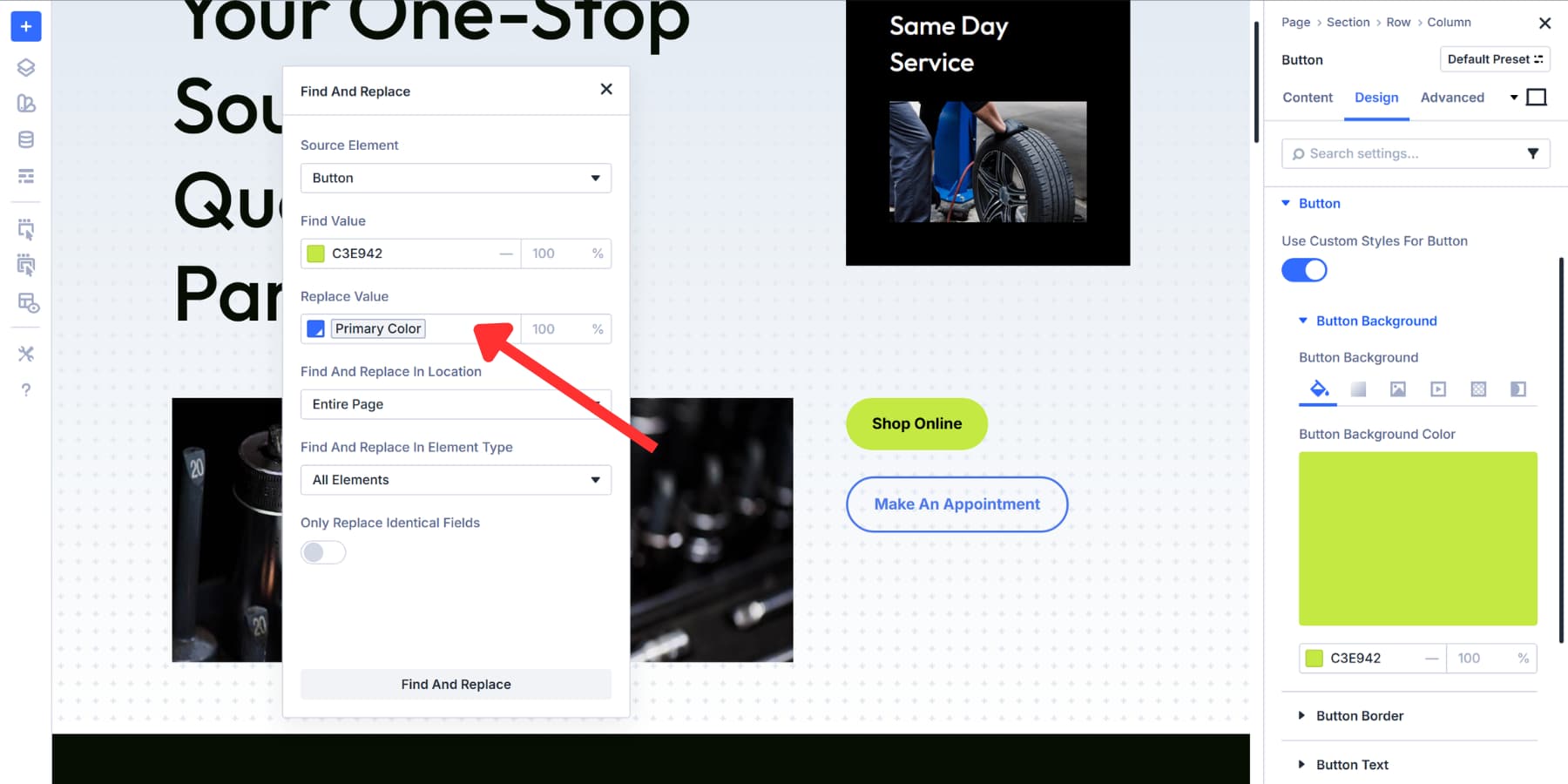
Choose your range from the drop-down list. You can replace just this element, this element plus everything in it, the parent container, or the entire page.
The element type selector narrows things down even further. Choose all elements if you want broad changes. Choose specific modules, containers, or other element categories if you need precision.
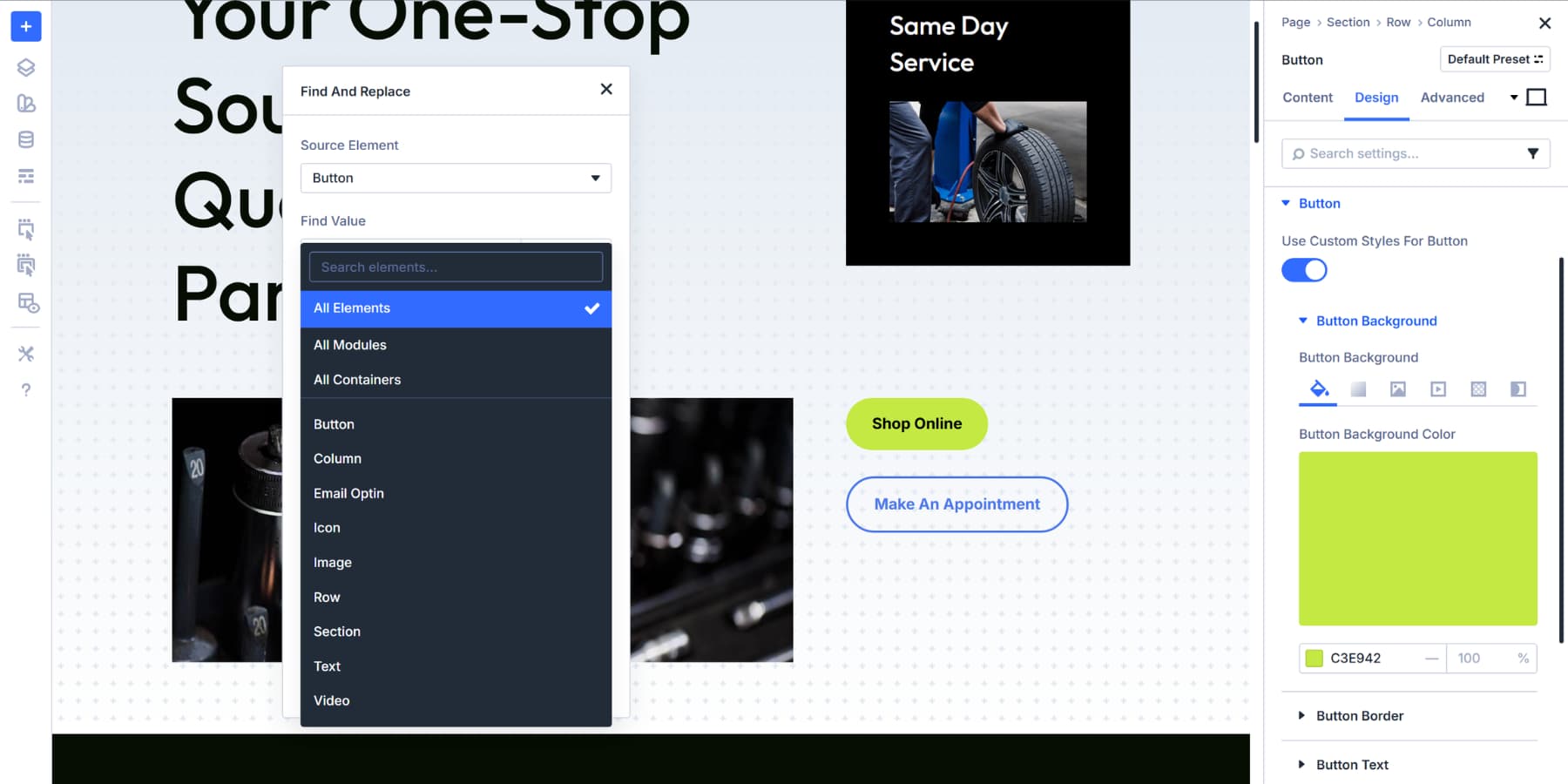
Enable “Replace only identical fields” when working with global values. This prevents a 10px border radius from accidentally replacing 10px padding. Without this option, Find and Replace will hit any field with that value.
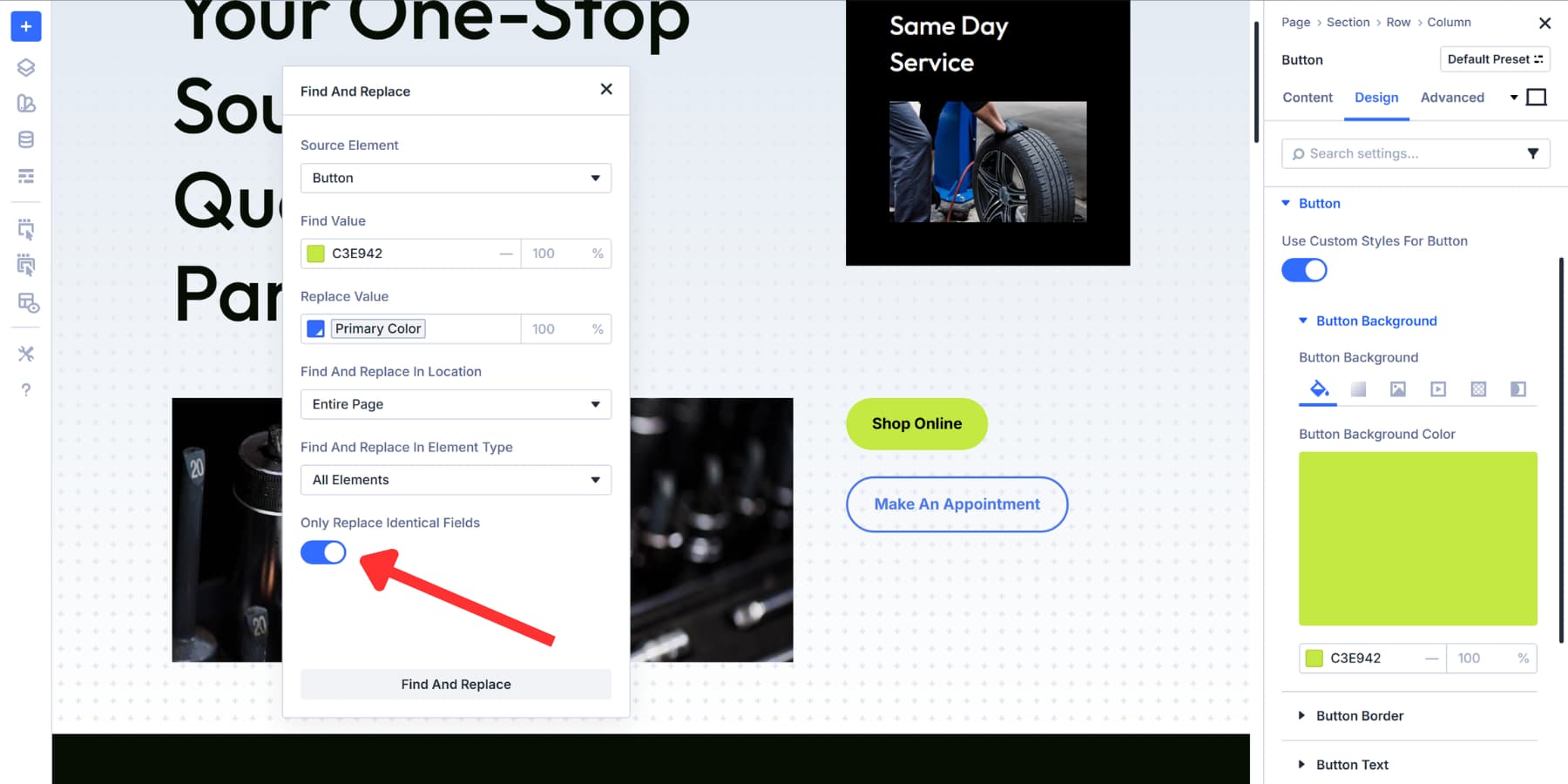
Click Find and Replace. Everything is updated. Once you know where you’re going, the whole process takes about ten seconds.
How do expanding attributes work in Divi 5
Extend Attributes copies every design element from one module and applies it to others on your page. Styles, content, presets or all three at once. You decide what gets copied and where it ends up.
This feature is taken from one of the most popular Divi 4 features: Extend Styles.
The feature also works between different module types. Add button styles from a contact form to any module with a button element. Or grab typography settings from one text module and spread them across specific headings on your site.
You can target individual fields within option groups. For example, you can copy just the background color of a button instead of its entire style.
Or expand the distance values of specific modules without touching anything else. The precision goes as deep as you need it to. This expands on what Divi 4’s Extend Styles could do. That version only handled basic style copying.
Extend Attributes adds content attributes, preset management, and compatibility between modules. Anything you change in one element can be extended to other elements.
A quick overview of how to use this feature
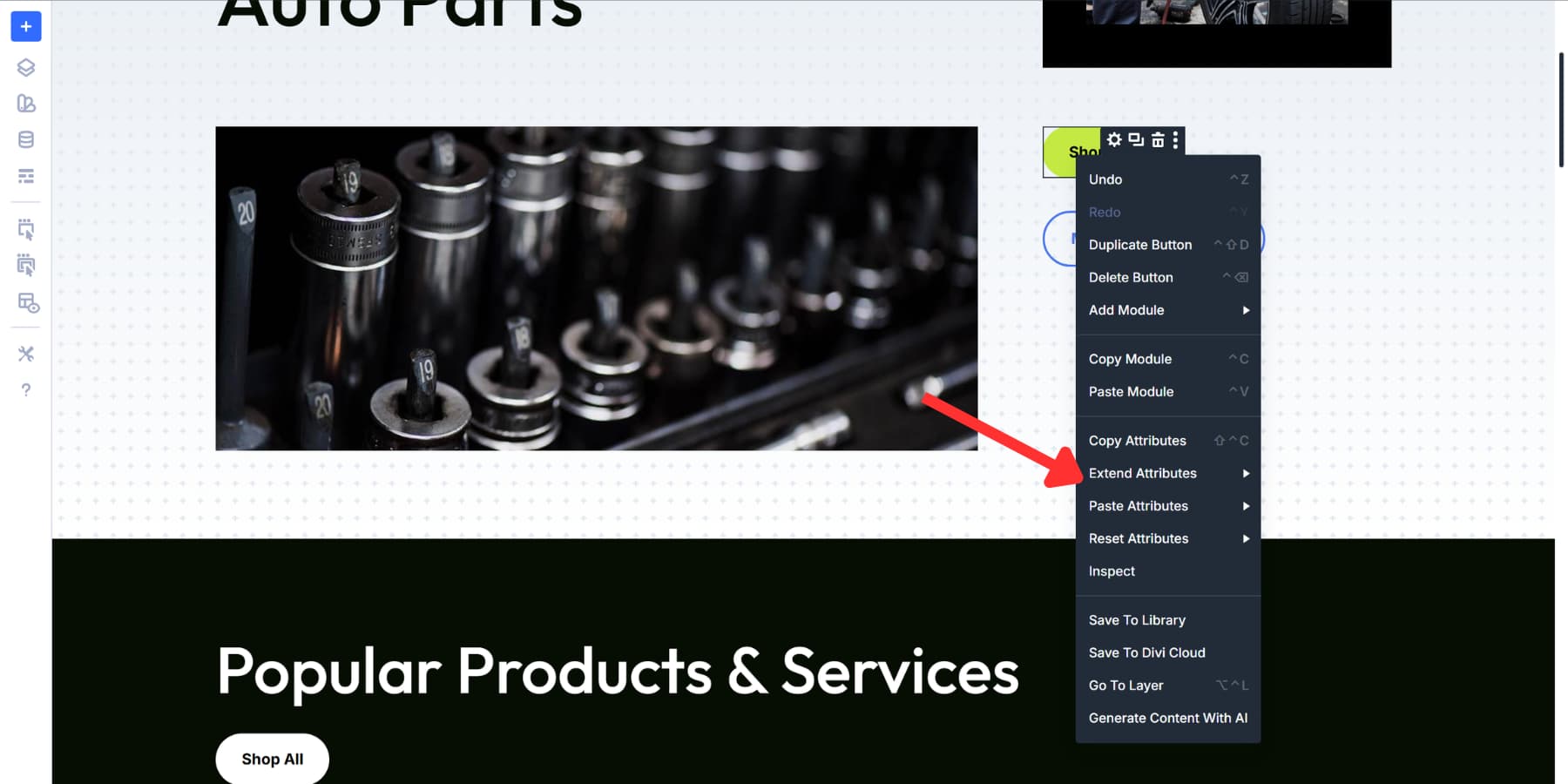
First style the element the way you want. Then right-click on the component and look for Expand Attributes.
The next panel allows you to control everything. If the source element is not already set, select it. Choose where to apply the changes: the current column, row, section, or entire page. Select which element types are updated: all modules, specific ones, or categories such as containers.
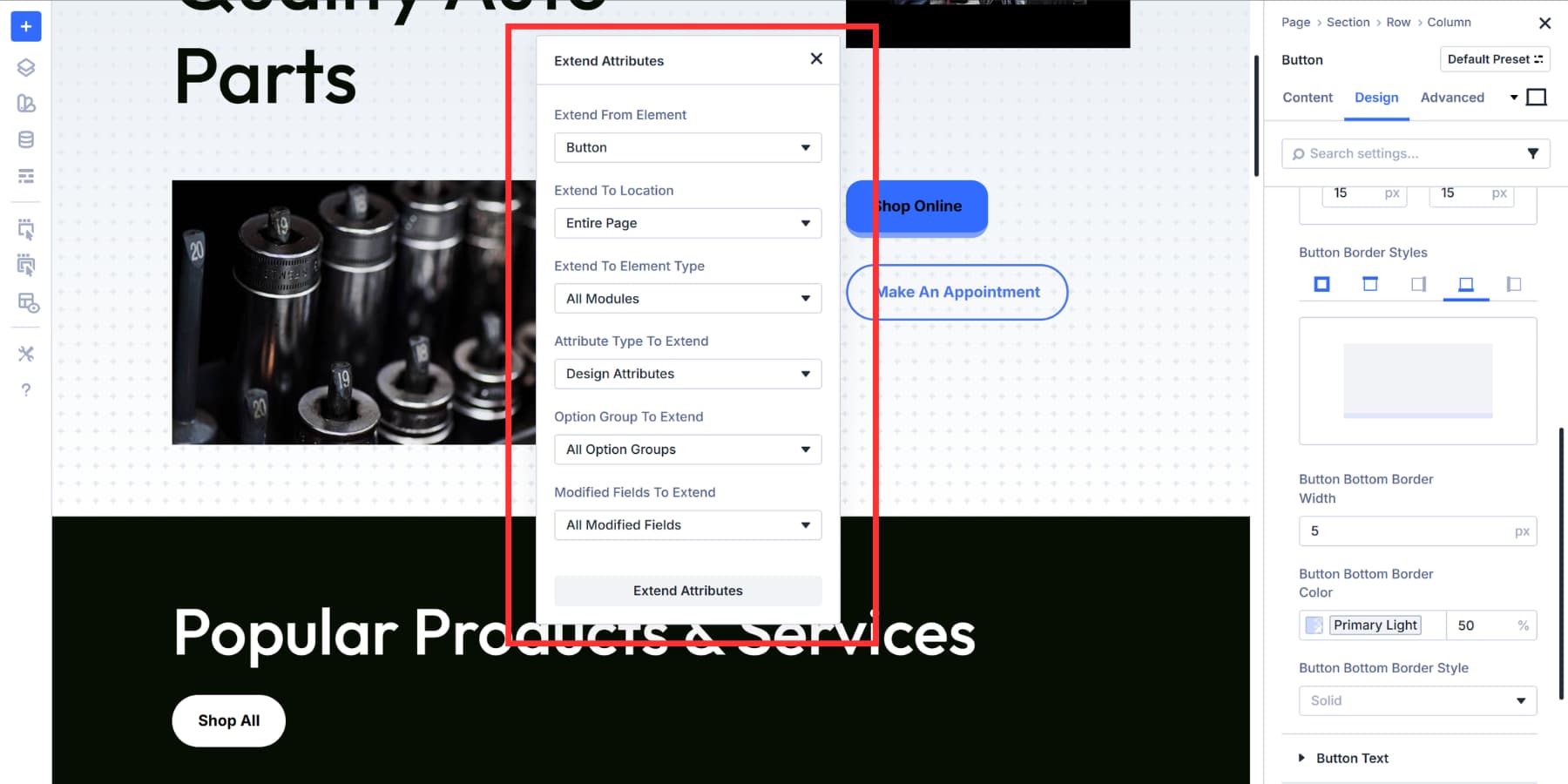
Select what you want to renew. Styles include colors, fonts, and spacing. Content includes text, images, and code. Presets allow you to synchronize preset assignments between elements. You can expand all three categories together or choose individual option groups and fields.
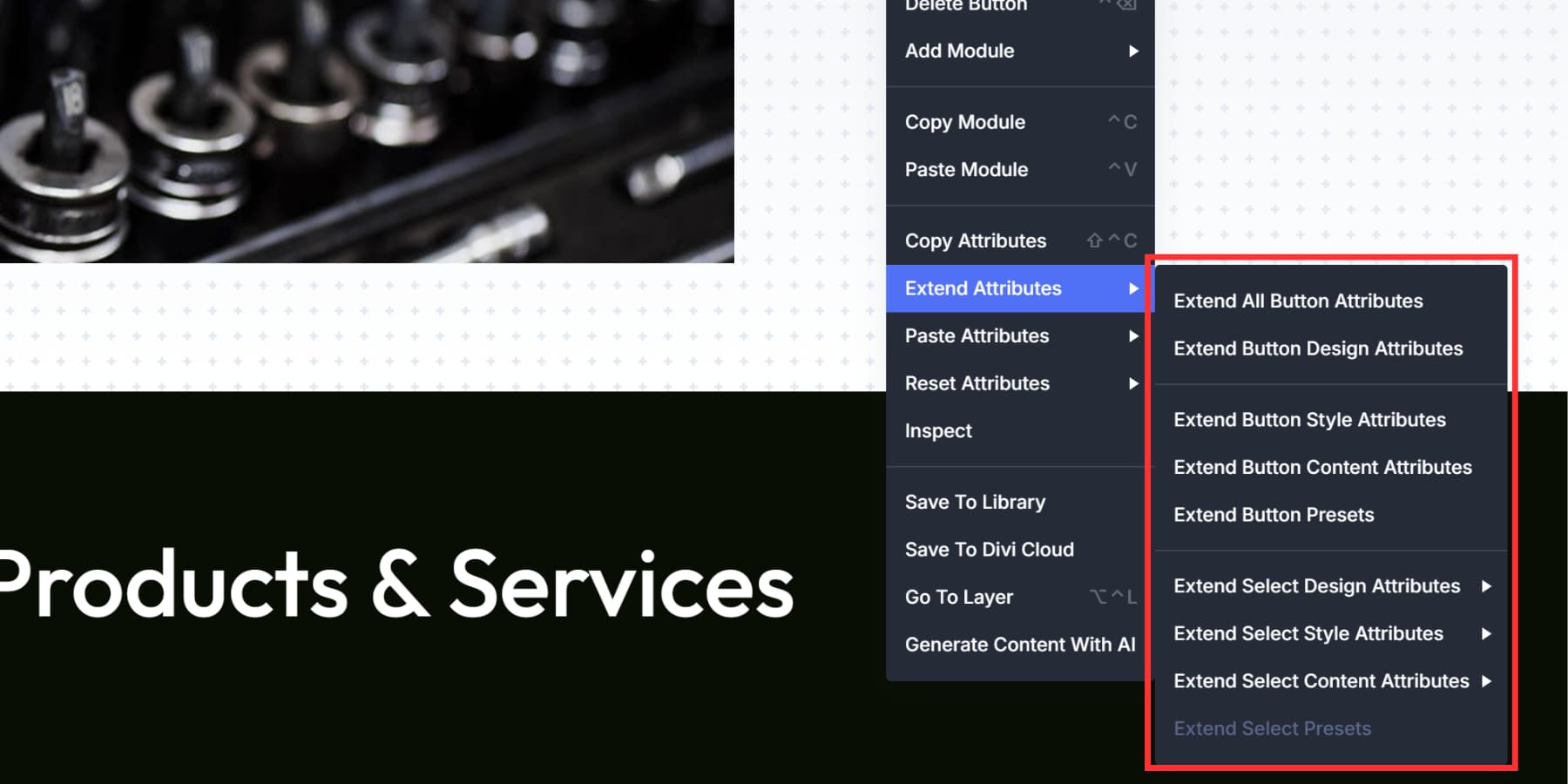
To save time, you can hover over the Expand Attributes option. You will then see a list of options, split into different attributes. These shortcuts take fewer steps if you know exactly what needs to be copied.
Then what is the difference
All three speed up your work, but they address different problems. The confusion can arise because they have some overlap in their scope: colors, fonts, spacing, and other design values. The difference is in the way you deal with these values:
When should you use Inspector?
The inspector collects and shows. Open it on any element and you’ll get a full inventory of everything in that selection, organized by type: all colors in one list, all fonts in another, and all presets together.
You’re not looking for something specific; you see the whole picture. Click on a value and change it. Everything that uses that value is updated together. This works when you need to see what’s in your selection and make edits from that clutter-free view.
For example, if someone created a page months ago and used five different, almost identical shades of gray, you might want to harmonize them. Open Inspector in that section and you’ll see all five listed together. Choose one and change it. This also helps if you inherit a site from another designer. You have to know what is really there before you start changing things.
When should you use Find and Replace?
Find and replace queries and swaps. You know exactly which value needs to change. Right-click a field, enter your replacement value, choose where to apply it, and run. The tool finds every match in your range and changes it.
You start with a specific goal in mind, such as replacing fonts. You are making a known change and not checking what already exists. This also works if you switch from static fonts to variables. Right-click on the font, choose your variable and replace it. Finished.
Take this as an example: a company switches from orange to teal. You can open each module and cycle through the tabs, or right-click the orange once and toggle each instance on the page. It takes about ten seconds.
When should you use expand attributes?
Extend Attributes copies and applies. You’ve built something worth replicating. Choose that element as your source, choose which properties to copy, select your targets and push those properties.
You complete styling the first price card. Three others need the same look. Extend these properties to the rest. Or you set up CTA buttons on a landing page. Get one right, then copy those attributes to the others. You don’t fix things afterwards. You build with consistency from the start.
The difference illustrated
Still confused? Here’s a quick table showing all the differences side by side:
The pattern becomes clear after a few uses:
- Inspector for viewing and bulk editing of grouped values.
- Search and replace for targeted exchange of specific values.
- Extend attributes to copy properties from source to targets.
Streamline your web design workflow in Divi 5 today!
These features exist because building pages doesn’t have to be a chore. Divi 5 puts them in your hands, so you can build sites the way you actually want to work: faster setup, sleeker designs, and fewer clicks.
The tools are already present in your Visual Builder. Right click, choose one and see what happens. Your workflow will change as soon as you start using them. Build something today and test it yourself.
#Inspector #Find #Replace #Expand #Attributes